
Ask an AI about this page
 ChatGPT
 Claude
 Perplexity
 Google AI Mode
 Microsoft Copilot
 Grok
Grok Mistral Le Chat
Create an API token
Updated

An API token lets your own website, app or AI agent work with your BCL account without your password. You create tokens in BCL and choose what each one may do. Only Admins can create them.
For the endpoints and request format, see the BCL API reference. To connect an AI assistant, see Connect Claude or ChatGPT to BCL or Set up other AI apps.
Where tokens live
Section titled “Where tokens live”API tokens are on the Integrations page:
-
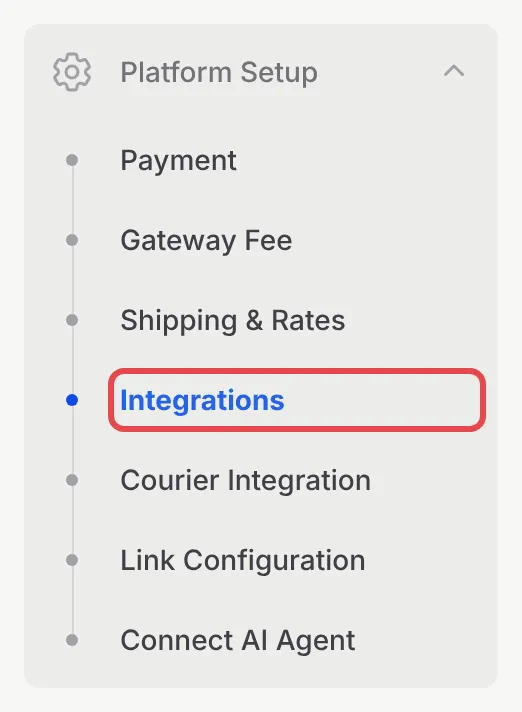
In the sidebar, go to Platform Setup → Integrations.
-
Open the API Token tab.

The tab has two sections: API Tokens, your own tokens, and Connected Apps, the AI apps you signed in to with OAuth.
Create a token
Section titled “Create a token”Each Admin can have up to 10 tokens. To create one:
-
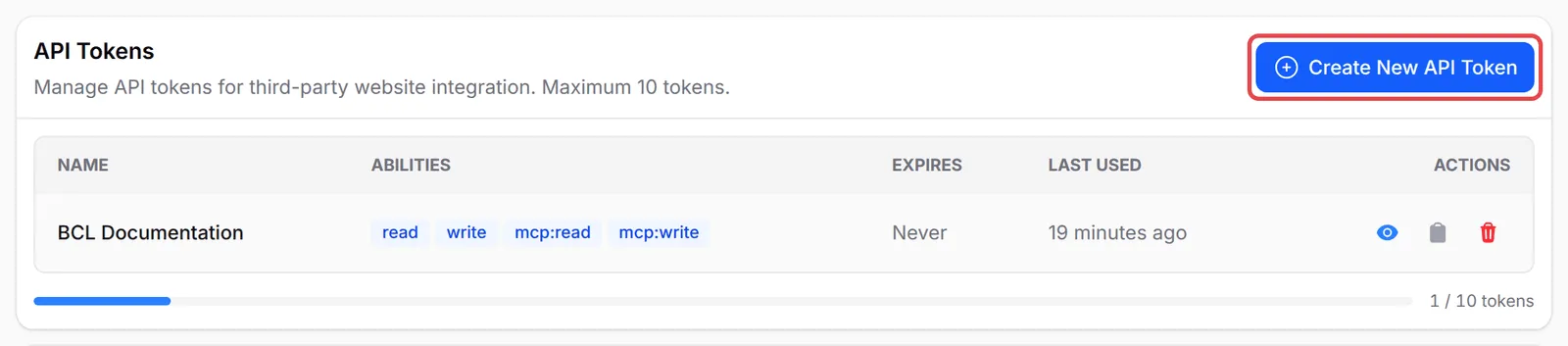
On the API Token tab, click Create New API Token.
-
In Token Name, enter where the token will be used, such as “Kopi Kampung Website”. BCL suggests a name, which you can change.
-
Under Permissions, tick only what the app needs:
Permission Lets the token Use it for API Read Read forms, transactions, customers, coupons and other data through the API Reports, dashboards, syncing orders to another system API Write Create payment links and change data through the API A website or app that creates payment links or updates forms MCP Read Let an AI agent look up your data Claude Code, Cursor, VS Code and other AI apps MCP Write Let an AI agent create and change things AI apps you trust to make changes 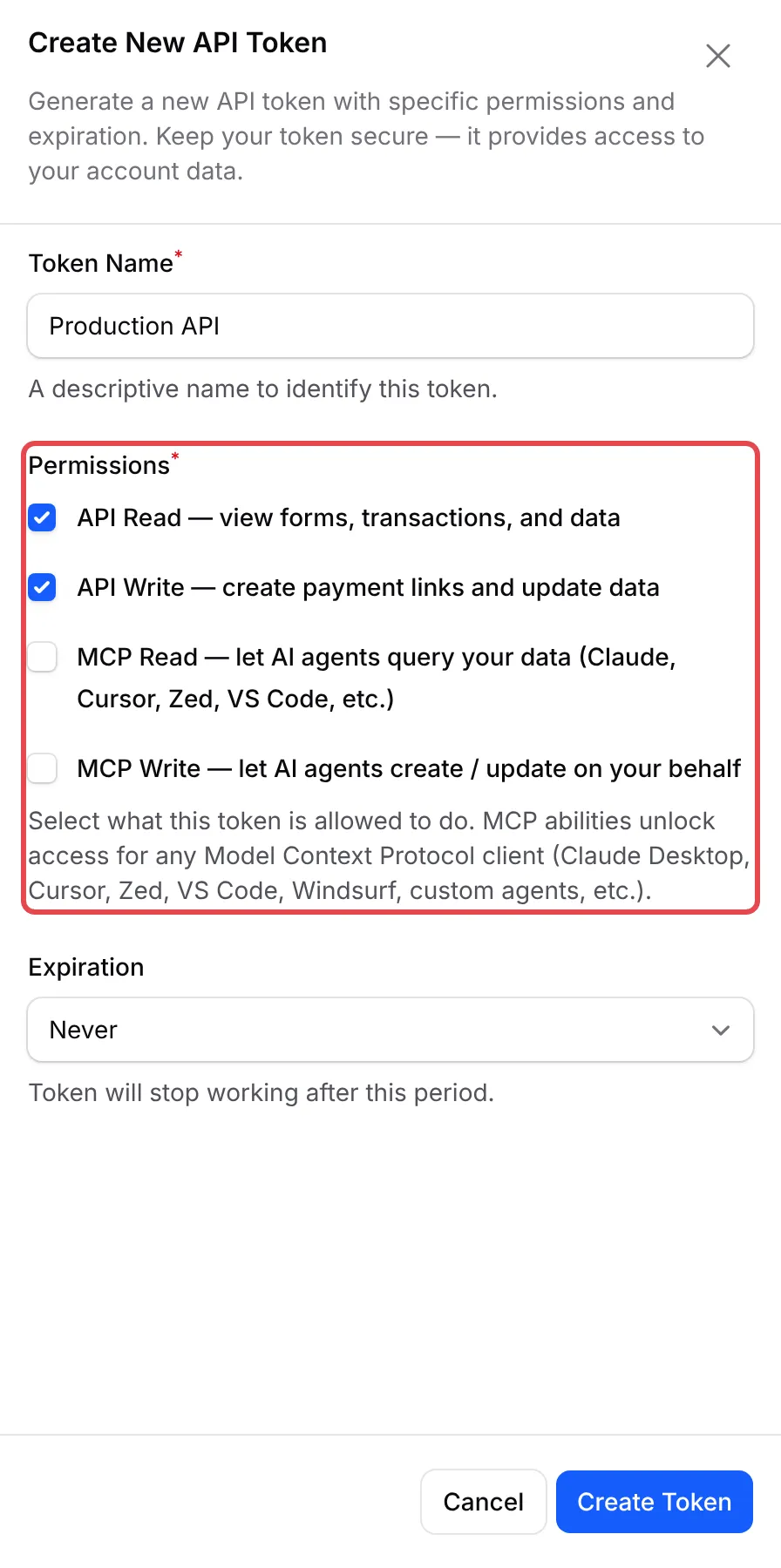
-
In Expiration, choose when the token stops working: Never, 30 days, 90 days, 180 days or 365 days.
-
Click Create Token. BCL shows the message
API token "<name>" has been created.and adds the token to the list.
API permissions and MCP permissions are separate. A token with only API Read and API Write does not work with an AI agent, and an MCP-only token does not work with the API. API Write alone cannot read, so tick API Read too in most cases. You cannot change a token’s permissions later: create a new token instead.
Use the token
Section titled “Use the token”A token starts with bcl_. Your system sends it in the Authorization header of every request:
Authorization: Bearer bcl_xxxxxxxxxxxxxxxxxxxxxxxxxxxxxxxxxxxxxxxxAccept: application/jsonThe API lives at https://api.bcl.my/v1. Also send your own User-Agent, for example MyShop/1.0: BCL refuses requests from default script user agents such as plain curl or python-requests. Every endpoint is in the BCL API reference.
The token sees the same data as you. Tokens belong to the Admin who created them, and other Admins do not see them in their list.
View or copy a token again
Section titled “View or copy a token again”BCL keeps your tokens, so you can see one again later. In the API Tokens list:
- Click the View token icon (the eye) to show the token under its name. Click it again to hide it.
- Click the Copy token icon to copy it.
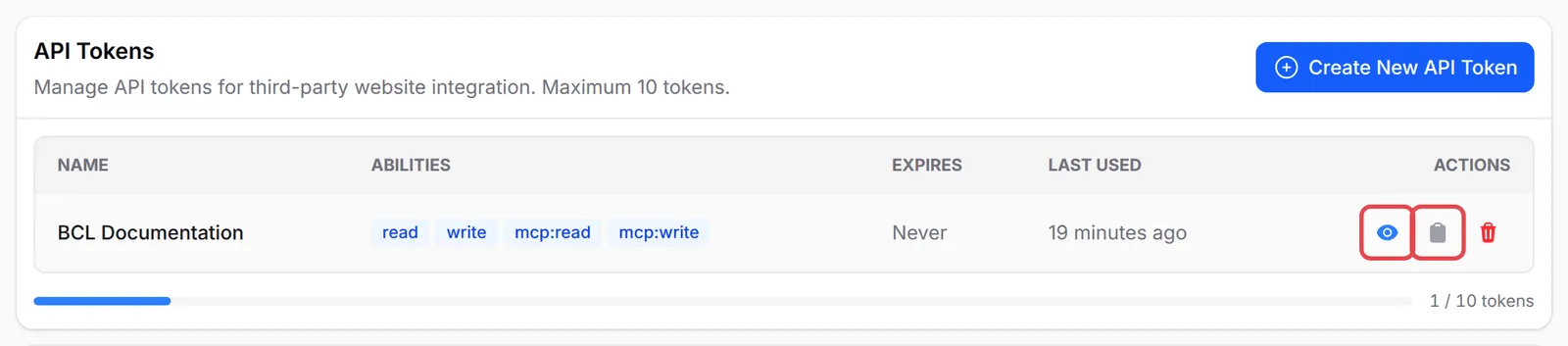
The list also shows each token’s Abilities, when it Expires, and when it was Last Used. An expired token shows Expired next to its name and can no longer be viewed or copied.
Delete a token
Section titled “Delete a token”Deleting a token cuts off every app that uses it. To delete one:
-
On the token’s row, click the Delete token icon (the bin).
-
In Delete API Token, click Delete Token.
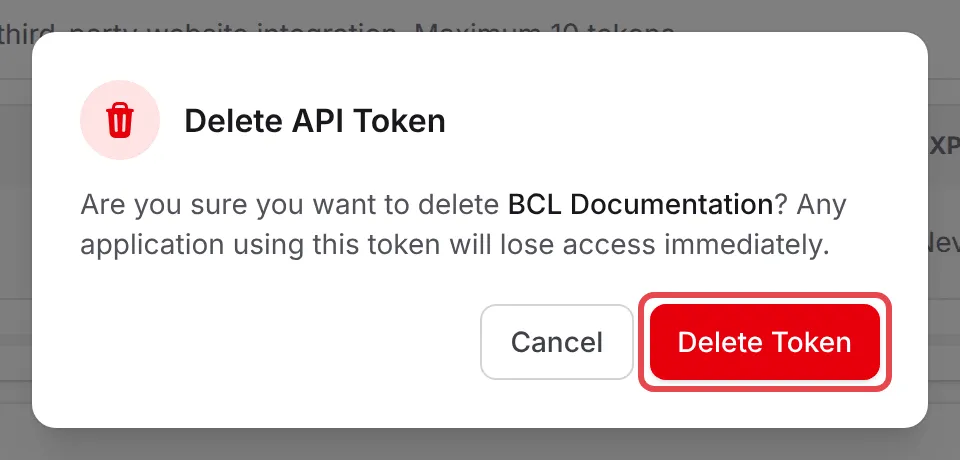
Any app using the token loses access at once. Deleting cannot be undone. If the app still needs access, create a new token and put it in the app.
Connected Apps
Section titled “Connected Apps”Connected Apps lists the AI apps, such as Claude, ChatGPT or Cursor, that you connected by signing in with your BCL account (OAuth). These use no token. For each app you see its permissions, when you authorised it and when it was last used.
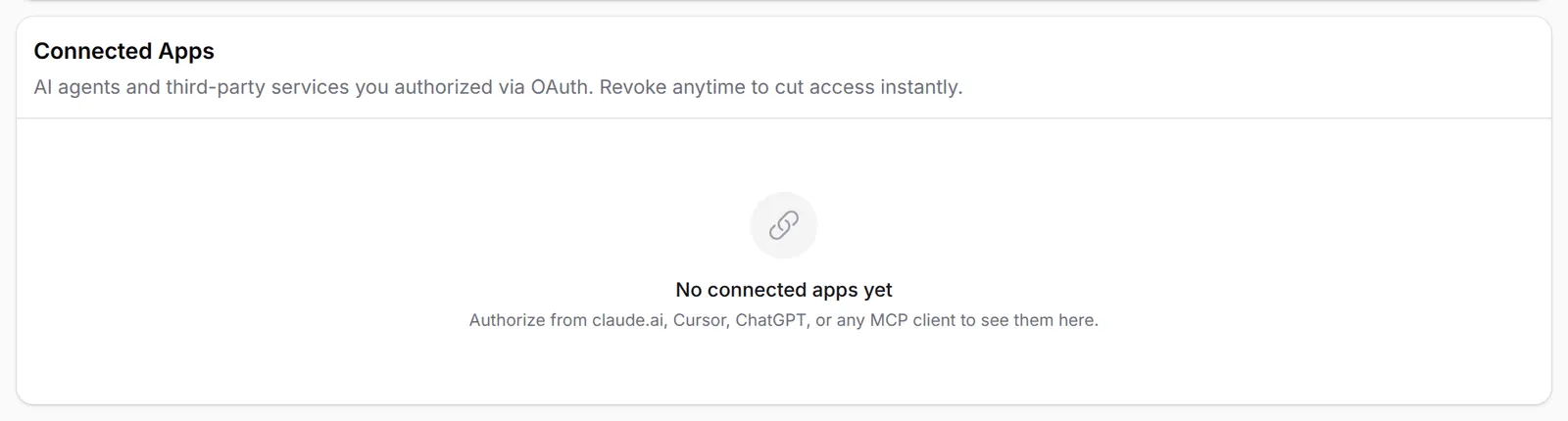
To cut an app off, click the Revoke access icon on its row, then Revoke Access. See Disconnect an AI app.
Tokens are keys to your account. A few habits keep them safe:
- One token per app. Name it after the app and, for AI tools, the computer. If one leaks, you delete only that token and the rest keep working.
- Remove access when staff leave. Tokens and connected apps belong to the Admin who made them, and other Admins cannot see them. Ask a leaving Admin to delete theirs first, and replace any token they had a copy of.
- Never paste a token in a public place. Keep it out of website code that visitors can see, public Git repositories, screenshots and chat groups. If one is exposed, delete it straight away.
- Set an expiry. A token with Never works until someone deletes it. Check Last Used now and then and delete tokens nobody uses.
Common issues
How do I get an API key to build my own integration?
Go to Platform Setup → Integrations, open the API Token tab and click Create New API Token. Tick API Read, plus API Write if your system creates payment links or changes data.
I lost my token. Do I have to create a new one?
No. On the API Token tab, click the View token or Copy token icon on the token's row. BCL keeps the token so you can see it again.
Why do I get "Token does not have the 'api:write' ability"?
The token was created without API Write. Permissions cannot be changed later, so create a new token with API Write ticked and delete the old one.
Was this article helpful?
Thanks for your feedback.
Sorry this didn't help. WhatsApp us and we'll sort it out with you.