
Ask an AI about this page
 ChatGPT
 Claude
 Perplexity
 Google AI Mode
 Microsoft Copilot
 Grok
Grok Mistral Le Chat
Add ticket types to an event
Updated

Each event can sell up to 20 ticket types, such as Early Bird, Normal and VIP. Every ticket type has its own price and stock, and optional settings like a sale price, a purchase limit and attendee details.
Add a ticket type
Section titled “Add a ticket type”Ticket types live at the bottom of the event form:
-
Go to Events → Events and click Edit on your event.
-
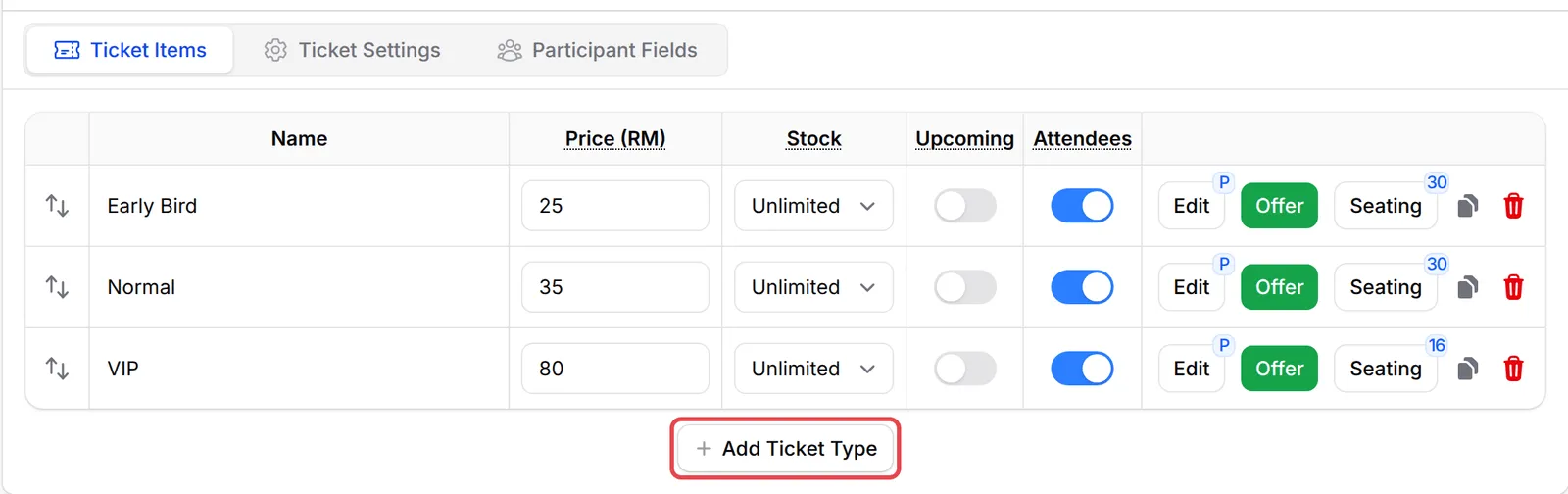
Under Event Tickets, on the Ticket Items tab, click Add Ticket Type.
-
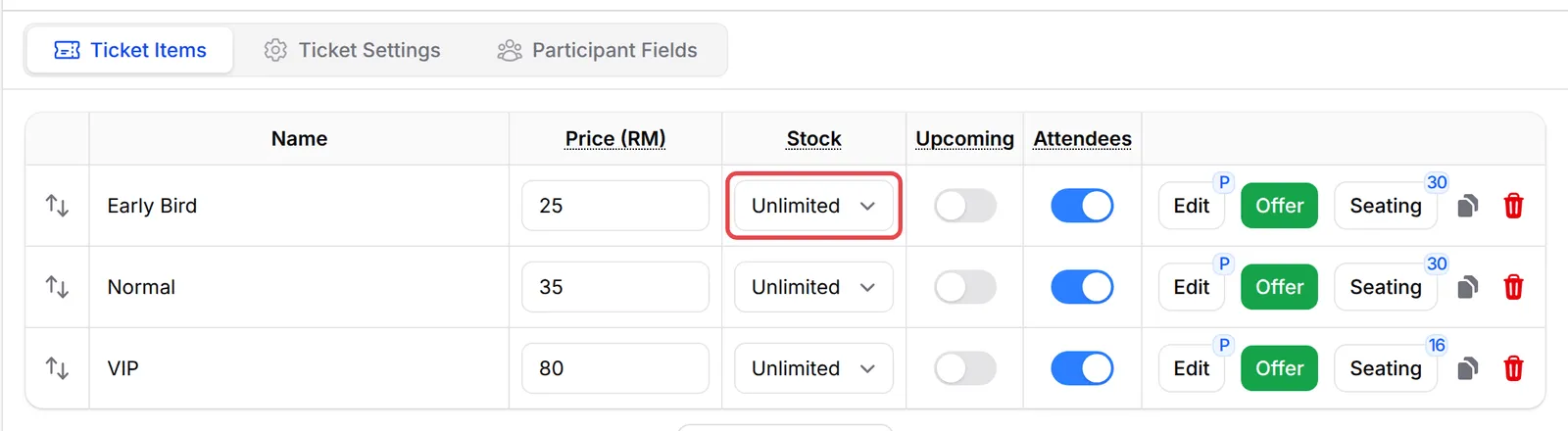
Enter the ticket name and its Price (RM). Set Stock to Unlimited, or to Limited and enter how many you can sell.
-
Turn on Attendees if you need the name and contact of each person, not only the buyer. Turn on Upcoming to show a ticket type that cannot be bought yet.
-
Click Update Event.
Change a ticket’s settings
Section titled “Change a ticket’s settings”For more options on one ticket type:
-
Click Edit on its row.
-
Set what you need, for example:
Setting Use it to Sale Price (Optional) Sell at a discount. It must be lower than the normal price. Purchase Limit Cap how many one customer can buy in an order. Ticket Description, Highlight Label, Ticket Image Describe the ticket on your event page. Active Hide the ticket type without deleting it (turn it off). 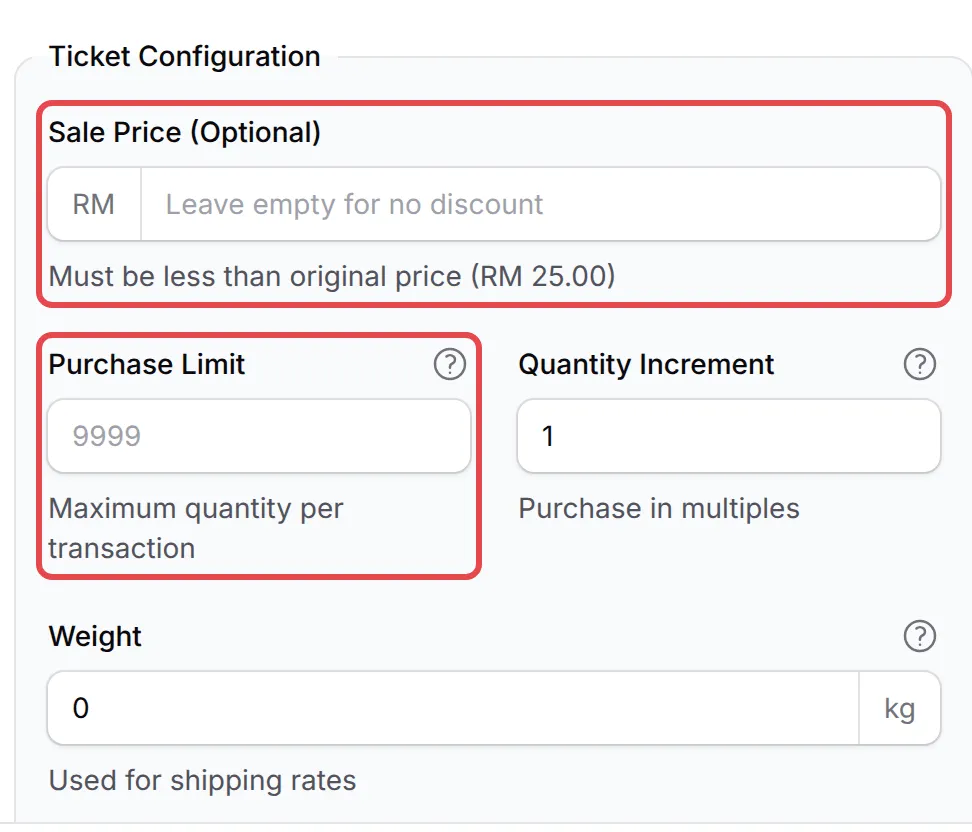
-
Click Update Ticket Settings, then Update Event.
Offer early bird and bulk prices
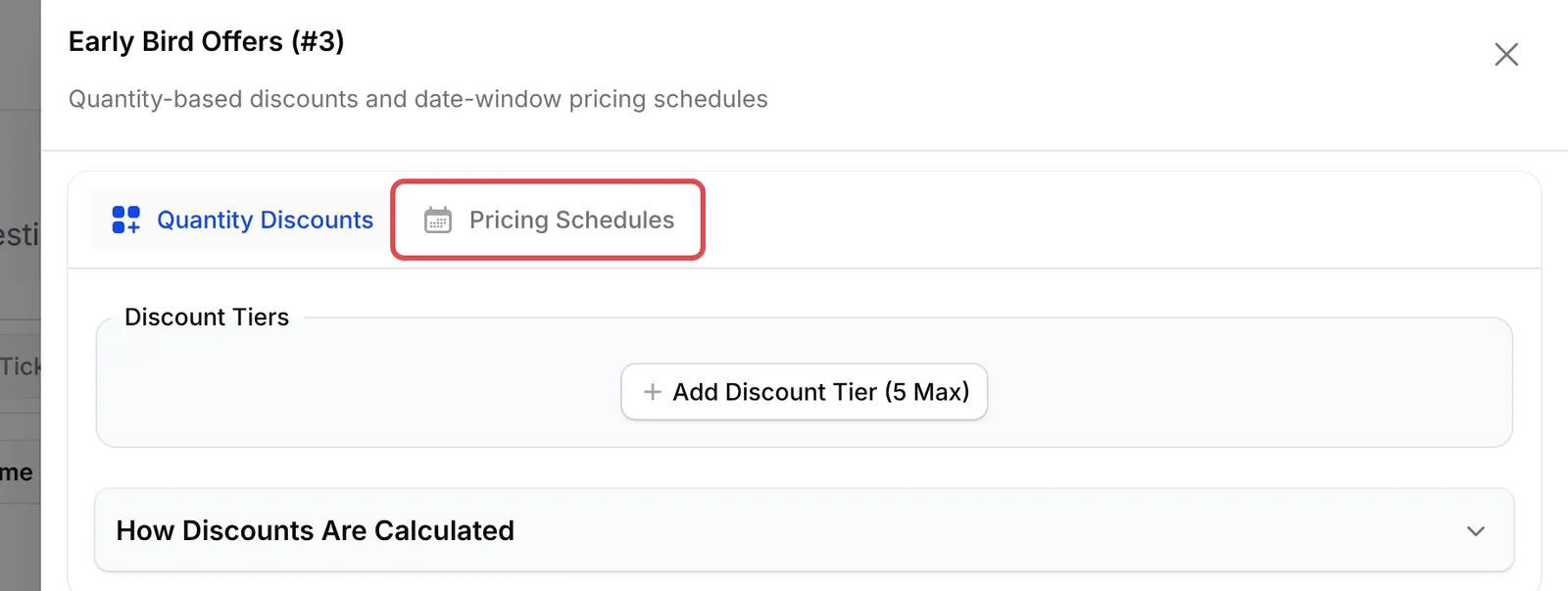
Section titled “Offer early bird and bulk prices”Click Offer on a ticket’s row. Quantity Discounts lowers the price when a customer buys more. Pricing Schedules sets a different price between two dates, for example an early bird price that ends a month before the event. Click Save Offers when you are done.
Ask each attendee a question
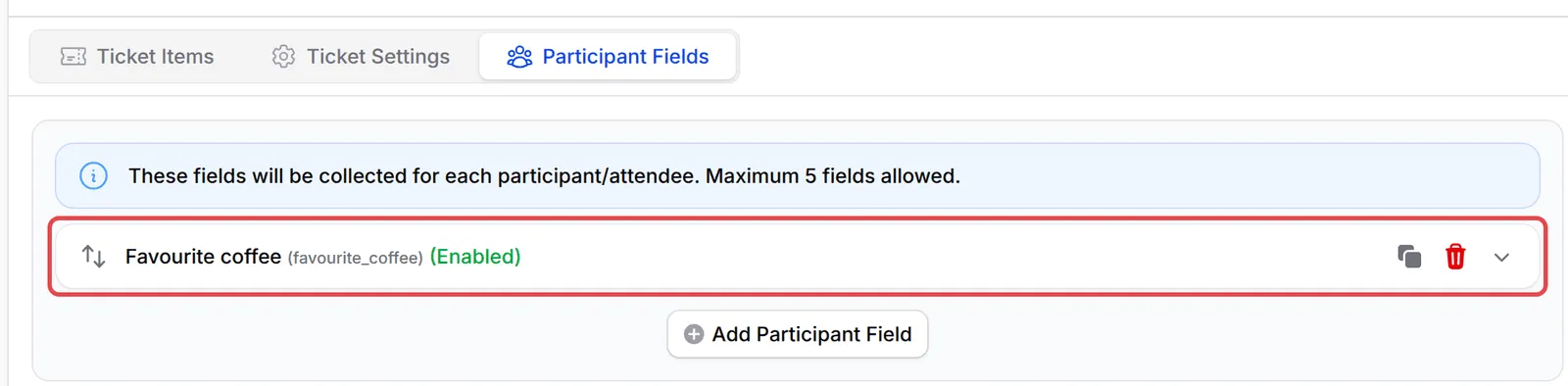
Section titled “Ask each attendee a question”On the Participant Fields tab, click Add Participant Field to ask every attendee something, such as their T-shirt size or favourite coffee. You can add up to 5 fields. Answers appear on the Participants page.
Some ticket settings are easy to miss:
- Use Ticket Settings for order rules. The Ticket Settings tab has Limit to one ticket type per order, a Total Minimum Order Quantity and a Minimum Total Order Amount.
- Sell group tickets with Attendees Per Ticket. In a Standard Ticket event, set it under Edit so one ticket covers several people, each with their own details.
- One date per event form. For sessions on different days, create one event form per session rather than one ticket type per session.
Common issues
Can I sell Early Bird, Normal and VIP tickets at different prices?
Yes. Add one ticket type for each under Event Tickets → Ticket Items, each with its own price. For an Early Bird price that ends on a date, click Offer on the ticket and use Pricing Schedules.
I sell one ticket for a group of four. How do I get every person's details?
Turn on Attendees for that ticket type, then click Edit and set Attendees Per Ticket to 4. The buyer then fills in details for each person, and each one appears on the Participants page.
Why can't I find my participant custom field in the transaction?
Fields added under Participant Fields are collected for each attendee and saved on the Participants page, not on the transaction. Fields on the Custom Field Form tab are asked once per order and appear on the transaction.
Was this article helpful?
Thanks for your feedback.
Sorry this didn't help. WhatsApp us and we'll sort it out with you.