
Ask an AI about this page
 ChatGPT
 Claude
 Perplexity
 Google AI Mode
 Microsoft Copilot
 Grok
Grok Mistral Le Chat
Create a lead form
Updated

A lead form collects details from people who are interested in your product, with no payment. Use it for enquiries, free sign-ups and waiting lists. Every form sent is saved in Lead Submissions.
Lead forms are an add-on. If you do not see Lead Management in the sidebar, turn on the Lead Forms add-on under Add-ons first.
Create the form
Section titled “Create the form”In this example, Kopi Kampung builds a wholesale enquiry form for cafés and offices.
-
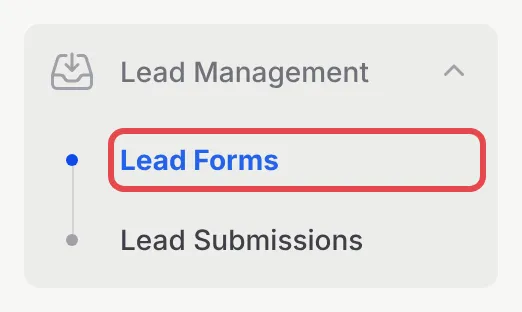
In the sidebar, go to Lead Management → Lead Forms.
-
Click Create Lead Form.

-
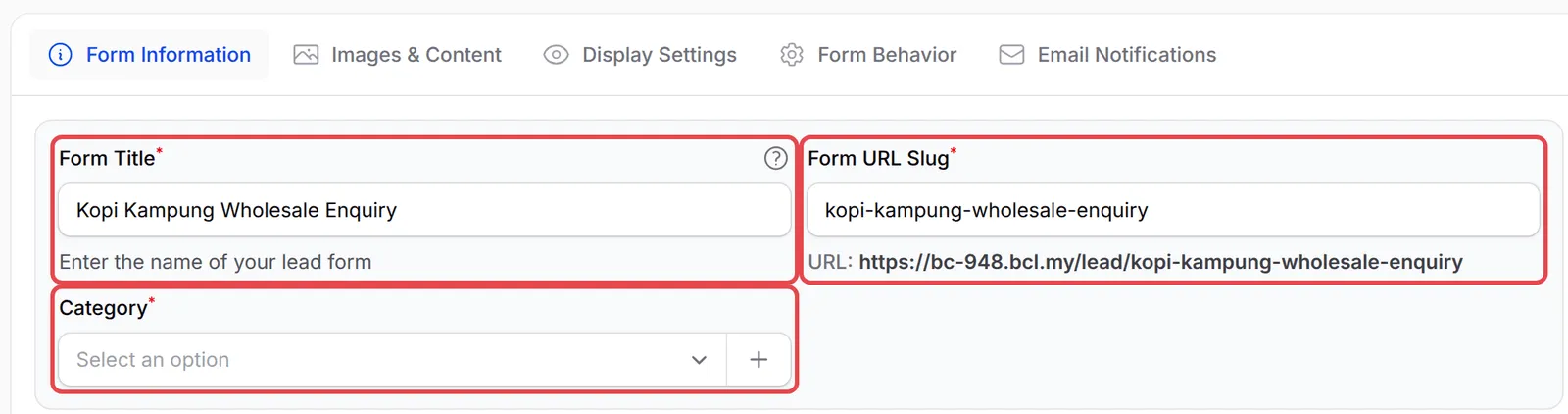
On the Form Information tab, enter a Form Title. BCL fills in the Form URL Slug from the title, and shows the form’s link under it.
-
Choose a Category. To add a new one, click + next to the field, enter a Name and click Create. Categories help you filter forms and submissions later.
-
Optionally, write a Form Description to explain the form to visitors.
Add your fields
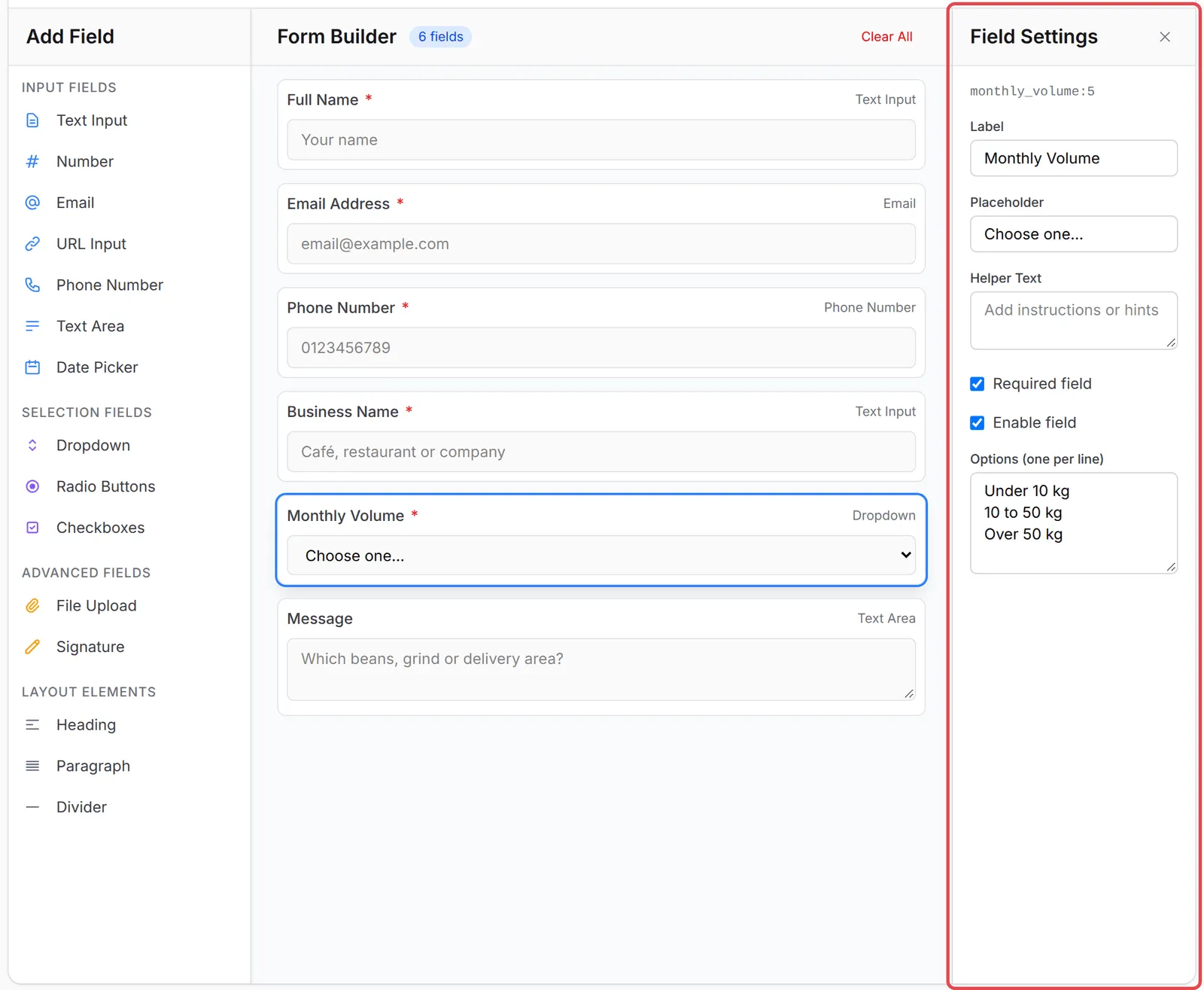
Section titled “Add your fields”The Form Builder section is under the form details. It has three panels: Add Field on the left, the form itself in the middle, and Field Settings on the right.
-
Click a field type in Add Field to add it to the form. BCL has these types:
Group Field types Input Fields Text Input, Number, Email, URL Input, Phone Number, Text Area, Date Picker Selection Fields Dropdown, Radio Buttons, Checkboxes Advanced Fields File Upload, Signature Layout Elements Heading, Paragraph, Divider -
The new field opens in Field Settings. Change its Label, Placeholder and Helper Text. Tick Required field if the visitor must fill it in.
-
For a Dropdown, Radio Buttons or Checkboxes field, type one choice per line in Options (one per line).
-
Drag fields to change their order. To edit a field later, click it in the middle panel.
Save and share the form
Section titled “Save and share the form”The other tabs are optional. Images & Content sets the Featured Image and Sales Page Image, Display Settings controls Form Active, Display on Homepage, Show Date and Close Date, and Form Behavior sets the Submit Button Text, Maximum Submissions, the confirmation checkbox and the Thank You Message. To choose who gets an email for each new lead, see Get notified of new leads.
-
Click Create Lead Form at the top right. The form is saved and live straight away.

-
On the Edit Lead Form page, copy the link under Form URL Slug, or click View Form to open it. The link looks like
https://<your-subdomain>.bcl.my/lead/<slug>.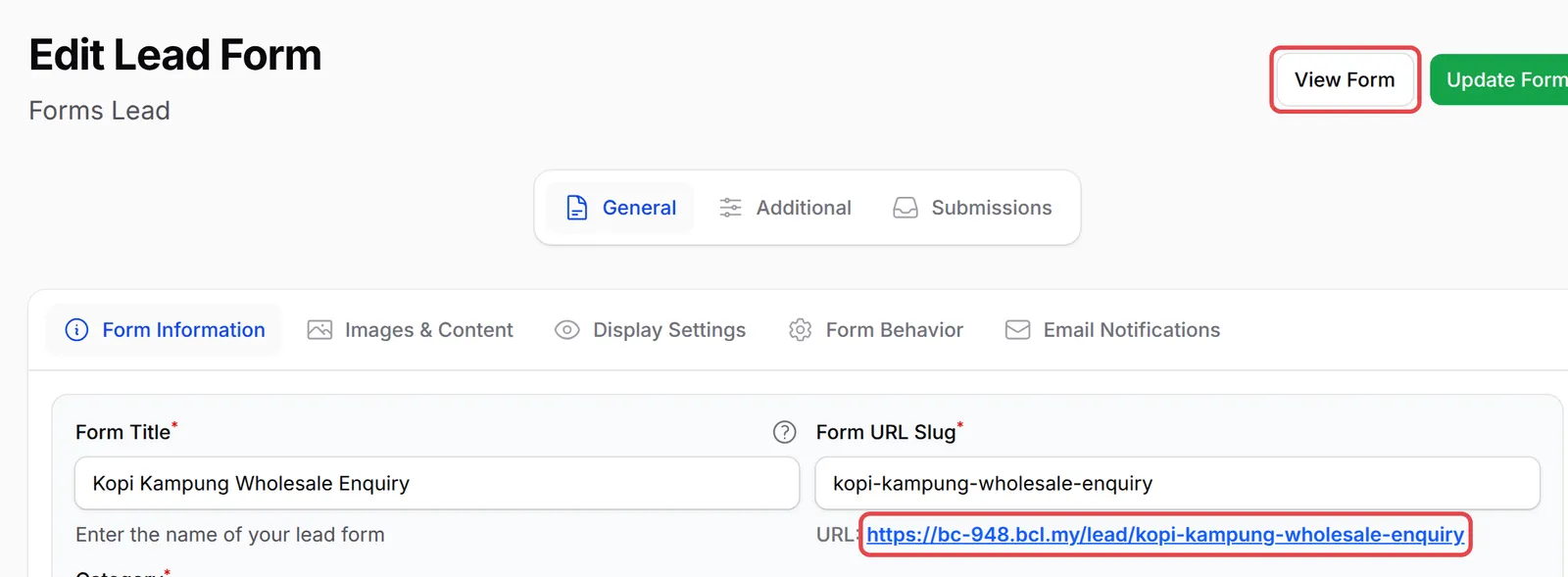
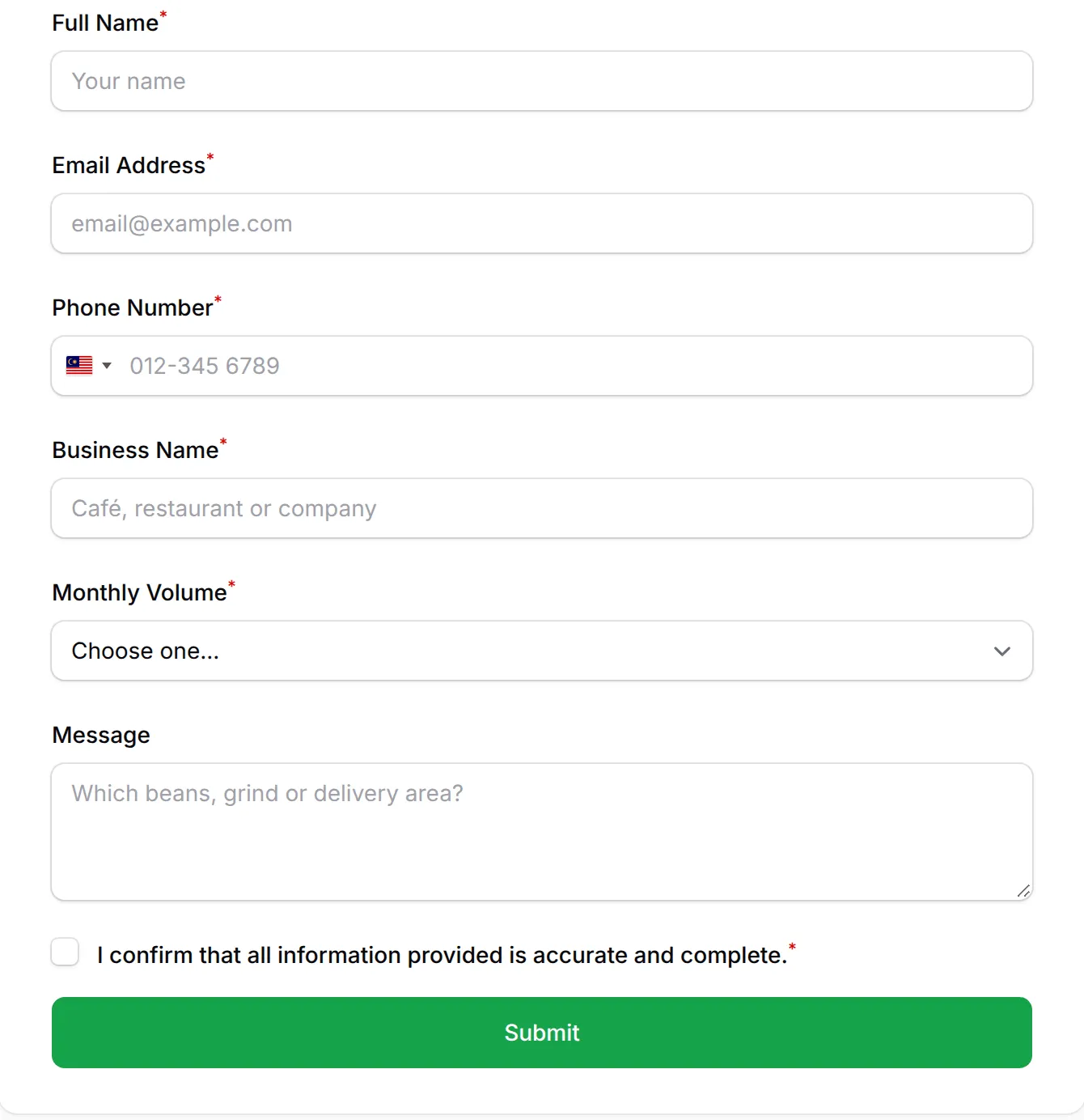
Visitors see your fields, a confirmation checkbox and a Submit button:
To put the form on your own website instead, copy the code under Embed Code at the bottom of the Edit Lead Form page.
Copy a form with Export JSON
Section titled “Copy a form with Export JSON”Lead forms have no ready-made templates, but you can copy any form as a JSON file:
-
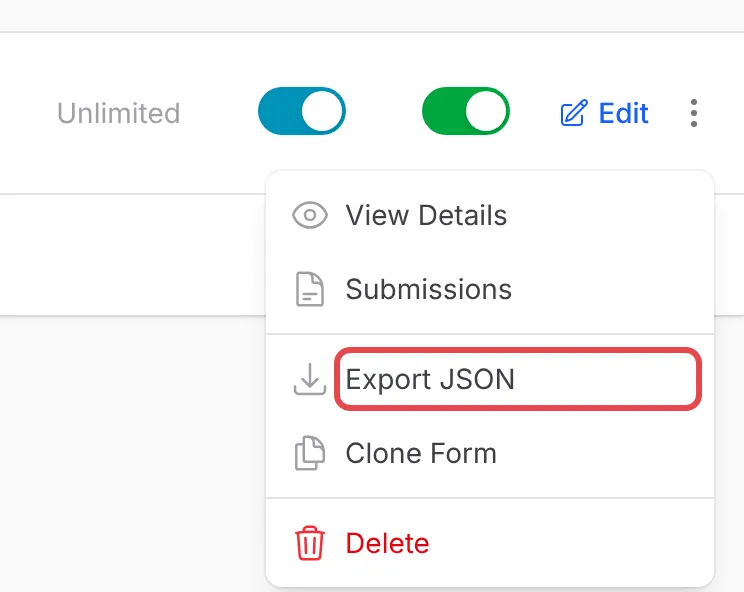
On Lead Forms, click ⋮ on the form’s row and choose Export JSON. To copy it inside the same account, choose Clone Form instead.
-
In the other account, go to Lead Management → Lead Forms, click Import JSON, upload the file and click Submit.
The imported form keeps its fields and settings, and “-imported” is added to its slug. Its category is created if it does not exist. Webhook and pixel tracking settings are not copied, and the email recipients are reset to your own email.
A few things make a lead form work better:
- Ask only what you need. Every extra required field makes people less likely to finish. Name, email or phone, and one question are often enough.
- Mark the contact fields as required. Automations and notifications can only reach people through the email or phone number they gave you.
- Follow up automatically. Use the New Lead Received trigger in Automations to email your team or add the lead to a mailing list.
Common issues
Can I make a form like Google Forms in BCL, one that collects details but no payment?
Yes. Use a lead form. It collects details such as name, email and phone number without a payment step. Lead forms need the Lead Forms add-on.
Can I use a lead form for a free webinar or seminar registration?
Yes. Create a lead form with the fields you need and share its link. Every sign-up is saved in Lead Submissions, and you can send a confirmation email or start an automation for each one.
Which fields must I fill in before I can save a lead form?
Form Title, Form URL Slug and Category. BCL fills in the slug from the title. Everything else can be added later.
Was this article helpful?
Thanks for your feedback.
Sorry this didn't help. WhatsApp us and we'll sort it out with you.