
Ask an AI about this page
 ChatGPT
 Claude
 Perplexity
 Google AI Mode
 Microsoft Copilot
 Grok
Grok Mistral Le Chat
Find your orders and receipts
Updated

If you paid a shop through BCL, you have an account in its Customer Portal. There you can see every order, download your receipts and invoices, find your event tickets and open what you bought. There is no password: you sign in with a one-time code.
Open the portal
Section titled “Open the portal”You can reach the portal from anything the shop sent you after you paid:
-
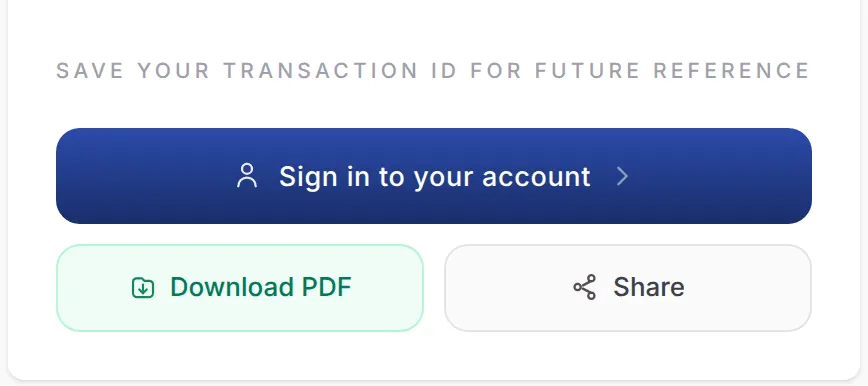
The receipt page: click Sign in to your account under your order.
-
The payment email: click Sign in to My Account.
-
The shop’s own address followed by
/customer, for examplehttps://yourshop.bcl.my/customer. This shows only your purchases from that shop.
To see what you bought from every shop that uses BCL in one place, go to bcl.my/customer.
Sign in with a code
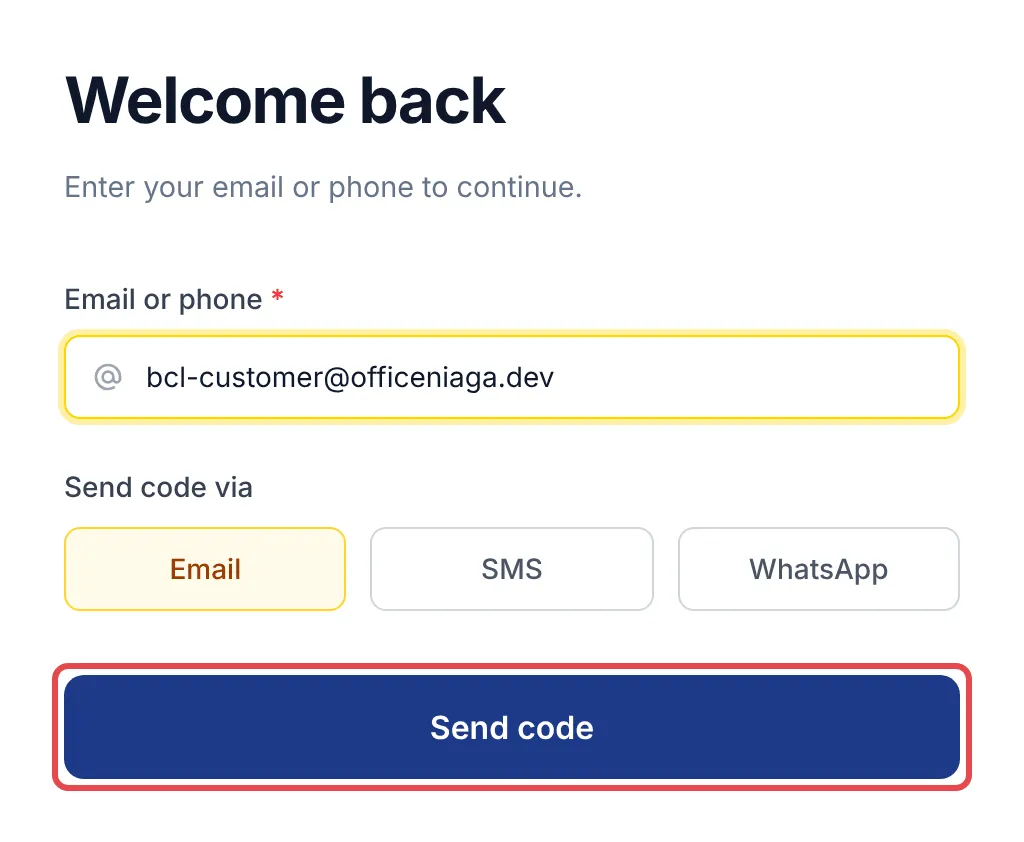
Section titled “Sign in with a code”Use the email address or phone number you gave when you paid:
-
Type it in Email or phone.
-
Under Send code via, choose Email, SMS or WhatsApp, then click Send code.
-
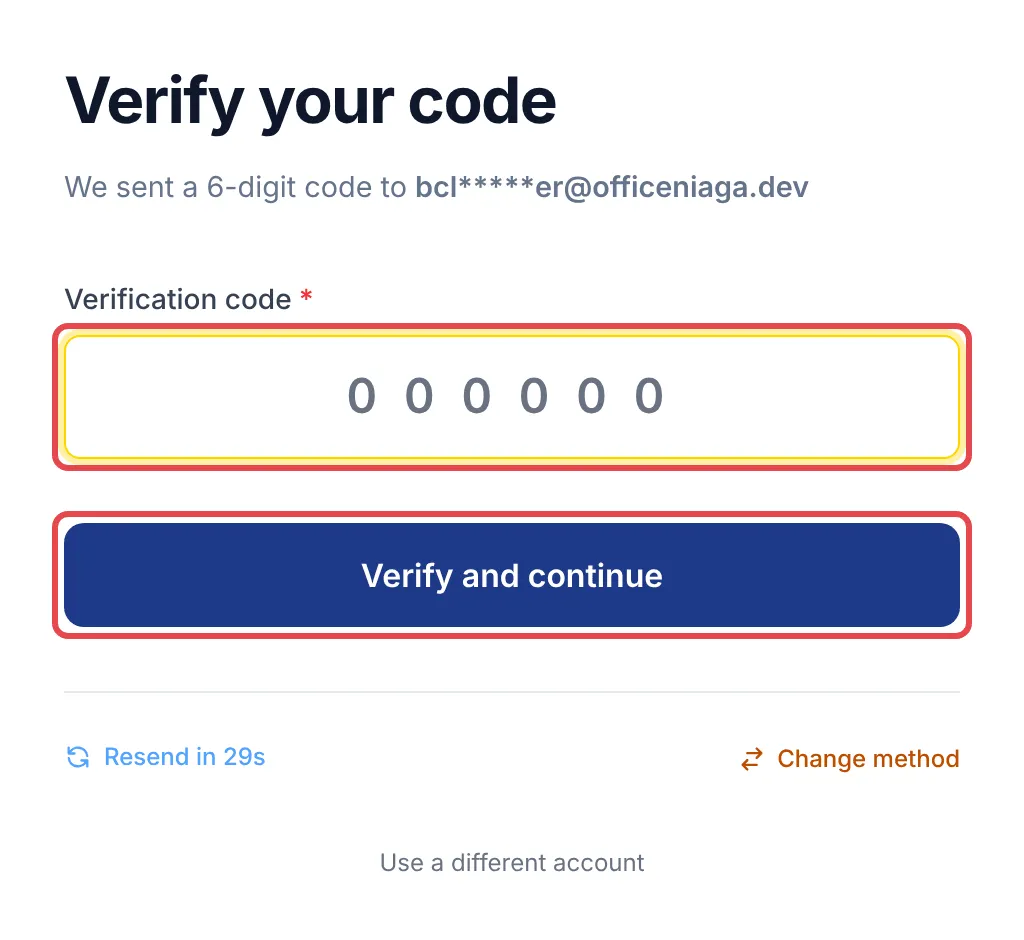
Type the 6-digit code into Verification code and click Verify and continue. The code works for 10 minutes.
-
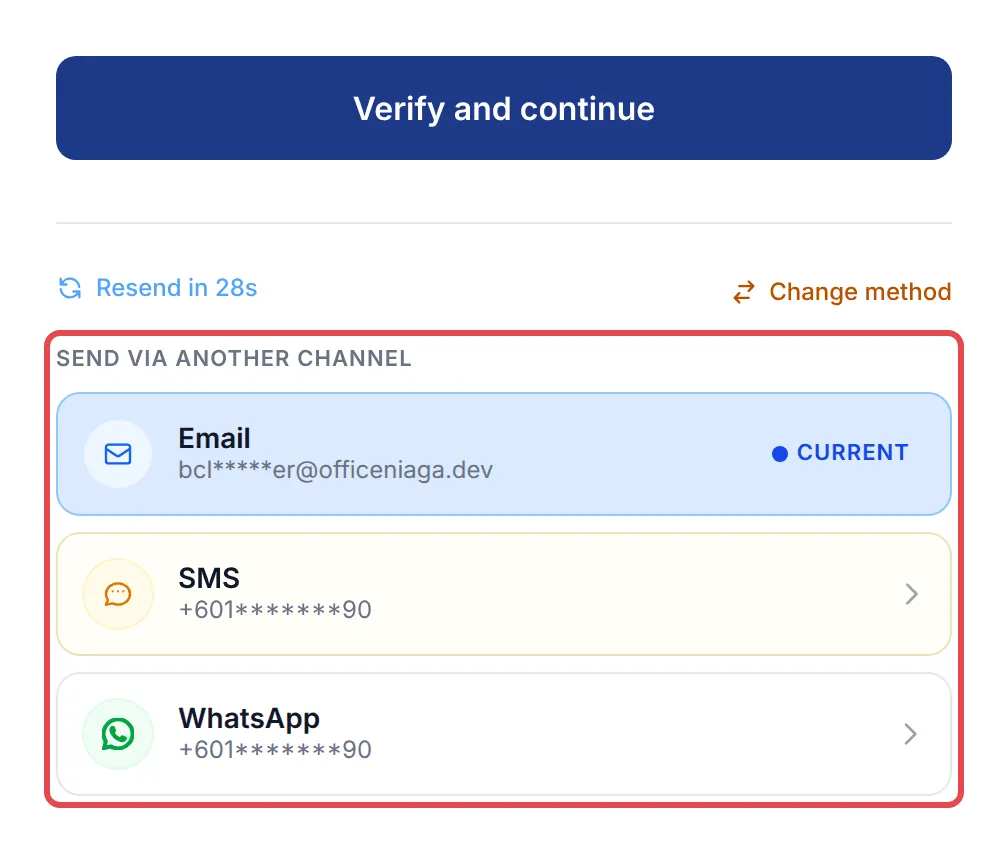
No code? After 30 seconds, click Resend code. Or click Change method and pick another channel under Send via another channel.
If a few accounts share your phone number, BCL asks you to choose yours first.
Find an order and its receipt
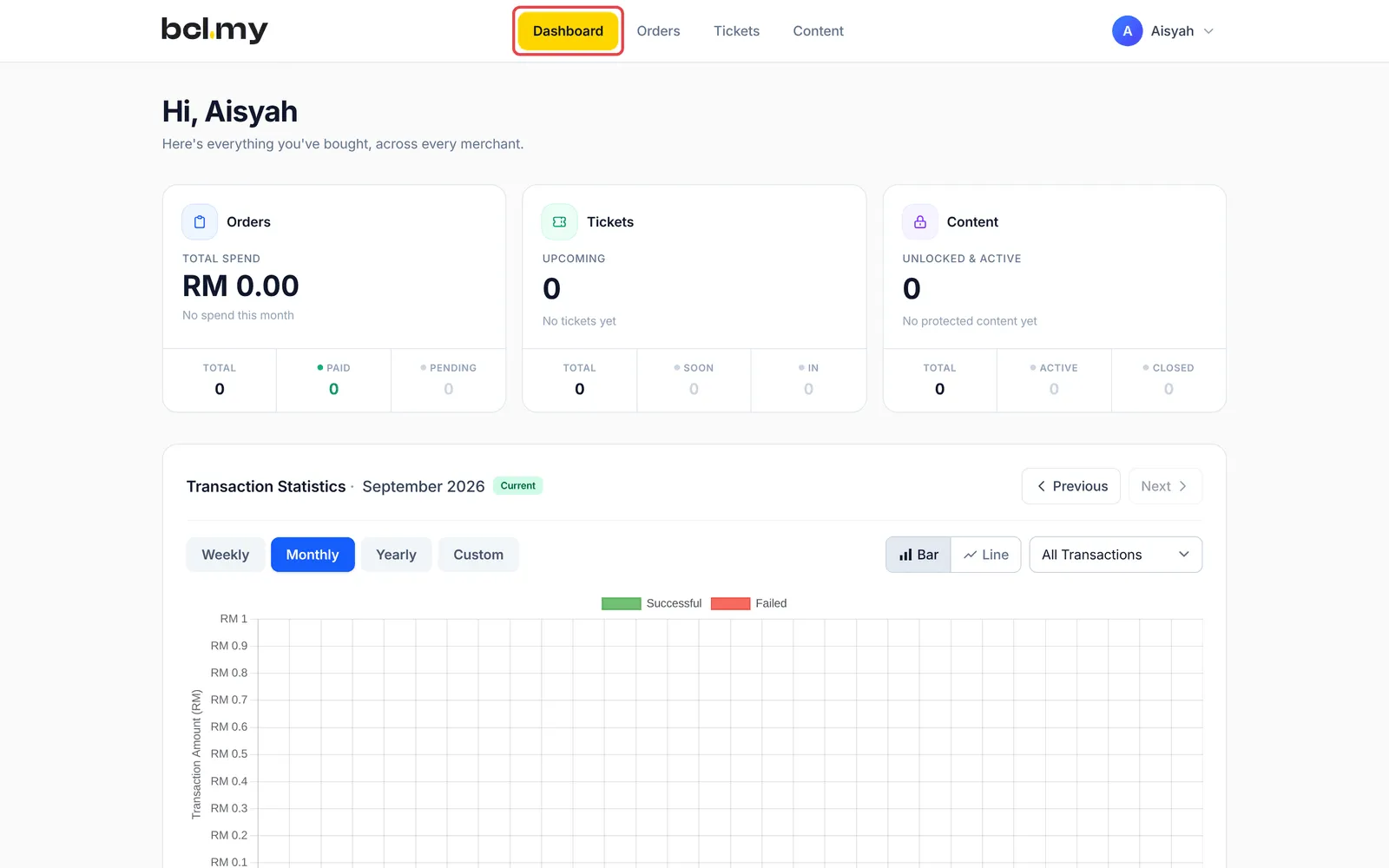
Section titled “Find an order and its receipt”Once you are in, the portal opens on Dashboard, a summary of your orders, tickets and content, a chart of your spending, and Your merchants, the shops you have bought from.
To get a receipt:
-
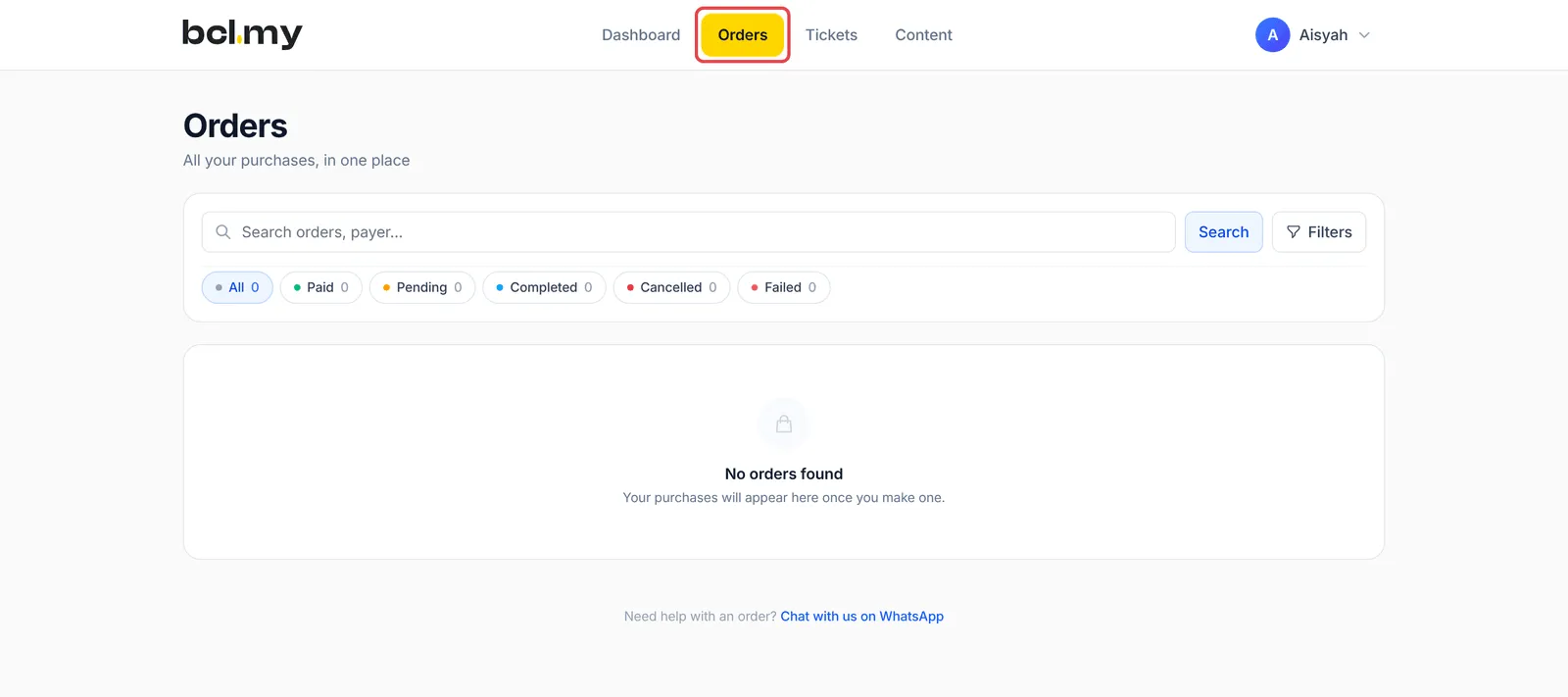
Click Orders at the top.
-
Use the tabs (All, Paid, Pending, Completed, Cancelled, Failed), the search box or Filters to find the order.
-
Click the order to see its details: items, amounts, payment channel and, for event orders, your tickets.
-
Under Downloads, click Receipt or Invoice to open the PDF. Both are there once the order is paid.
Tickets, downloads and your profile
Section titled “Tickets, downloads and your profile”The rest of the portal has three more places to look:
| Where | What you find there |
|---|---|
| Tickets | Your event tickets, with Checked in and Not yet tabs. |
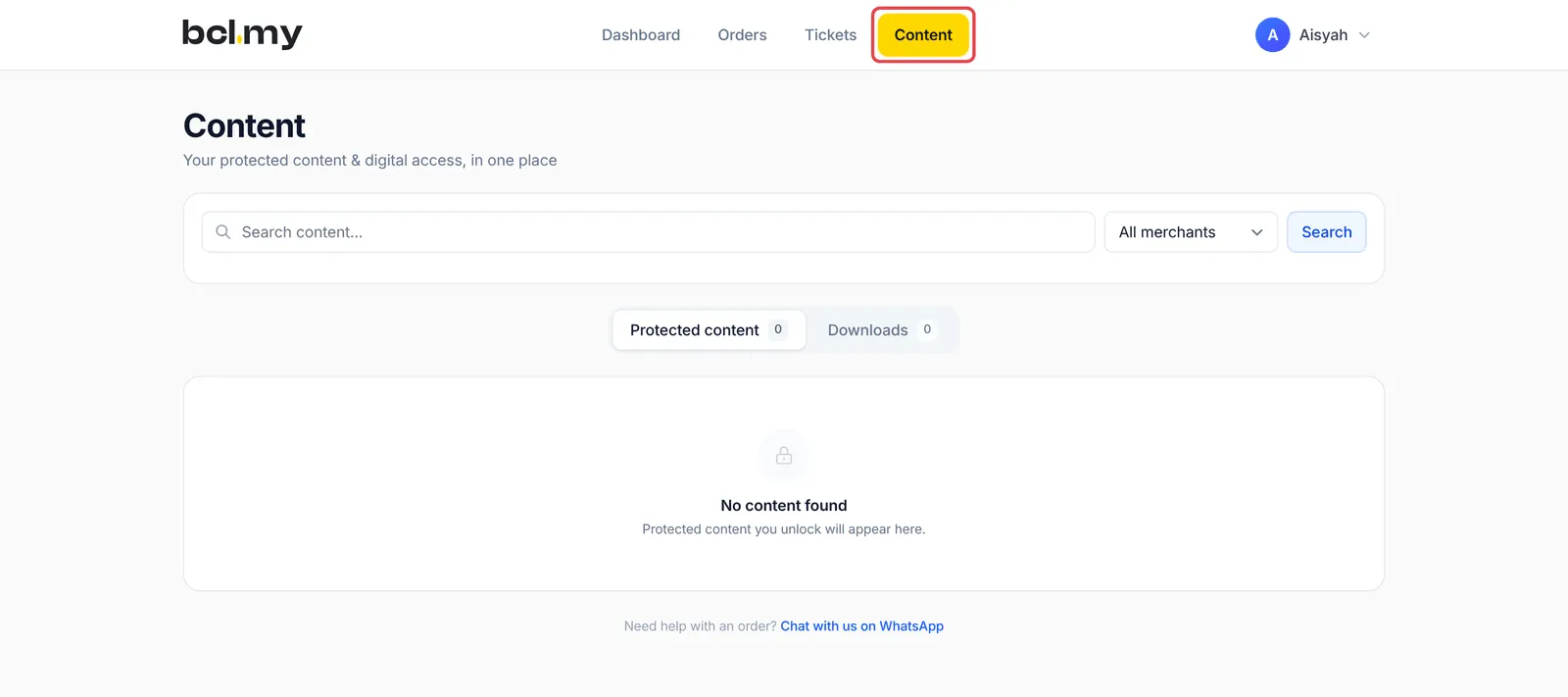
| Content | Protected content holds videos, files and pages you unlocked; click Open to view one. Downloads holds the download links from your paid orders. |
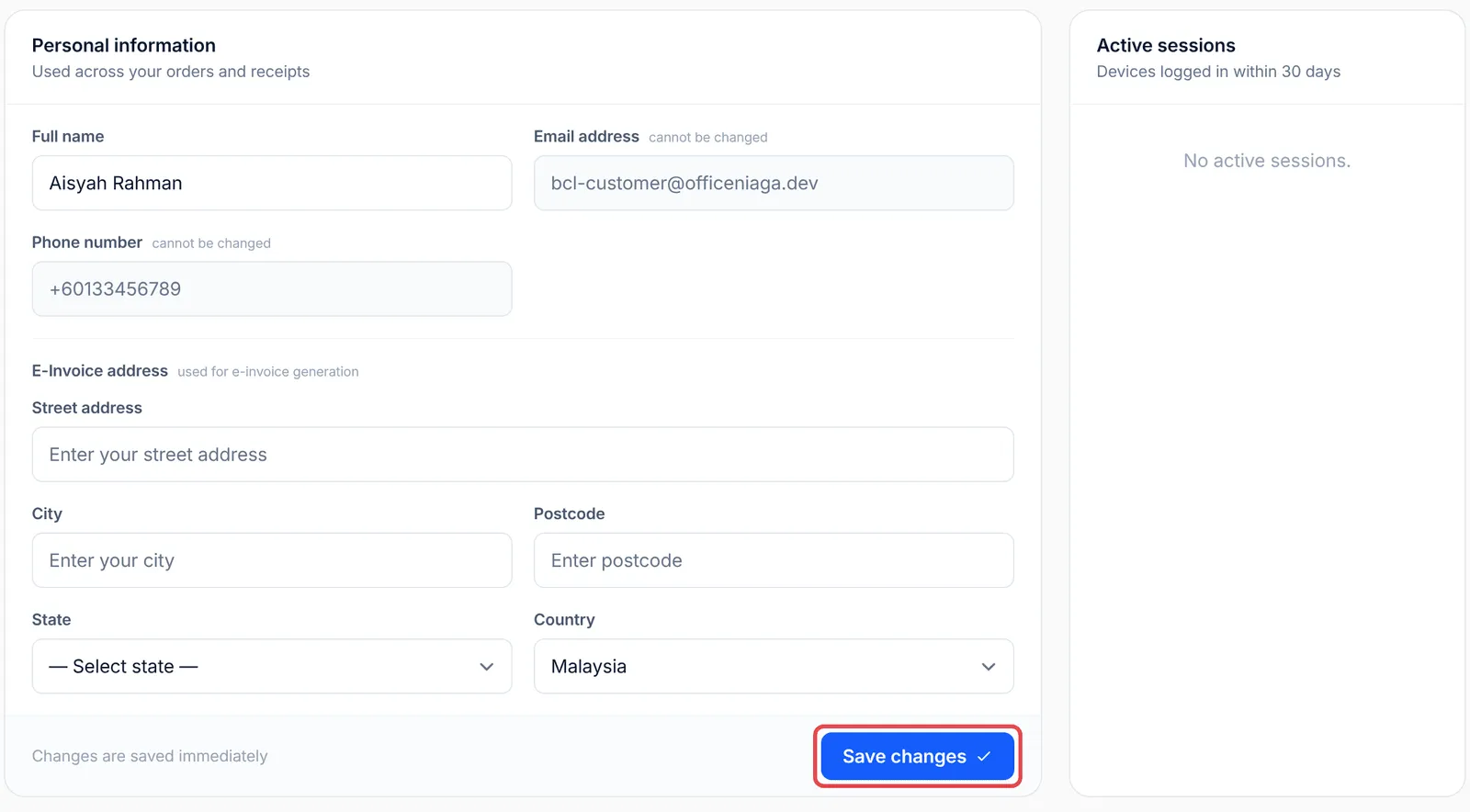
| Your name → Profile & sessions | Change your Full name or your E-Invoice address, then click Save changes. Your email and phone number cannot be changed here. Under Active sessions, click Revoke to sign out a device you do not recognise. |
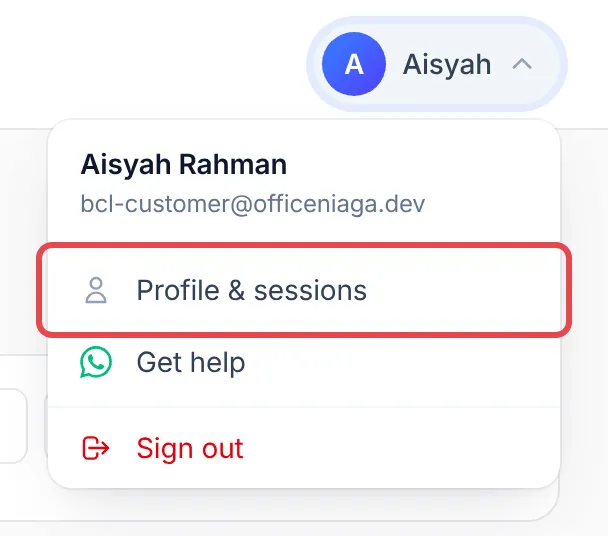
To leave, click your name and choose Sign out.
If something does not work, try these:
-
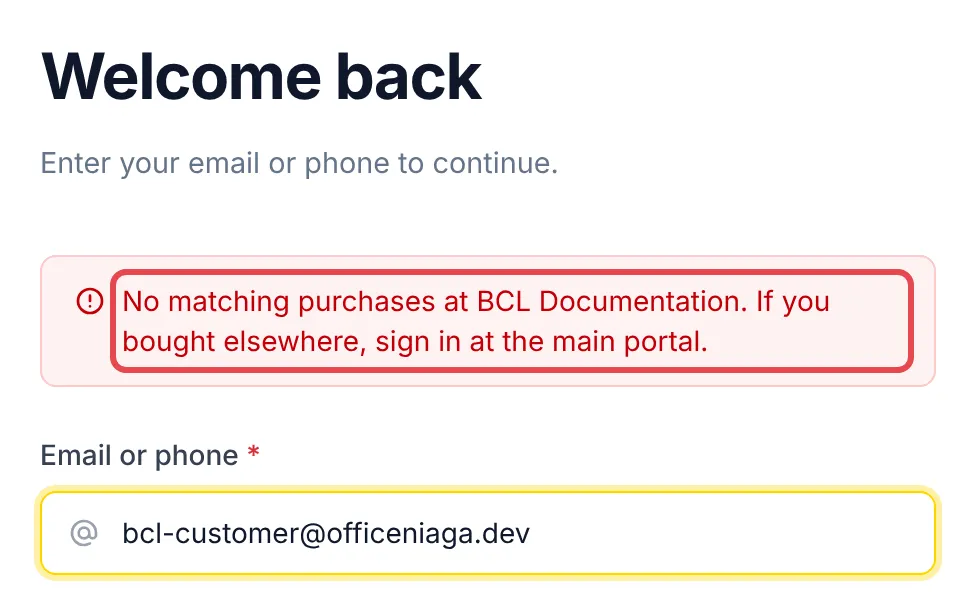
Seeing “No matching purchases at” a shop? That shop has no payment under the email or phone you typed. Try the other one you might have used, or sign in at bcl.my/customer.
-
You get 5 tries per code. After that, ask for a new one.
-
Need help? Click Chat with us on WhatsApp on the sign-in page, or Get help in the menu under your name, to message the shop on WhatsApp. On bcl.my/customer, it reaches BCL support instead.
Common issues
It says no matching purchases. What do I do?
Use the same email address or phone number you typed when you paid. If you bought from a different shop, sign in at bcl.my/customer instead, which finds purchases from every shop that uses BCL.
I did not get the code.
Check your spam folder first. After 30 seconds you can click Resend code, or click Change method to get the code by SMS or WhatsApp instead. SMS works for Malaysian (+60) numbers only.
Can I see where my account is signed in?
Yes. Open your name at the top, choose Profile & sessions, and look under Active sessions. Click Revoke next to any device you do not recognise.
Was this article helpful?
Thanks for your feedback.
Sorry this didn't help. WhatsApp us and we'll sort it out with you.