
Ask an AI about this page
 ChatGPT
 Claude
 Perplexity
 Google AI Mode
 Microsoft Copilot
 Grok
Grok Mistral Le Chat
Ship orders with J&T Express
Connect your own J&T Express account to book J&T shipments straight from your BCL orders. Choose Standard or Next Day, and pickup from your address or drop-off at a J&T counter. BCL saves the tracking number on the order and keeps the delivery status up to date.
Before you start
Section titled “Before you start”You need two things:
- The Courier Integration add-on, from Add-ons → Available Add-ons.
- A J&T Open Platform customer code and password. Ask your J&T sales contact or branch for them.
Connect J&T Express
Section titled “Connect J&T Express”Do this once for your team:
-
Go to Platform Setup → Courier Integration.
-
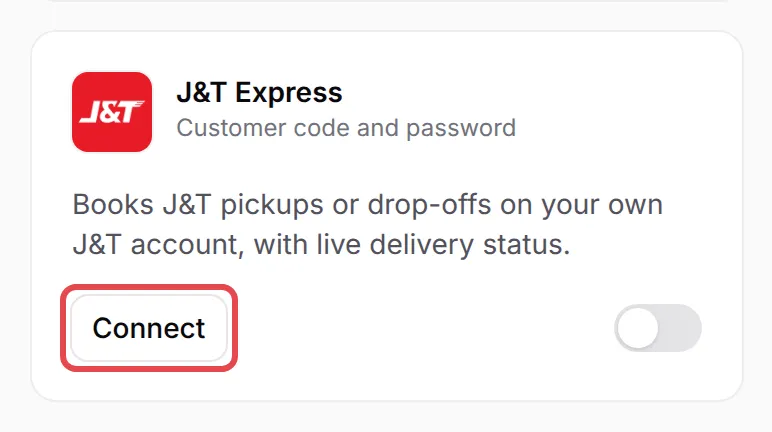
On the J&T Express card, click Connect. If J&T Express is already set up, the button says Manage. A side panel opens.
-
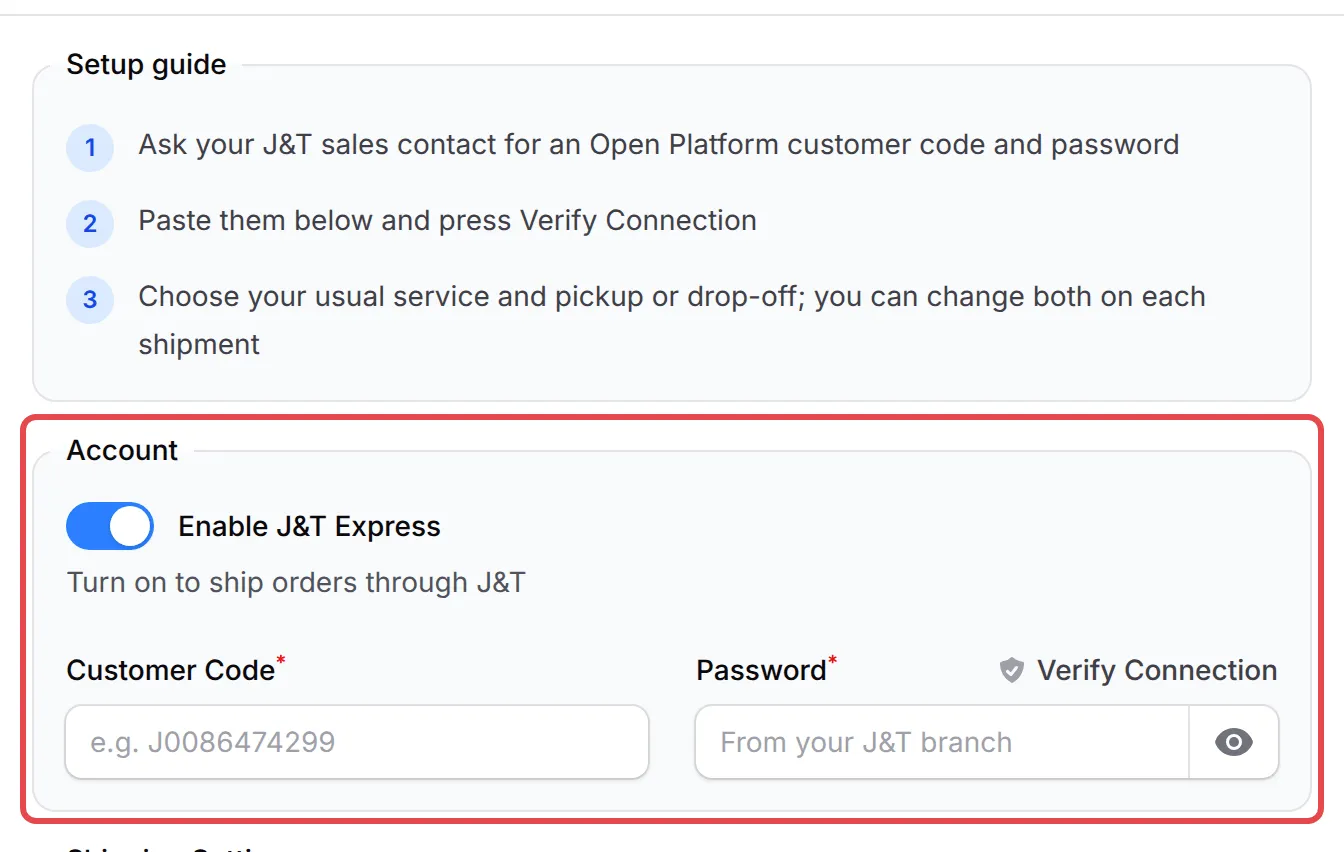
Under Account, turn on Enable J&T Express.
-
Fill in your Customer Code and Password. Click Verify Connection to check them before you save.
-
Under Shipping Settings, choose your usual options. You can change the first two on each shipment.
Setting Options Notes Service Standard or Next Day The J&T delivery speed. Pickup or Drop-off Pickup from your address or Drop off at a J&T counter Where J&T gets the parcel. Shipping Fee Monthly account (J&T bills you) or Cash (pay at pickup or drop-off) Pick what your J&T branch set up for you. 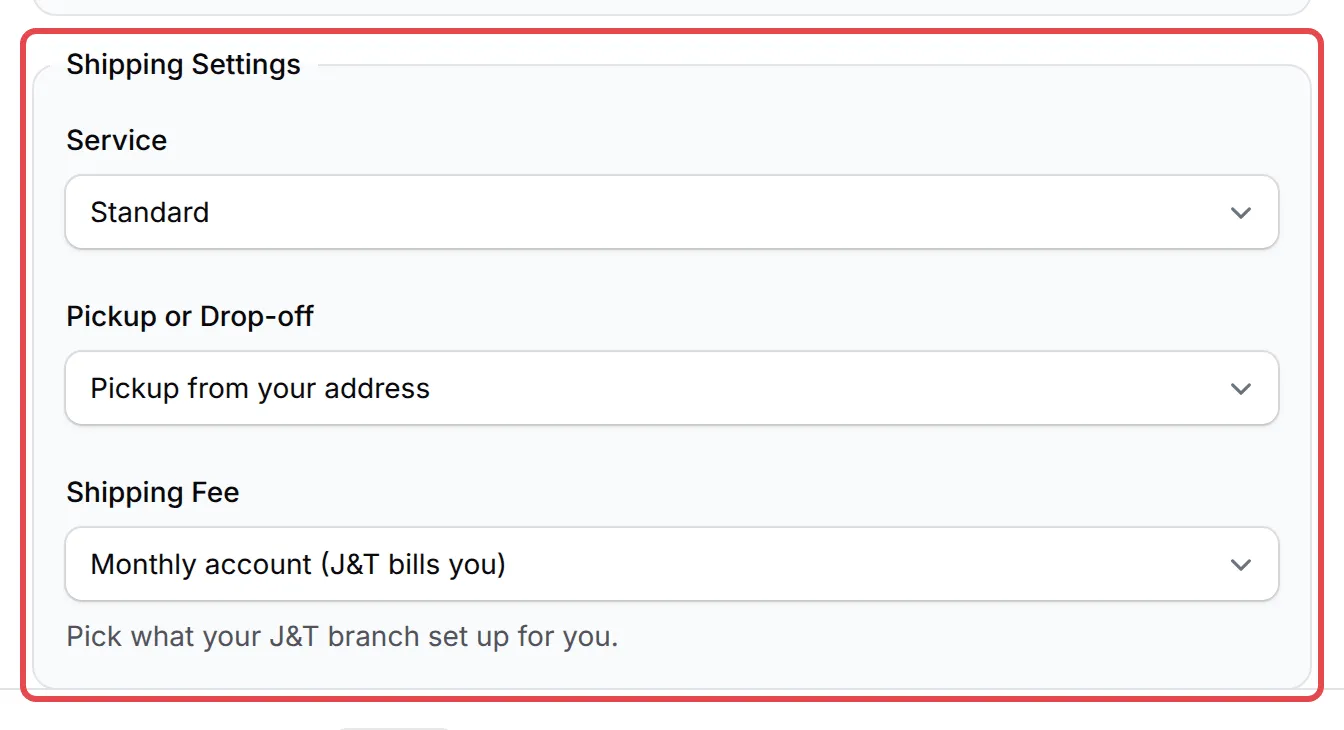
-
Under Parcel Settings, choose what Item Description prints against each item on the consignment note: Item Name or SKU.
-
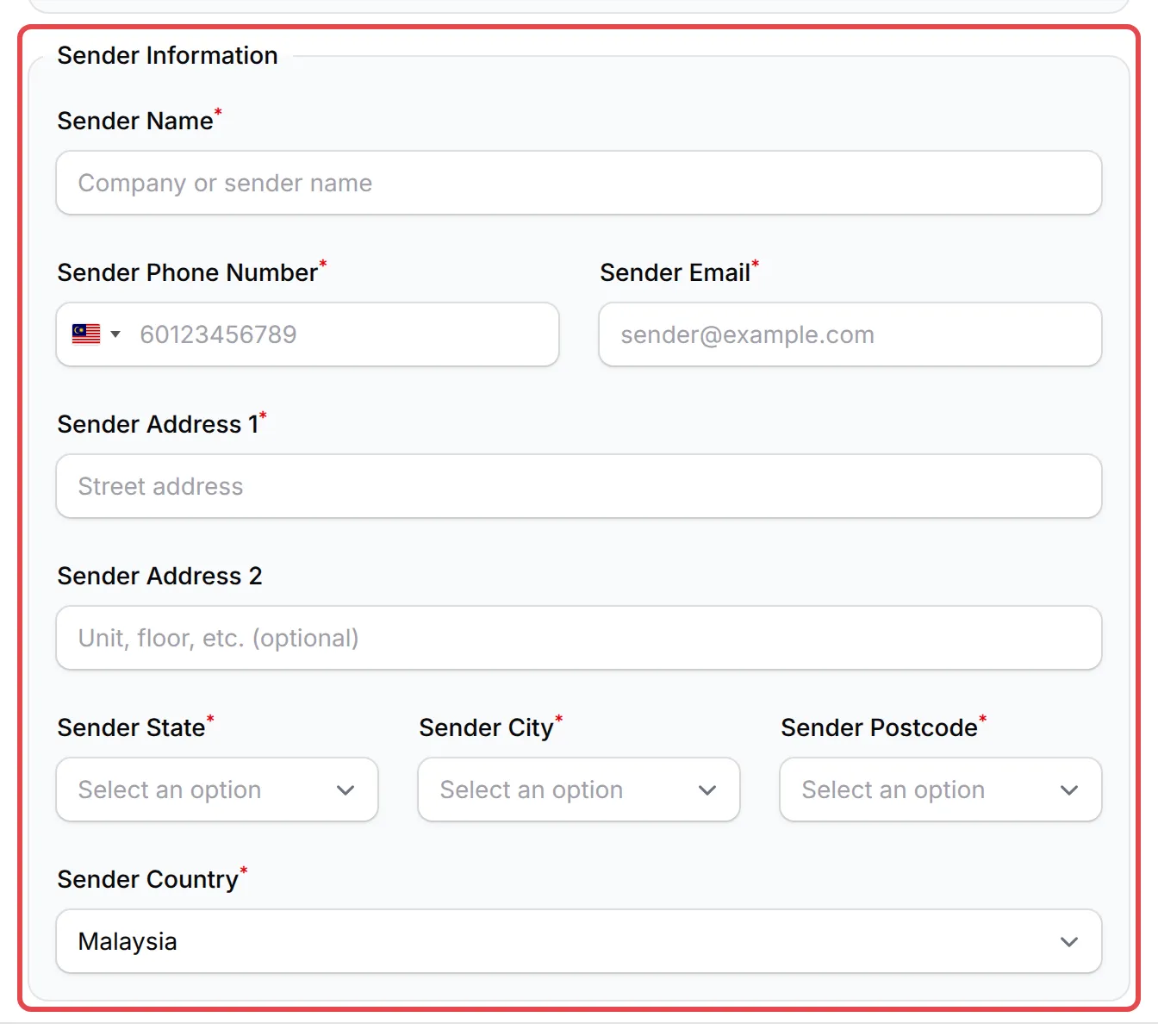
Fill in Sender Information: your name, phone, email and pickup address.
-
Click Save J&T Express.
If you see J&T saved, but not connected, check the customer code and password with your J&T branch. The switch on the card turns J&T Express on or off later without opening the panel.
Create a shipment
Section titled “Create a shipment”The order must be paid (or cash on delivery), have items with a weight, and have a full delivery address in Malaysia. For each order:
- Go to Transactions and find the order.
- Click the truck icon (Courier) on the row, then J&T Express.
- Check the customer, the delivery address and the total weight. Change the Service or Pickup or Drop-off for this order if you need to.
- Click Create Shipment.
BCL shows Shipment created with the tracking number. For a cash on delivery order, J&T collects the order amount from the buyer. If J&T refuses the shipment, BCL shows the reason: for example, set a weight on the items or correct the address.
Create shipments in bulk
Section titled “Create shipments in bulk”To ship many orders at once, tick them in Transactions, open Shipping in the bulk actions and choose Bulk J&T Express. In Bulk Create J&T Shipments:
- Check the Orders summary of paid and cash on delivery orders. Click View next to Skipped to see which orders BCL left out, and why.
- Choose the Service and Pickup or Drop-off for all the orders.
- Click Create with the number of shipments, for example Create 5 Shipments.
BCL creates the shipments in the background and sends a notification when they are done.
Print the airway bill and track
Section titled “Print the airway bill and track”Open the shipment again to print or follow it:
- In Transactions, click the green truck icon on the order, then J&T Express.
- Click View Airway Bill to open the label in a new tab, and print it.
Track Shipment opens the J&T tracking page. The delivery status updates by itself. To check now, click Refresh Status.
Cancel a shipment
Section titled “Cancel a shipment”Open the shipment, click Cancel Shipment, then Yes, cancel shipment. J&T cancels the booking and does not pick up the parcel. Throw away any airway bill you printed for it. You can create a new shipment for the order later. Once J&T has picked up the parcel, you can no longer cancel the shipment in BCL.
Common issues
Where do I get the J&T customer code and password?
Ask your J&T sales contact or branch for an Open Platform customer code and password. Then go to Platform Setup → Courier Integration, click Connect on the J&T Express card, turn on Enable J&T Express, fill in Customer Code and Password and click Save J&T Express.
Can J&T collect cash on delivery for my orders?
Yes. For a cash on delivery order, J&T collects the order amount from the buyer. The shipment window shows the amount before you click Create Shipment.
Can I use Next Day for one order and Standard for the rest?
Yes. The Shipping Settings in the J&T Express panel are only the defaults. When you create a shipment, you can change the Service and Pickup or Drop-off for that order or that bulk run.
Was this article helpful?
Thanks for your feedback.
Sorry this didn't help. WhatsApp us and we'll sort it out with you.