
Ask an AI about this page
 ChatGPT
 Claude
 Perplexity
 Google AI Mode
 Microsoft Copilot
 Grok
Grok Mistral Le Chat
Choose who gets order emails
Each time a payment on a form succeeds or fails, BCL emails you as the admin and emails your customer. For each form you can send your copy to up to 5 more addresses, such as the staff who pack orders, and you can turn off any of these emails, for example when you only want your customer to get Bayarcash’s email. This works on payment, event and booking forms.
Add more people to a form’s order emails
Section titled “Add more people to a form’s order emails”Your account email always gets the order emails. To add more addresses:
-
Go to Payments → Forms and click Edit on the form. For an event, go to Events → Events; for a booking form, Bookings → Forms.
-
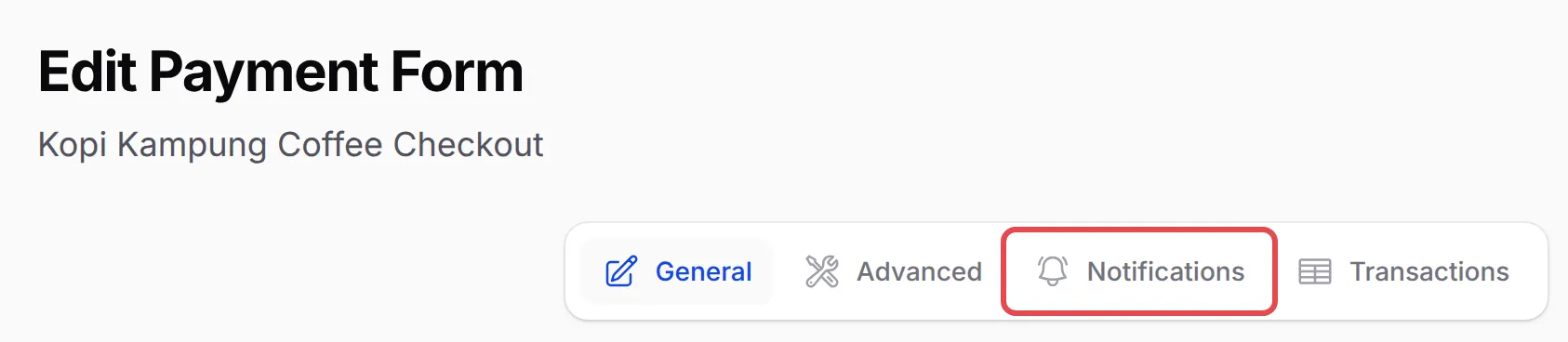
Click Notifications at the top of the page.
-
Open the Email Notifications tab. On a booking form, the tab is called Email.
-
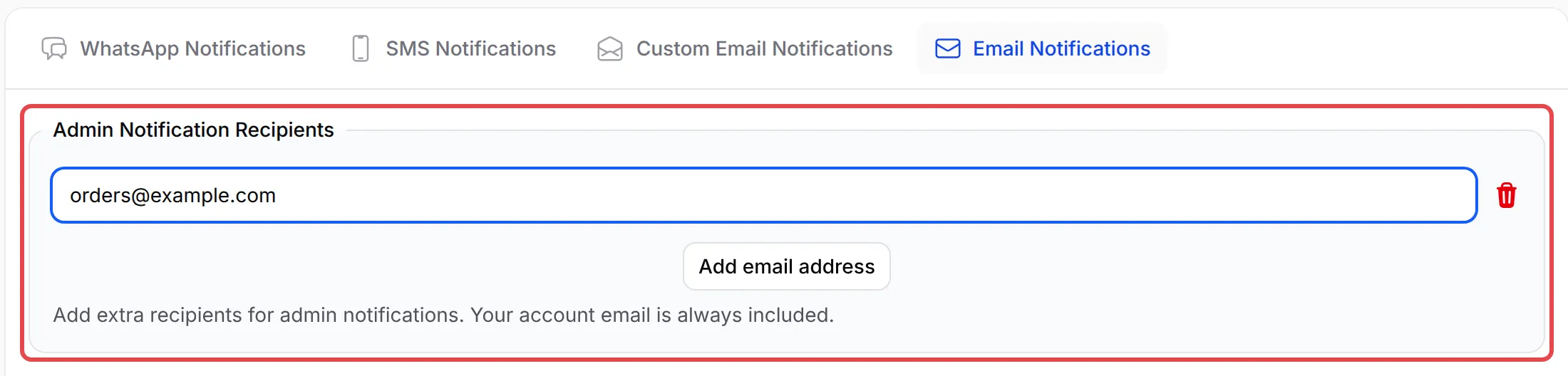
Under Admin Notification Recipients, click Add email address and type the address. Repeat for each person, up to 5.
-
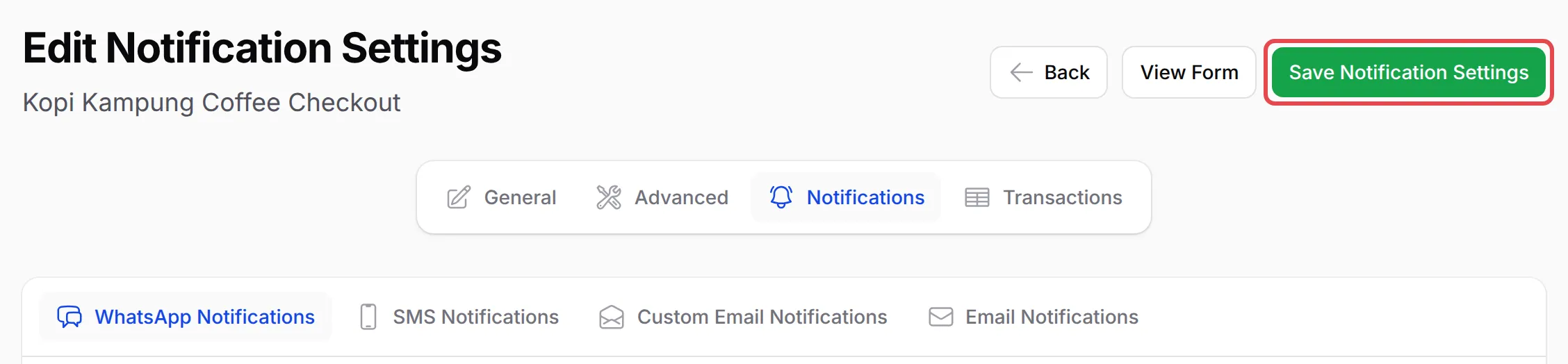
Click Save Notification Settings at the top.
The people you add get the same admin email as you, with a subject such as Order #... - Payment Successful, the customer’s details, the items and the amount. They do not get the customer’s receipt email, and they do not need a BCL login. On a booking form they also get the admin booking emails, such as confirmed, cancelled and reminder emails.
To remove someone, click the red bin icon next to their address and save again.
Turn off emails to you or your customer
Section titled “Turn off emails to you or your customer”Every email below is on until you turn it off, except the pending email, which is off until you turn it on. To change them for one form:
-
Open the form’s Notifications page and the Email Notifications tab, as in the steps above.
-
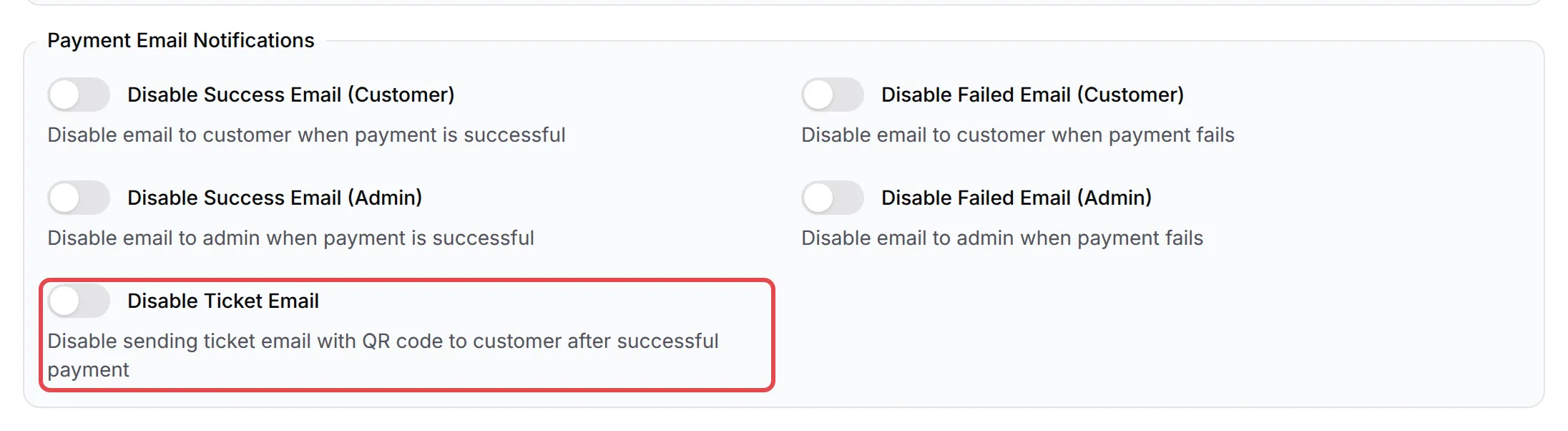
Under Payment Email Notifications, turn on the switch for each email you do not want BCL to send:
Switch Stops this email Sent to Disable Success Email (Customer) The payment successful email with the receipt Your customer Disable Failed Email (Customer) The email when a payment fails or is cancelled Your customer Disable Success Email (Admin) The new order email You and every address under Admin Notification Recipients Disable Failed Email (Admin) The email when a payment fails or is cancelled You and every address under Admin Notification Recipients 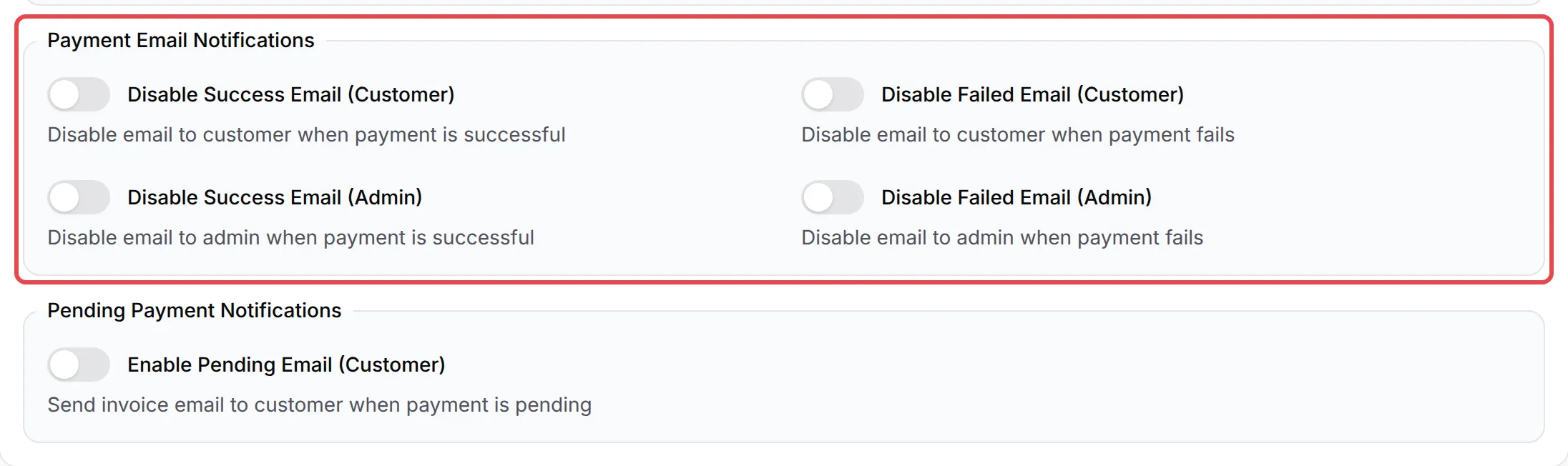
-
On an event form, turn on Disable Ticket Email if BCL should not send the ticket with its QR code. Buyers then need another way to get their ticket for check-in.
-
Leave Enable Pending Email (Customer) off unless you want BCL to email an invoice while a payment is still pending.
-
Click Save Notification Settings.
These switches cover only the standard emails. Also check these, because each is set in its own place:
| Where to turn it off | |
|---|---|
| Your own custom email to the customer | The Custom Email Notifications tab: turn off Enable Custom Email Content. |
| Booking emails (confirmed, pending, cancelled, rescheduled, completed, reminders and staff emails) | On a booking form’s Email tab, the switches below Pending Payment Notifications. |
| WhatsApp and SMS messages | The WhatsApp Notifications and SMS Notifications tabs. They only send when you turn them on. |
| Emails from your automations | Automations: turn the automation off. See Automations. |
Emails from Bayarcash
Section titled “Emails from Bayarcash”These settings control only the emails that BCL sends. If you or your customers also get emails from Bayarcash itself, Bayarcash sends them from its own system, and nothing in BCL turns them on or off. Ask Bayarcash support about those emails at support@bayarcash.com.
So a merchant who wants their customers to get only Bayarcash’s email turns on Disable Success Email (Customer) and Disable Failed Email (Customer) on each form, plus Disable Ticket Email on event forms, and leaves Enable Custom Email Content and Enable Pending Email (Customer) off.
A few ways to keep order emails useful:
- Use a shared inbox for a team. One address such as orders@ that several people read counts as one of the 5, and nobody misses an order when one person is away.
- Give each form its own list. Send workshop orders to the trainer and product orders to the packing team, so each person sees only what they act on.
- Check every form. Each form has its own switches, so turning off an email on one form leaves your other forms as they are.
- Add WhatsApp or Telegram for faster alerts. Email can wait in an inbox; see WhatsApp notifications or Telegram notifications.
Common issues
Can the order emails go to more than one email address?
Yes. Open the form, click Notifications, open the Email Notifications tab and click Add email address under Admin Notification Recipients. You can add up to 5 addresses per form. Then click Save Notification Settings.
Can I send the order emails only to my staff and not to my own email?
No. Your account email always gets them, and the addresses you add get them as well. If you do not want them in your own inbox, set up a filter in your email app.
Do the extra addresses apply to all my forms?
No. Each form has its own list, so you can send orders from one form to one team and another form to another. To alert the same people for every form, use an automation instead.
How do I stop BCL emailing my customer? I only want them to get Bayarcash's email.
Open the form, click Notifications, open Email Notifications and turn on Disable Success Email (Customer) and Disable Failed Email (Customer). On an event form, also turn on Disable Ticket Email if you do not want BCL to send the ticket. Click Save Notification Settings. Emails Bayarcash sends itself are not controlled in BCL.
How do I stop getting an email for every order?
Turn on Disable Success Email (Admin), and Disable Failed Email (Admin) if you want, on the form's Email Notifications tab, then save. This stops the email for you and for every extra address on that form.
I turned off the customer email but my customer still got an email from BCL. Why?
Check the Custom Email Notifications tab of the same form. A custom email is sent separately when Enable Custom Email Content is on, and the ticket email of an event form has its own Disable Ticket Email switch. Automations that send email are also separate.
Was this article helpful?
Thanks for your feedback.
Sorry this didn't help. WhatsApp us and we'll sort it out with you.