
Ask an AI about this page
 ChatGPT
 Claude
 Perplexity
 Google AI Mode
 Microsoft Copilot
 Grok
Grok Mistral Le Chat
Create booking services
Updated

A service is what a customer books: a latte art class, a haircut, a table for four, a museum ticket or a room. Each service has a type, a price, a duration and a capacity. You then add services to a booking form.
Before you start
Section titled “Before you start”For an Appointment service, add the employees who deliver it first. See Add booking staff. Other types do not need staff.
Create a service
Section titled “Create a service”Every service is set up on the same page, with six tabs on the left:
-
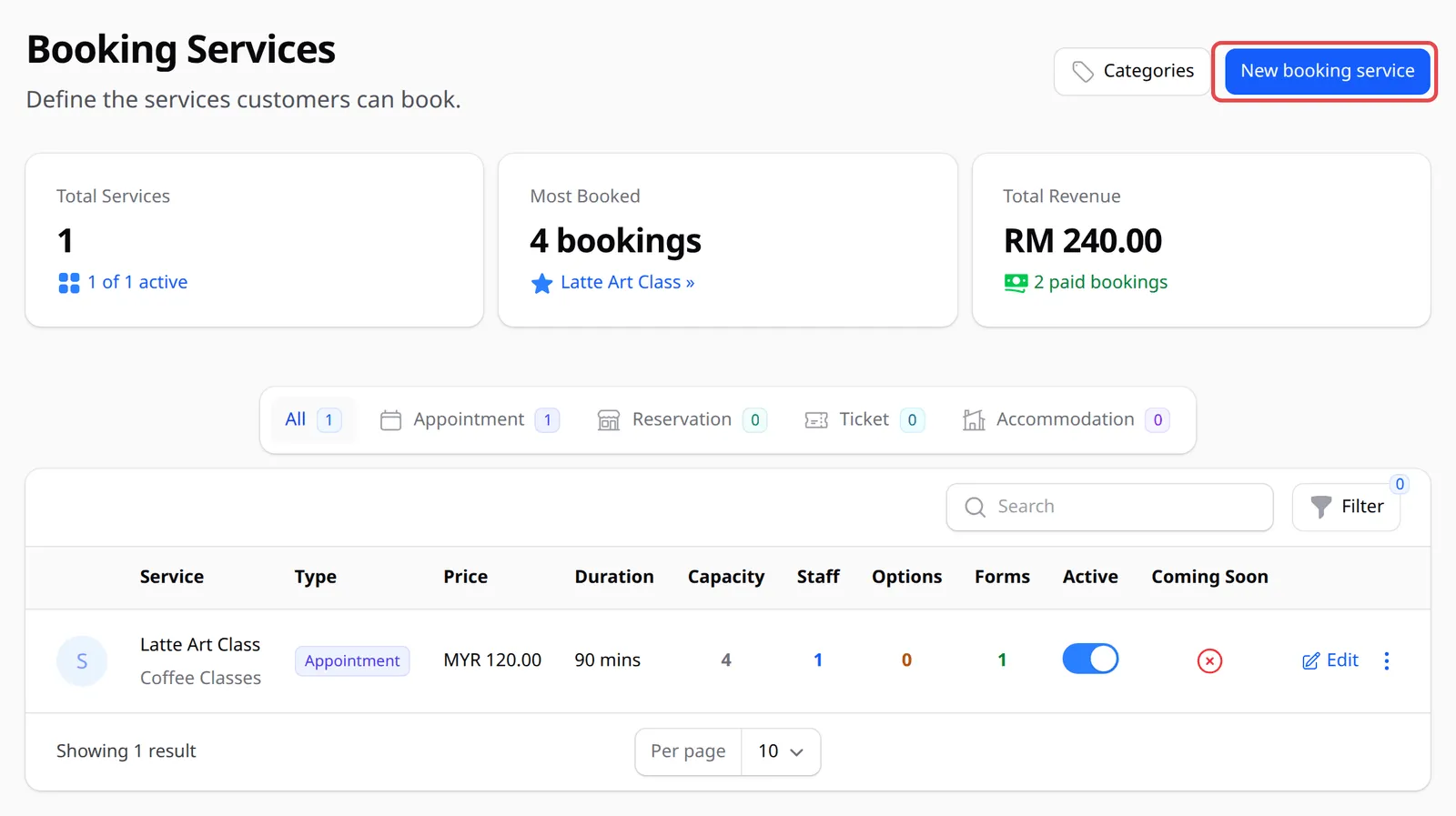
Go to Bookings → Services and click New booking service.
-
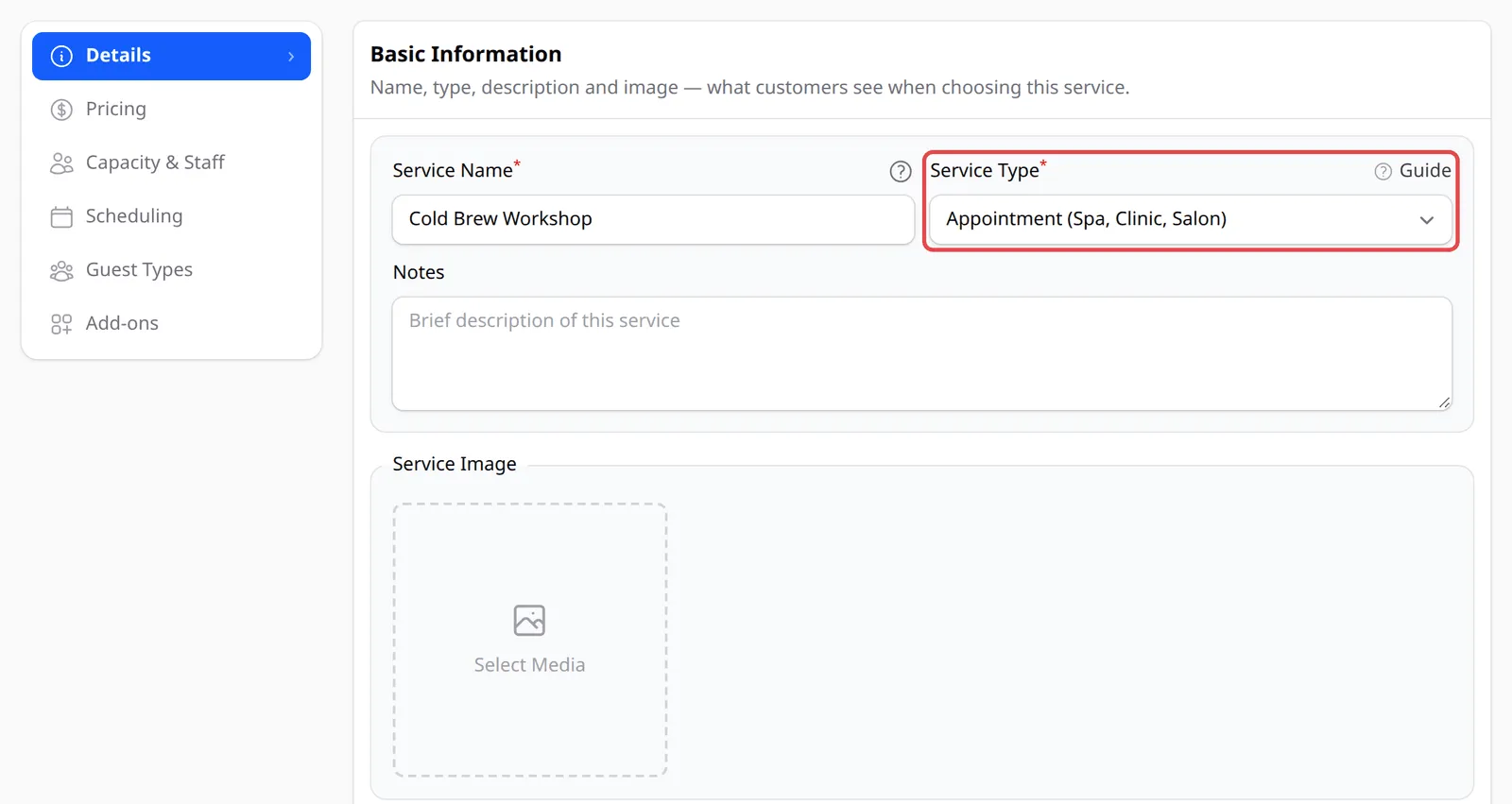
On the Details tab, enter a Service Name and choose a Service Type. Click Guide next to the field for a side-by-side comparison of the types. Notes and Service Image are shown to customers when they choose a service.
-
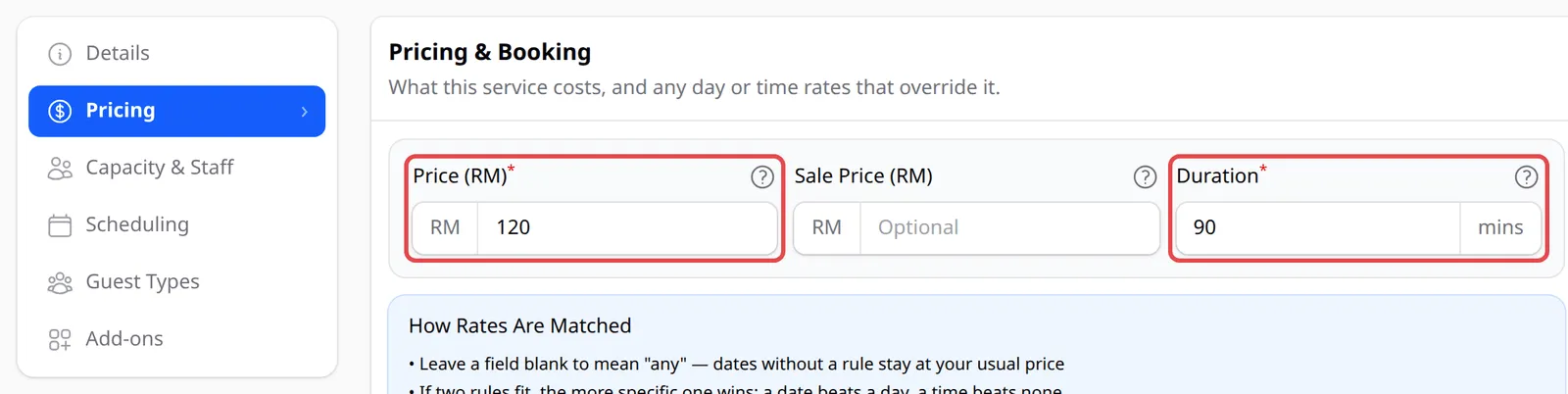
On the Pricing tab, enter the Price (RM) and the Duration in minutes. Sale Price (RM) is optional. To charge more on weekends or at certain times, see Set weekend and peak prices.
-
On the Capacity & Staff tab, fill in these fields:
Field What to enter Slot Capacity How many bookings one slot can take. Buffer Time Free minutes after each booking, before the next slot starts. Category Pick one, or click + to add a new one. Assigned Staff The employees who deliver this service. Required for Appointment services. Capacity Mode Individual (per staff) or Shared (single pool). See Capacity and staff. 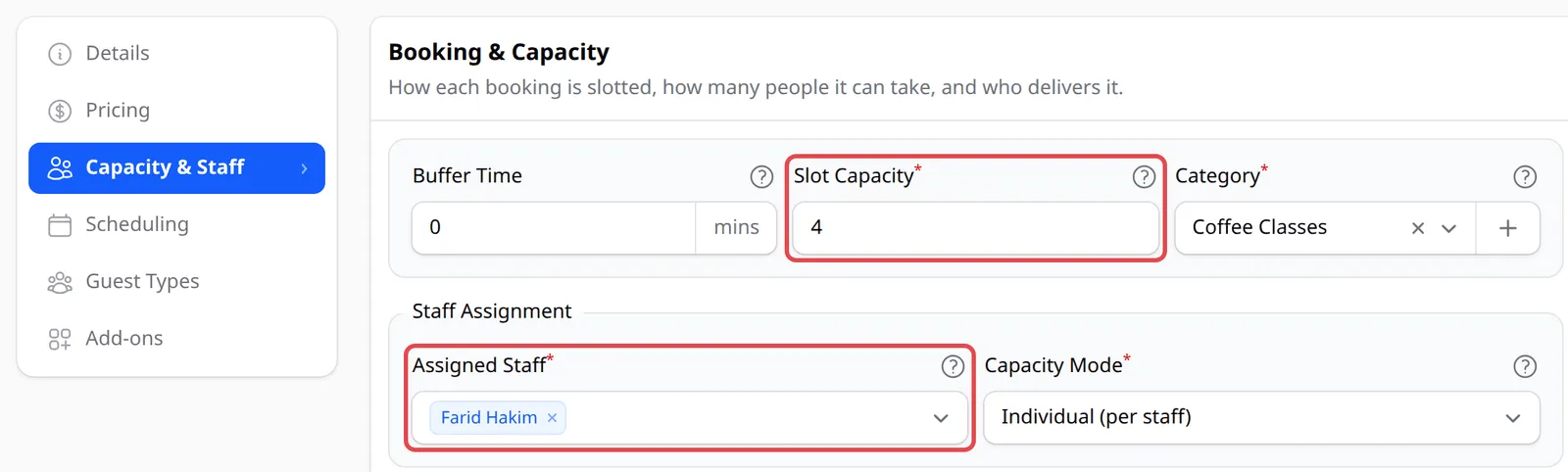
-
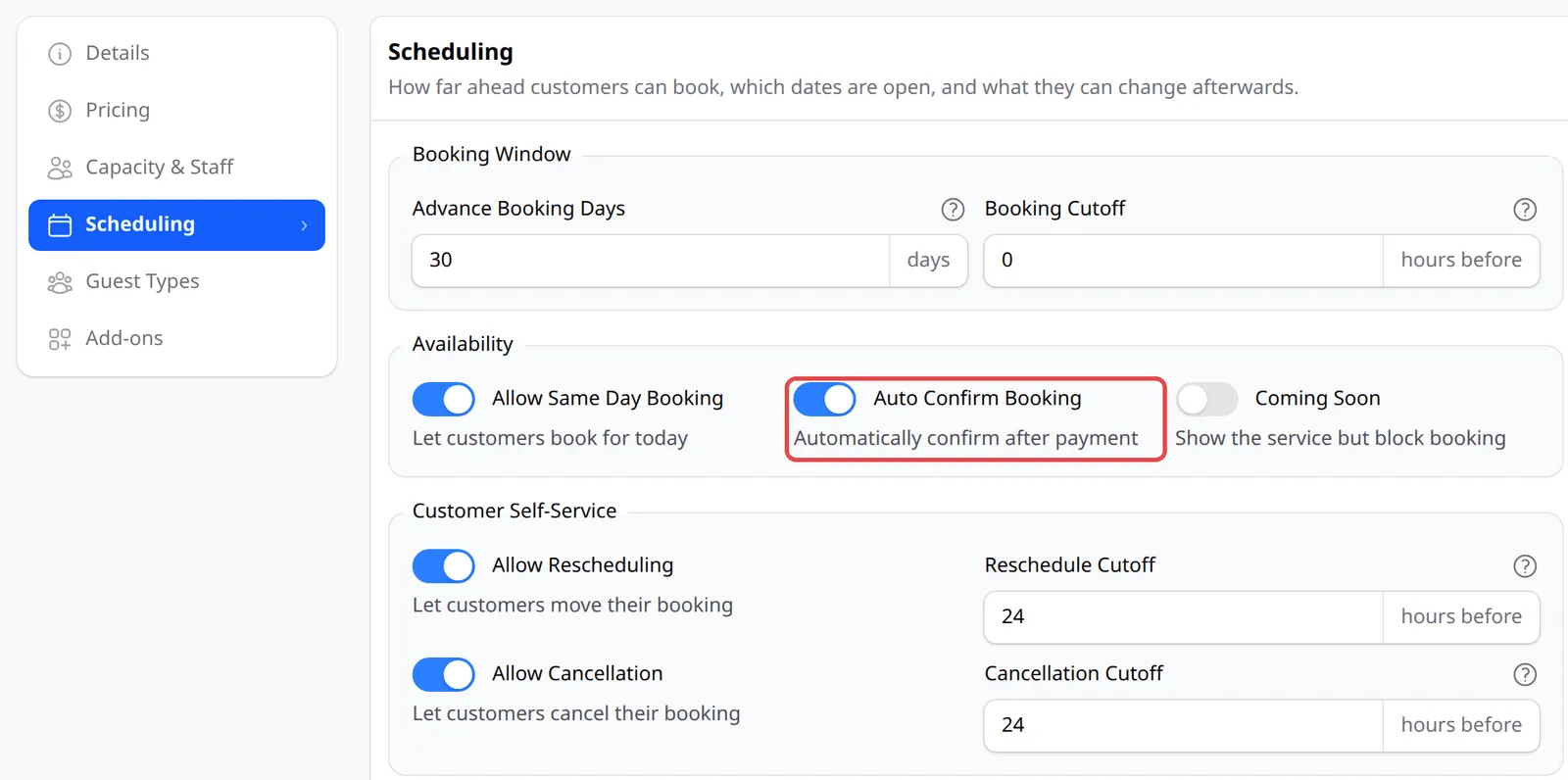
On the Scheduling tab, choose how far ahead customers can book and what they can change afterwards. See Booking rules below.
-
Click Create Service.

The Guest Types tab adds per-person prices, such as adult and child, and the Add-ons tab adds extras the customer can pick, such as an extra tasting cup. Both are optional.
The five service types
Section titled “The five service types”The type decides what the customer chooses and how BCL counts capacity. The fields on the other tabs change with it:
| Service Type | How customers book | Priced |
|---|---|---|
| Appointment (Spa, Clinic, Salon) | Service, then staff, then a time slot | Per booking |
| Reservation (Table Booking) | Date and time, then party size. No staff. | Per booking or per guest |
| Ticket (Museum, Event, Tour) | Date, then ticket types and quantity | Per ticket type |
| Accommodation (Hotel, Homestay, Room) | Check-in and check-out dates | Per night |
| Court (Badminton, Tennis, Futsal) | A court and time from a grid | Per slot |
Capacity and staff
Section titled “Capacity and staff”With Individual (per staff), an Appointment slot with Slot Capacity 1 and three employees can take three bookings, one per employee. With Shared (single pool), the same slot takes one booking in total, whoever delivers it. Use Shared when any of your staff can serve and you are limited by space, such as one treatment room.
For a class, raise Slot Capacity instead. The sample Latte Art Class has a capacity of 4, so four people can book the same 90-minute class.
Booking rules
Section titled “Booking rules”The Scheduling tab controls when customers can book and what they can change:
| Setting | What it does |
|---|---|
| Advance Booking Days | How many days ahead customers can book (30 by default). |
| Booking Cutoff | How many hours before a slot booking closes. |
| Allow Same Day Booking | Lets customers book for today. |
| Auto Confirm Booking | Confirms paid bookings automatically. Off: they wait as Pending. |
| Coming Soon | Shows the service but blocks booking. |
| Allow Rescheduling / Reschedule Cutoff | Lets customers move their booking, up to the cutoff. |
| Allow Cancellation / Cancellation Cutoff | Lets customers cancel, up to the cutoff. |
Organise services into categories
Section titled “Organise services into categories”On the Booking Services list, click Categories to add, rename or reorder categories in Manage Service Categories, then click Save Categories. Each service belongs to one category, shown under its name in the list.
A few habits keep your services easy to manage:
- Name services the way customers say them. The Service Name is what customers see on the booking form, next to the price and duration.
- Use Coming Soon to tease a new service. Customers see it on the form but cannot book it until you turn Coming Soon off.
- Switch a service off instead of deleting it. On the service’s edit page, turn off Active at the top. It disappears from your booking forms, and its past bookings stay as they are.
Common issues
Each session is 45 minutes and I need time to get ready before the next customer. Can I set that?
Yes. On the Pricing tab set Duration to 45, and on the Capacity & Staff tab set Buffer Time to 15. Slots then start every hour, with 15 minutes free between them.
Do I have to confirm every booking myself?
No. On the Scheduling tab, turn on Auto Confirm Booking and paid bookings go straight to Confirmed. With it off, they wait as Pending until you confirm them.
Can customers cancel or change the date themselves?
Yes. On the Scheduling tab, turn on Allow Cancellation and Allow Rescheduling, and set how many hours before the booking they must do it in Cancellation Cutoff and Reschedule Cutoff.
Was this article helpful?
Thanks for your feedback.
Sorry this didn't help. WhatsApp us and we'll sort it out with you.