
Ask an AI about this page
 ChatGPT
 Claude
 Perplexity
 Google AI Mode
 Microsoft Copilot
 Grok
Grok Mistral Le Chat
Add booking staff
Updated

Employees are the people who deliver your booking services, such as a stylist, a therapist or a trainer. Each one has their own working hours, and BCL only offers customers the times when an employee is working. Appointment services need at least one employee.
Add an employee
Section titled “Add an employee”Add each person who takes bookings:
-
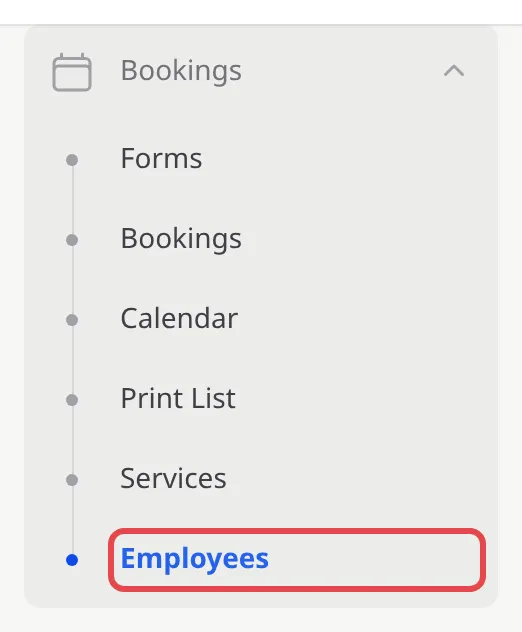
In the sidebar, go to Bookings → Employees.
-
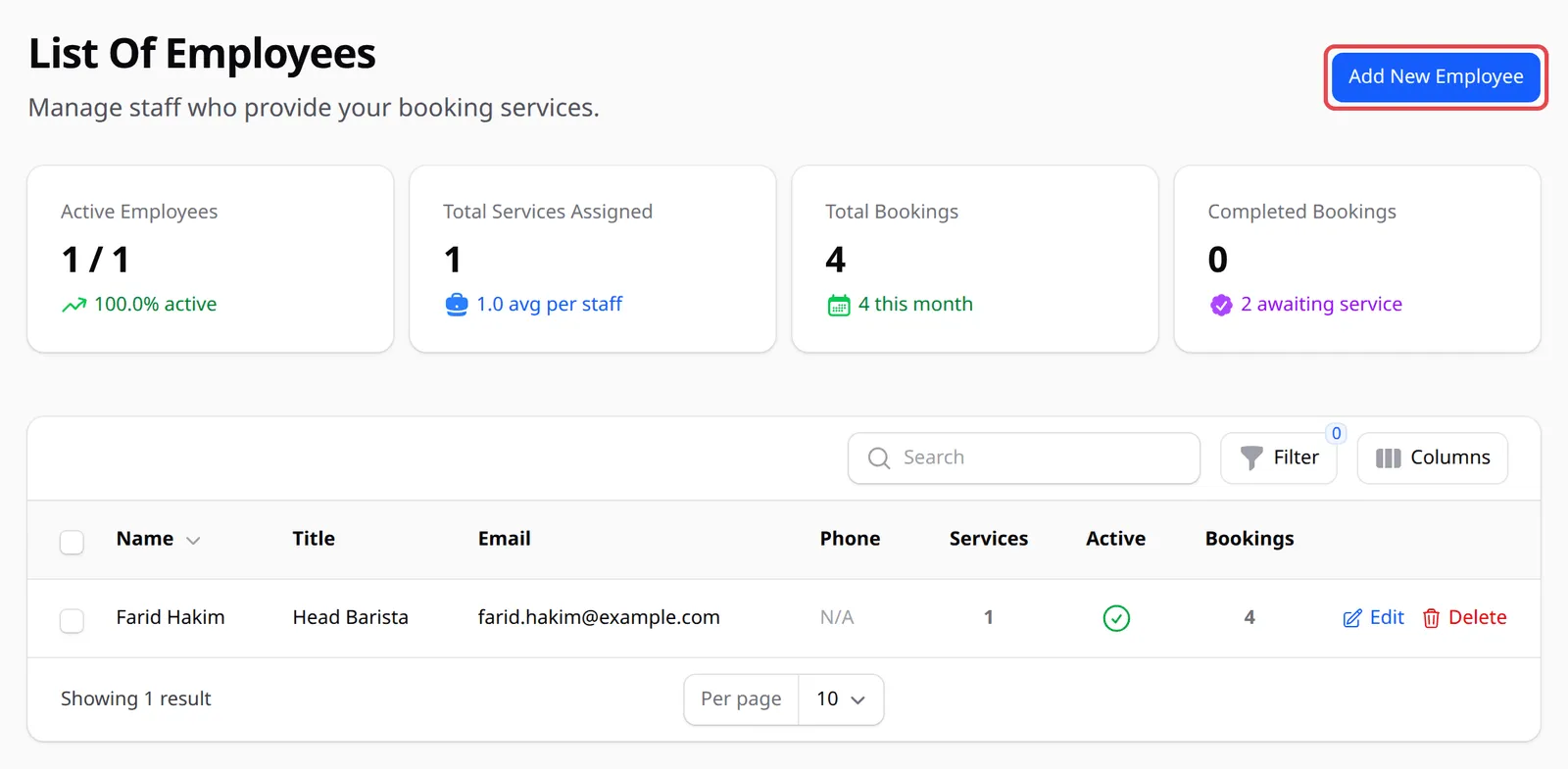
On List Of Employees, click Add New Employee.
-
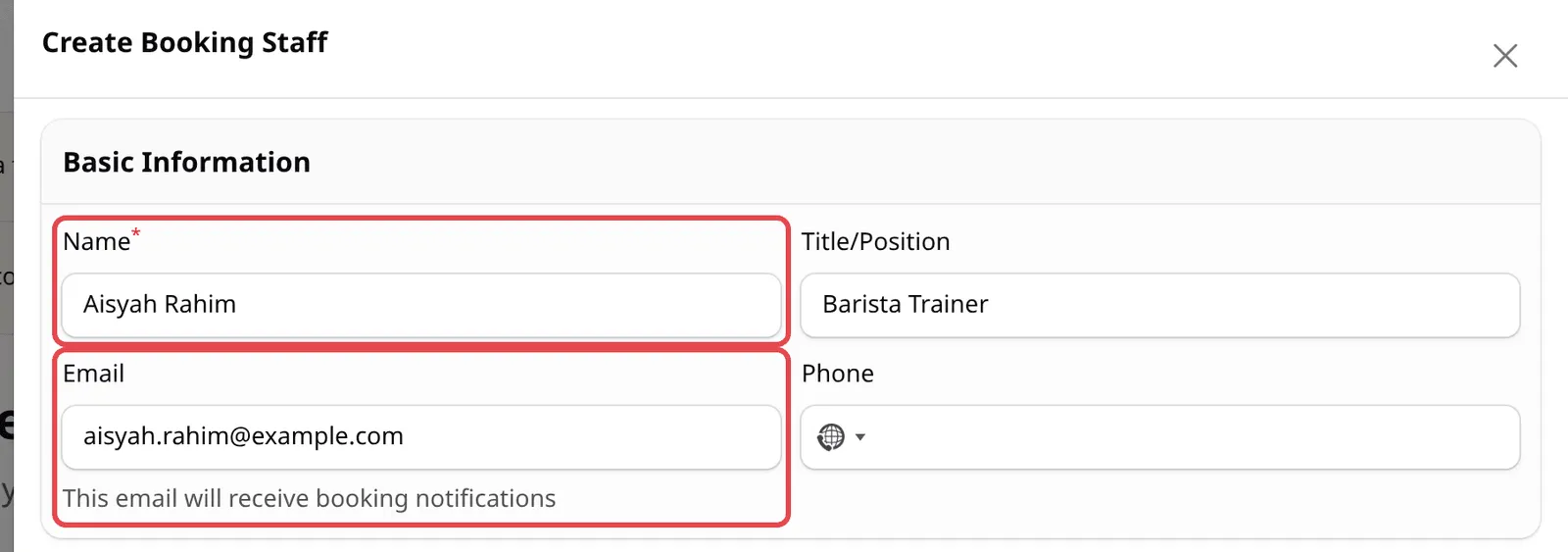
Under Basic Information, enter the Name. Title/Position, Email and Phone are optional. The email receives booking notifications for this employee.
-
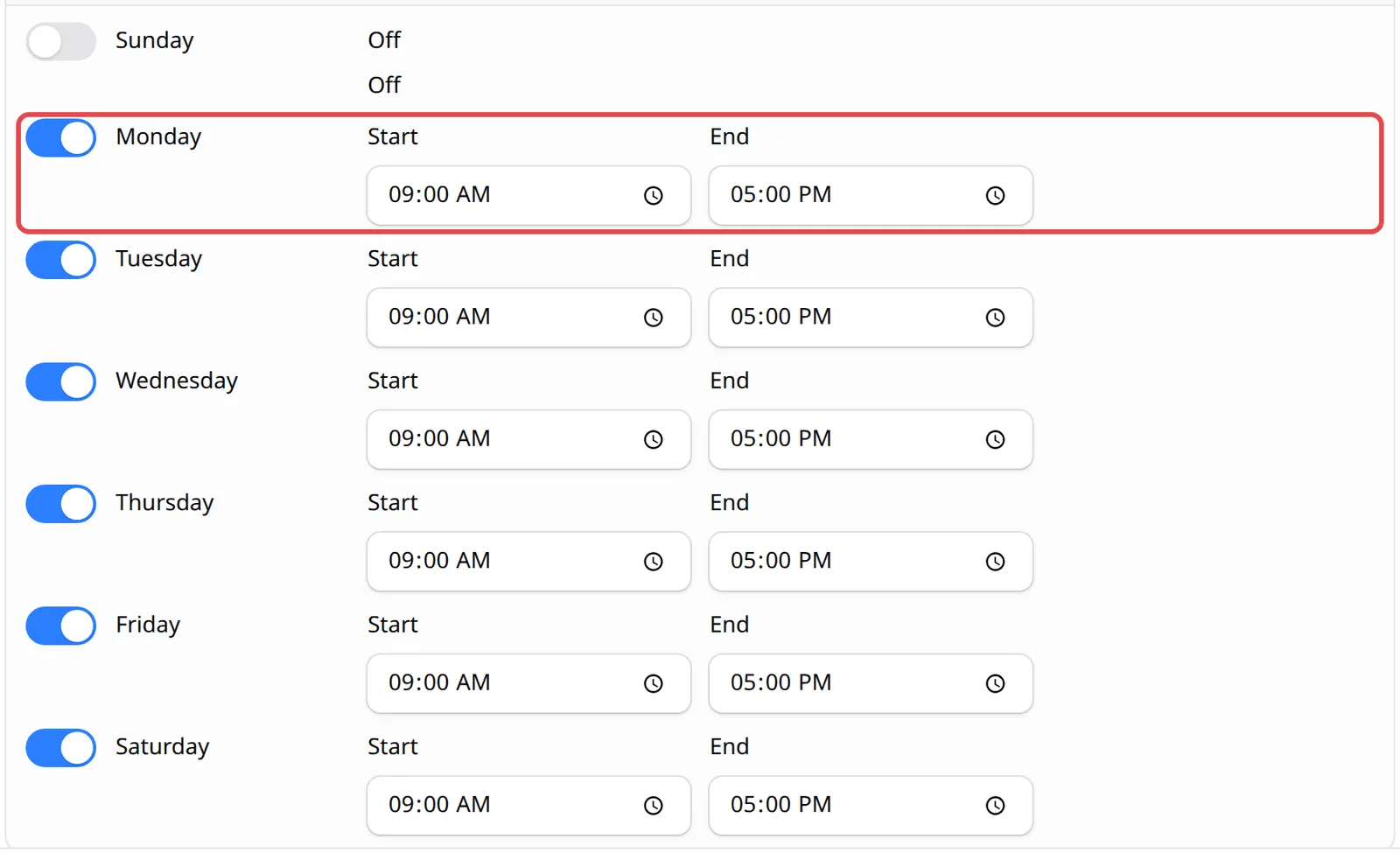
Under Working Hours, switch on each day the employee works. Every day starts Off. When you switch a day on, Start and End appear, set to 09:00 AM and 05:00 PM. Change them to the hours this person works.
-
Click Create.
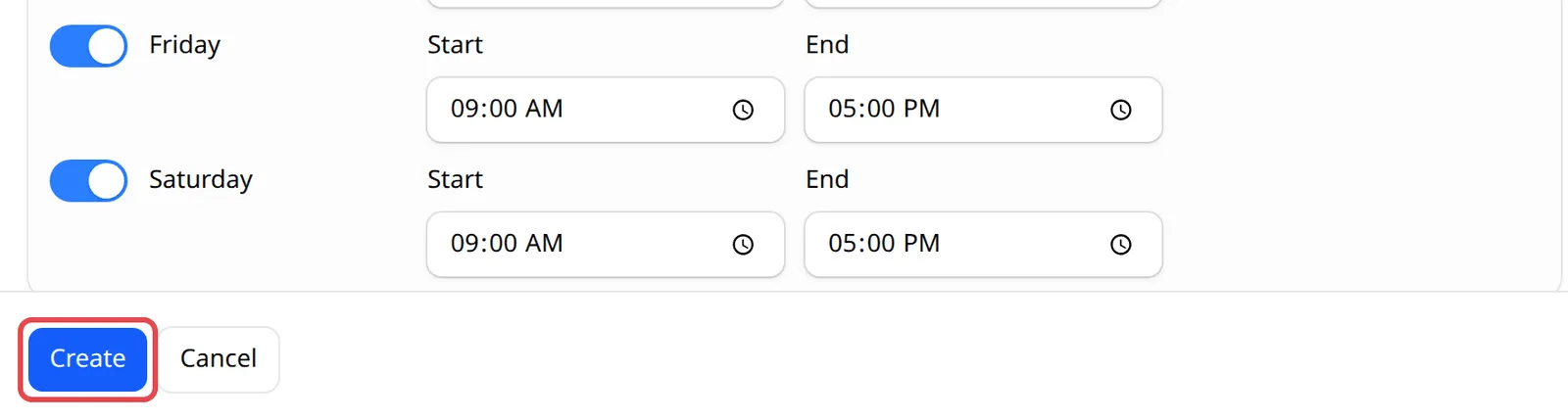
The employee now appears in the list. To let customers book them, add them to a service in Assigned Staff. See Create booking services.
Change working hours or details
Section titled “Change working hours or details”To change an employee later:
-
Go to Bookings → Employees and click Edit on their row.

-
Change their details or Working Hours. When you switch on a day while editing, check that Start and End are both filled in.
-
Click Save changes.
The list also shows how many Services and Bookings each employee has. When someone is away for a while, remove them from the service’s Assigned Staff so customers cannot pick them, rather than delete them.
How working hours limit bookings
Section titled “How working hours limit bookings”BCL uses two sets of hours. The booking form has Operating Hours, and each employee has Working Hours. A time can be booked only when both are open and the employee still has room. For example, with a form open 09:00 AM to 06:00 PM and an employee working 09:00 AM to 05:00 PM, a 90-minute session that starts at 04:30 PM cannot be booked with that employee.
Keep your staff and your form in step:
- Match working hours to your form. If your form opens until 06:00 PM, set employees’ End to 06:00 PM too, or the last slots of the day stay empty.
- Use a shared inbox for notifications. If you want every booking email in one place, give employees an address your team checks, not a personal one.
- Templates set hours for you. Staff created by a booking form template get working hours copied from the template’s opening hours, so check them rather than start from Off.
Common issues
I have three staff with different working hours. Can customers choose who they want?
Yes. Set each person's Working Hours on Bookings → Employees, assign them to the service in Assigned Staff, then set Staff Selection Mode on the booking form to Optional or Required.
Why does my booking form say "Slot No Longer Available" when nobody has booked that time?
Check the employee's Working Hours. A new employee starts with every day Off, and a customer who picks that employee cannot book. Open Bookings → Employees, click Edit, switch on their working days and click Save changes.
Does each employee get an email when someone books them?
Enter the employee's Email. BCL sends booking notifications to that address.
Was this article helpful?
Thanks for your feedback.
Sorry this didn't help. WhatsApp us and we'll sort it out with you.