
Ask an AI about this page
 ChatGPT
 Claude
 Perplexity
 Google AI Mode
 Microsoft Copilot
 Grok
Grok Mistral Le Chat
Send orders to Google Sheets
Updated

With Google Sheets connected, BCL can add a row to your spreadsheet for every successful payment, so your orders sit in a sheet you can sort, share and total. This is done with an automation, not in the form’s settings.
You need a Google account and a spreadsheet with your column headings in row 1, for example Date, Order Number, Name, Email, Phone, Amount, Payment Method and Form.
Connect your Google account
Section titled “Connect your Google account”You connect Google once for your whole team.
-
Go to Platform Setup → Integrations and open the Google tab.
-
Under Google Sheets Integration, click Connect Google Account and sign in to Google.
-
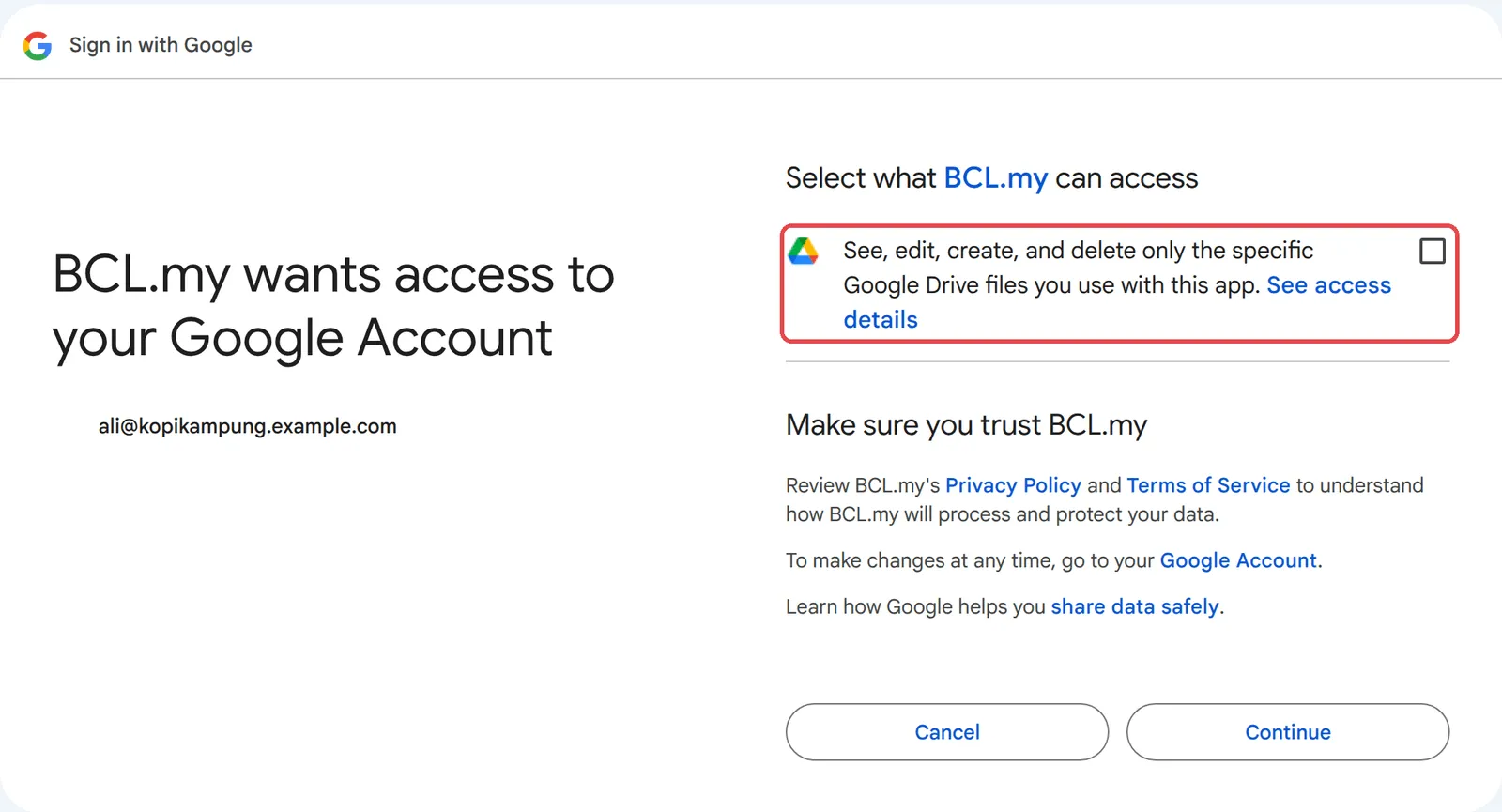
Google asks what BCL may access. Tick See, edit, create, and delete only the specific Google Drive files you use with this app, then click Continue. BCL can then open only the spreadsheets you pick, not the rest of your Drive.
-
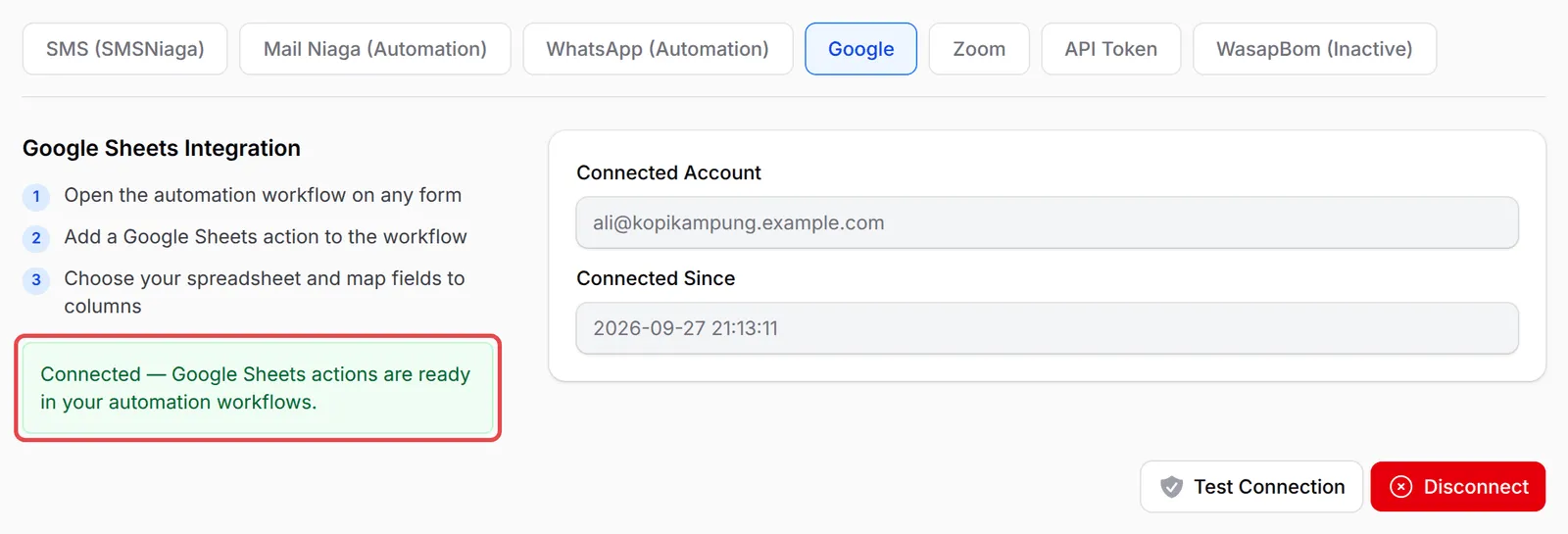
Back in BCL, the tab shows that Google Sheets is Connected, with the Connected Account and Connected Since date. Test Connection checks it again later, and Disconnect removes it.
Add each payment to your sheet
Section titled “Add each payment to your sheet”The quickest start is the Google Sheets Transaction Log template:
-
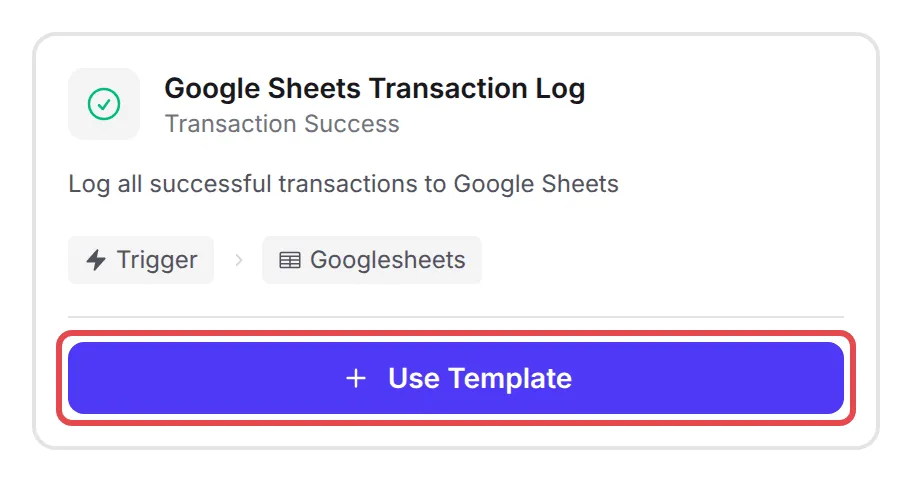
Go to Automations, click Templates, and click Use Template on Google Sheets Transaction Log.
-
BCL creates the automation with a Payment Success trigger and an Append to Sheet node, and opens it. Click Rename to give it your own name.
-
To use it for some forms only, open the Payment Success trigger, choose a Payment Source Type and pick the forms under Specific Form, then click Save Trigger.
-
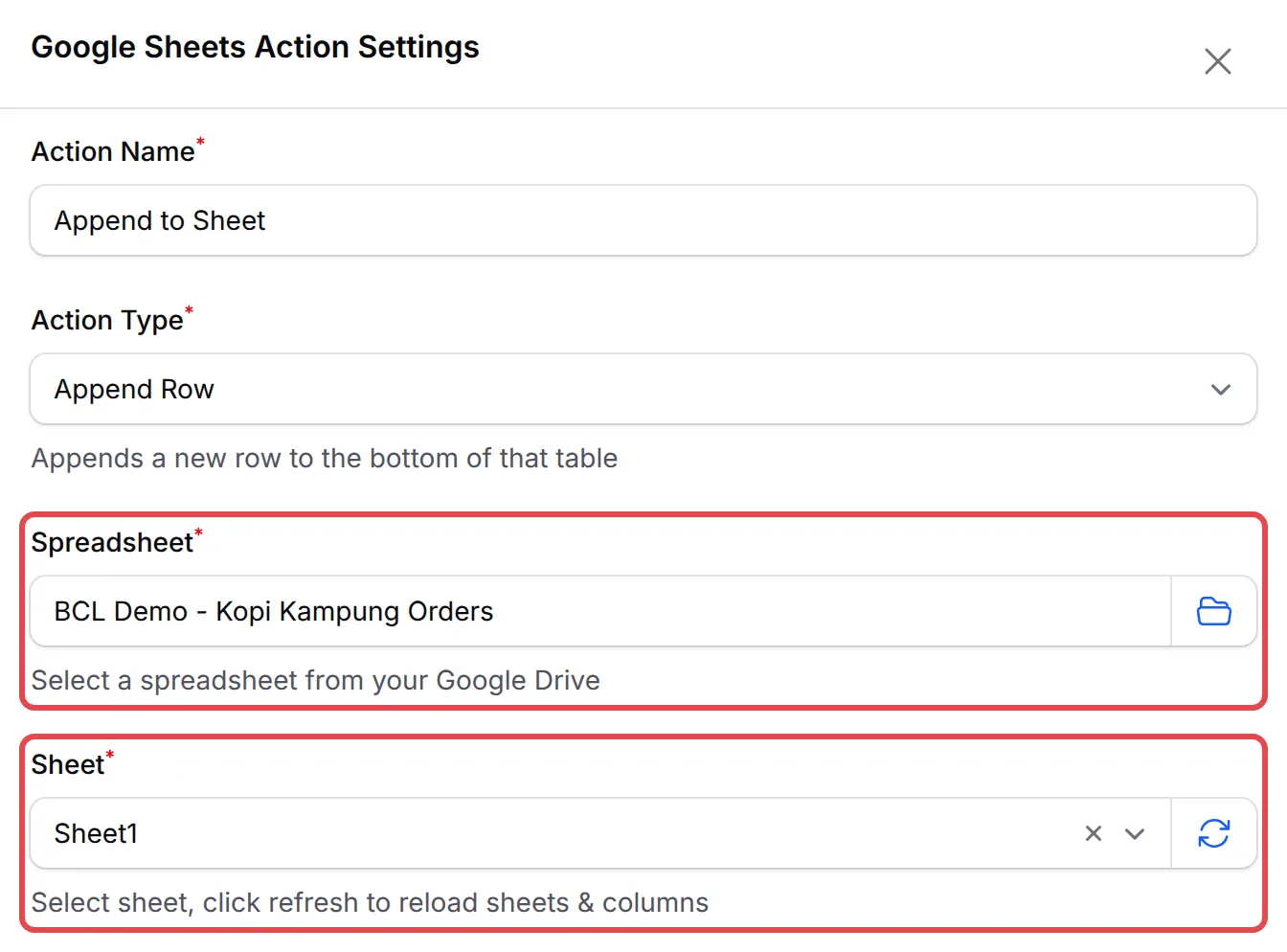
Click the Append to Sheet node, then the gear button under it.
-
Under Spreadsheet, click the folder button and choose your spreadsheet in the Google window. Then choose the Sheet (the tab in your spreadsheet). If your columns do not show, click the refresh button next to Sheet.
-
Under Column Values, BCL lists each heading from row 1. Enter what goes in each column, such as
{payment_date},{order_number},{name},{email},{phone},{amount},{payment_method}and{form_title}. Click Variables to pick them from a list.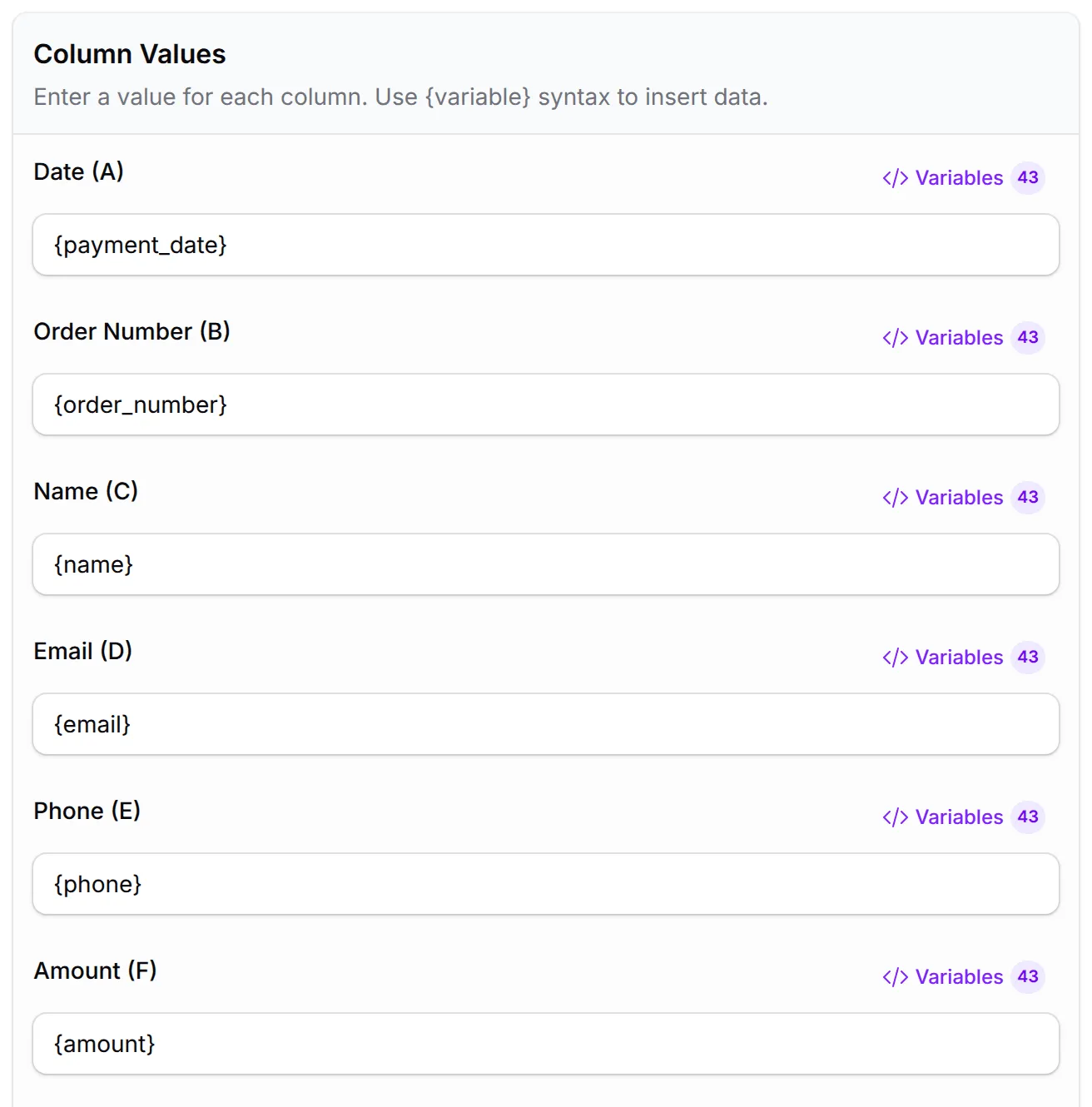
-
Click Test Append Row to add a row with sample data and check the layout, then click Save Google Sheets.
-
Click Update Automation, then Activate.
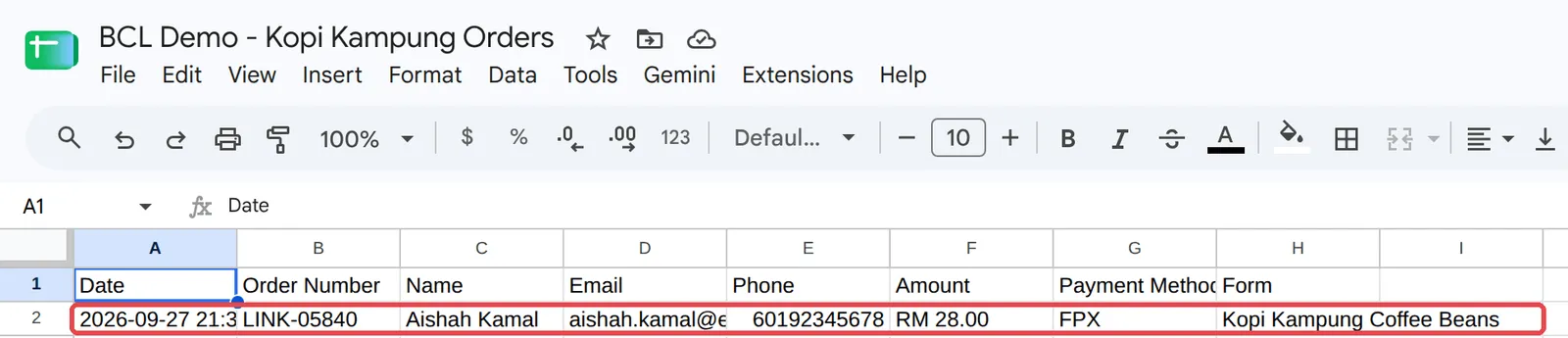
From now on, every successful payment on the chosen forms adds a row to the sheet:
Update a row instead
Section titled “Update a row instead”To keep one row per order and change it as the order moves on, set Action Type to Update Row. Under Lookup Settings, choose the Lookup Column that holds the order number and enter {order_number} as the Lookup Value. Turn on Create row if not found to add orders that are not in the sheet yet. Under Update Values, click Add Column for each column to change and enter its new value, such as {payment_status}. The Google Sheets Update Status template sets this up with the Transaction Status Changed trigger.
A tidy sheet saves work later:
- Do not move or insert columns later. BCL saves each value against a column letter, so moving a column sends data to the wrong place. After any change to row 1, click the refresh button and check Column Values.
- Use one tab per purpose. For example, one sheet tab for coffee bean orders and another for class deposits, each with its own automation and form filter.
- Share the sheet, not your BCL login. Staff who only need the order list can work from the sheet.
- Check the history if rows stop appearing. Open the automation and click Overview. A disconnected Google account shows up there as a failed action. See Check an automation’s history.
Common issues
How do I connect my payment form or event form to Google Sheets?
Google Sheets is not a form setting. Connect your Google account under Platform Setup → Integrations → Google, then create an automation with a Google Sheets action. Each payment is added as a new row.
Why does BCL only see some of my Google Drive files?
BCL only asks for access to the files you pick. Choose your spreadsheet with the folder button in the Spreadsheet field; BCL cannot see the rest of your Drive.
My columns do not appear in the Google Sheets action. What is wrong?
BCL reads the column names from the first row of the sheet. Type your headings in row 1, then click the refresh button next to Sheet.
Was this article helpful?
Thanks for your feedback.
Sorry this didn't help. WhatsApp us and we'll sort it out with you.