
Ask an AI about this page
 ChatGPT
 Claude
 Perplexity
 Google AI Mode
 Microsoft Copilot
 Grok
Grok Mistral Le Chat
Add, turn off or delete a custom field
A custom field asks buyers for one more detail on a payment or event form, such as a company name. The buyer fills it in under Your Details. You can turn a field off when you no longer need it, or delete it.
Add a custom field
Section titled “Add a custom field”Add a field when you need one more detail from each buyer:
-
Go to Payments → Forms and open the form.
-
Click the Custom Field Form tab.
-
Click Add Custom Field.

-
Fill in the Label, which buyers see, and choose the Type.
Type Use it for Text Input A short answer, such as a company name Text Area A longer answer, such as a message Dropdown, Radio Buttons, Button Group One choice from a list of options Checkbox One or more choices from a list of options Date Picker A date File Upload A file from the buyer -
Optional: add Hint Text under the field. Turn on Required Field if every buyer must answer.
-
Click Update Form.
Turn off a custom field
Section titled “Turn off a custom field”Turn a field off to hide it from buyers. BCL keeps the field, so you can turn it on again later:
-
Open the form and click the Custom Field Form tab.
-
Click the field’s row to open it.
-
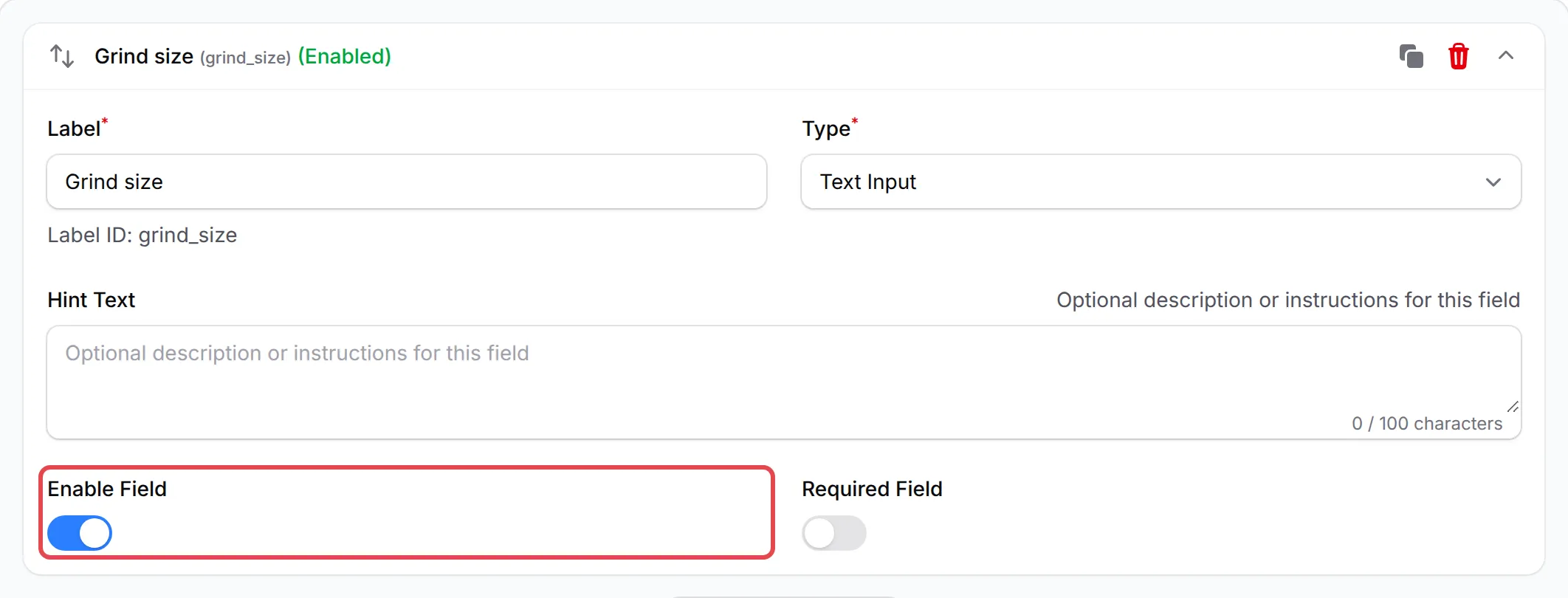
Turn off Enable Field.
-
Click Update Form.

After you save, the field’s row shows (Disabled) in red. An active field shows (Enabled) in green.
Delete a custom field
Section titled “Delete a custom field”Delete a field when you will not use it again:
-
Open the form and click the Custom Field Form tab.
-
On the field’s row, click the red bin button and confirm.

-
Click Update Form.
These habits keep your form short and your records clear:
- Ask only what you need. Each extra field makes the form longer, and some buyers stop before they pay.
- Turn off a seasonal field. Do not delete it. For example, turn off a coupon code field after a promotion. Turn it on again for the next promotion.
Common issues
How do I remove the Company Name and Coupon Code fields from my form?
Those are custom fields. Open the form and click the Custom Field Form tab. Click the field to open it, turn off Enable Field, then click Update Form. The field no longer shows on the form, and you can turn it on again later.
What is the difference between turning a field off and deleting it?
Enable Field off hides the field from buyers but keeps it in your form, so you can turn it on again. The red bin button deletes the field from the form.
How many custom fields can one form have?
Up to 20 custom fields per form. A Dropdown, Checkbox, Radio Buttons or Button Group field can have up to 20 options.
Was this article helpful?
Thanks for your feedback.
Sorry this didn't help. WhatsApp us and we'll sort it out with you.