
Ask an AI about this page
 ChatGPT
 Claude
 Perplexity
 Google AI Mode
 Microsoft Copilot
 Grok
Grok Mistral Le Chat
View and manage lead submissions
Updated

Every form sent through your lead forms is saved in Lead Submissions. From there you can read each lead, sort out spam, and export the list.
Open your submissions
Section titled “Open your submissions”You can see all your leads together, or one form’s leads on their own.
-
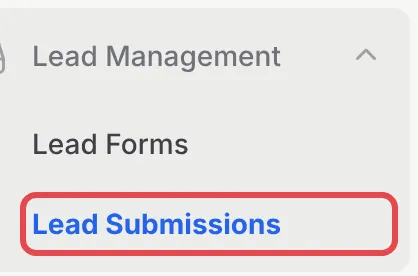
In the sidebar, go to Lead Management → Lead Submissions.
-
The cards at the top sum up your leads:
Card What it shows Active Forms How many of your lead forms are switched on, out of all your lead forms. Total Submissions All submissions so far, and how many are still unread. This Month Submissions this calendar month, compared with last month. Read Rate The share of submissions someone has opened. -
Click a tab to filter by status:
Tab Shows New Submissions nobody has opened yet. Read Submissions someone has opened. Spam Submissions you marked as spam, and ones BCL’s bot check blocked. Blocked ones have an ID starting with SPAM-.Archived Old submissions you have put away. 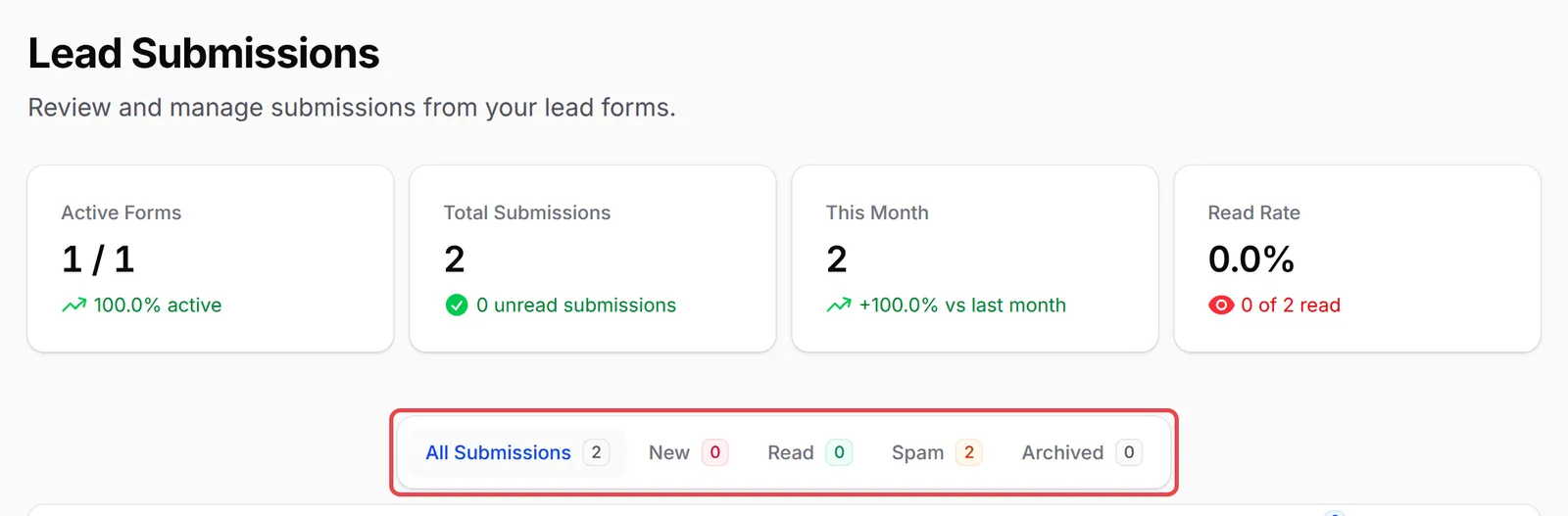
Each row shows the Submission ID, Form, Category, Device Type, Browser, Status and when it was Submitted. Use Search and Filter above the table to find a lead.
To see one form’s leads only, open the form under Lead Management → Lead Forms and click the Submissions tab.
Read and sort a submission
Section titled “Read and sort a submission”Open a submission to see everything the person filled in:
-
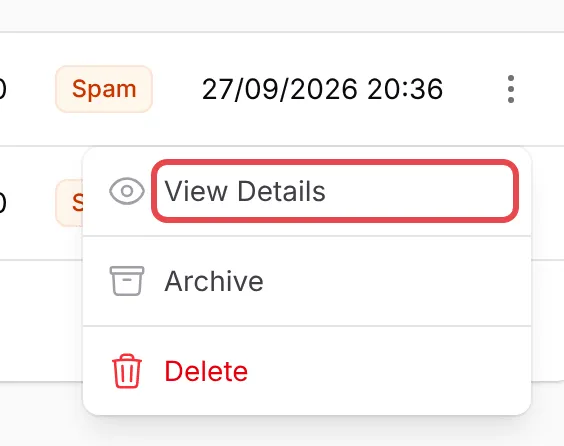
Click ⋮ at the end of the row, then View Details. A new submission is marked Read as soon as you open it.
-
To change its status, click ⋮ on the row again and choose Mark as Read, Mark as Unread, Mark as Spam or Archive. The menu only offers the ones that fit the current status.
To change many at once, tick their rows and use the bulk actions menu above the table.
Export submissions
Section titled “Export submissions”To take your leads into a spreadsheet, export them from the form’s own list:
-
Open the form under Lead Management → Lead Forms, then click the Submissions tab.
-
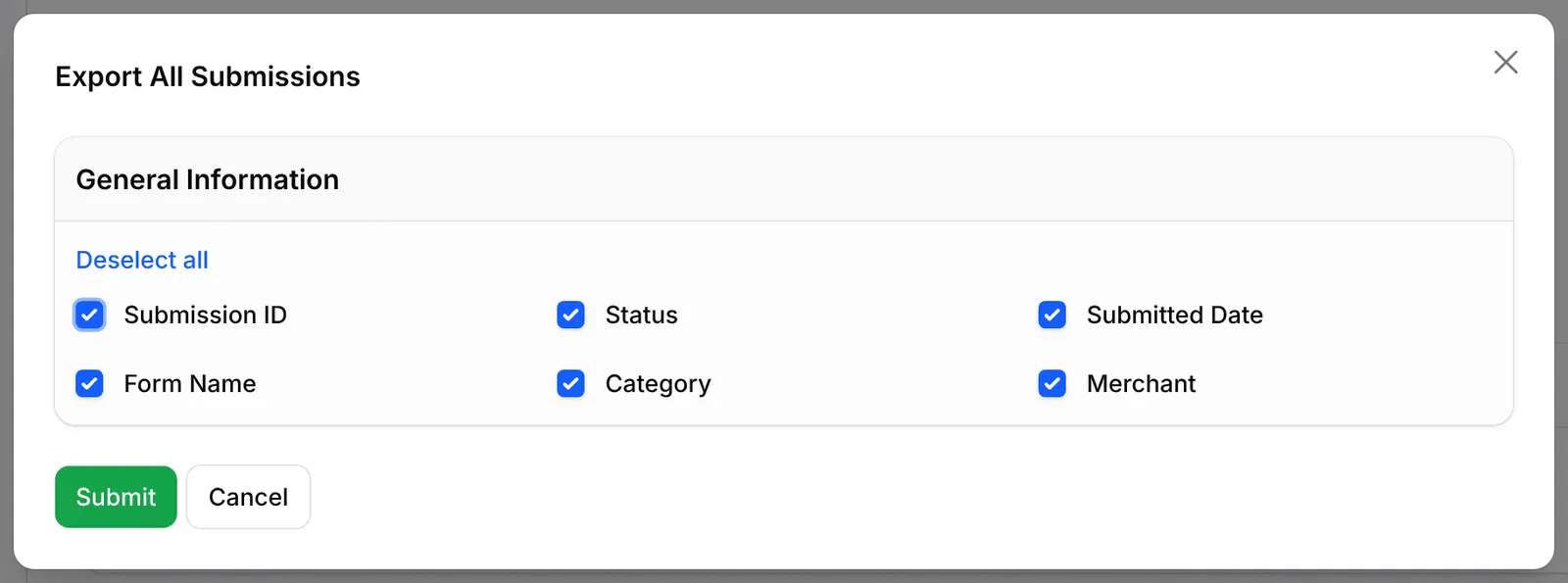
Click Export All Submissions.

-
Choose the columns to include, then click Submit.
To export only some leads, tick their rows and choose Export Selected from the bulk actions menu.
A little routine keeps your lead list useful:
- Check the New tab daily. Leads go cold quickly, and the Read Rate card shows at a glance whether anyone is following up.
- Archive instead of deleting. Archived leads leave your working list but stay available if a customer comes back.
- Stop exporting by hand. An automation with the New Lead Received trigger can email your team, add the lead to Mail Niaga or send it to your CRM as soon as it arrives. See Create an automation.
Common issues
Where do the details people send through my lead form go?
To Lead Management → Lead Submissions. Each form also has its own list: open the form and click the Submissions tab.
I download a CSV every day and upload it to my mailing list. Can this be automatic?
Yes. Create an automation with the New Lead Received trigger and an Add to Mail Niaga or HTTP Request action. Each new lead is then sent on as it arrives.
Why are some submissions marked Spam with an ID that starts with SPAM-?
BCL checks every lead form for bots. Submissions that fail the check are kept as Spam so you can see them, but they are not treated as real leads.
Was this article helpful?
Thanks for your feedback.
Sorry this didn't help. WhatsApp us and we'll sort it out with you.