
Ask an AI about this page
 ChatGPT
 Claude
 Perplexity
 Google AI Mode
 Microsoft Copilot
 Grok
Grok Mistral Le Chat
Follow up on failed payments
Updated

A failed payment usually means the bank declined it or the customer ran out of time, not that they changed their mind. This automation emails them straight away with a link to try again. BCL’s Incomplete Payment Follow-up template already contains it: you only remove the part you do not need.
What you need
Section titled “What you need”Only a form that takes online payments. The template’s email works as it is, and you can reword it.
Build it from the template
Section titled “Build it from the template”The template has two branches: one emails failed payments, the other cancelled ones. This recipe keeps the failed branch, because Remind customers about unpaid orders handles cancelled ones.
-
Go to Automations and click Templates.
-
Find Incomplete Payment Follow-up and click Use Template. BCL opens the new automation, which starts inactive.
-
Remove the cancelled branch: click Status = Cancelled?, click the bin icon under it and click Delete Node, then do the same for Send Cancelled Email.
-
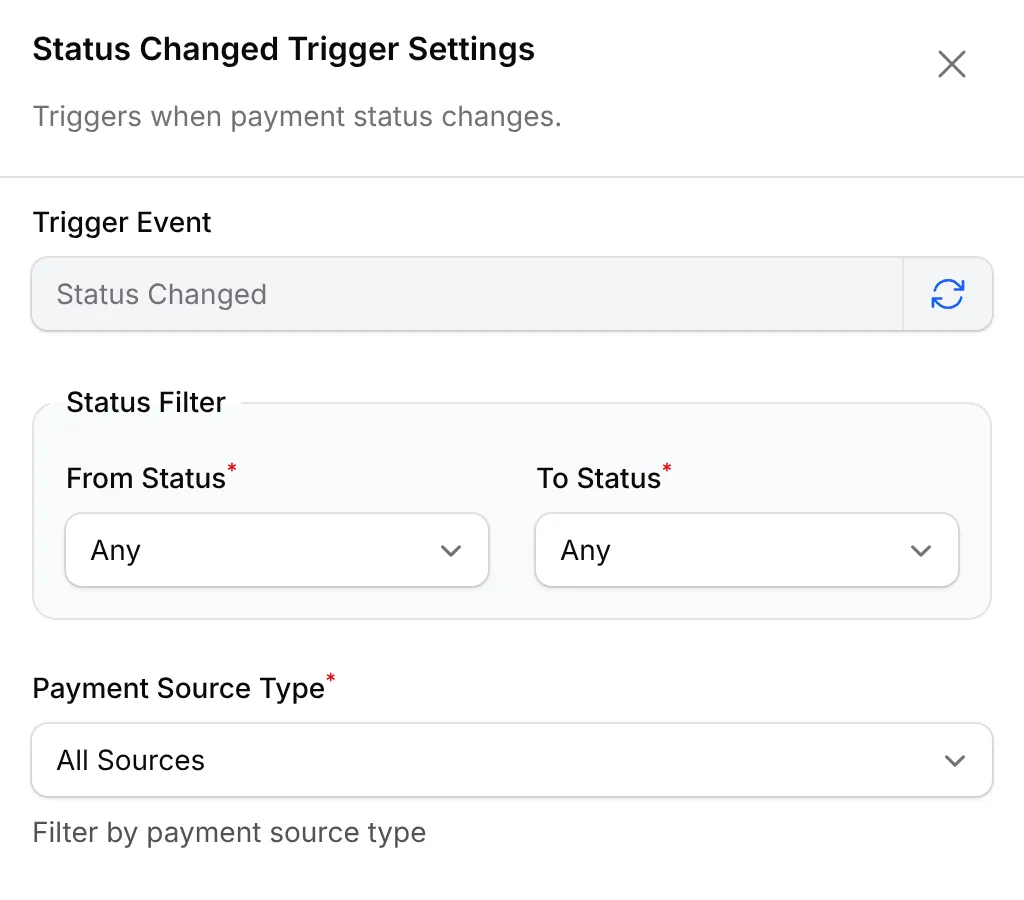
Double-click Status Changed. Leave the filters on Any, or set To Status to Failed so the automation only runs for failures. Click Save Trigger.
-
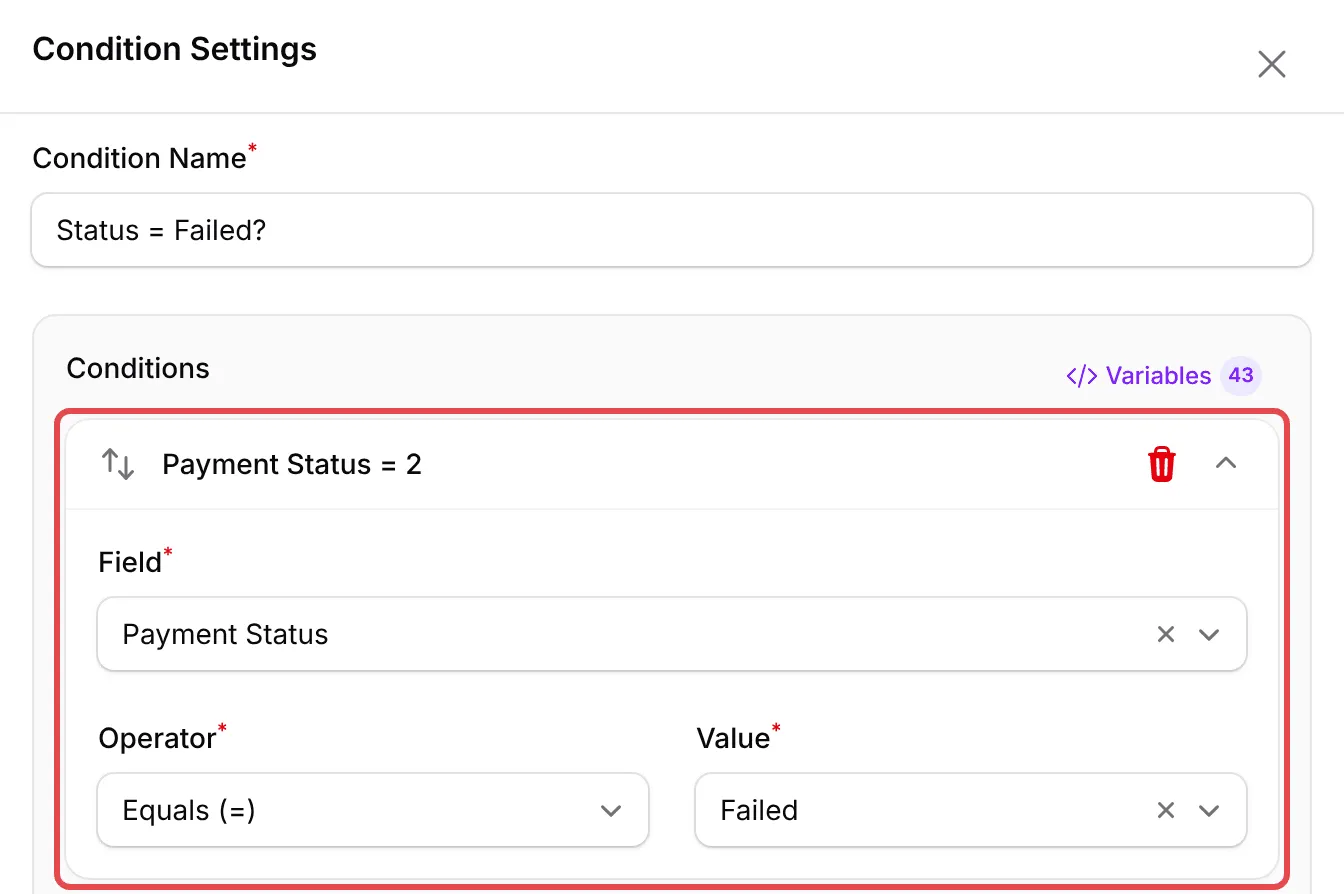
Double-click Status = Failed? to see its rule: Payment Status, Equals (=), Failed. Click Cancel to keep it.
-
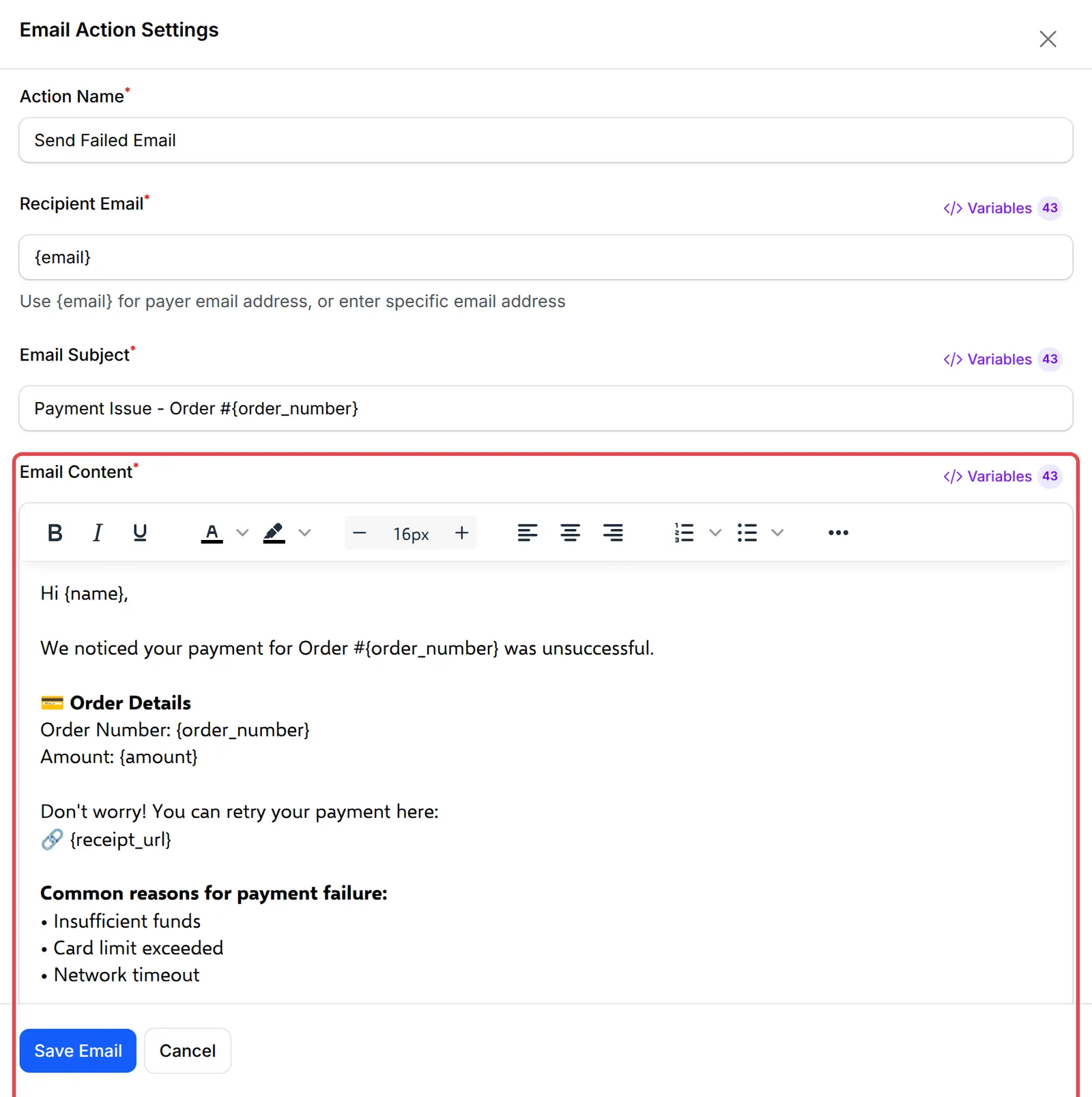
Double-click Send Failed Email and reword the message if you like. Click Save Email.
-
Click Rename to give it your own name, click Update Automation, then Activate and confirm.
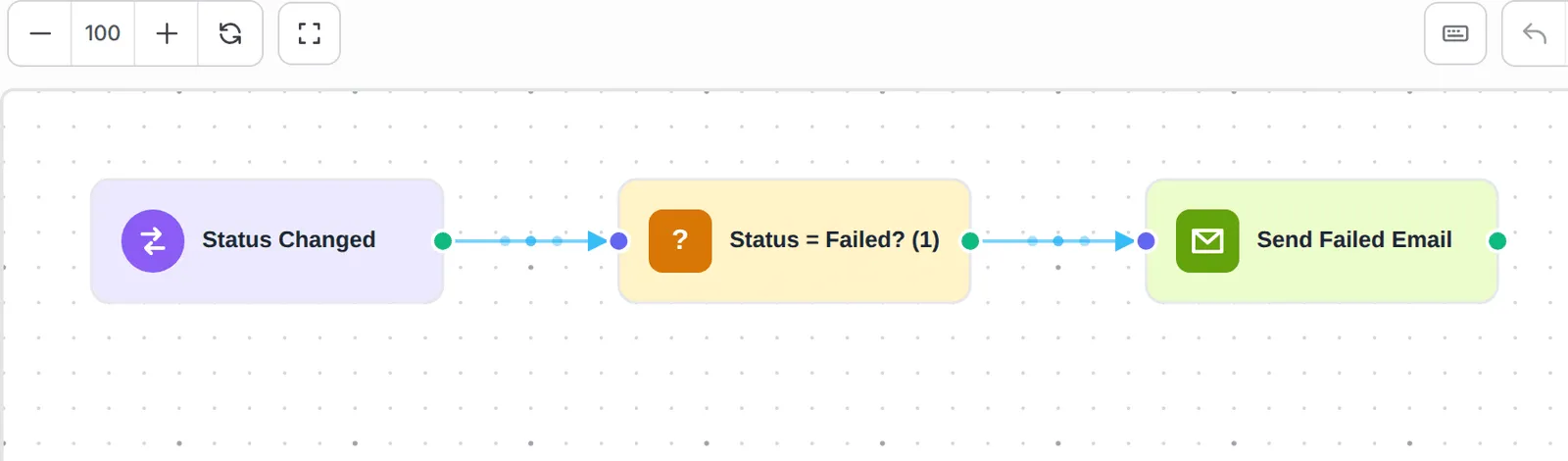
The finished workflow:
The template’s email uses these variables:
| Variable | Shows |
|---|---|
{name} |
The customer’s name |
{order_number} |
The order number |
{amount} |
The amount, such as RM 35.00 |
{receipt_url} |
The receipt page, with a Retry Payment button for a failed payment |
{business_name} |
Your business name |
Test it
Section titled “Test it”Check the recipe with a test run before you rely on it:
-
In Test Mode, pay on your form and choose the failing option at the sandbox bank.
-
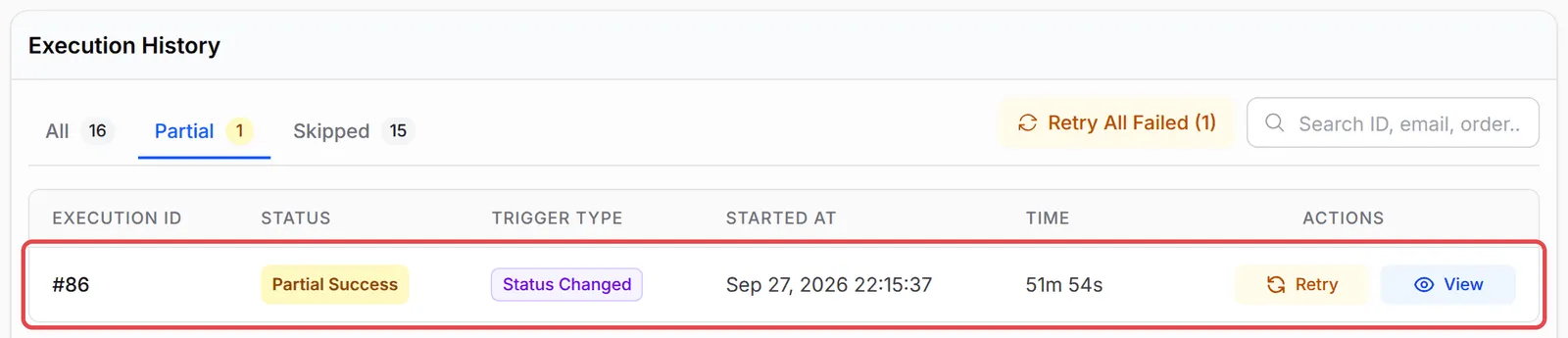
Open the automation and click Overview. The failed payment shows a run that passed the condition and sent the email (Completed when delivered). Other status changes show as Skipped.
A few ways to get more from this recipe:
- A simpler build does the same job. A blank automation with the Payment Failed trigger and one Send Email step needs no condition.
- Do not send this for bookings or seated events. Their receipt pages do not offer Retry Payment. Set Payment Source Type to Payment Form if you sell those too.
- Offer help, not pressure. Mention another payment method or a way to reach you: a failure is often the bank, not the buyer.
Common issues
Why does my history show many Skipped runs?
The template starts on Status Changed, which fires on every status change. The condition lets only failed payments through and marks the rest as skipped. That is expected. To keep the history clean, set To Status to Failed in the trigger.
Can the customer pay again for the same order?
Yes. The email links to {receipt_url}. For a failed online payment, the receipt page shows a Retry Payment button that starts a new payment for the same order.
Was this article helpful?
Thanks for your feedback.
Sorry this didn't help. WhatsApp us and we'll sort it out with you.