
Ask an AI about this page
 ChatGPT
 Claude
 Perplexity
 Google AI Mode
 Microsoft Copilot
 Grok
Grok Mistral Le Chat
Build a landing page with blocks
The landing page builder makes a full page for a form from blocks: text, images, videos, a live price, a countdown, reviews and buttons. You drag blocks onto the page and change them in the panel on the right. Nothing goes live until you click Save.
Open the builder
Section titled “Open the builder”A payment form uses the builder when its Type of Form is Landing Pages. Event, booking and lead forms use it when Use Landing Pages is on. To open it:
-
Edit the form and set Type of Form to Landing Pages, or turn on Use Landing Pages on an event, booking or lead form.
-
Click Edit Landing Page at the top of the form. BCL saves the form, then opens the builder.

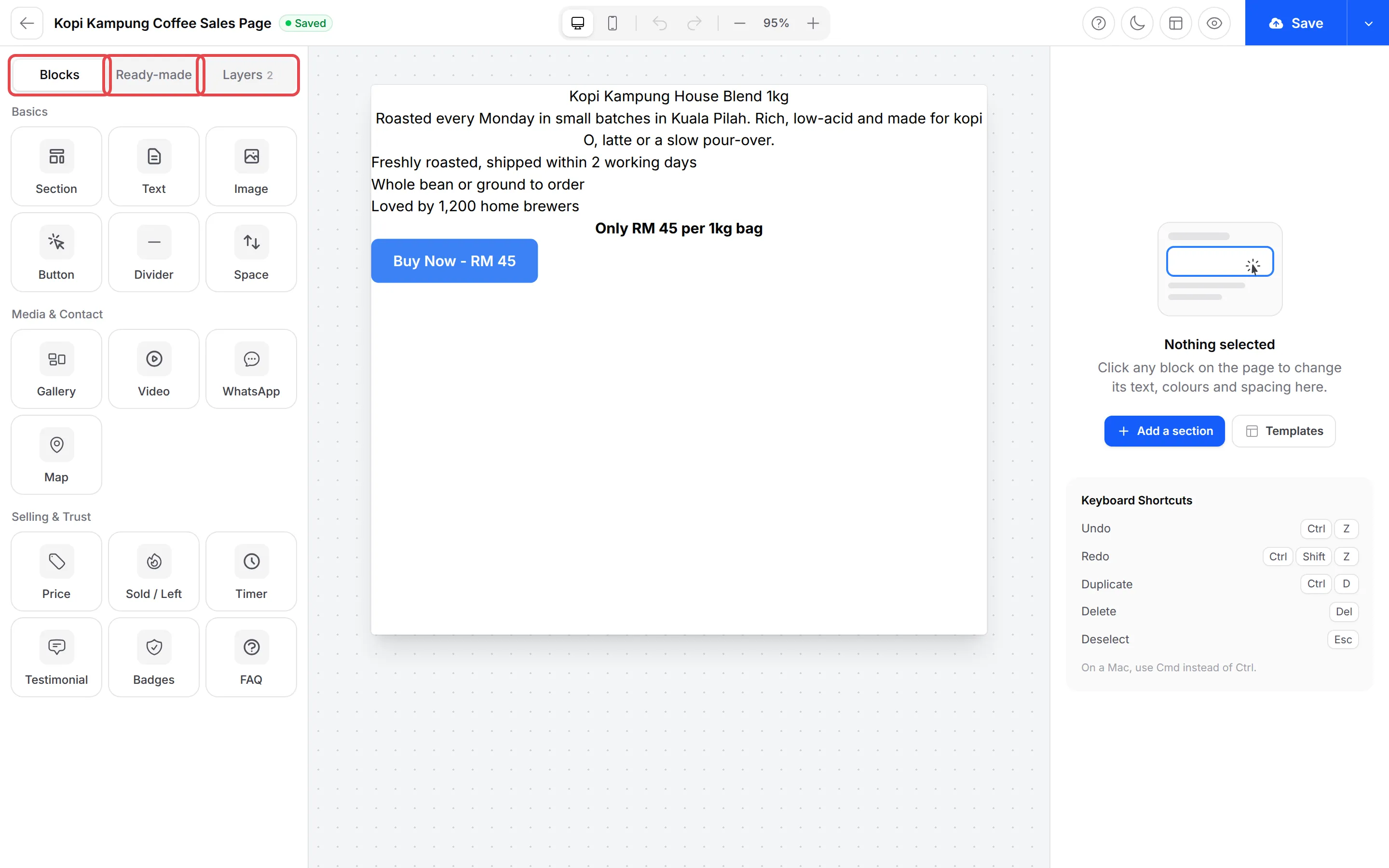
The builder has three tabs on the left: Blocks, Ready-made and Layers. The page is in the middle, and the settings of the block you click are on the right.
Start from a template
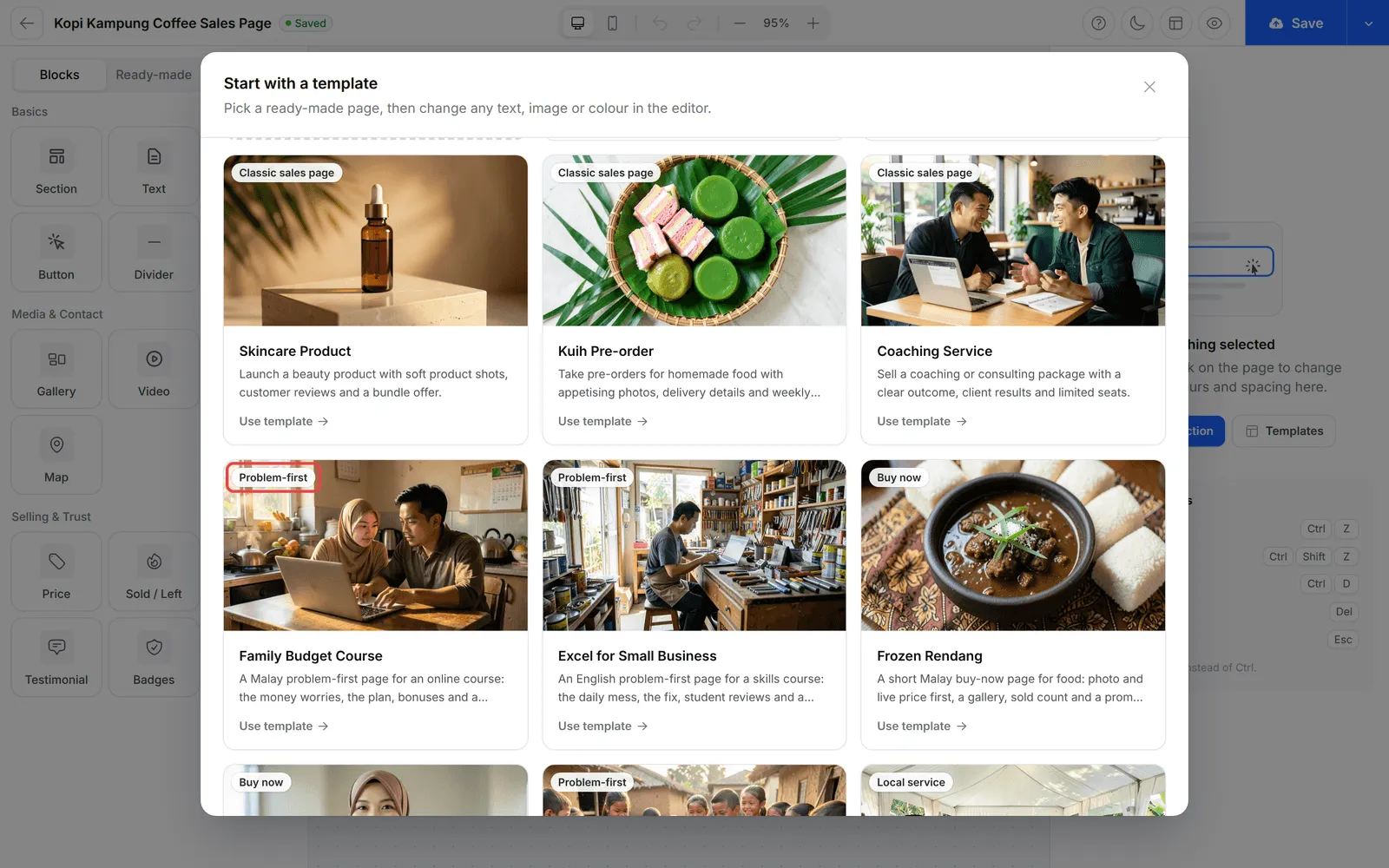
Section titled “Start from a template”Each form type has 11 ready-made pages with photos and sample text, some in English and some in Malay. A label on each card shows its layout:
| Layout | Use it for |
|---|---|
| Classic sales page | A long page with a video, results, an offer and an FAQ |
| Problem-first | A page that starts with your customer’s problem, then shows your fix |
| Buy now | A short page with the photo and live price first, for a quick purchase |
| Event agenda | An event with a programme, photos, prices and a location |
| Sign-up | A sign-up or waitlist page with benefits and the host |
| Local service | A service business with packages, how it works, past work and WhatsApp |
To use a template:
-
Click Templates on the right, or Templates in the right-click menu.
-
Click Use template on the page you want, or Start blank for an empty page. If your page already has blocks, click Replace page to confirm, or Keep my page to go back.
-
Change any text, image or colour, then click Save.
Add blocks and ready-made sections
Section titled “Add blocks and ready-made sections”You build the page from the Blocks tab. Click a block to add it, or drag it to the place you want on the page. The blocks are in three groups:
| Group | Blocks | Use them for |
|---|---|---|
| Basics | Section, Text, Image, Button, Divider, Space | The layout, your copy and the buy button |
| Media & Contact | Gallery, Video, WhatsApp, Map | Photos, a video, a chat button and your address |
| Selling & Trust | Price, Sold / Left, Timer, Testimonial, Badges, FAQ | Live selling details, reviews, payment badges and questions |
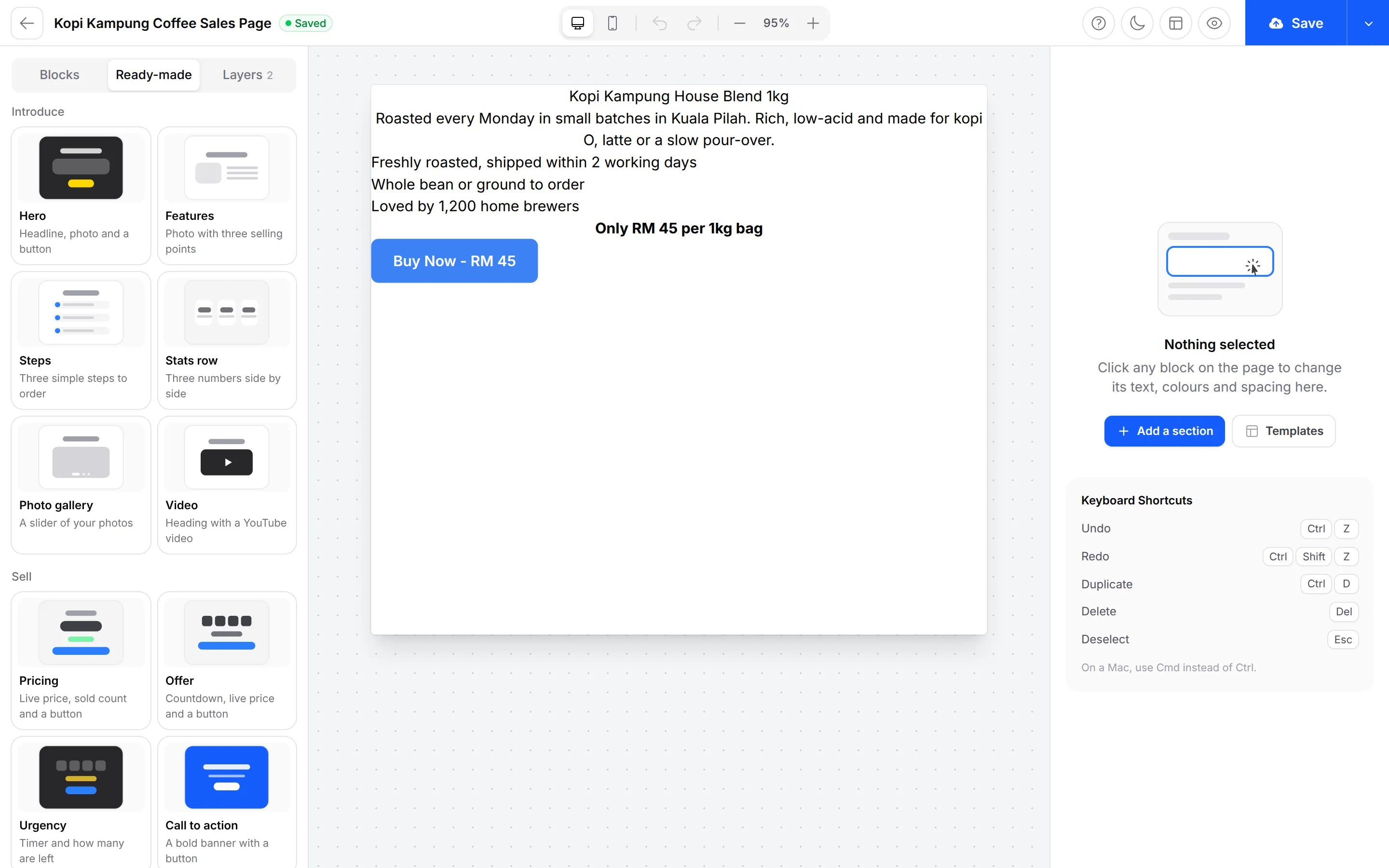
A Section holds other blocks, stacked or side by side. For a finished design, open the Ready-made tab instead. It has 15 sections, such as Hero, Pricing, Offer, Urgency, Testimonials and FAQ. Click one to add it, then change its text.
Change the font
Section titled “Change the font”Blocks with text, such as Text, Button, Price, Testimonial and FAQ, have a Font list. To change the font of a block:
-
Click the block on the page.
-
In the panel on the right, click Style.
-
Pick a font under Font. The list has three groups:
Group Fonts Popular Inter, Roboto, Poppins, Montserrat, Open Sans, Lato Sans serif Plus Jakarta Sans, DM Sans, Manrope, Figtree, Nunito, Raleway, Ubuntu, Barlow, Space Grotesk Serif Playfair Display, Merriweather, Lora 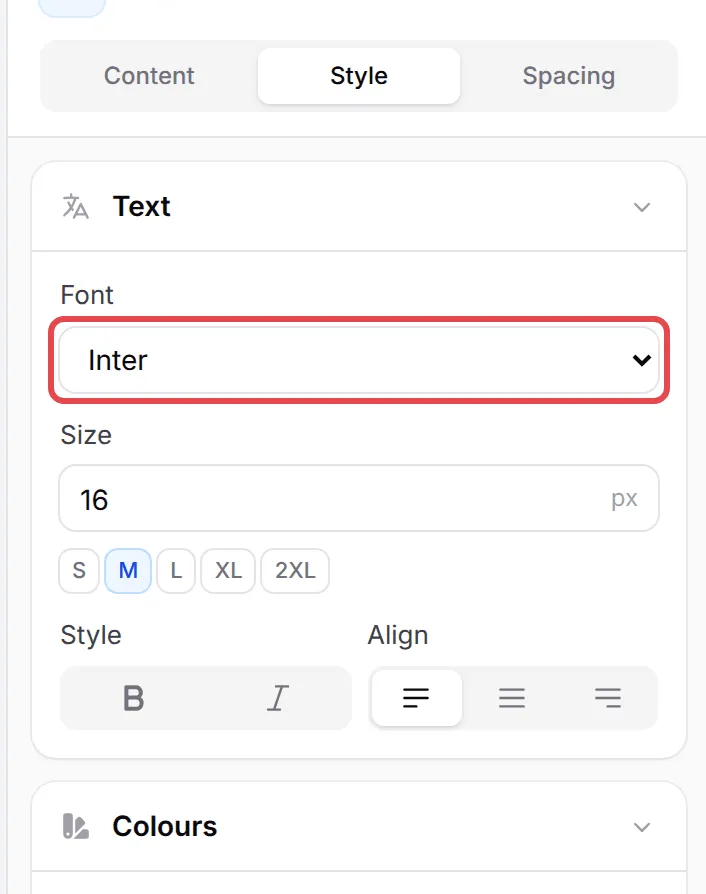
The Timer block also has a Digital group for its numbers, such as Orbitron.
Show a live price and sold count
Section titled “Show a live price and sold count”The Price and Sold / Left blocks read your form, so they stay correct when you sell or change a price.
-
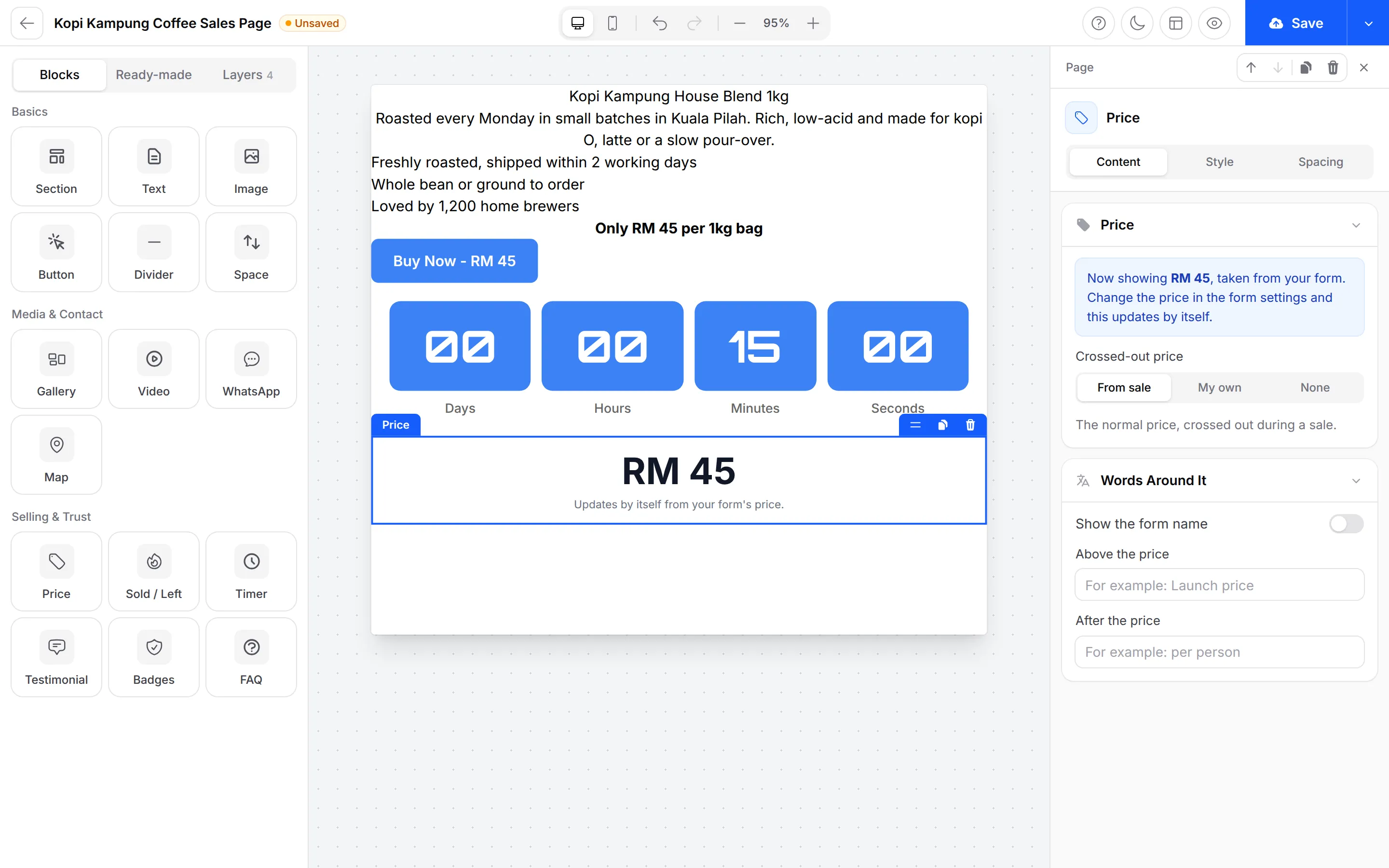
Price shows the form’s price. Under Crossed-out price, pick From sale to show the normal price crossed out during a sale, My own to type one, or None. Change the price itself in the form settings.
-
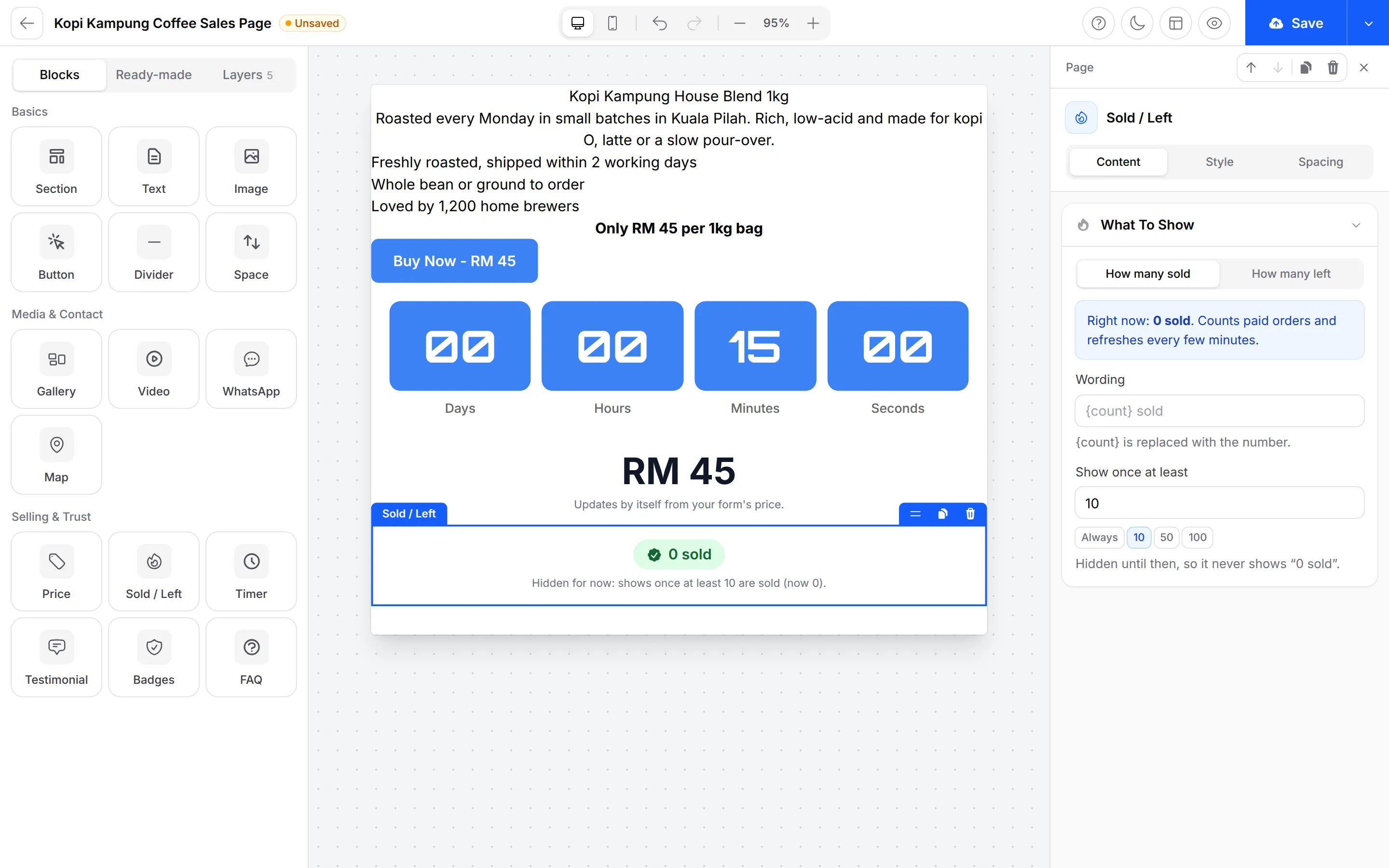
Sold / Left shows How many sold or How many left, and refreshes every few minutes. Show once at least hides it until that many are sold, so a new page never shows “0 sold”.
Count down for each visitor
Section titled “Count down for each visitor”The Timer block counts down to a date, or gives every visitor their own countdown. To set a countdown for each visitor:
-
Add a Timer block.
-
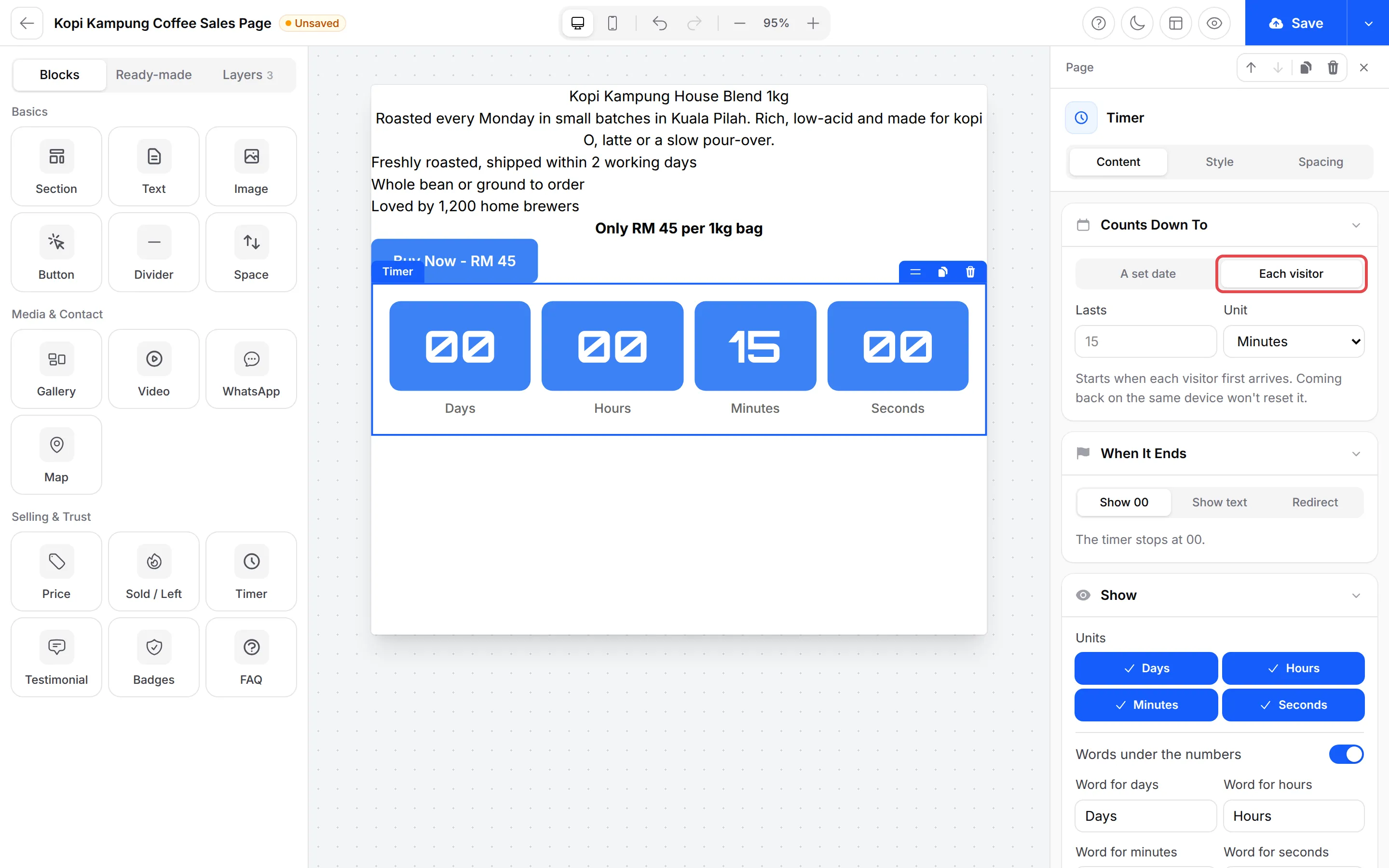
Under Counts Down To, click Each visitor.
-
Set Lasts and Unit, for example 15 minutes. The countdown starts when a visitor first opens the page. Coming back on the same device does not reset it.
-
Under When It Ends, choose Show 00, Show text for a message, or Redirect to send the visitor to another page.
A timer does not close your form. To stop sales on a date, see Show a countdown timer.
Arrange, copy and hide blocks
Section titled “Arrange, copy and hide blocks”Right-click any block on the page for a menu with Edit, Duplicate, Copy, Paste below, Move up, Move down, Add block above, Add block below and Delete.
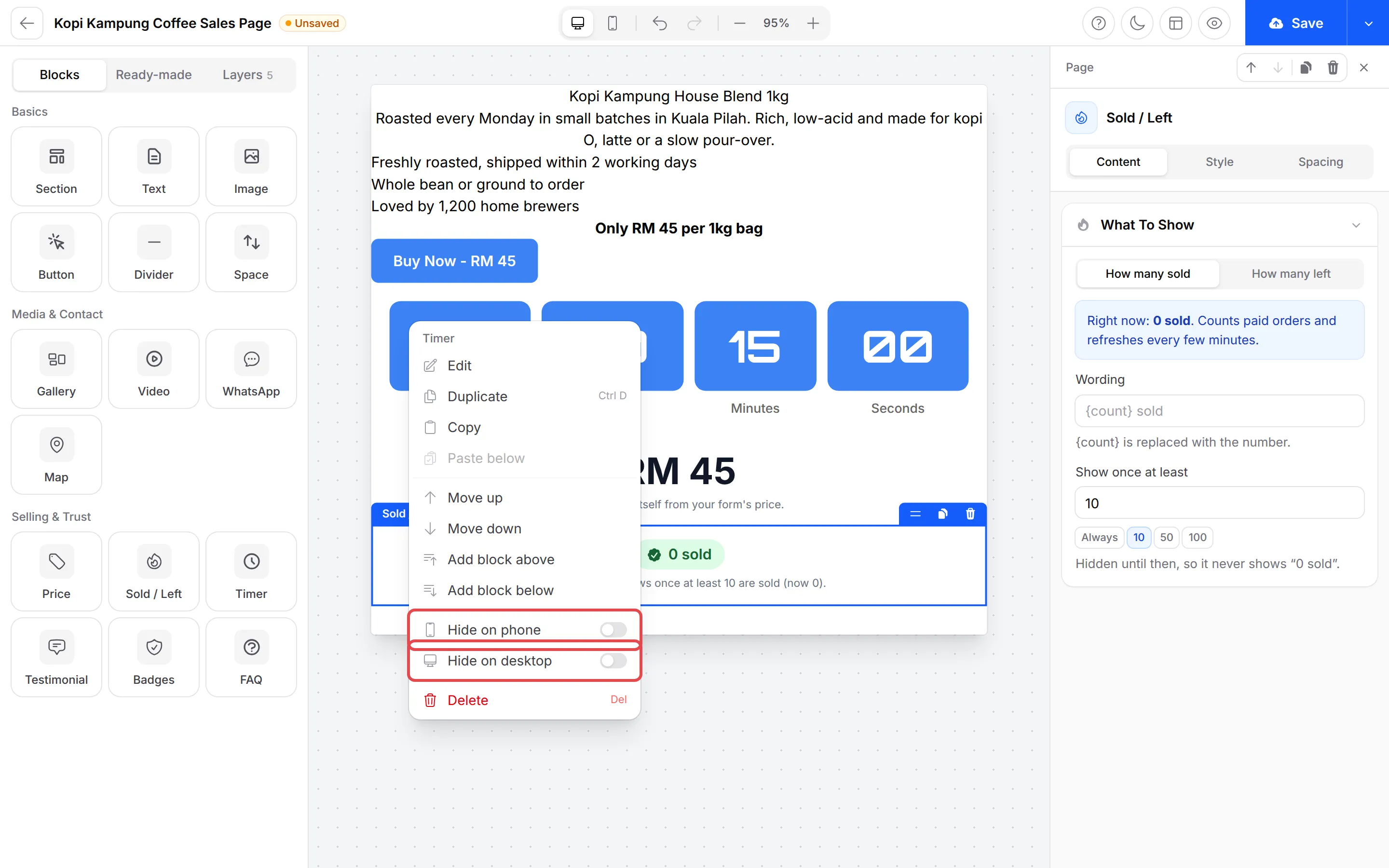
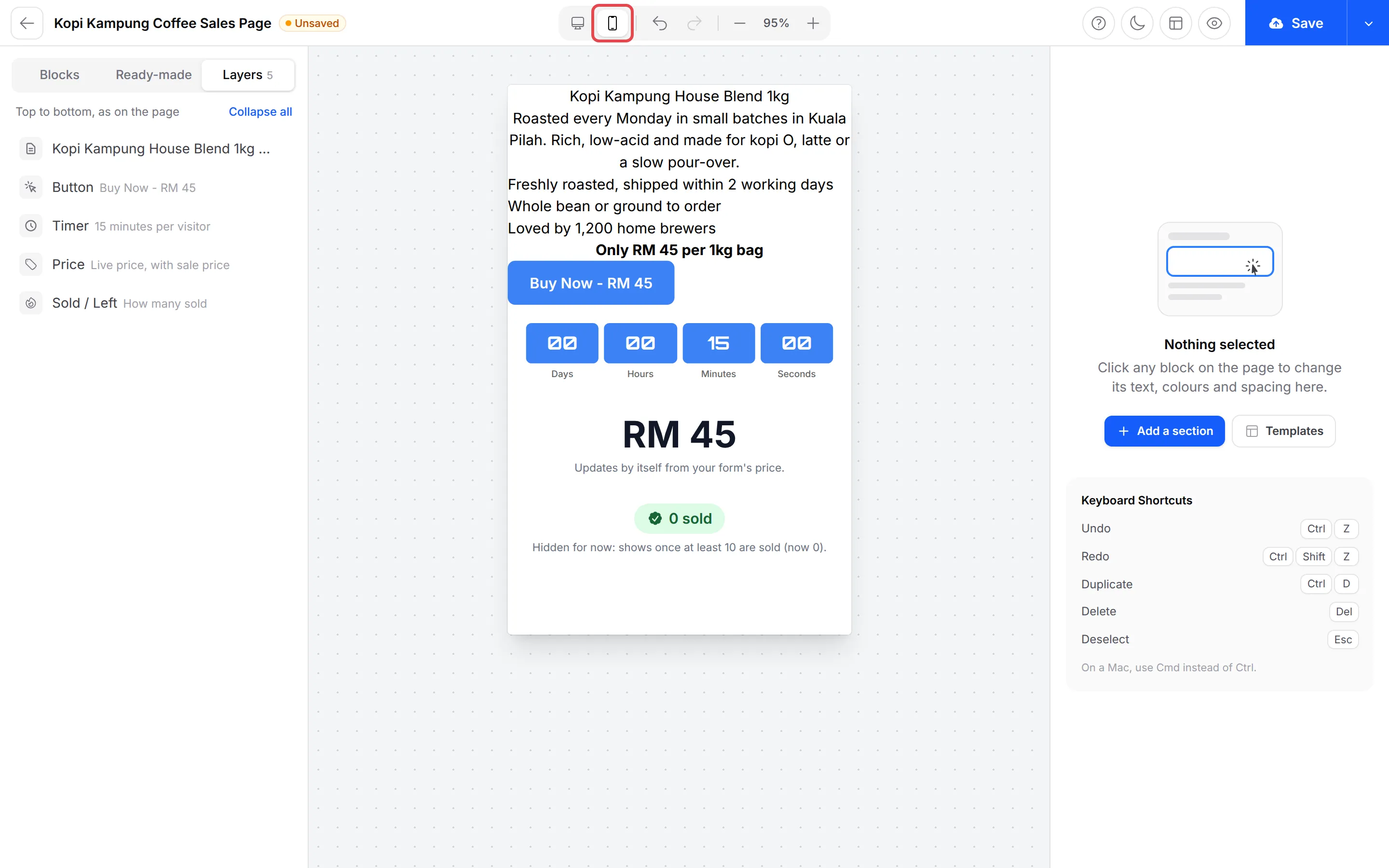
The same menu has Hide on phone and Hide on desktop, to show a block on one kind of screen only. To check the result, click the phone button at the top of the builder. Click the computer button next to it to go back.
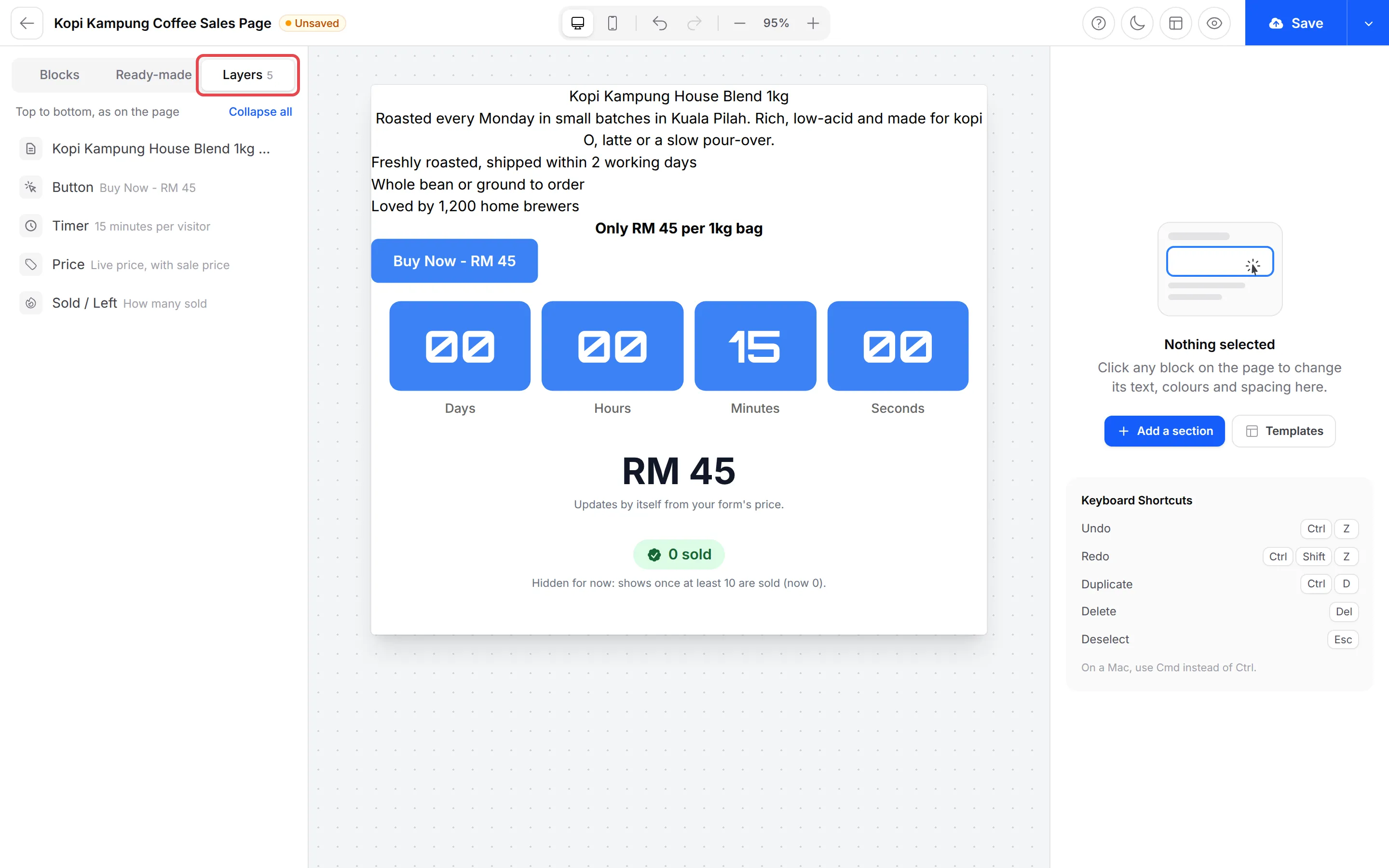
The Layers tab lists every block from top to bottom, as on the page. Use it to find and select a block on a long page.
Undo and save
Section titled “Undo and save”The builder keeps your changes until you click Save at the top right. Until then, the page title shows Unsaved. These keyboard shortcuts work in the builder:
| Action | Shortcut |
|---|---|
| Undo | Ctrl + Z |
| Redo | Ctrl + Shift + Z |
| Duplicate | Ctrl + D |
| Delete | Del |
| Deselect | Esc |
On a Mac, use Cmd instead of Ctrl. If you leave with unsaved changes, BCL asks if you want to save first.
- Pick a template before you build. A template replaces the whole page, so start with one and then change it.
- Use the Price block, not typed prices. It changes by itself when you change the form, so the page and the checkout never show different prices.
- Check the phone view before you save. Most customers open the page on a phone.
Common issues
Can I start from a ready-made landing page instead of a blank one?
Yes. In the builder, click Templates and pick one of the 11 pages for your form type, or Start blank. Then change any text, image or colour. A template replaces the page you have now, so pick it before you build.
How do I show a block only on phones or only on computers?
Right-click the block on the page and turn on Hide on phone or Hide on desktop. Use the phone button at the top of the builder to check how the page looks on a phone, then click Save.
Does the price on my landing page change when I change the form's price?
Yes, if you use the Price block. It takes the price from your form and updates by itself, so change the price in the form settings, not on the page.
Was this article helpful?
Thanks for your feedback.
Sorry this didn't help. WhatsApp us and we'll sort it out with you.