
Ask an AI about this page
 ChatGPT
 Claude
 Perplexity
 Google AI Mode
 Microsoft Copilot
 Grok
Grok Mistral Le Chat
Add a TikTok pixel to a form
Updated

A TikTok pixel tells TikTok which people from your ads opened your form and paid. You add it to each form in BCL. You can also add an Events API token so purchases still reach TikTok when the browser blocks the pixel.
These are the events BCL sends to TikTok:
| Event | When |
|---|---|
| Pageview and ViewContent | The customer opens the form. |
| InitiateCheckout | The customer clicks the pay button. On a lead form this is SubmitForm. |
| CompletePayment | The payment succeeds and the receipt page opens, or BCL’s server sends it (Events API). |
Copy your Pixel ID
Section titled “Copy your Pixel ID”Get the ID from TikTok first:
- Open TikTok Ads Manager and go to Tools → Events Manager.
- Pick your web pixel and copy its ID. It is a string of about 20 letters and numbers, for example C4XXXXXXXXXXXXXXXXXX.
Add the pixel to your form
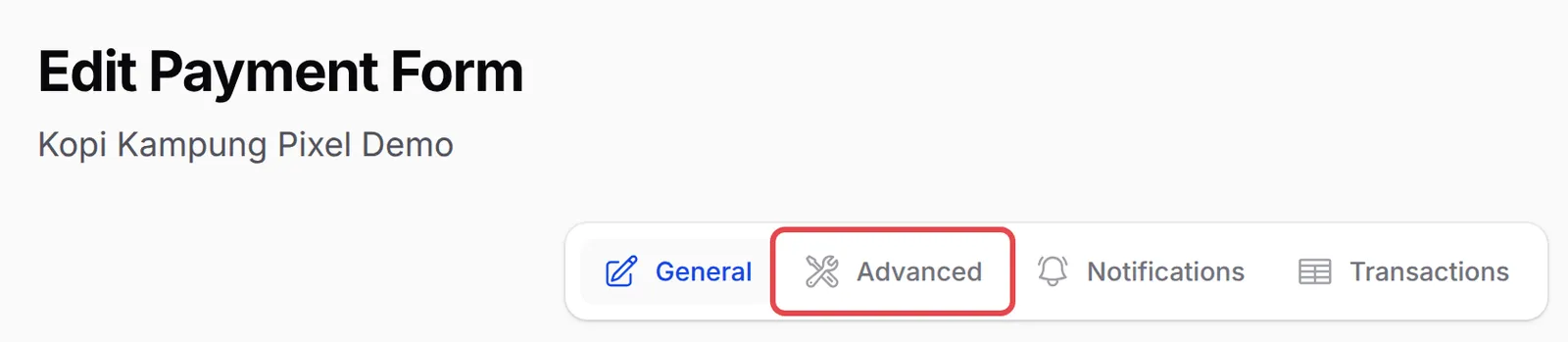
Section titled “Add the pixel to your form”The same TikTok Pixel tab is on payment, event and booking forms (open the form, then Advanced).
-
Go to Payments → Forms and click Edit on the form.

-
Click Advanced.
-
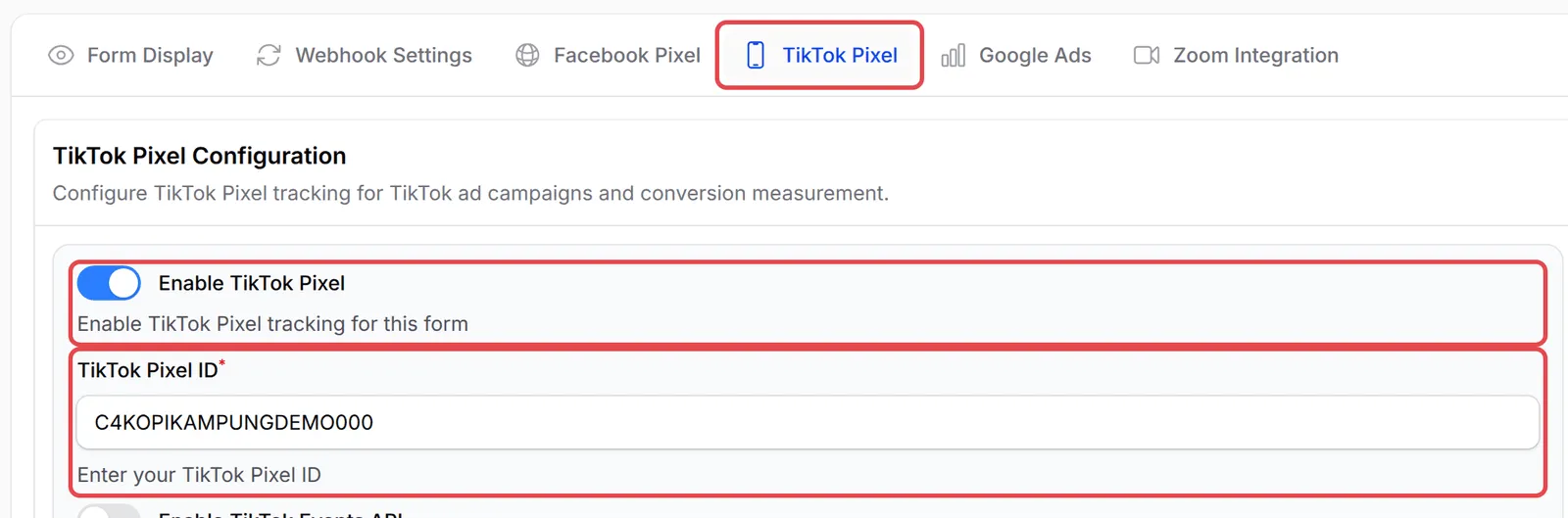
Open the TikTok Pixel tab and turn on Enable TikTok Pixel.
-
Paste your ID into TikTok Pixel ID.
-
Click Save Advanced Settings.

Add the Events API token
Section titled “Add the Events API token”The Events API sends the CompletePayment event from BCL’s server, so it is counted even when the customer’s browser blocks the pixel. BCL sends it once per order: from the customer’s browser or from the server, whichever comes first.
-
In TikTok Events Manager, open your pixel’s Settings and click Generate Access Token. Copy the token.
-
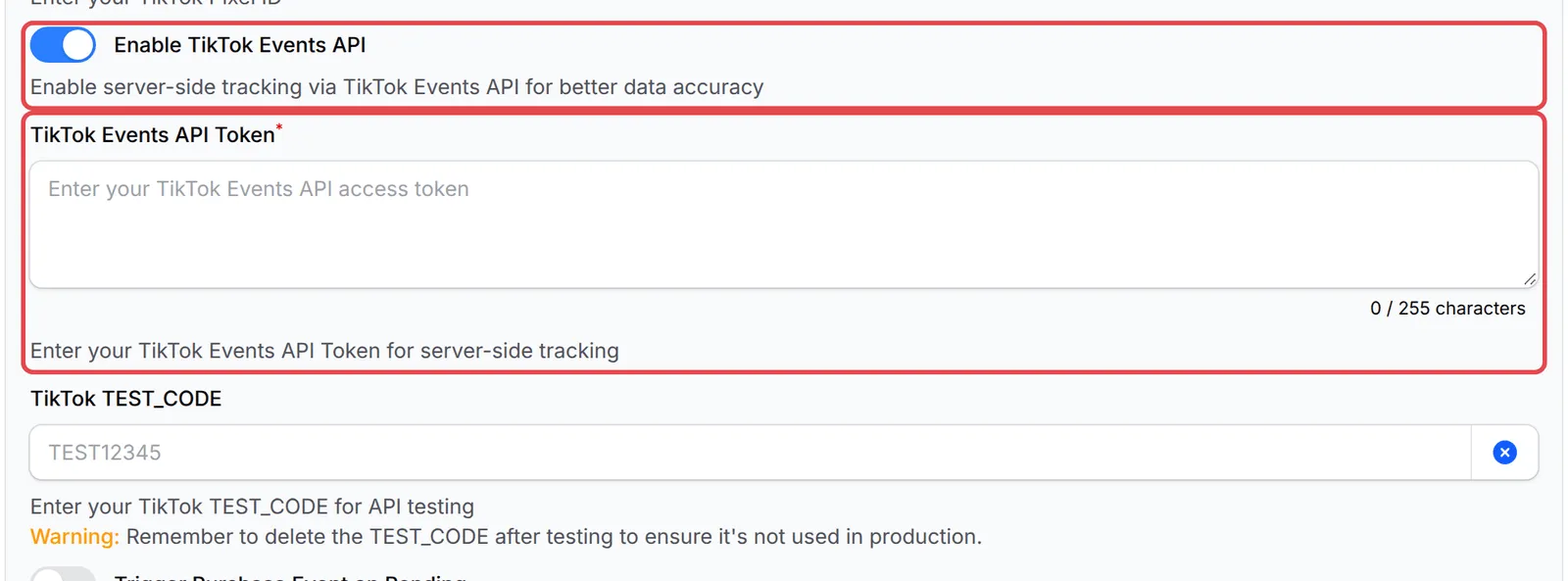
Back in BCL, on the form’s TikTok Pixel tab, turn on Enable TikTok Events API.
-
Paste the token into TikTok Events API Token.
-
Click Save Advanced Settings.
Count COD and bank transfer orders
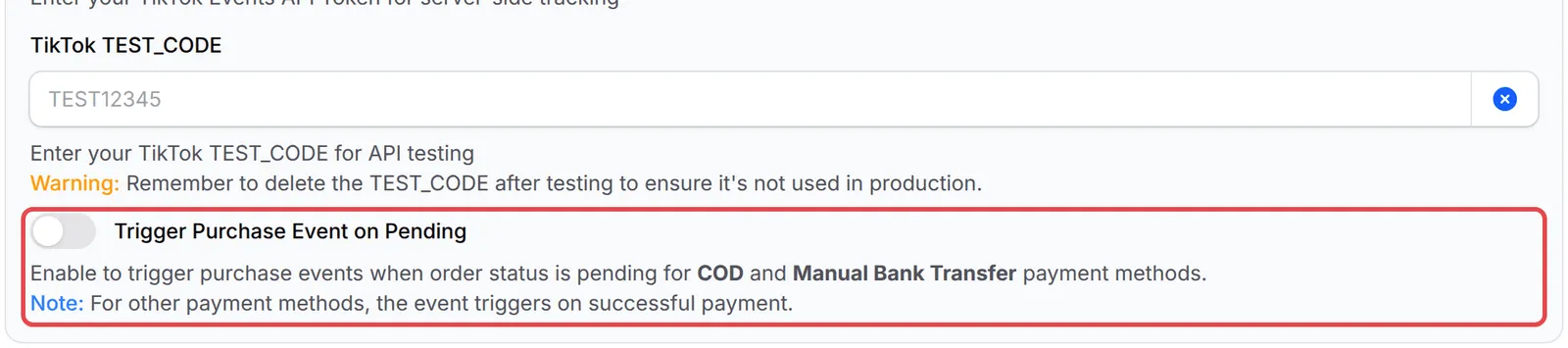
Section titled “Count COD and bank transfer orders”COD and manual bank transfer orders stay pending until you confirm payment, so by default TikTok only hears about them when you mark them paid. To count them when the order is placed, turn on Trigger Purchase Event on Pending on the same tab and click Save Advanced Settings. Other payment methods always send the purchase when the payment succeeds.
A few things help your TikTok numbers match BCL:
- Check each purchase in Marketing Pixel Logs. Go to Tools → Marketing Logs and open the TikTok tab to see every CompletePayment BCL sent. See Marketing Pixel Logs.
- Lead forms have their own tab. On a lead form the pixel is under Additional → Tracking Pixels, and it has no Events API token.
- Add the pixel to every form you advertise. The pixel is set per form, so a form without it sends nothing to TikTok, even if another form has it.
Common issues
Where do I put my TikTok pixel in BCL?
On each form, not on your account. Open the form, click Advanced, then open the TikTok Pixel tab.
Why is TikTok showing fewer purchases than BCL?
Ad blockers and some in-app browsers stop the pixel. Turn on Enable TikTok Events API and add your token so BCL can also send the purchase from its server.
My COD orders never show as purchases in TikTok. Why?
COD and manual bank transfer orders stay pending until you mark them paid. Turn on Trigger Purchase Event on Pending to send the purchase when the order is placed.
Was this article helpful?
Thanks for your feedback.
Sorry this didn't help. WhatsApp us and we'll sort it out with you.