
Ask an AI about this page
 ChatGPT
 Claude
 Perplexity
 Google AI Mode
 Microsoft Copilot
 Grok
Grok Mistral Le Chat
Sell with a video page
Updated

Video Sales (Beta) is a type of payment form that fills the buyer’s phone screen with your video, like TikTok or Instagram Reels. Your products sit on a card at the bottom. When the buyer taps Buy, the checkout slides up over the video, so they pay without leaving it. Use it when you sell on social media and your buyers arrive on a phone.
Video Sales or Sales Page
Section titled “Video Sales or Sales Page”Both types put your pitch above the checkout. Choose by what you sell with:
| Video Sales (Beta) | Sales Page | |
|---|---|---|
| What the buyer sees first | A full-screen vertical video | One long image, then the form |
| Content | Up to 10 videos that play one after another | A single image |
| Checkout | Slides up over the video when the buyer taps Buy | Below the image |
| Best for | Buyers coming from TikTok, Instagram or a live session, on a phone | Buyers who read a detailed offer, on any screen |
For a sales page, see Turn a form into a sales page.
Set up a video page
Section titled “Set up a video page”Have your items and prices ready, and the link to each video (or the MP4 files).
-
Go to Payments → Forms, then click Create Form, or click Edit on an existing form.
-
Open the Payment Details tab. Set the Price Setting (for example Multiple Items with your products), the Portal Key and the Payment Option.
-
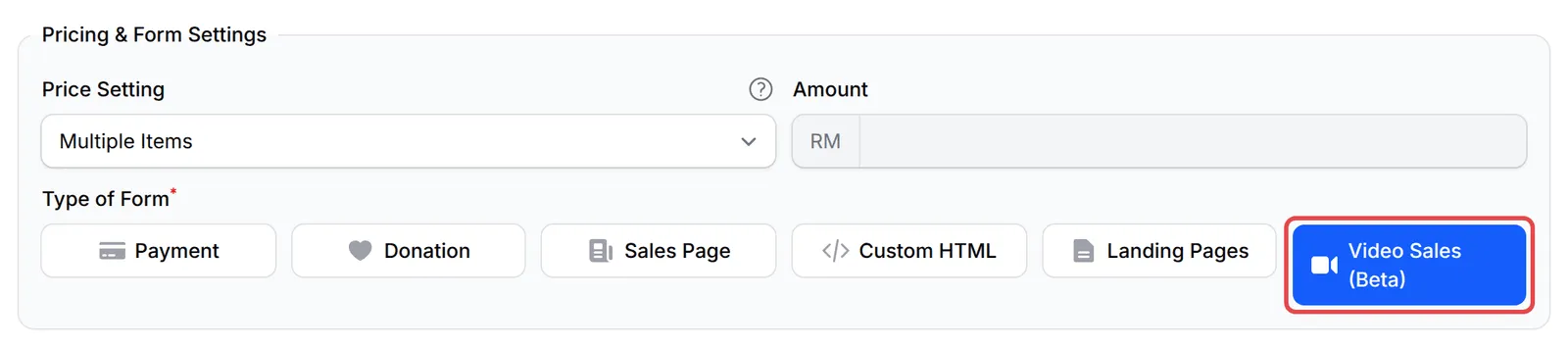
Under Type of Form, choose Video Sales (Beta). A new Videos tab appears.
-
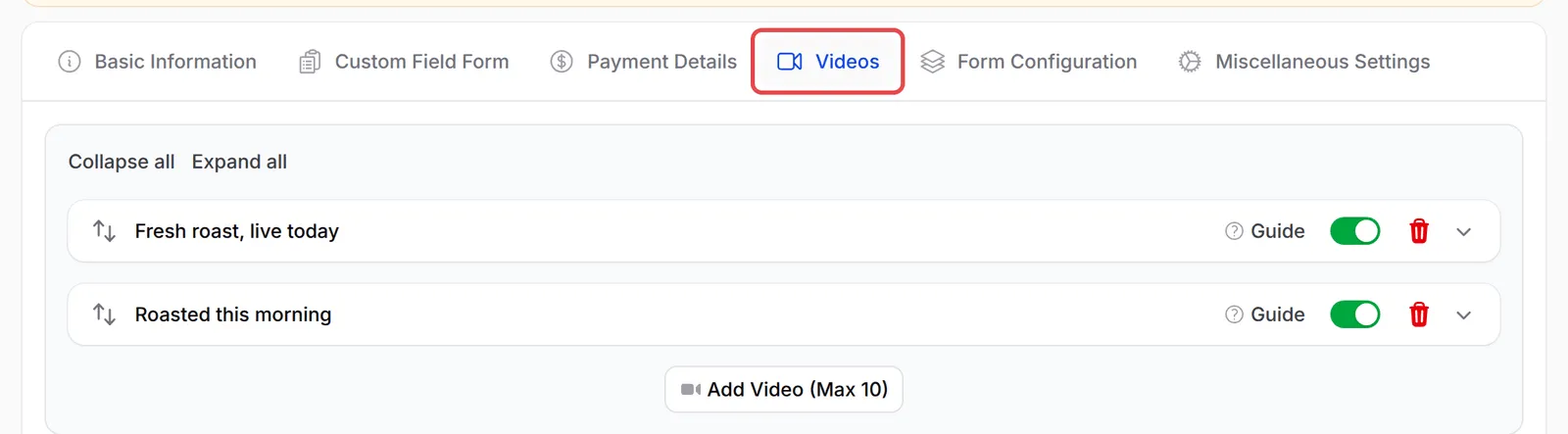
Open the Videos tab. Each video is a row you can reorder, hide with its switch, or open to edit. Click Add Video (Max 10) to add another.
-
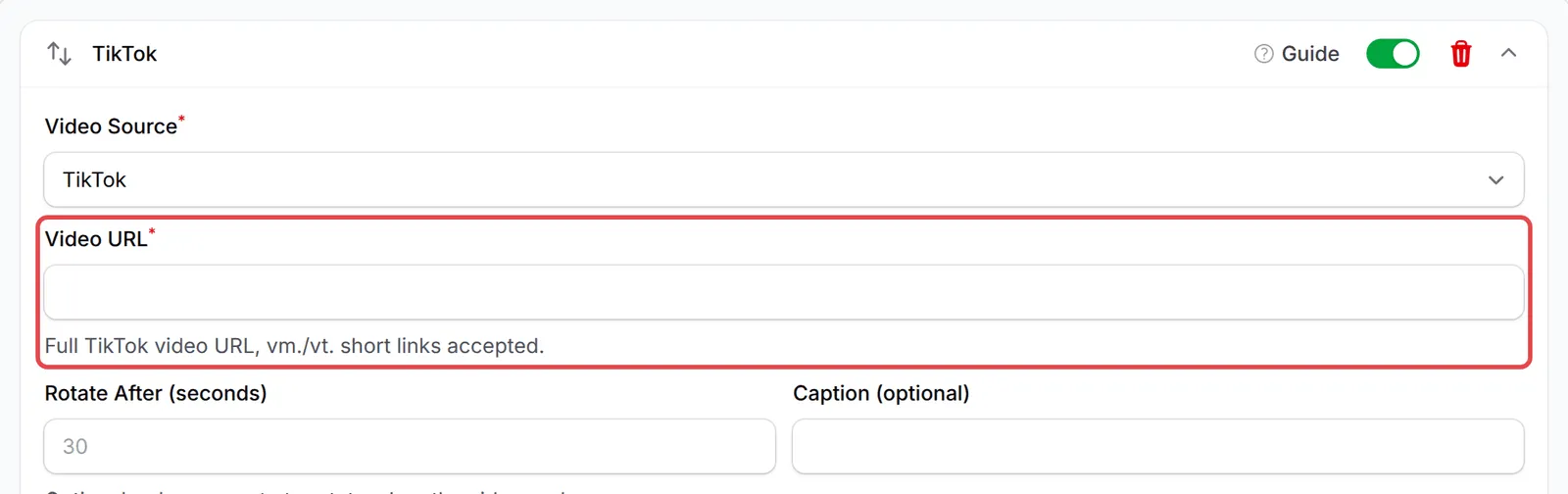
Open a video row. Choose the Video Source, then paste the Video URL (or pick the file for an upload). Add a Caption (optional) to show on the video. Leave Rotate After (seconds) empty to move to the next video when this one ends.
-
Optionally, set the Live Style: a LIVE badge, Floating hearts and a Viewer Counter. See Make your video page feel live.

-
Click Add Payment Form for a new form, or Update Form for an existing one. Then click View Form to see the page.

Click Guide on any video row to see how each source behaves. In short:
| Source | What to paste | Next video starts |
|---|---|---|
| Upload Video (MP4) | An MP4 file, up to 50 MB and under 90 seconds. Recommended: best autoplay and sound | When the clip ends |
| YouTube | A watch, youtu.be, Shorts or live link | When the video ends |
| TikTok | A TikTok video link, or a vm./vt. short link | When the video ends |
| Vimeo | A Vimeo link | When the video ends |
| A regular video or live link (…/videos/…). Reels do not work | On the timer | |
| Custom Embed | Another provider’s iframe code, shown as it is | On the timer (30 seconds unless you set Rotate After) |
What buyers see on their phone
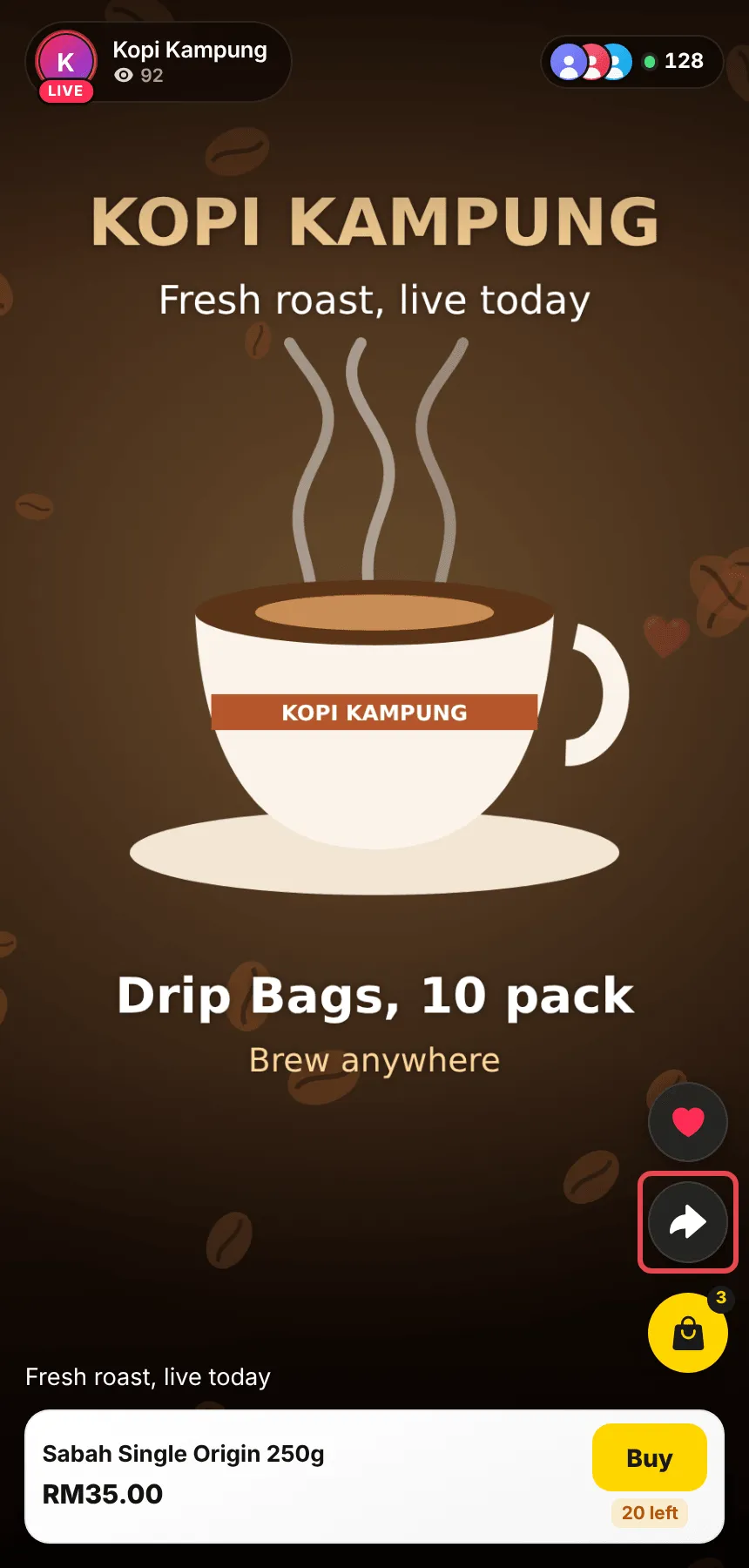
Section titled “What buyers see on their phone”The video fills the screen. Your business name sits at the top, with the buttons down the right: hearts, Share and a shopping bag. The product card at the bottom shows each item in turn, with its price, any sale price and discount, and how many are left if you track stock.
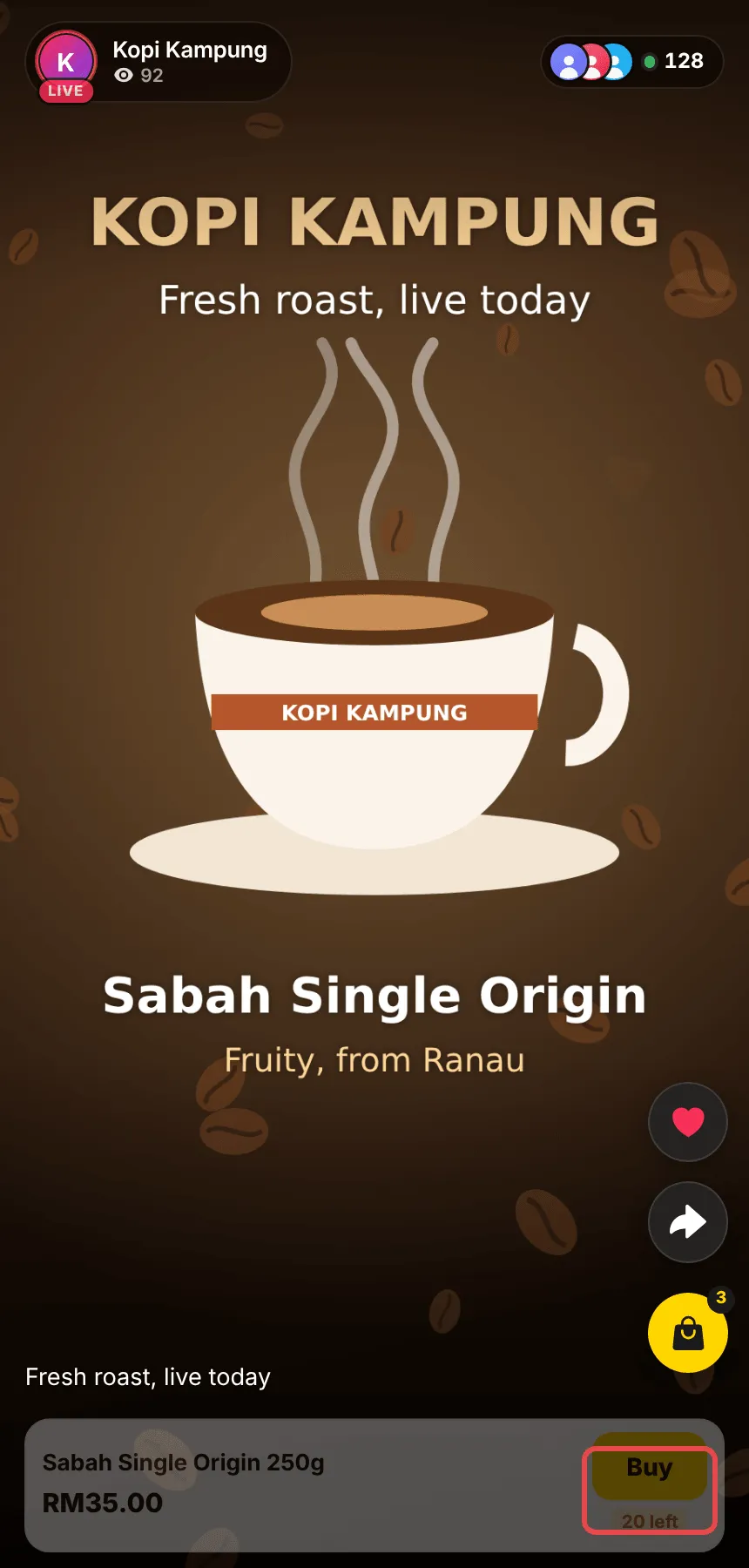
The buyer taps Buy (or the card or the bag). The checkout slides up with Your Details, your items with Qty, Payment Method and Payment Summary. They pick items and tap Complete Payment, then pay at their bank as on any BCL form.
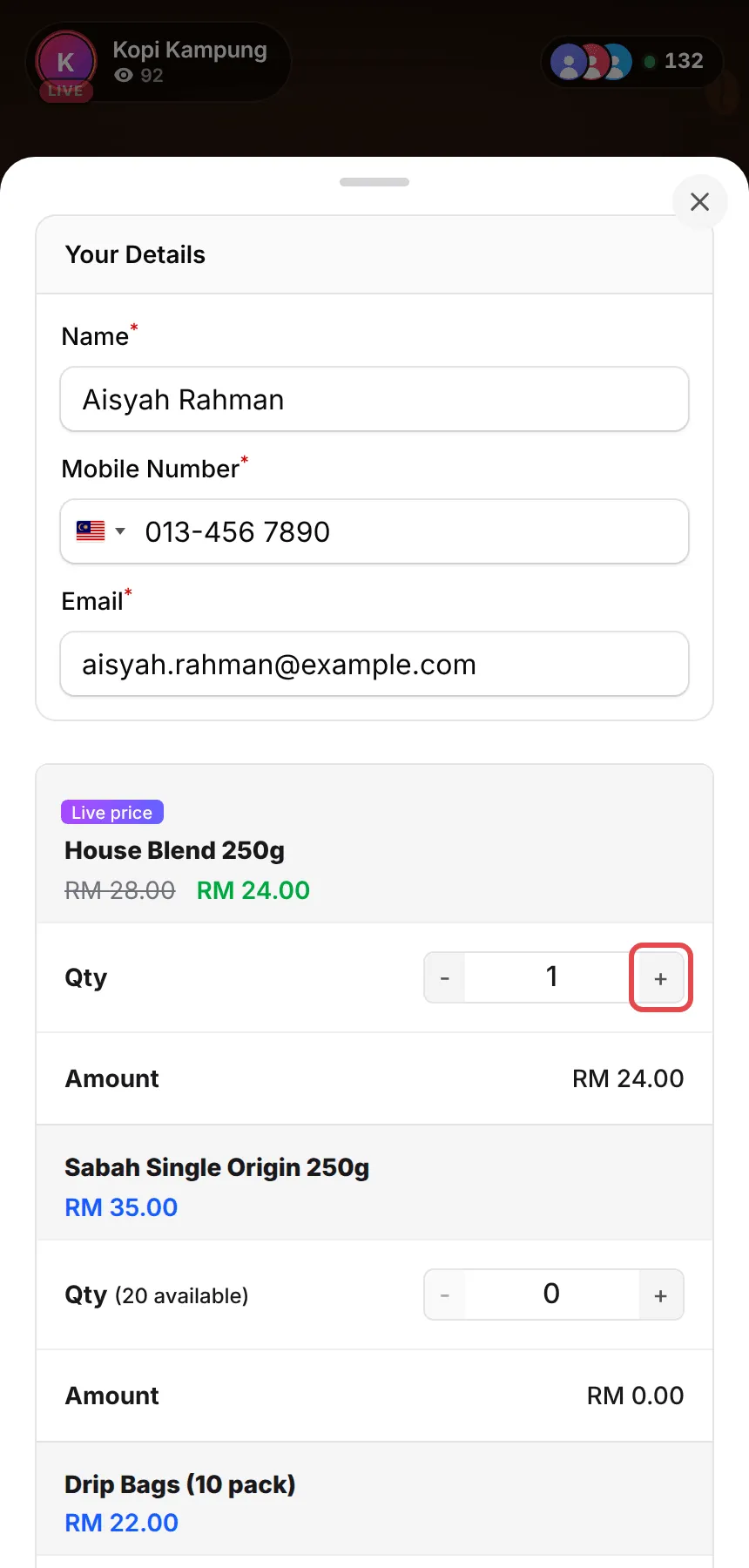
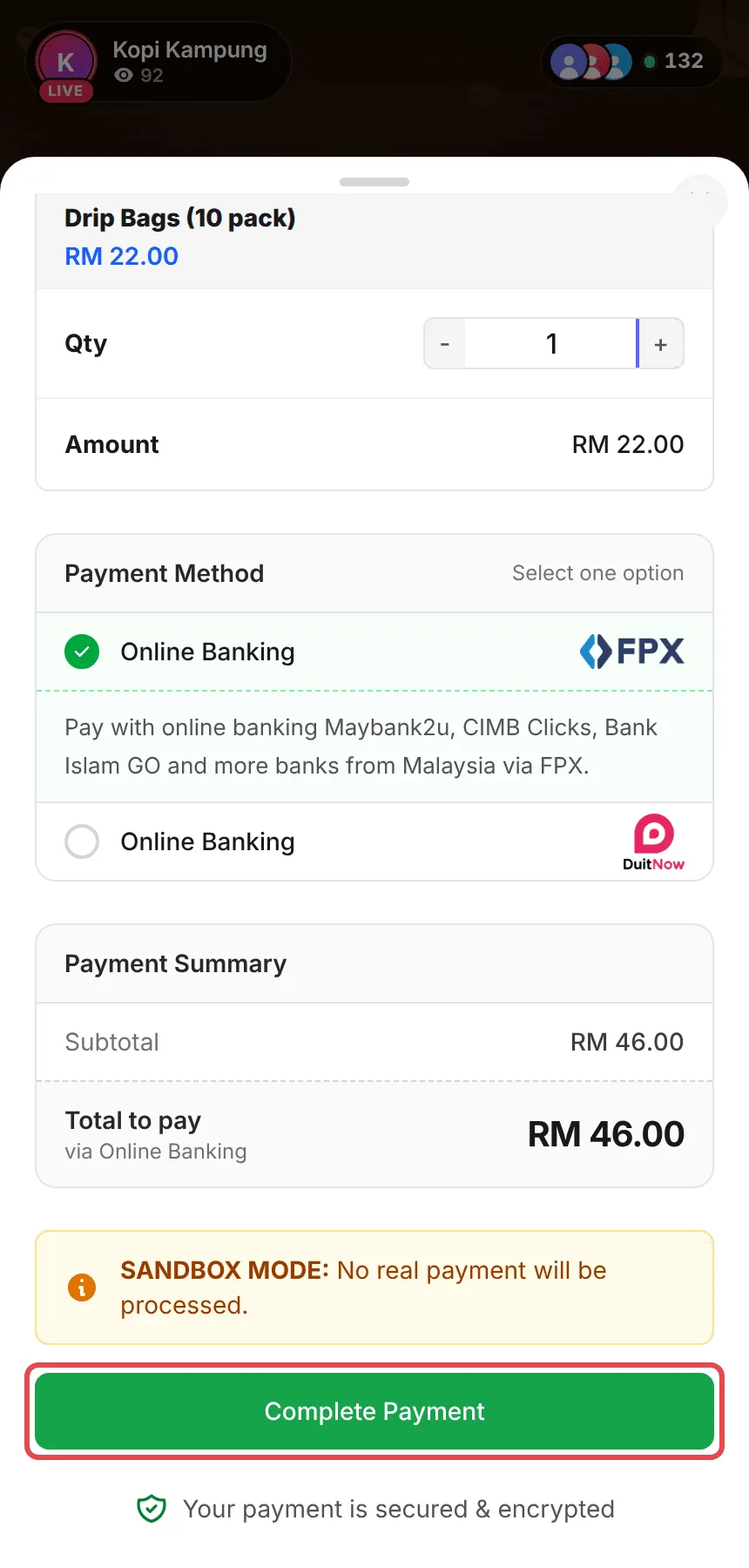
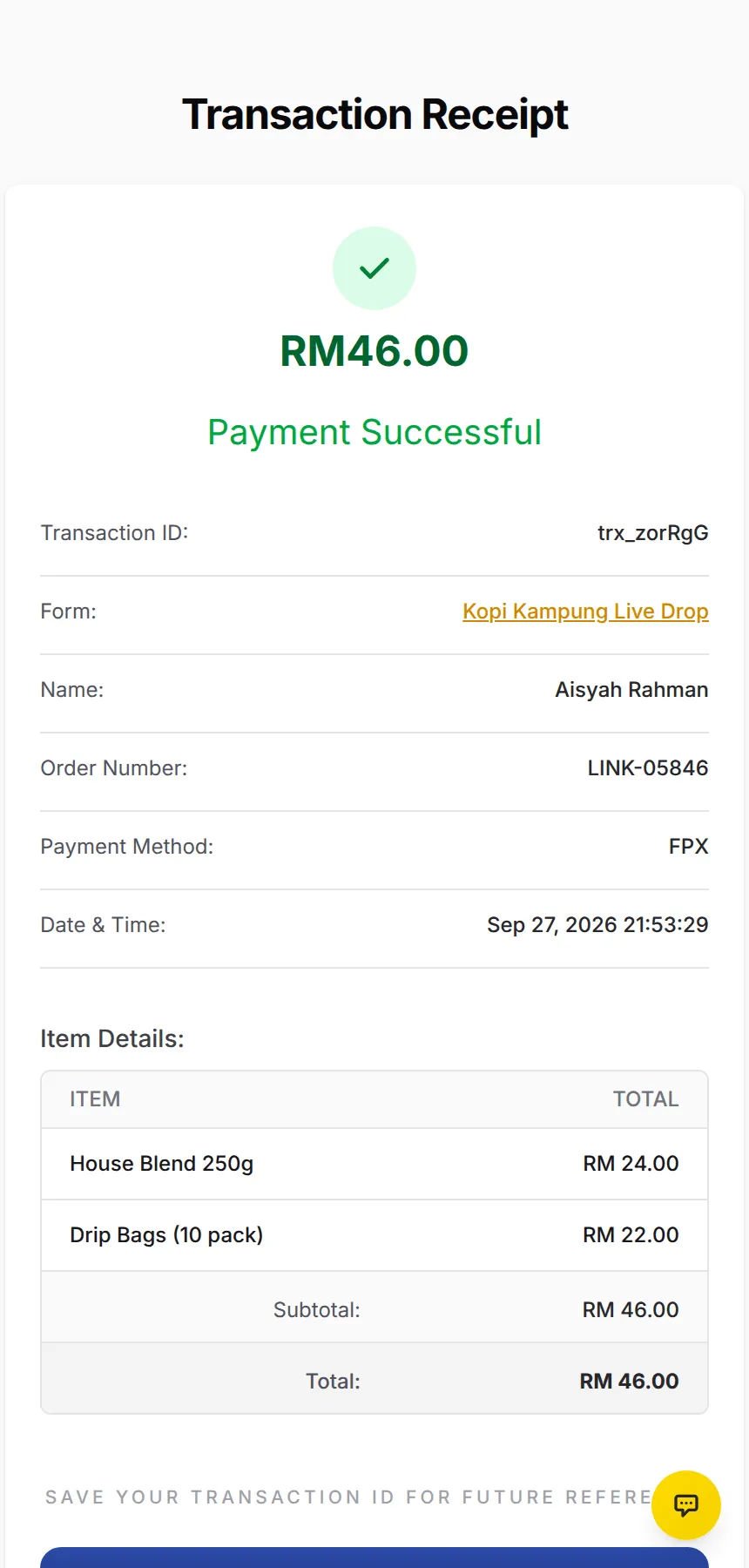
After paying, the buyer sees the receipt with Payment Successful, and the sale appears in Transactions.
Swiping up plays the next video. Past the last one, the page opens your next Video Sales form, so buyers can keep browsing your products.
Share the link
Section titled “Share the link”The page link is https://<your-subdomain>.bcl.my/form/<form-slug>, or your own domain if you set one up (see Use your own domain). To copy it, click View Form on the form and copy the address from your browser.
Put it where your buyers already are:
| Where | How |
|---|---|
| TikTok and Instagram | Add it to your bio link, and say it during a live session |
| Post it in your status, broadcast lists and replies to buyers who ask for the price | |
| Your buyers | The Share arrow on the page opens the phone’s share sheet, so a buyer can send it to a friend |
A few habits help a video page sell:
- Film vertically and keep it short. The page fills a phone screen, so 9:16 video looks best, and uploaded clips under 90 seconds load fastest.
- Say the price and the item name in the video. The product card changes item every six seconds, so matching what you say helps buyers tap Buy at the right moment.
- Use a sale price for live offers. A Sale Price (Optional), set in the item’s More settings, shows the old price struck through and the discount on the product card and in the checkout.
- Make one page per campaign. Buyers who swipe past your last video land on your next Video Sales form, so separate pages keep offers tidy and still lead buyers on to more.
Common issues
Can I use a Facebook Reel or my TikTok LIVE?
No. Facebook blocks Reels in embeds, so use a regular Facebook video or live link, or another source. A TikTok link must be a posted video, not a LIVE. To stream live inside the page, paste a YouTube live link.
Why does the video start with no sound?
Every browser starts videos muted. The page shows Tap for sound, and one tap turns the sound on. The choice carries over when the buyer swipes to your next video page.
How do I test the page before I go live?
While your account is in Test Mode, the checkout shows SANDBOX MODE and no real payment is taken. Open the link on your phone and make a test purchase. See Create a payment form.
Was this article helpful?
Thanks for your feedback.
Sorry this didn't help. WhatsApp us and we'll sort it out with you.