
Ask an AI about this page
 ChatGPT
 Claude
 Perplexity
 Google AI Mode
 Microsoft Copilot
 Grok
Grok Mistral Le Chat
Create a booking form
Updated

A booking form is the page your customers open to book. They pick a service, a time and, if you allow it, a staff member, then pay online. You can build a form from scratch or start from a template.
Before you start
Section titled “Before you start”The form offers services you have already created. Create them first, and for Appointment services add your employees too. See Create booking services and Add booking staff.
Create a booking form
Section titled “Create a booking form”Set up the form tab by tab, then save it:
-
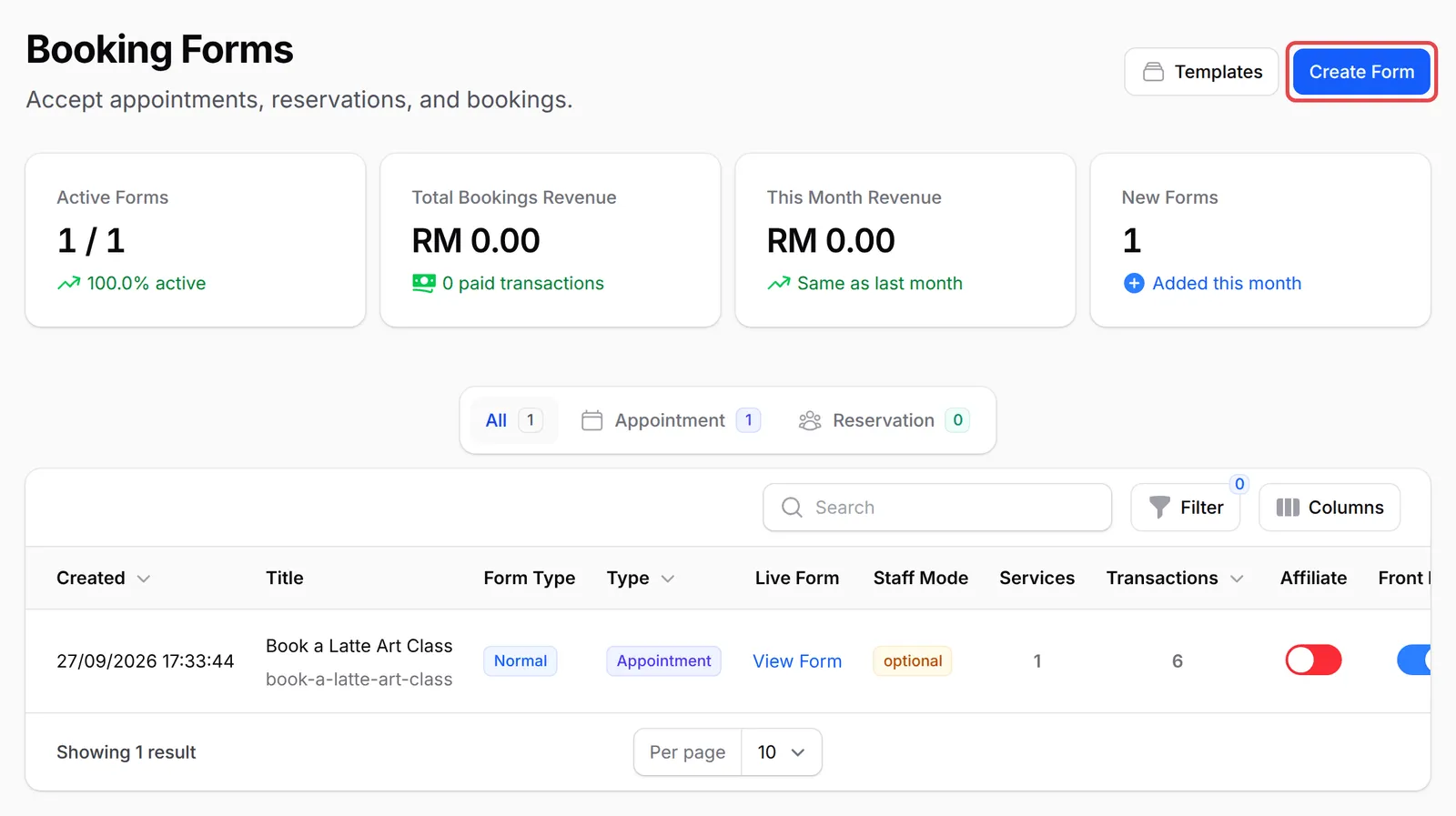
Go to Bookings → Forms and click Create Form.
-
On the General tab, enter a Title. BCL fills in the URL Slug, which is the end of your form’s link, such as
https://<your-subdomain>.bcl.my/booking/kopi-kampung-cupping-session. Add a Description if you like.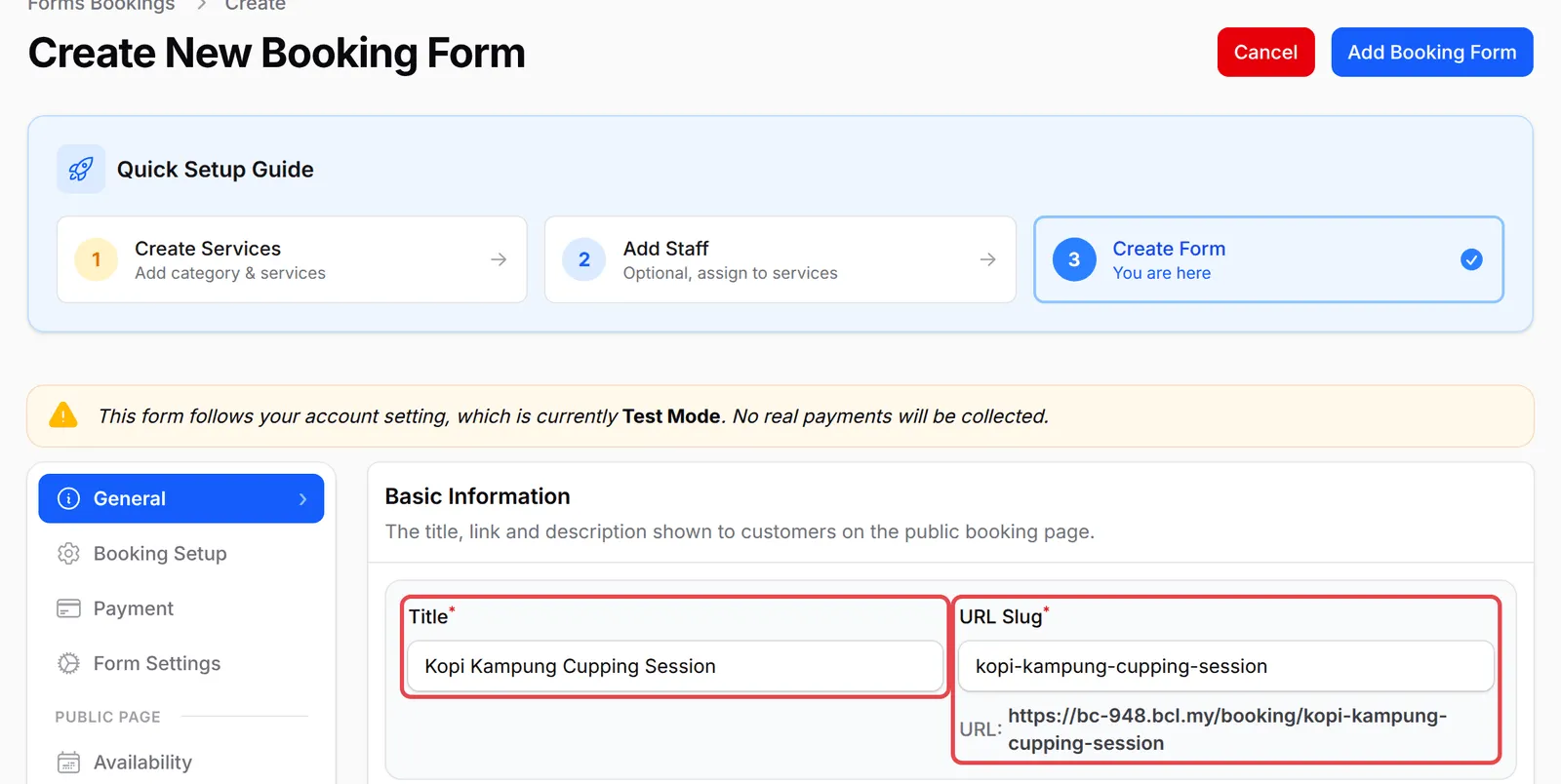
-
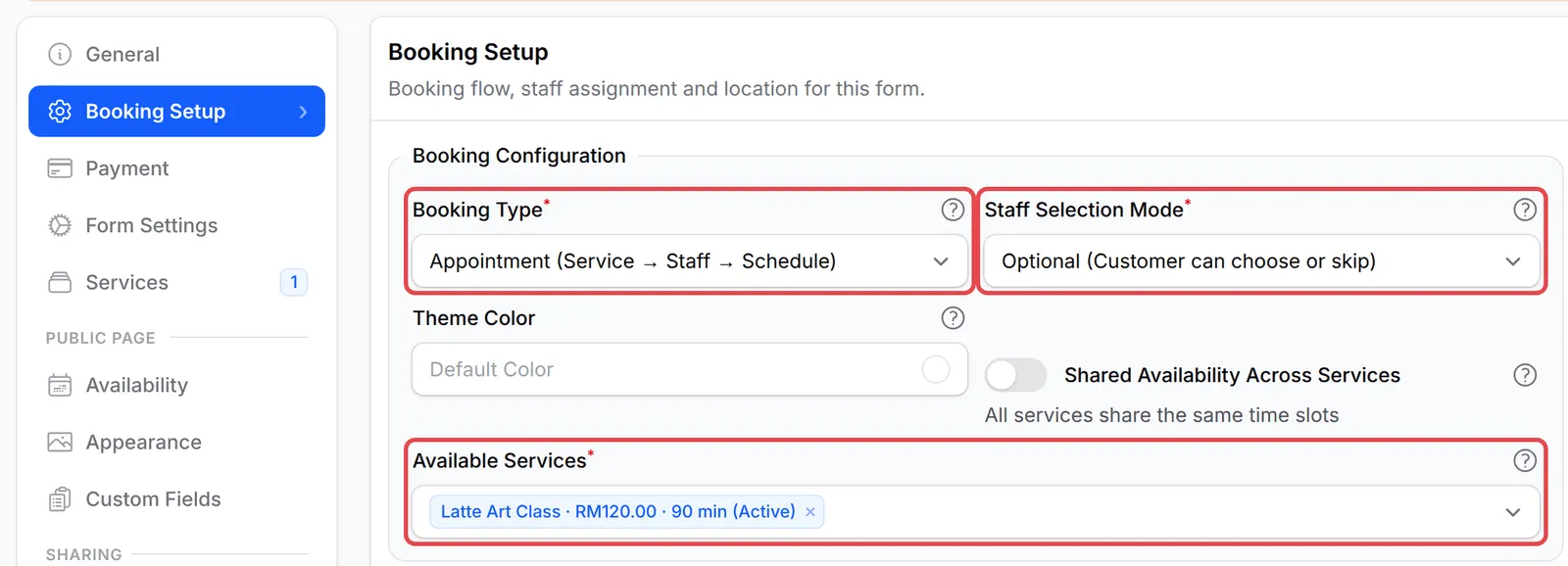
On the Booking Setup tab, choose the Booking Type, the Staff Selection Mode and the Available Services. Only services of the chosen type can be added.
-
On the Payment tab, choose at least one Payment Option, such as FPX, and a Classification Code for e-invoices, such as 022 - Others. Both are required. Portal Key uses your account default unless you pick another. Payment Mode follows your account’s Test Mode or Live Mode unless you change it here.
-
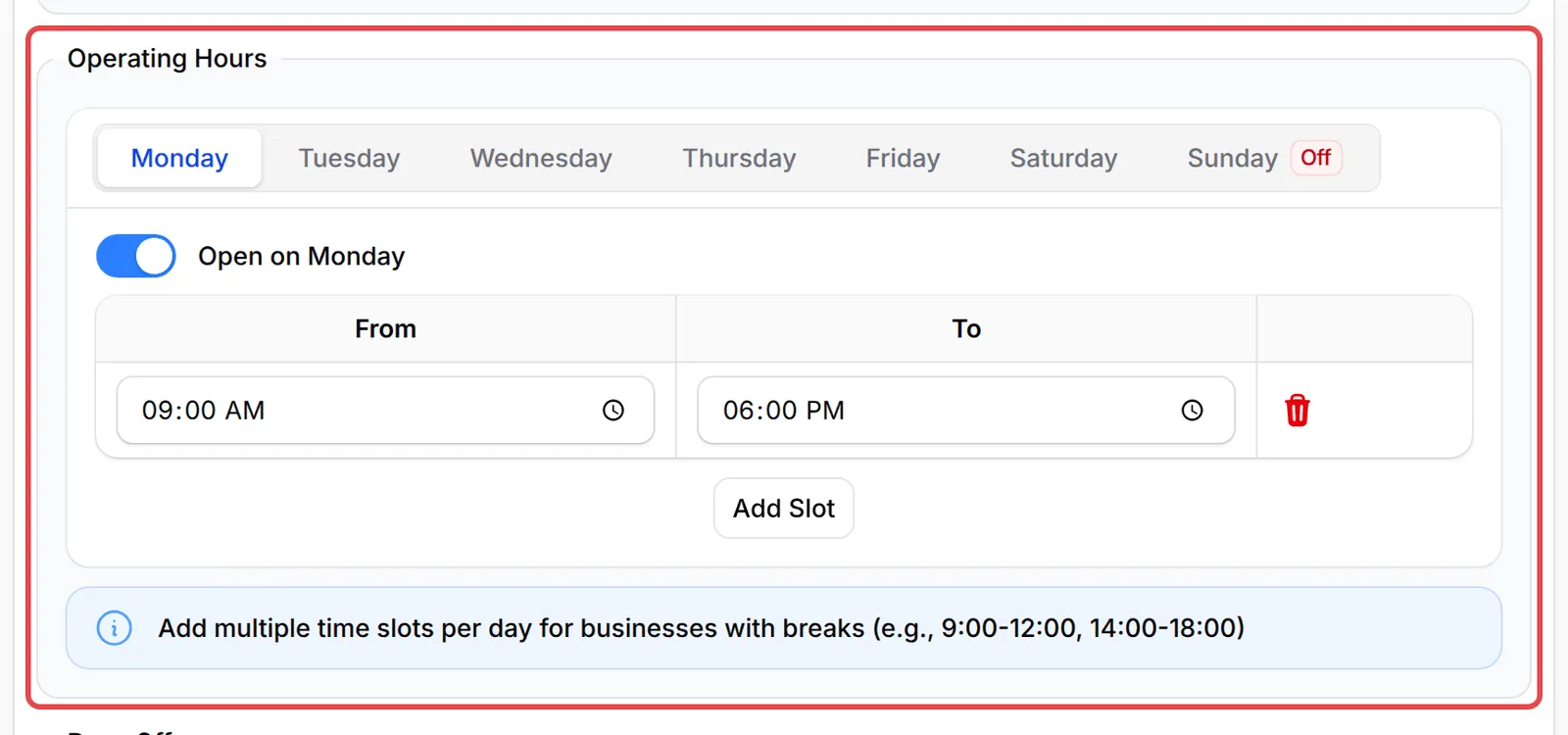
On the Availability tab, keep Recurring schedule and set your Operating Hours. Click a day, switch on Open on that day and set From and To. Click Add Slot for a break in the day, and Add day off for public holidays.
-
Click Add Booking Form.

BCL shows Booking created and opens the new form for editing.
Form Settings, Appearance, Custom Fields and Miscellaneous are optional. They cover the booking ID format, terms and conditions, images, extra questions and the page shown after payment.
Staff selection modes
Section titled “Staff selection modes”Staff Selection Mode decides whether customers pick an employee:
| Mode | What the customer sees |
|---|---|
| Disabled (No staff selection) | No staff choice. A Staff Assignment field appears: Automatic (system assigns) picks a free employee, Manual (admin assigns later) leaves it to you. |
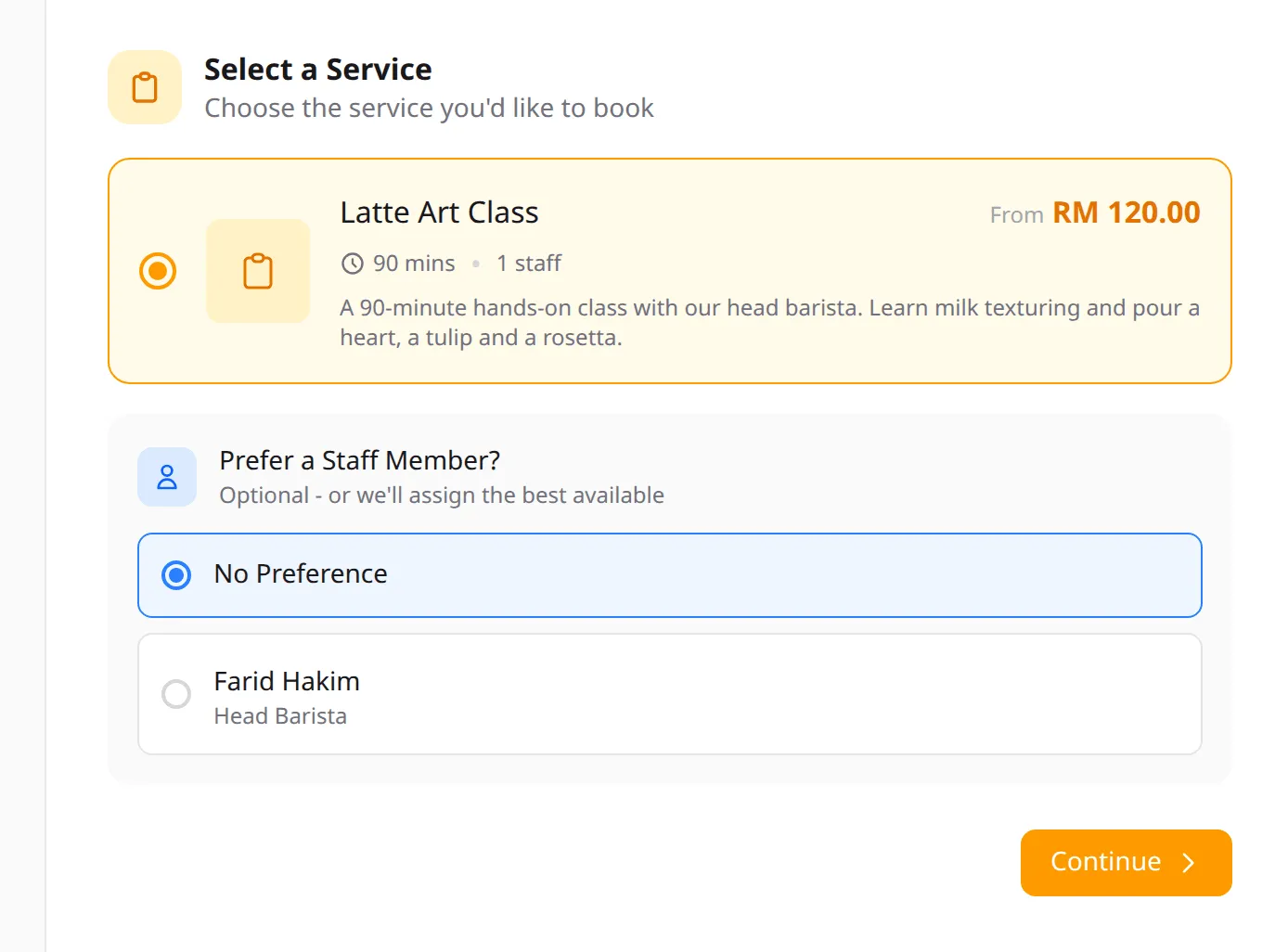
| Optional (Customer can choose or skip) | A list of employees plus No Preference. |
| Required (Must select staff) | The customer must choose an employee. |
Share your form
Section titled “Share your form”On the Booking Forms list, click View Form on the form’s row to open the public page. Copy the link from your browser and share it, or use the Embed Code tab on the form’s edit page to put it on your website.

Customers go through three steps: Service, Schedule and Confirm. They pay on the last step.
Start from a template
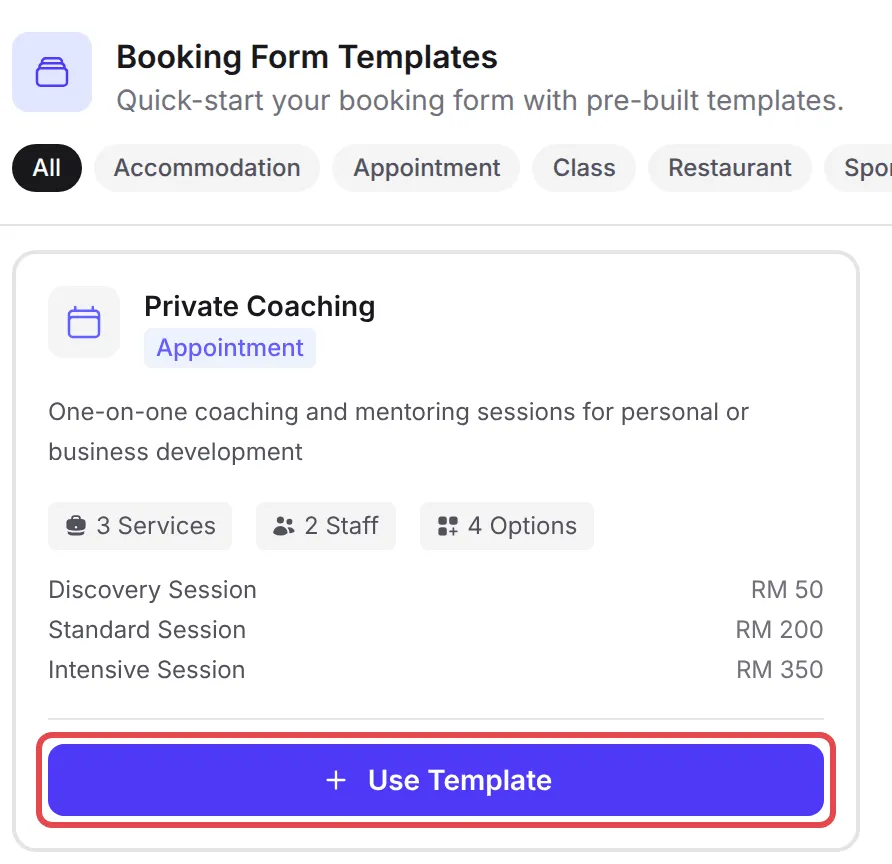
Section titled “Start from a template”BCL has 20 ready-made booking form templates, grouped as Accommodation, Appointment, Class, Restaurant, Sport and Ticket, for example Hair Salon, Restaurant Reservation, Badminton Court and Resort & Chalet. Each card shows how many services, staff and options it creates, with sample prices.
-
Go to Bookings → Forms and click Templates.
-
Pick a group or scroll through All, then click Use Template on the closest match.
BCL creates the form, its services, their categories and any sample staff, then opens the form for editing. The form is switched off so nobody can book yet. Before you share it:
- Change the Title, URL Slug and Description to your own.
- Rename or replace the sample services and staff, and check their prices and working hours.
- On the Payment tab, choose a Payment Option.
- On the Form Settings tab, turn on Form Active, then click Update Booking.
Booking forms have no Import JSON. To copy a booking form to another account, rebuild it there or start from the same template.
Before you share the link, check these:
- Match opening hours to your staff. A time can only be booked when the form is open and an employee is working. Keep Operating Hours and employees’ Working Hours in line.
- Use Add day off for holidays. Days off close the whole form for that date, so you do not have to change the weekly hours.
- Make a test booking. In Test Mode, book one slot yourself. It shows in Bookings and on the Calendar exactly as a customer’s would.
Common issues
How do I make only Thursday, Friday and Saturday bookable?
Open the form, go to the Availability tab and, under Operating Hours, switch on Open on Thursday, Open on Friday and Open on Saturday with their From and To times. Switch every other day off.
Can customers choose which staff member they get?
Yes. On the Booking Setup tab, set Staff Selection Mode to Optional (Customer can choose or skip) or Required (Must select staff). With Disabled (No staff selection), BCL assigns the staff.
I close for lunch from 1 PM to 2 PM. Can I block that hour?
Yes. Under Operating Hours, click Add Slot to give the day two time ranges, for example 9:00 AM to 1:00 PM and 2:00 PM to 6:00 PM.
Was this article helpful?
Thanks for your feedback.
Sorry this didn't help. WhatsApp us and we'll sort it out with you.