
Ask an AI about this page
 ChatGPT
 Claude
 Perplexity
 Google AI Mode
 Microsoft Copilot
 Grok
Grok Mistral Le Chat
What automations do
Updated

An automation does something for you when an event happens in BCL. For example, when a customer pays, BCL can send them a WhatsApp message, email your team and add the order to a Google Sheet, without you lifting a finger.
How an automation works
Section titled “How an automation works”Every automation is a small workflow that starts with one trigger:
| Part | What it does | Example |
|---|---|---|
| Trigger | The event that starts the automation. Each automation has exactly one. | A payment is successful, a lead form is sent, an event participant registers. |
| Condition | Lets the workflow continue only when the data matches. Optional. | Only if the amount is RM 500 or more. |
| Delay | Waits before the next step. Optional. | Wait one hour, or until a date and time. |
| Action | What BCL does. | Send an email, a WhatsApp or an SMS, add a row to Google Sheets, call your own system. |
See Triggers, conditions, delays and actions for how they fit together.
An automation is not tied to one form. It runs for every form that matches its trigger, unless you pick specific forms in the trigger’s settings.
Find your automations
Section titled “Find your automations”Automations have their own page in the sidebar.
-
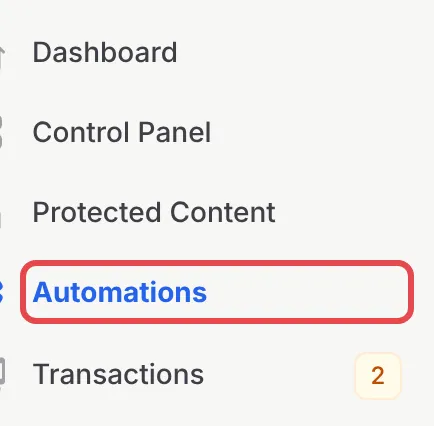
In the sidebar, click Automations.
-
There are three ways to add one: Templates (start from a ready-made workflow), New Automation (start from a blank canvas) and Import JSON (upload a file exported from BCL).

-
The list shows each automation’s Name, Trigger type, Status, how many Executions it has run and its Last Run. The tabs above the list group them into Payment, Lead, Affiliate and Event automations.
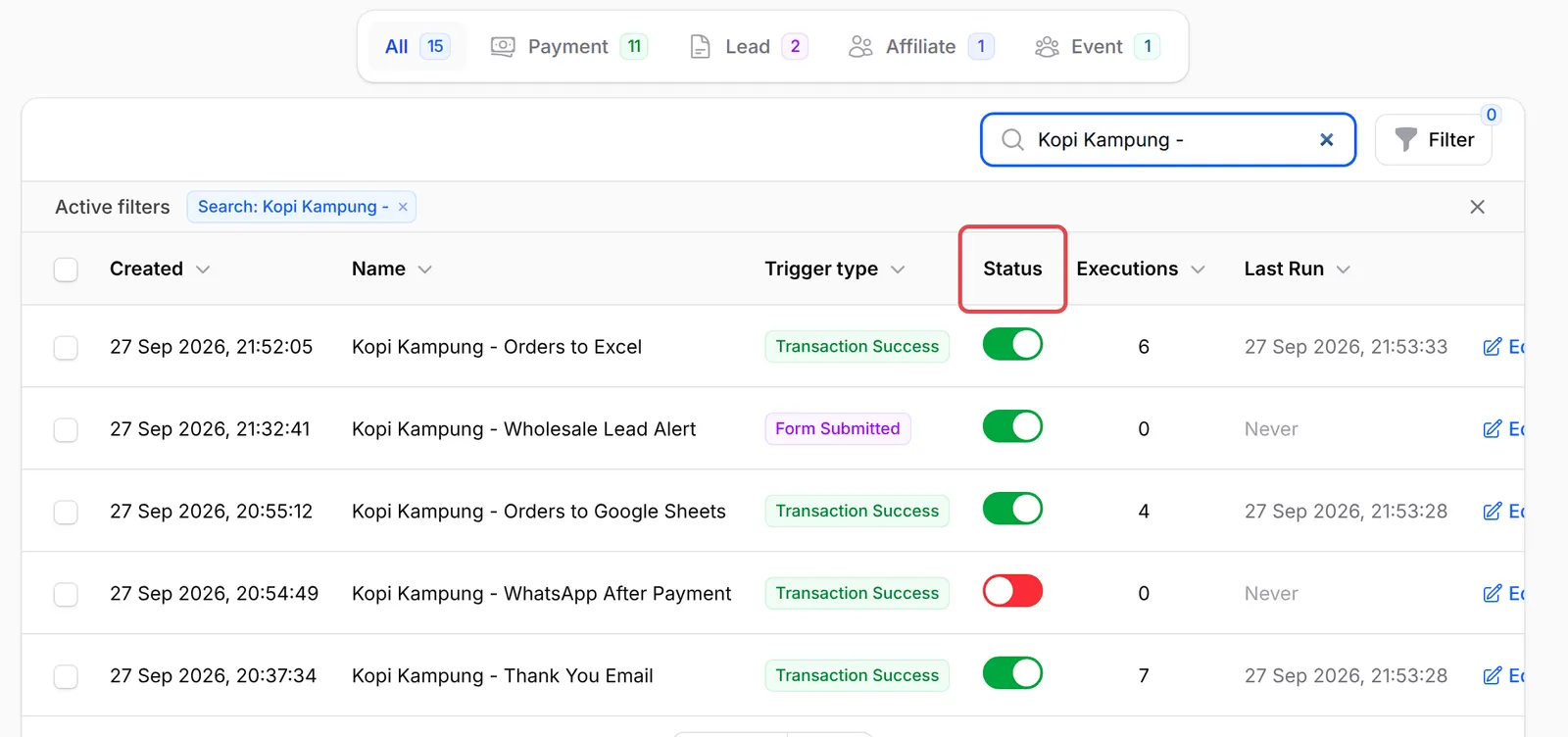
The Status switch turns an automation on or off. Only automations that are on run.
Automations or Notification Settings?
Section titled “Automations or Notification Settings?”Each form has its own Notification Settings for the standard emails BCL sends, such as the receipt email. Use them when those emails are all you need. Use an automation when you want something the standard emails do not do:
- A WhatsApp message through Wabot or Wasapbot after payment.
- An email or WhatsApp to your staff, or a reminder after a delay.
- A row in Google Sheets, a contact in Mail Niaga or SMS Niaga, or a call to your own system for each order or lead.
For ready-made examples, see the automation recipes.
A few things to know before you build many automations:
- Start from a template. The Templates panel has 14 ready-made workflows. Changing one is quicker than building from scratch. See Start an automation from a template.
- Each team can have up to 20 automations. At 20, BCL will not add more from New Automation, Templates or Import JSON until you delete one. One automation can hold several actions, so combine them where you can.
- Check the history after the first real run. Open the automation and click Overview to see every run and whether each action worked. See Check an automation’s history.
Common issues
What is the difference between Automations and a form's Notification Settings?
Notification Settings control the standard emails BCL sends for one form. Automations let you decide what happens and when, for many forms at once: WhatsApp messages, extra emails, Google Sheets, mailing lists or your own system.
Do I have to switch automation on for each form?
No. An automation runs for every form that matches its trigger. To limit it to some forms, choose them in the trigger's settings.
Do I need technical knowledge to use automations?
A little. You connect a trigger to one or more actions on a canvas. The easiest start is Templates: pick the closest example and change only the wording.
Was this article helpful?
Thanks for your feedback.
Sorry this didn't help. WhatsApp us and we'll sort it out with you.