
Ask an AI about this page
 ChatGPT
 Claude
 Perplexity
 Google AI Mode
 Microsoft Copilot
 Grok
Grok Mistral Le Chat
Your Customer Portal
Updated

The Customer Portal is where your buyers look up everything they bought from you, without a password and without messaging you. BCL sets it up for every account; you only need to tell customers where it is.
What your customers see
Section titled “What your customers see”After signing in with a one-time code, a customer sees:
| Page | What it shows |
|---|---|
| Dashboard | Their total spend, orders, tickets and content at a glance, and the shops they bought from. |
| Orders | Every payment to you, with the order details and Receipt and Invoice PDFs for paid orders. |
| Tickets | Their event tickets and whether they have checked in. |
| Content | Protected content they unlocked, and the download links from their paid orders. |
| Profile & sessions | Their name, the address used on e-invoices, and the devices they are signed in on. |
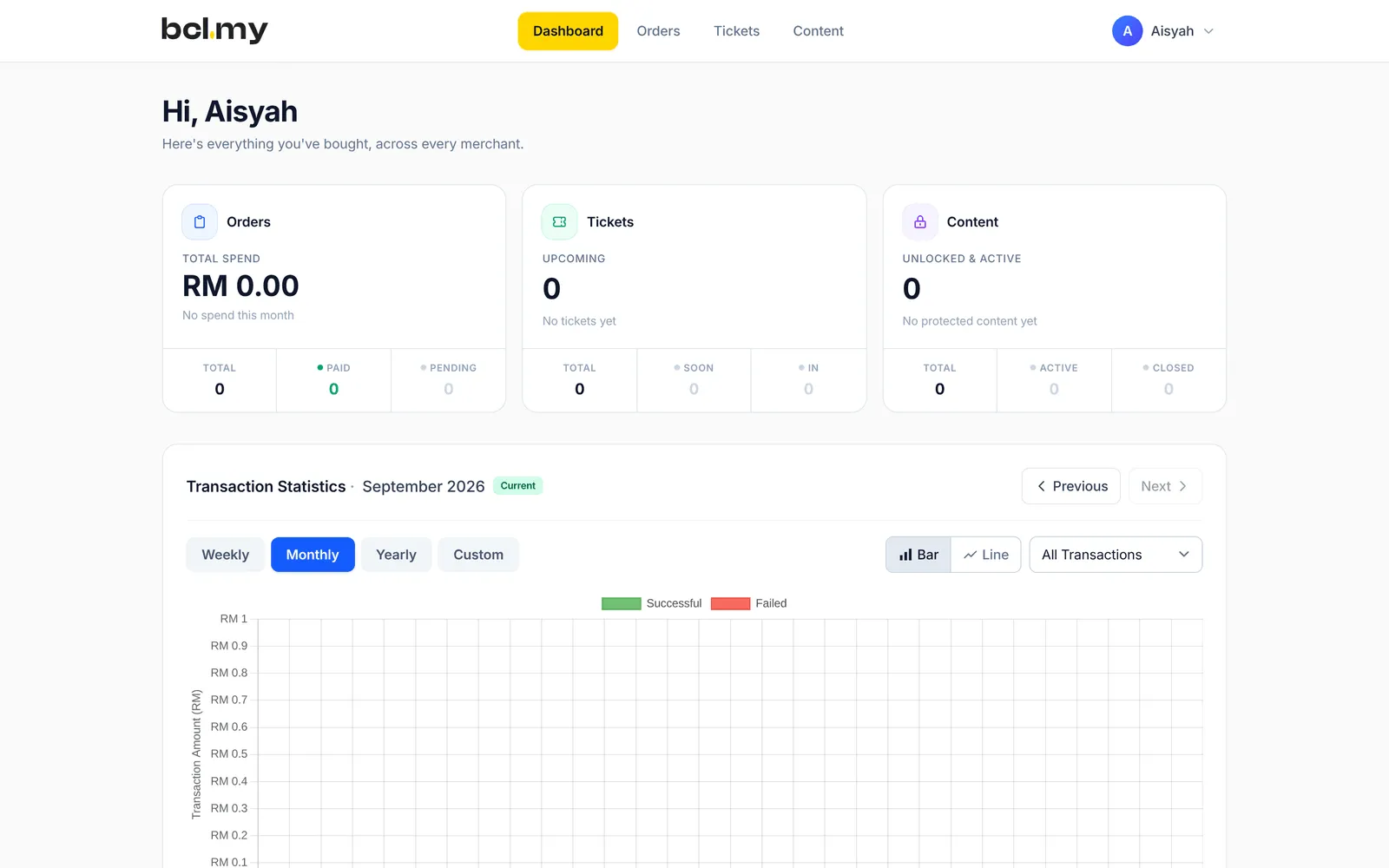
The portal only shows live payments. It never shows Test Mode orders.
Where customers find it
Section titled “Where customers find it”BCL already links to the portal in the two places every buyer gets:
-
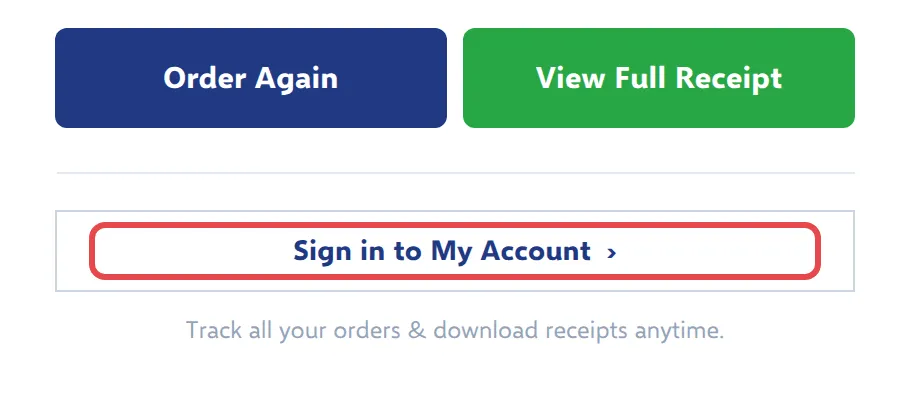
The payment email has a Sign in to My Account link under the receipt buttons.
-
The receipt page has a Sign in to your account button.
You can also share the address yourself: your BCL domain or custom domain followed by /customer, for example https://<your-subdomain>.bcl.my/customer. Put it in your WhatsApp auto-reply, your website footer or your order emails.
Your address or bcl.my/customer
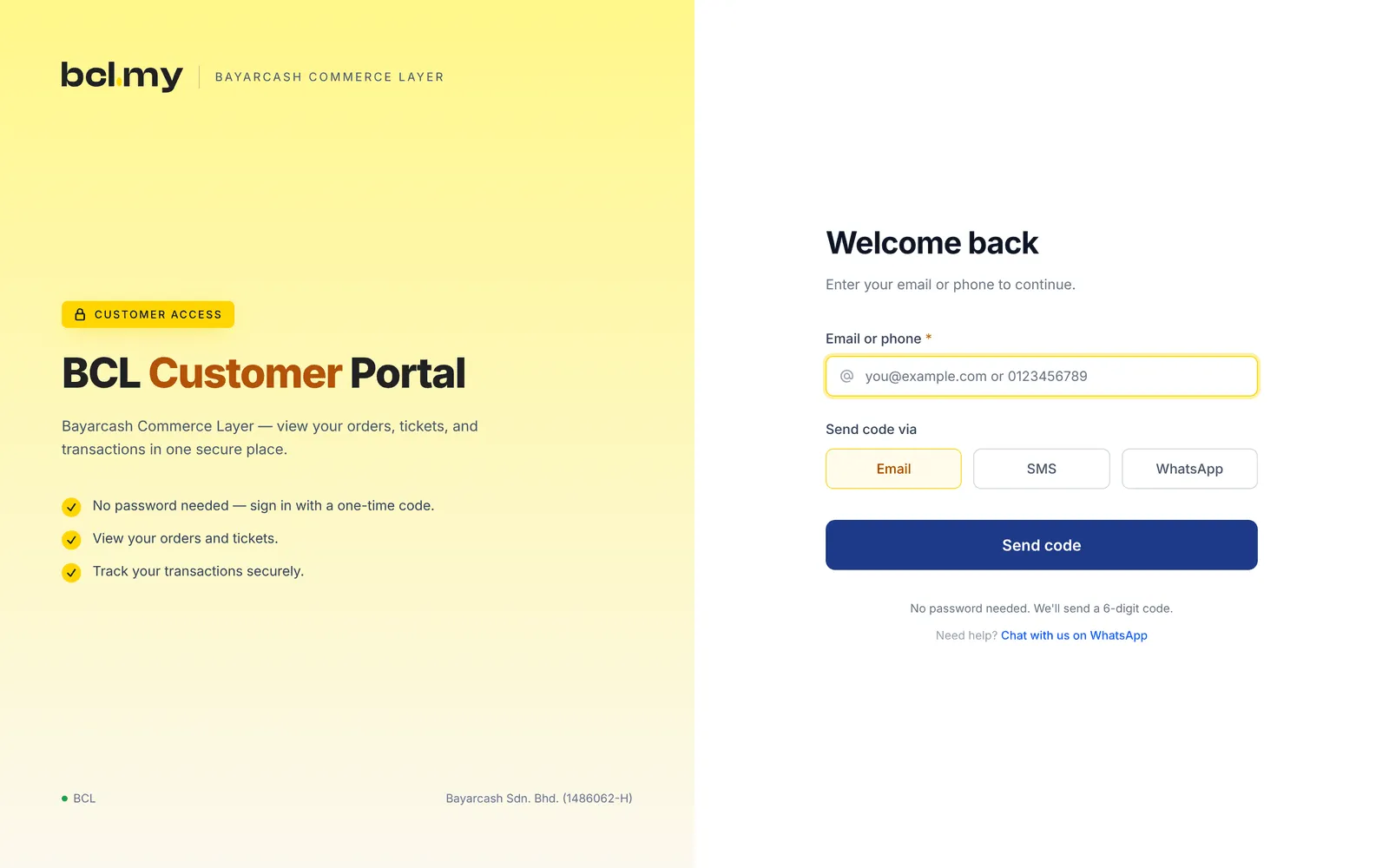
Section titled “Your address or bcl.my/customer”The same portal opens at two kinds of address, with a different view:
- Your address +
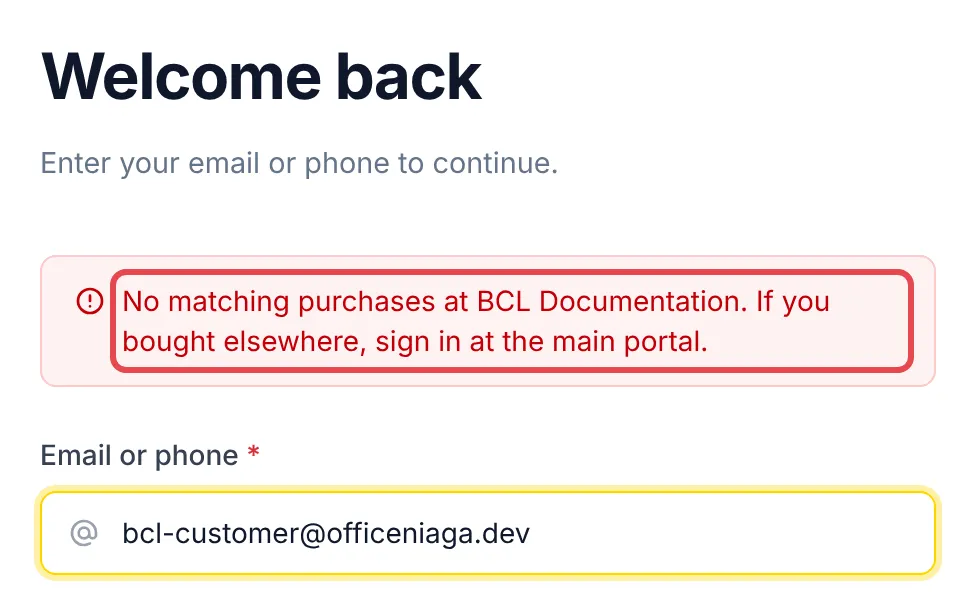
/customershows only purchases from your shop. People who never paid you live cannot sign in there: they see No matching purchases at your shop’s name. - bcl.my/customer shows a buyer’s purchases from every shop that uses BCL, with a filter to pick one merchant.
Send your own address when you want customers to focus on what they bought from you.
How customers sign in
Section titled “How customers sign in”Customers type the email address or phone number they used at checkout and get a 6-digit code by Email, SMS or WhatsApp. SMS only works for Malaysian (+60) numbers. The code lasts 10 minutes. Share Find your orders and receipts with customers who need the steps.
A few habits save you and your customers time:
- Help a customer who cannot sign in. Open their payment under Transactions and check the email and phone they typed. A typo at checkout means the code goes to the wrong place.
- Keep your customer list tidy. The portal and the Customers page both match buyers by email address.
- The help link reaches you. On your address, Chat with us on WhatsApp on the sign-in page opens a WhatsApp chat with the phone number in your Company Profile.
Common issues
My customers keep asking for old receipts and download links. Can they get them themselves?
Yes. Send them to your address followed by /customer. They sign in with the email or phone number they paid with, using a one-time code, and see all their orders from you, with receipts, invoices, tickets and downloads.
A customer says they cannot sign in to the Customer Portal. What should I check?
The portal finds buyers by the email or phone number used at checkout. Check the transaction for the exact email and phone, and ask them to use that. The code may also be in their spam folder.
Why does the portal say no matching purchases when I test it?
The portal only shows live payments. Purchases made in Test Mode never appear, so a test buyer sees No matching purchases at your shop.
Was this article helpful?
Thanks for your feedback.
Sorry this didn't help. WhatsApp us and we'll sort it out with you.