
Ask an AI about this page
 ChatGPT
 Claude
 Perplexity
 Google AI Mode
 Microsoft Copilot
 Grok
Grok Mistral Le Chat
Rename the fields on your form
Every payment, event and booking form asks the buyer for their name, email and mobile number, and an address when you ship. You can rename these fields for each form, for example Name to “Full name” or “Nama penuh”, so the form speaks the way your customers do.
Rename a field
Section titled “Rename a field”The labels are set per form. To change them on a payment form:
-
Go to Payments → Forms and click Edit on the form.
-
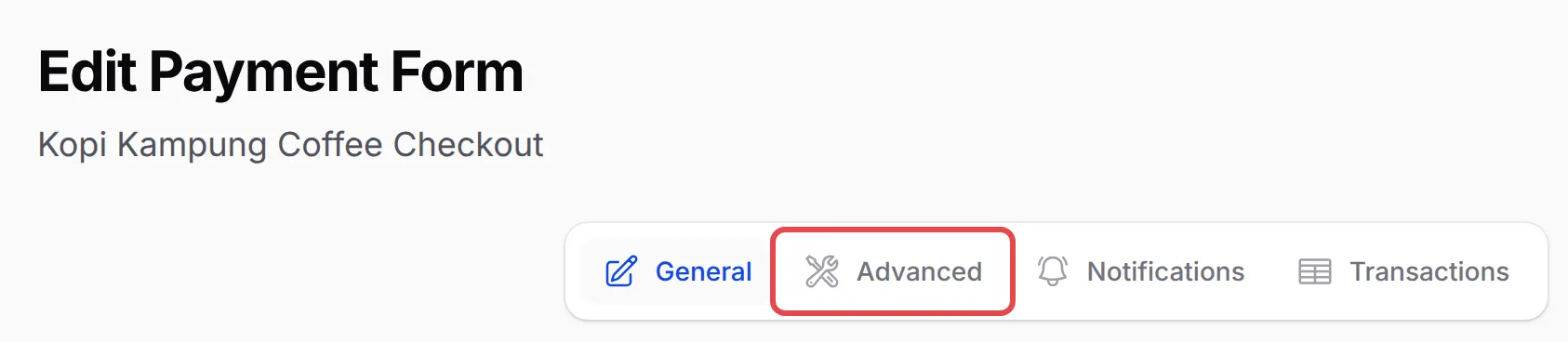
Click Advanced at the top of the page.
-
On the Form Display tab, type the new wording in the field you want to rename. Leave a field empty to keep BCL’s default, which shows in grey.
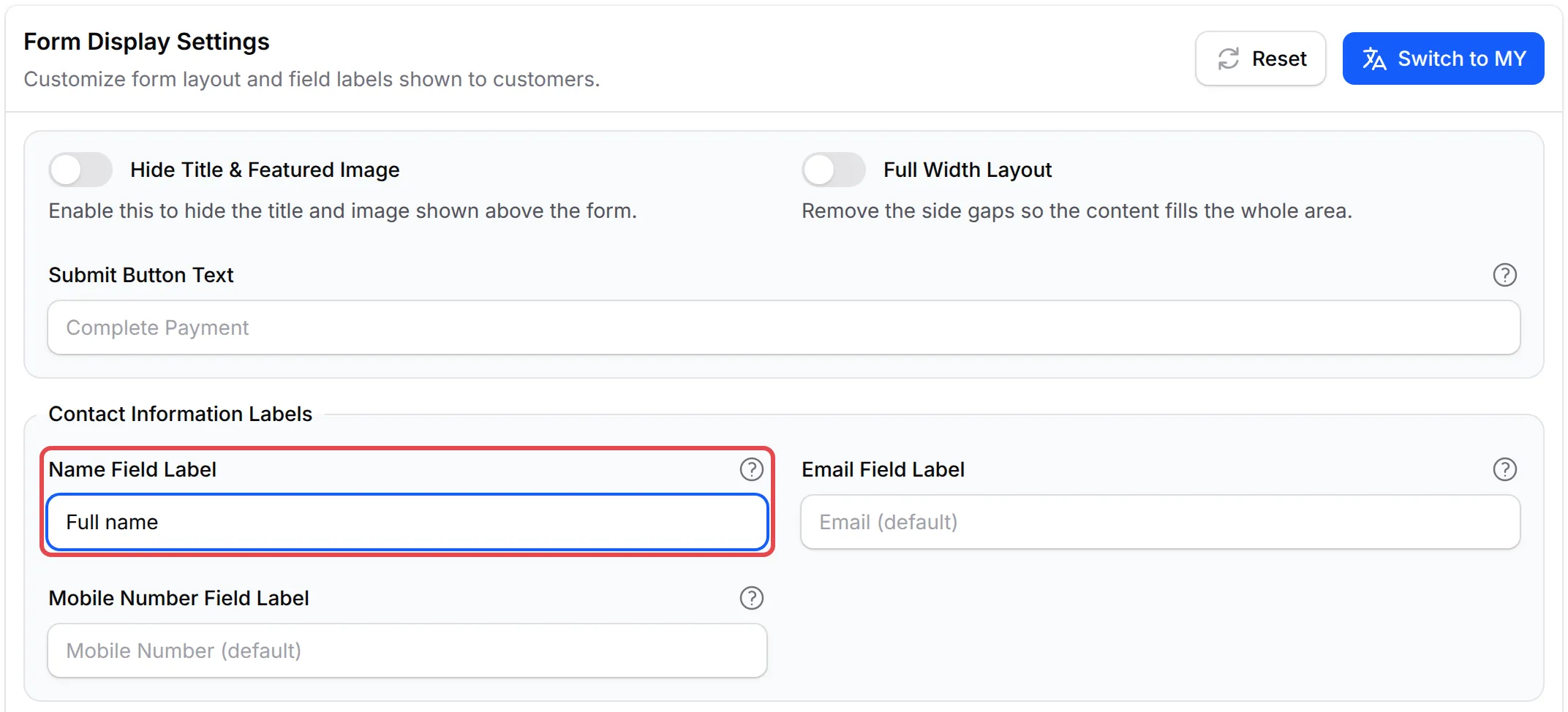
Group Fields you can rename Contact Information Labels Name Field Label, Email Field Label, Mobile Number Field Label Address Field Labels Address Line 1, Address Line 2, City, State, Postal Code and Country Other Labels Protected Content Button Label, the button that opens protected content from the receipt and email -
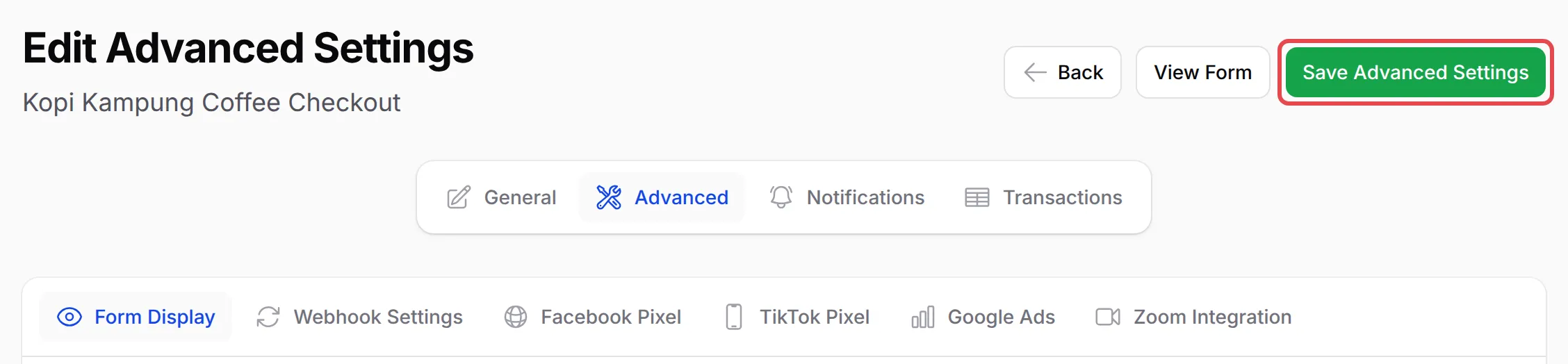
Click Save Advanced Settings at the top.
Your form shows the new label straight away:
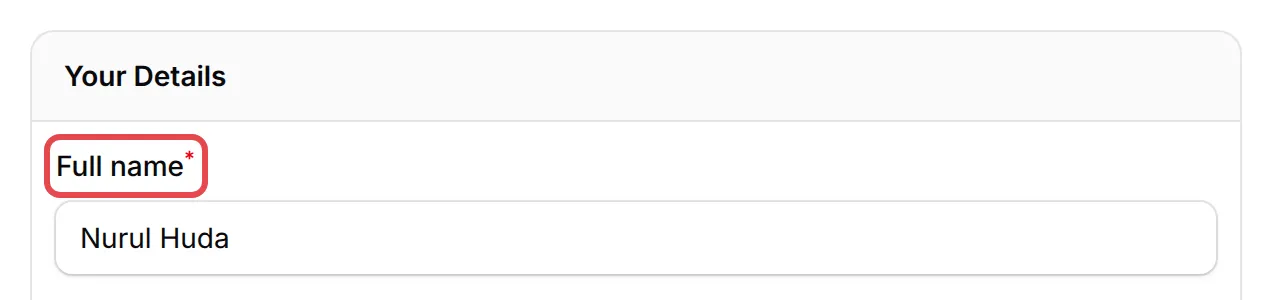
Each label can be up to 50 characters. On the same tab, Submit Button Text changes the wording of the pay button, which says Complete Payment by default.
Event and booking forms
Section titled “Event and booking forms”Event and booking forms have the same Form Display tab under Advanced, with a few extras:
-
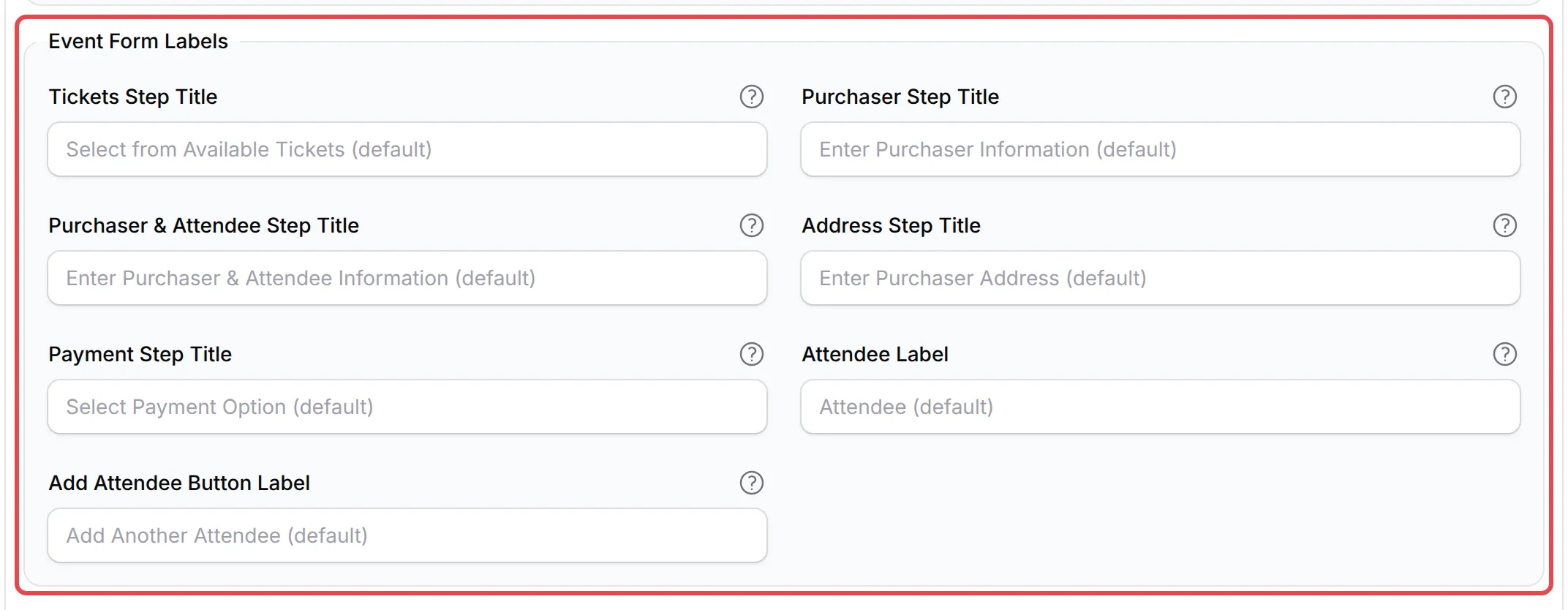
Event forms also have Event Form Labels: the titles of each checkout step, such as Tickets Step Title and Payment Step Title, the Attendee Label and the Add Attendee Button Label.
-
Booking forms have a Booking Labels tab next to Form Display for the wording of the booking steps.
Lead forms are different: you build their fields yourself, so you rename a field by changing its Label. See Create a lead form.
Switch all labels to Malay
Section titled “Switch all labels to Malay”Switch to MY at the top of the Form Display tab fills in Malay wording for every label at once, such as Nama, E-mel, Nombor Telefon and Selesaikan Pembayaran for the pay button. Change any of them if you prefer other words, then click Save Advanced Settings. Reset clears all your labels so the form uses BCL’s defaults again.
Keep the labels clear for buyers:
- Say exactly what you need. “Full name as in MyKad” gets you names that match an ID check at the door, which a plain “Name” does not.
- Keep the meaning of each field. The Email field still expects an email address and the Mobile Number field a phone number, so rename them but do not use them for something else.
- Open the form after saving. Click View Form at the top of the page to check the new labels as your buyers see them.
Common issues
How do I change Name to Full name on my payment form?
Open the form, click Advanced at the top, and on the Form Display tab type Full name in Name Field Label. Then click Save Advanced Settings.
Can I show the fields on my form in Malay?
Yes. On the form's Advanced page, click Switch to MY on the Form Display tab. It fills in Malay labels such as Nama, E-mel and Nombor Telefon. Click Save Advanced Settings to keep them.
How do I go back to the original labels?
Click Reset on the Form Display tab and confirm, then click Save Advanced Settings. Or empty a single field: an empty label uses BCL's default.
Can I rename the fields on my lead form?
Yes, but in a different place. A lead form's fields are your own: open the form and change each field's Label in Field Settings. See Create a lead form.
Was this article helpful?
Thanks for your feedback.
Sorry this didn't help. WhatsApp us and we'll sort it out with you.