
Ask an AI about this page
 ChatGPT
 Claude
 Perplexity
 Google AI Mode
 Microsoft Copilot
 Grok
Grok Mistral Le Chat
Check purchases sent to your pixels (Marketing Pixel Logs)
Updated

Marketing Pixel Logs lists every purchase BCL sent to your marketing pixels: Meta (Facebook), TikTok, Google Analytics 4 and Google Ads. Use it to check that a sale reached the platform, and whether it was sent from the customer’s browser or from BCL’s server.
Open Marketing Pixel Logs
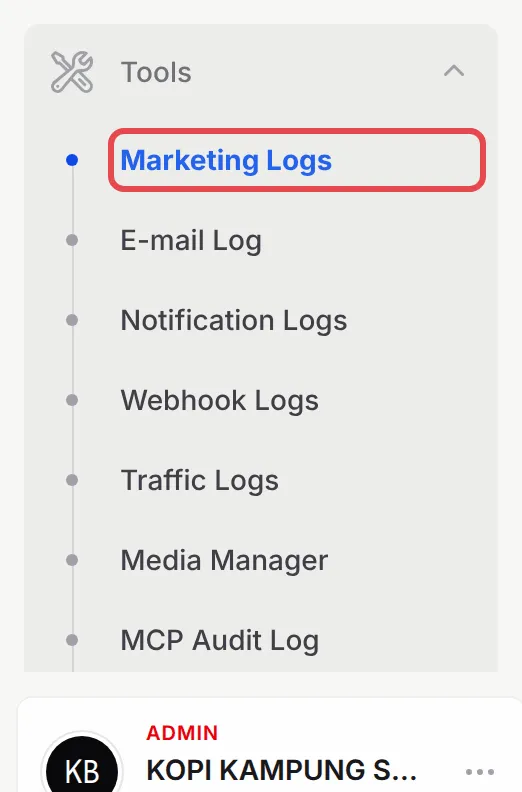
Section titled “Open Marketing Pixel Logs”You find it under Tools:
-
Go to Tools → Marketing Logs.
-
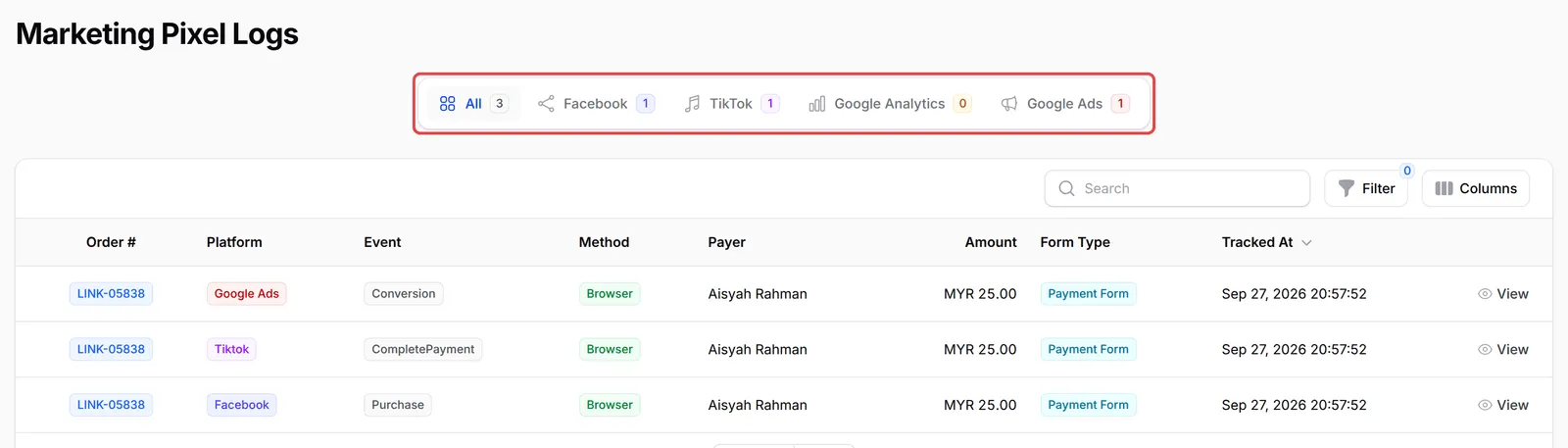
Pick a tab to see one platform: All, Facebook, TikTok, Google Analytics or Google Ads. The number on each tab is how many purchases were sent.
What each row means
Section titled “What each row means”One row is one purchase sent to one platform. An order sent to Meta, TikTok and Google Ads shows three rows with the same order number. These are the columns:
| Column | What it shows |
|---|---|
| Order # | The order number of the transaction. |
| Platform | Facebook, TikTok, Google Analytics or Google Ads. |
| Event | The event name the platform received: Purchase (Meta), CompletePayment (TikTok), Purchase (Google Analytics) or Conversion (Google Ads). |
| Method | Browser: the pixel on the receipt page sent it. Server: BCL’s server sent it (Conversions API, Events API or Google Analytics). |
| Payer and Amount | The customer and the amount of the order. |
| Form Type | Payment Form, Event Form or Booking Form. |
| Tracked At | When BCL sent it. |
Use Search to find an order number or payer, and Filter to narrow by platform, method, form type or date.
Check that a purchase was sent
Section titled “Check that a purchase was sent”To look at one purchase in detail:
-
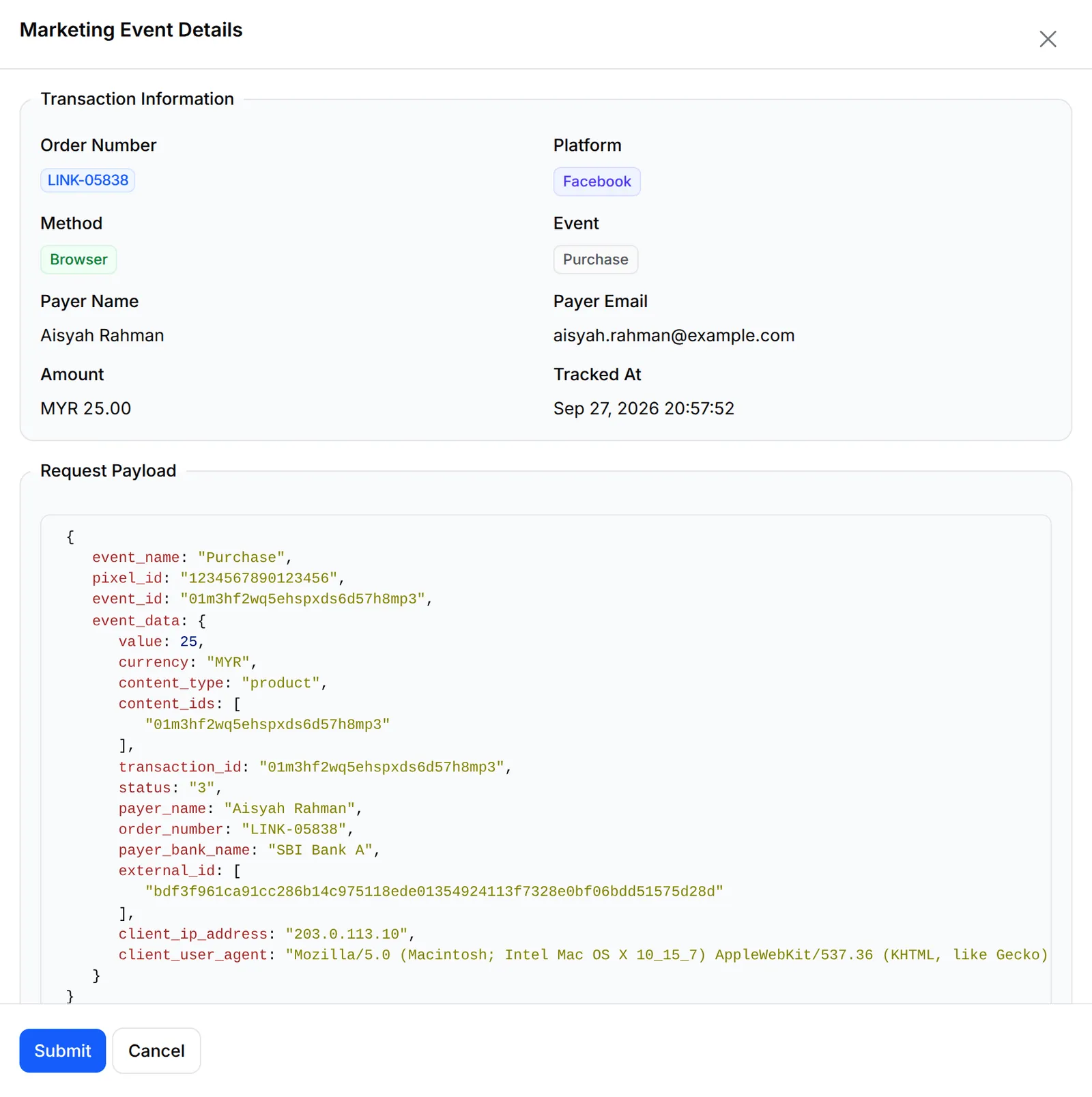
Find the order and click View on its row.

-
Check Platform, Event and Method, and the Request Payload: the pixel ID, amount, currency and order number BCL sent. A Server row also shows the platform’s answer under Response Payload; an error there (for example an invalid token) means the platform did not accept it.
A few things to know when you read the log:
- No row means nothing was sent. Check that the pixel is on for that form and that the order was paid. Failed and cancelled payments are never sent.
- A Browser row is not proof the platform received it. It means the receipt page called the pixel. To be sure, turn on server-side tracking: see Server-side tracking (Conversions API) explained.
- Each purchase is sent once per platform. If the browser sent it, the server skips it, and the other way round, so you see one row per order and platform.
- Affiliates see only their own. An affiliate who adds their own pixel sees their referred purchases under Marketing → Marketing Logs in the affiliate dashboard, not yours.
Common issues
How do I know if my Meta pixel fired the Purchase event?
Go to Tools → Marketing Logs and open the Facebook tab. Each paid order that BCL sent to your pixel has a row with the event Purchase.
Marketing Pixel Logs is empty. What is wrong?
Rows appear only for purchases. Check that the pixel is switched on for the form (the form's Advanced tab, or Platform Setup → Integrations for Google Analytics) and that the order was paid, or was a pending COD order with Trigger Purchase Event on Pending on.
The log shows the purchase, but Meta does not. Why?
A Browser row means the receipt page called the pixel; the customer's ad blocker can still stop it. Turn on the Conversions API so BCL can send it from its server.
Was this article helpful?
Thanks for your feedback.
Sorry this didn't help. WhatsApp us and we'll sort it out with you.