
Ask an AI about this page
 ChatGPT
 Claude
 Perplexity
 Google AI Mode
 Microsoft Copilot
 Grok
Grok Mistral Le Chat
Set shipping rates
Shipping rates are the delivery charges your customers choose from at checkout. You set them once in Shipping & Rates, and every payment form with shipping turned on uses them. Each rate can be a flat charge, a charge by weight or quantity, free above an amount, or limited to some states.
Add a flat rate
Section titled “Add a flat rate”A flat rate charges the same amount on every order, whatever is in it. To add one:
-
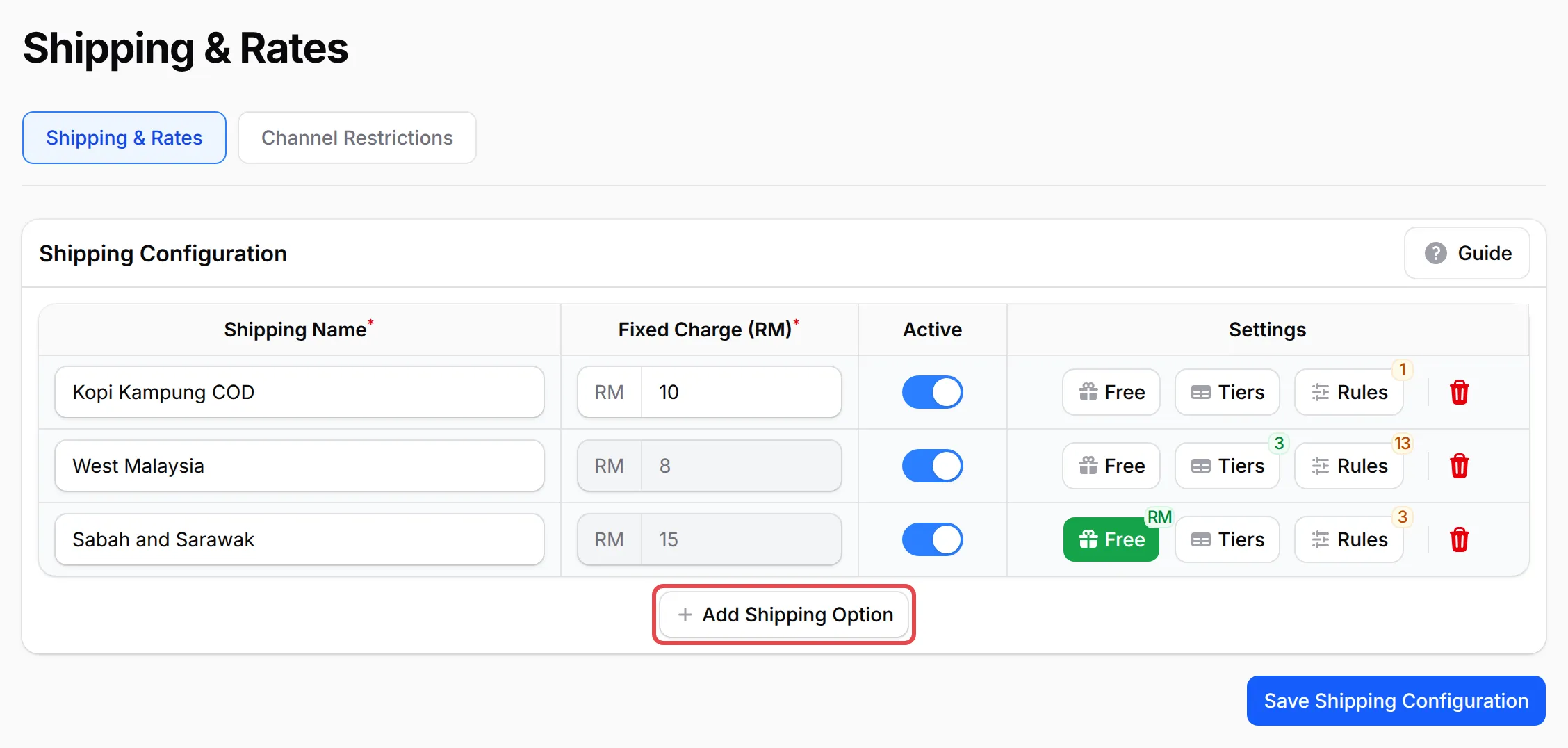
Go to Platform Setup → Shipping & Rates. On the Shipping & Rates tab, click Add Shipping Option.
-
Enter a Shipping Name, which your customers see at checkout, and the Fixed Charge (RM). Leave Active on.
-
Click Save Shipping Configuration. You can add up to 6 shipping options.
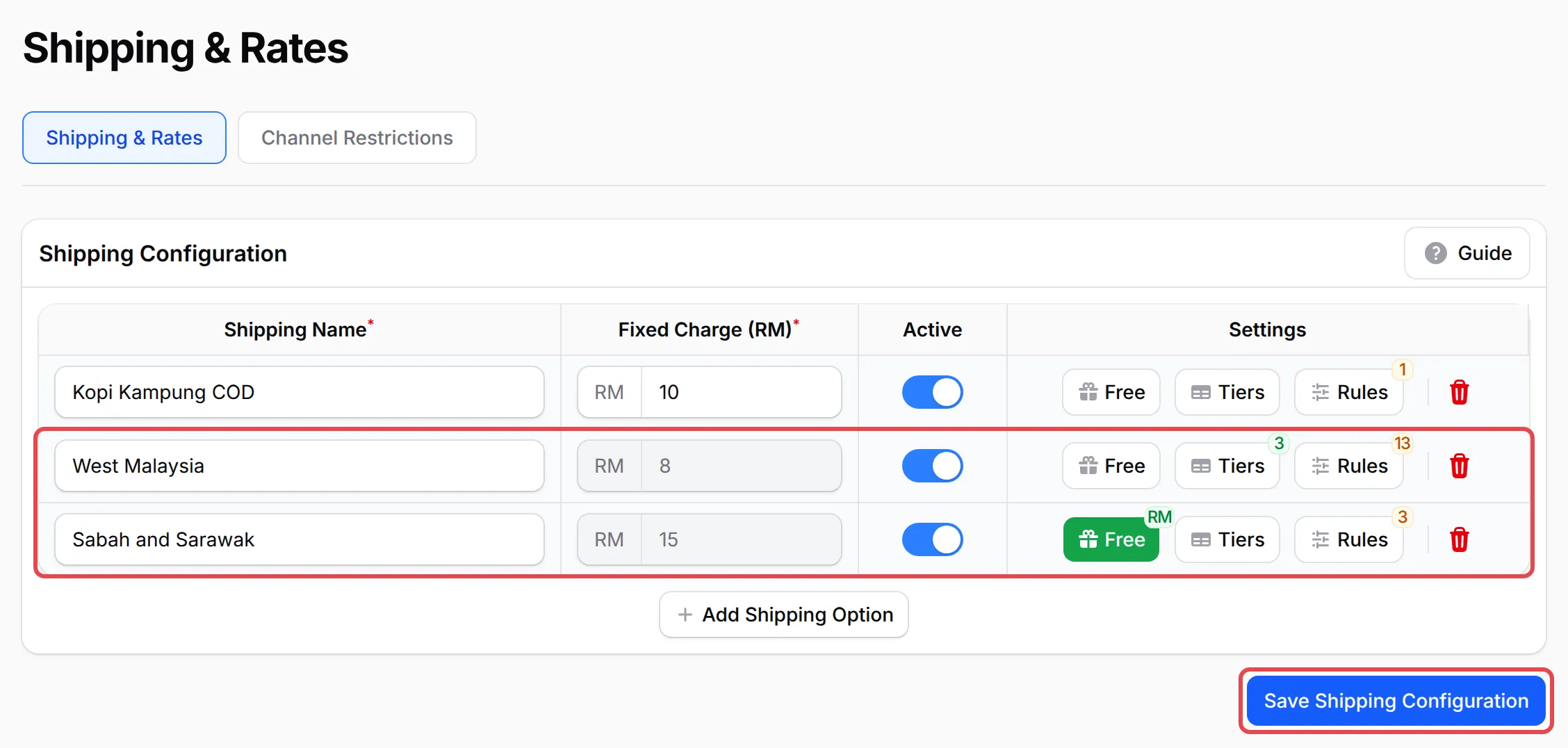
The Free, Tiers and Rules buttons on a row only work once that option is saved. Saving any of their panels also saves the whole page. Once an option has tiers or free shipping, its Fixed Charge (RM) box is greyed out: to change the amount, turn them off first.
Charge by weight or quantity (table rate)
Section titled “Charge by weight or quantity (table rate)”A table rate changes the charge with the size of the order. Use Weight-based (kg) for heavy goods and Quantity-based (units) when every item ships the same way. To set one up:
-
Click Tiers on a saved shipping option and turn on Enable Table Rate Shipping.
-
Under Calculation Type, choose Quantity-based (units) or Weight-based (kg).
-
Under Rate Tiers, click Add Rate Tier for each step and fill in the columns. You can add up to 20 tiers.
Column What to enter From The smallest total weight or quantity for this tier. Start the first tier at 0. Base (RM) The shipping charge for orders in this tier. Additional (RM) Optional. An extra charge for each kg or unit in the whole order, added to the base. Leave it empty for a simple step price. -
Click Save Table Rates.
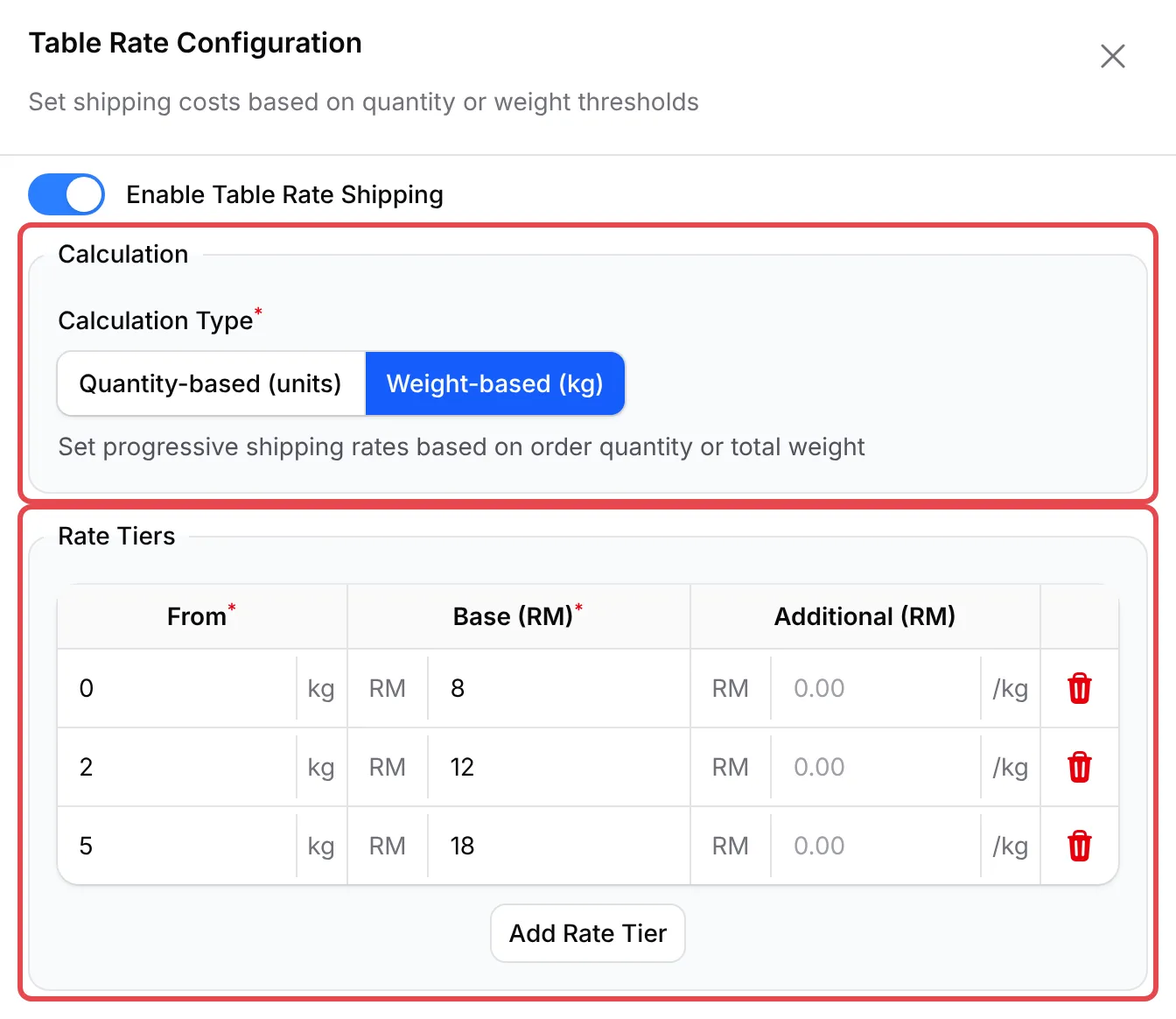
With the tiers in the picture, a 1.5 kg order pays RM 8, a 3 kg order pays RM 12 and a 6 kg order pays RM 18. BCL uses the highest tier the order reaches. Once tiers are on, the option’s Fixed Charge (RM) is no longer used.
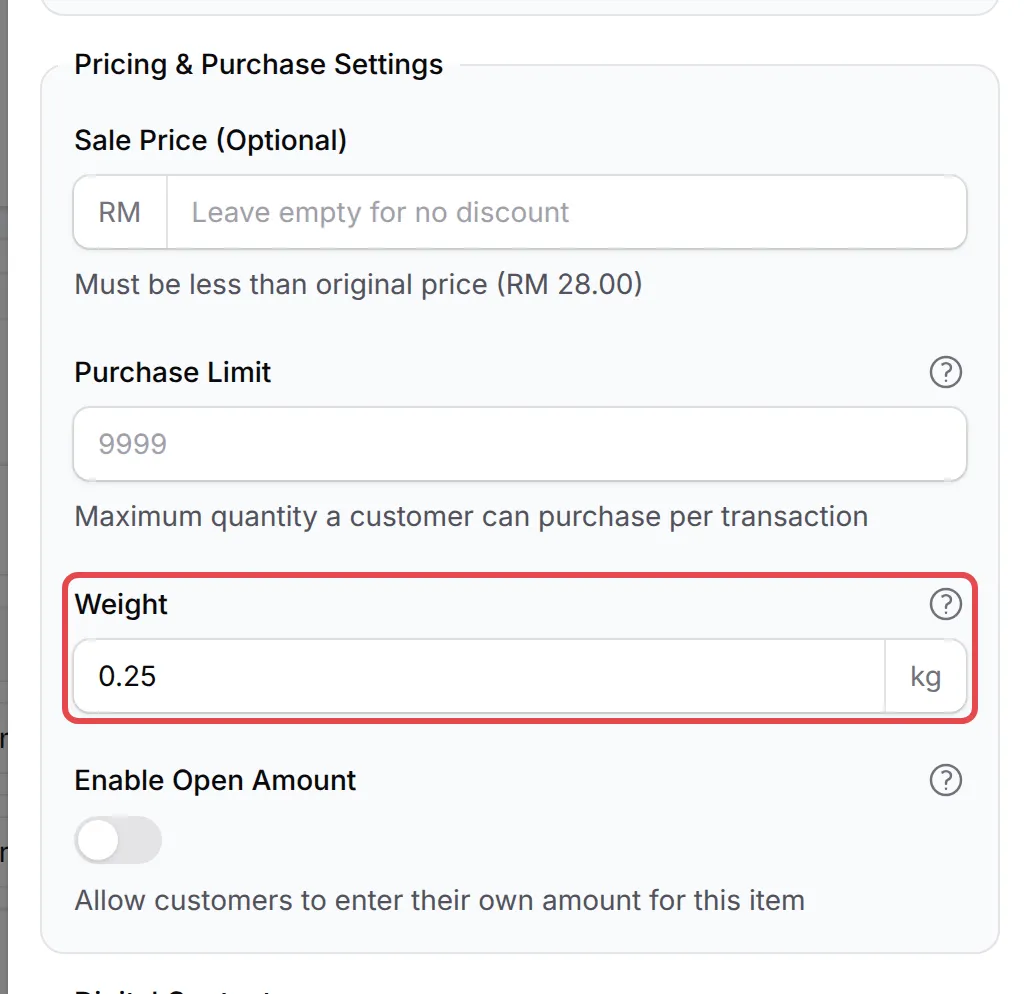
For weight-based rates, every item needs a weight. In your form, open the item with More, fill in Weight in kg under Pricing & Purchase Settings and click Update, then Update Form.
Set a different rate by region
Section titled “Set a different rate by region”To charge more for Sabah, Sarawak and Labuan, make one shipping option per region and limit each one to its states. This needs the COD & Manual Transfer add-on; without it, the Rules panel is a preview only.
-
Add and save one option per region, for example West Malaysia at RM 8 and Sabah and Sarawak at RM 15.
-
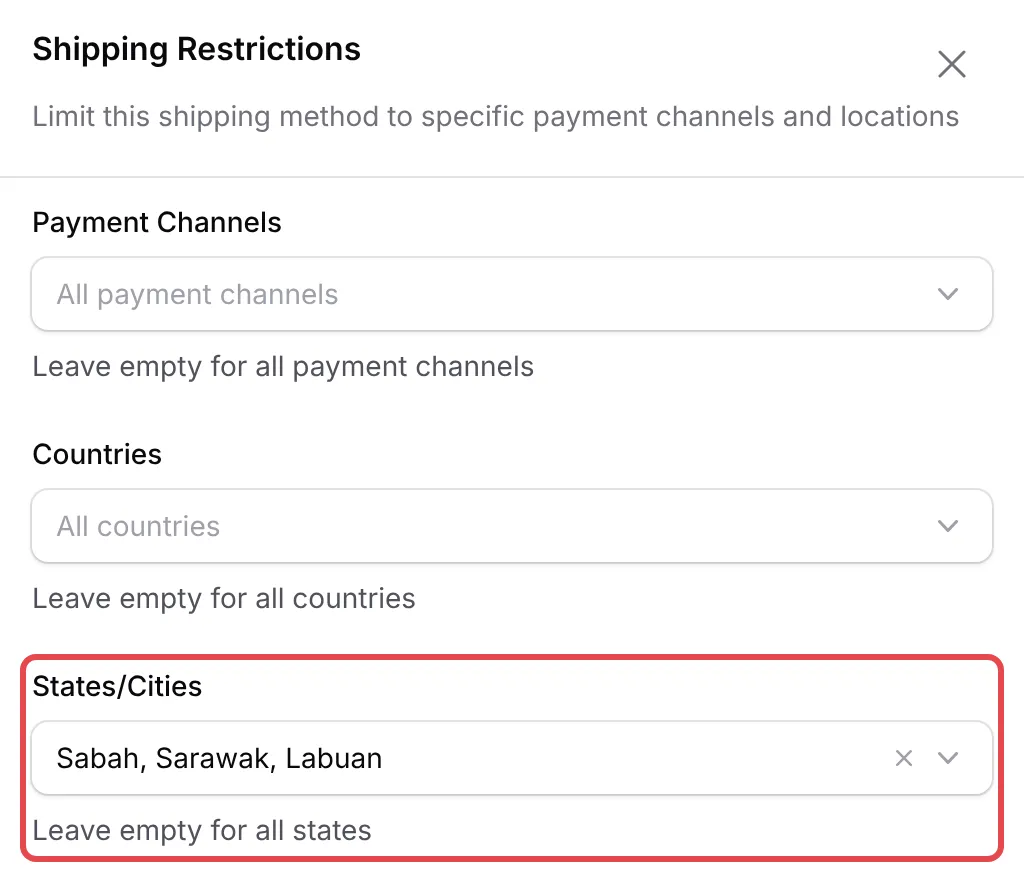
Click Rules on the first option. In States/Cities, choose its states. Countries works the same way for Malaysia, Singapore and Indonesia.
-
Click Save Restrictions, then repeat for the other option.
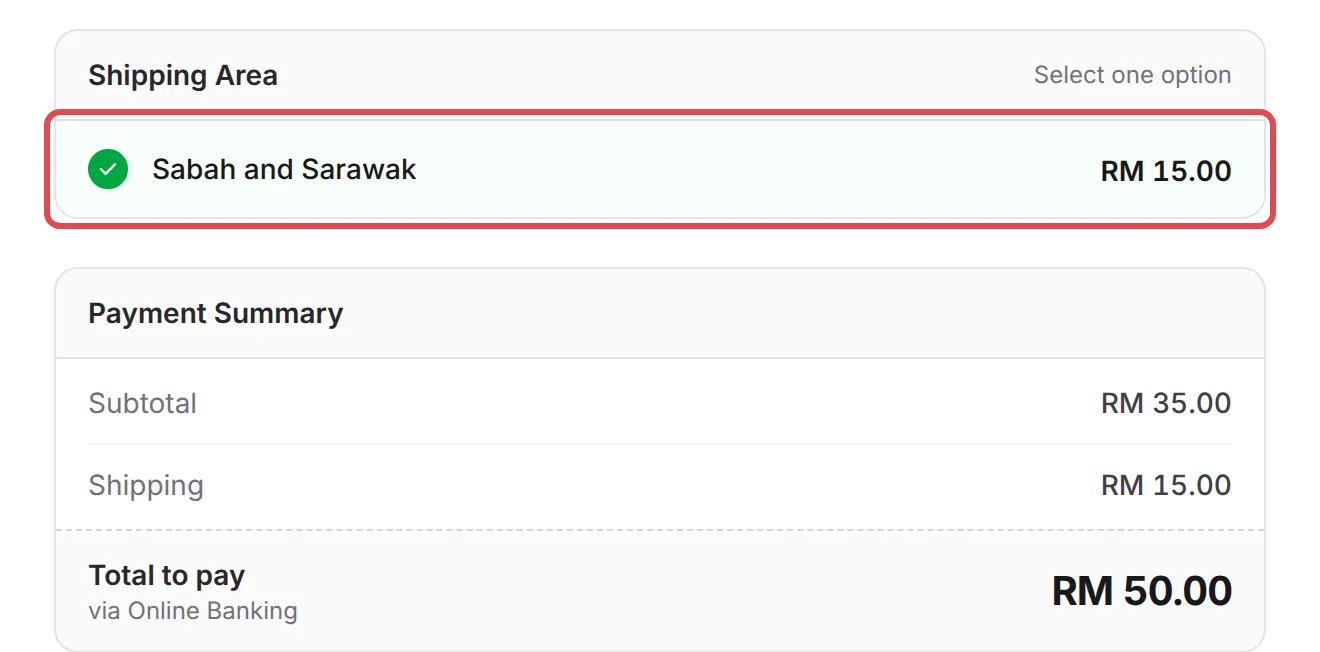
Once the customer picks their state on the form, they see only the options for that state. With a Sabah address, for example, the customer sees only Sabah and Sarawak at RM 15:
Payment Channels in the same panel limits an option to some payment methods, which is how you add a charge for COD only: see Accept COD and manual bank transfer.
Offer free shipping
Section titled “Offer free shipping”Free shipping can apply to every order or only above a spend or item count. To set it:
-
Click Free on a saved shipping option and turn on Enable Free Shipping.
-
Under Free Shipping When, choose Always Free, Minimum Order Value (then fill in Minimum Order Amount) or Minimum Items (then fill in Minimum Item Quantity).
-
Optionally, set a Start Date and End Date under Validity Period for a promotion.
-
Click Save Free Shipping.
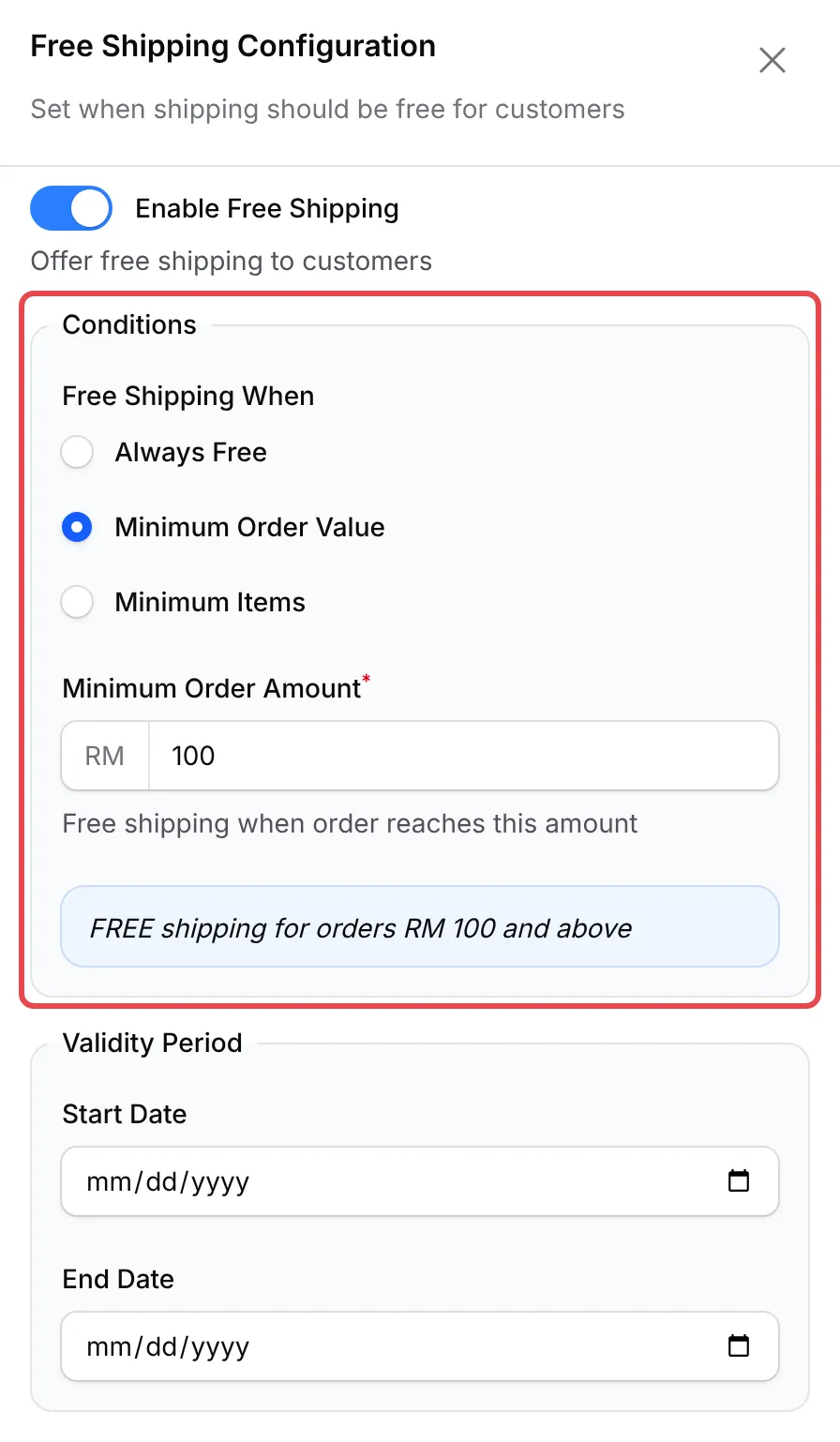
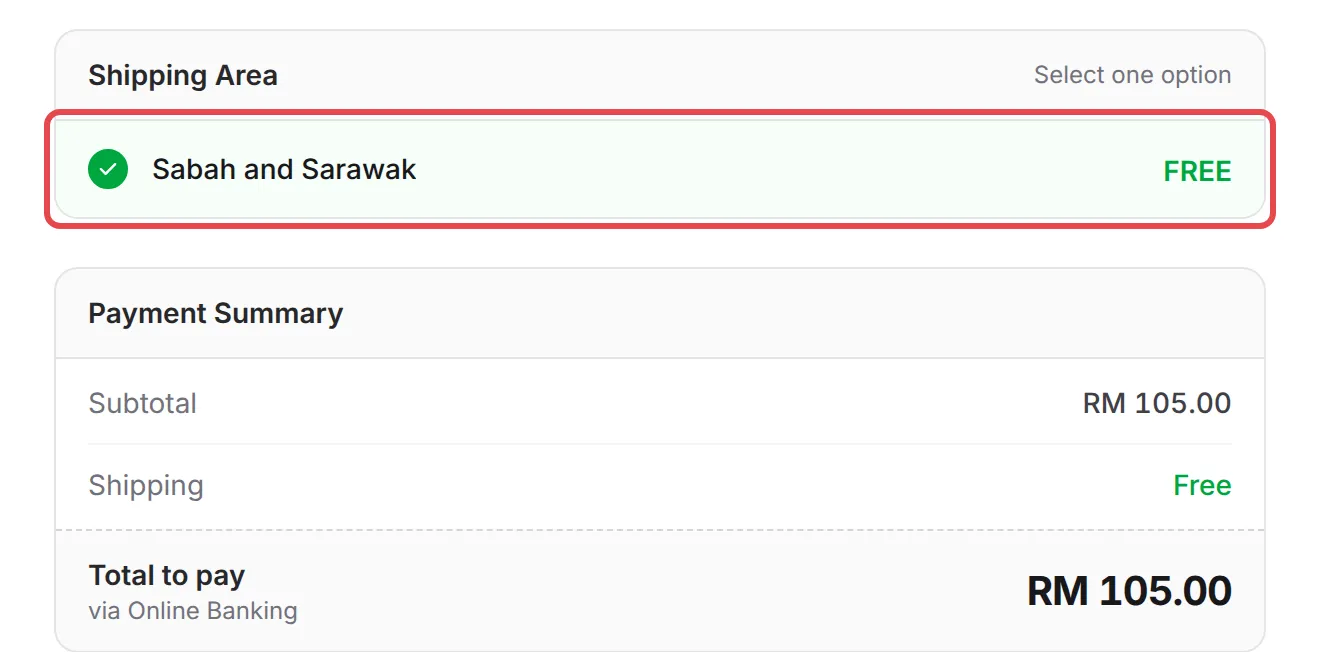
When the order meets the condition, the option shows FREE at checkout, even if it also has tiers. Otherwise the fixed charge or tier applies as usual: with the settings above, a RM 35 order to Sabah pays RM 15 shipping and a RM 105 order pays nothing.
Turn on shipping in your form
Section titled “Turn on shipping in your form”Shipping rates show only on forms that ask for them. To turn them on:
-
Go to Payments → Forms, click Edit on your form and open the Form Configuration tab.
-
Under Shipping & Delivery, turn on Enable Shipping Rate.
-
Leave Available Shipping Methods empty to offer every active option, or choose the ones this form should offer.
-
Click Update Form.

- Name each option the way customers think about delivery. “West Malaysia” or “Sabah and Sarawak” is clearer at checkout than a courier’s service name.
- Weigh one packed parcel before you set the tiers. Box and padding add weight, so round each item’s Weight up to what the courier will actually charge for.
- Turn off Active instead of deleting a seasonal option. An inactive option keeps its tiers and rules but does not appear at checkout.
Common issues
How do I charge one rate for Peninsular Malaysia and another for Sabah and Sarawak?
Add two shipping options in Platform Setup → Shipping & Rates, for example West Malaysia at RM 8 and Sabah and Sarawak at RM 15, and save. Then click Rules on each one and choose its states in States/Cities. Rules need the COD & Manual Transfer add-on; without it, customers see both options and pick one themselves.
I set a weight-based rate but customers can't choose it. Why?
The order has no weight. A weight-based option cannot be chosen while the total weight is 0 kg. Open each item of the form with More and fill in Weight in kg, then click Update Form.
Can shipping be free when the customer spends RM 100 or more?
Yes. Click Free on the shipping option, turn on Enable Free Shipping, choose Minimum Order Value, enter 100 in Minimum Order Amount and click Save Free Shipping. Orders below RM 100 still pay the option's fixed charge.
Was this article helpful?
Thanks for your feedback.
Sorry this didn't help. WhatsApp us and we'll sort it out with you.