
Ask an AI about this page
 ChatGPT
 Claude
 Perplexity
 Google AI Mode
 Microsoft Copilot
 Grok
Grok Mistral Le Chat
Send official WhatsApp templates with Kapso
Kapso connects an official WhatsApp Business number (WABA) to your own tools. Connect it to BCL, then add a Kapso step to an automation. The step can send one of your approved WhatsApp templates, or save the buyer as a Kapso contact.
Connect Kapso
Section titled “Connect Kapso”You need a Kapso project with a real WhatsApp number. Then:
-
In Kapso, open Integrate → API keys and create a key with no expiration date.
-
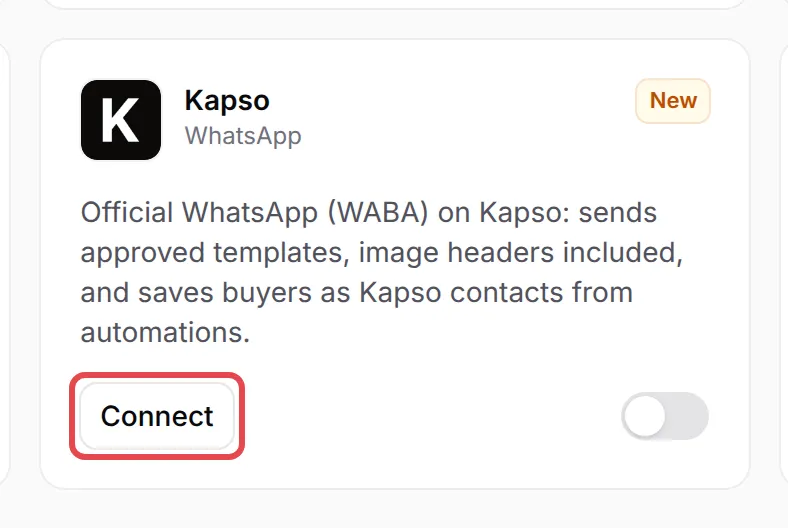
In BCL, go to Platform Setup → Integrations. Click WhatsApp to show the WhatsApp cards, then click Connect on the Kapso card.
-
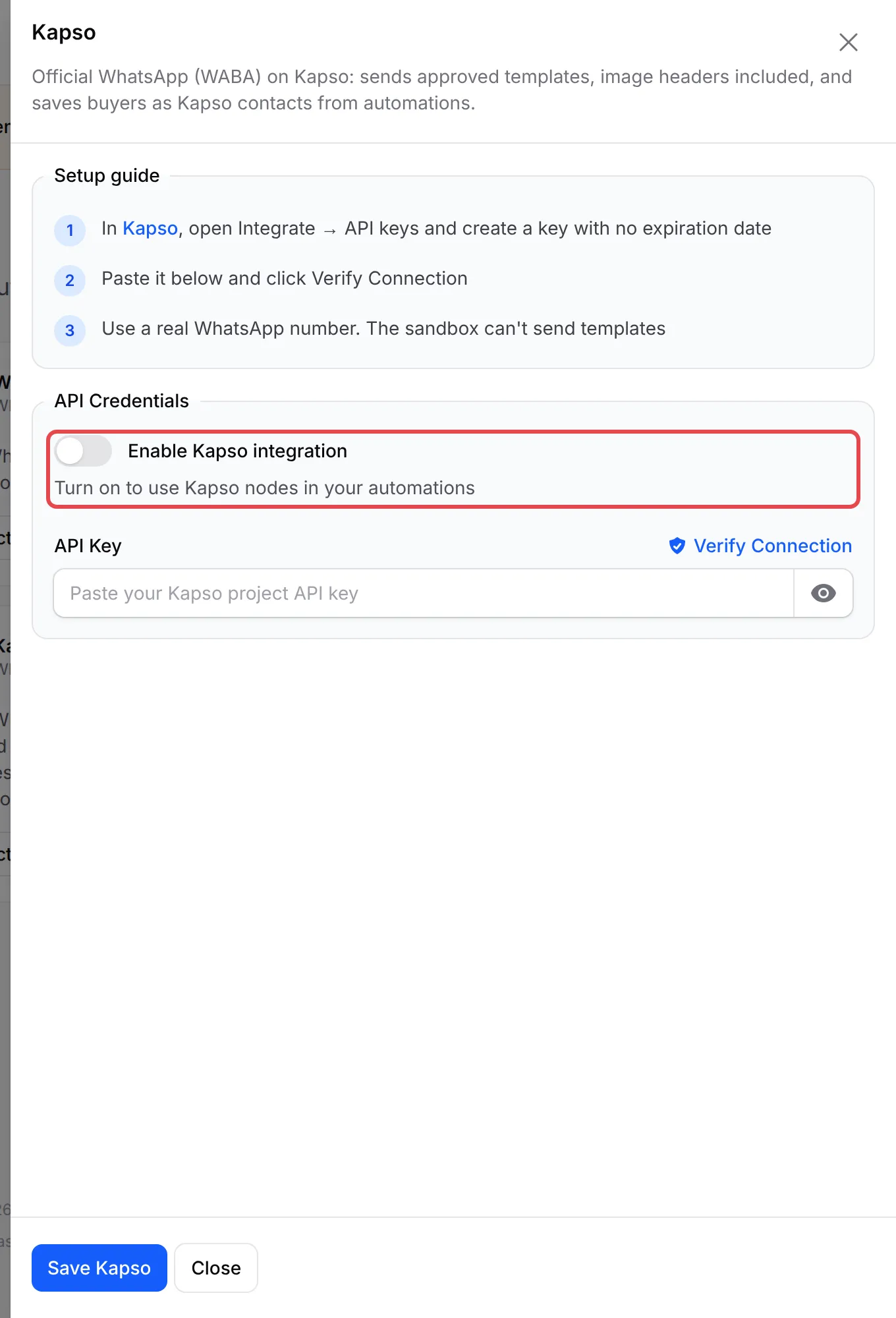
Turn on Enable Kapso integration.
-
Paste the key in API Key and click Verify Connection.
-
Click Save Kapso.
Add a Kapso step to an automation
Section titled “Add a Kapso step to an automation”The quickest start is the WhatsApp Receipt via Kapso template under Automations → Templates (see Start an automation from a template). To add the step yourself:
- In your automation, click Add Node and pick Kapso under WhatsApp.
- Double-click the new step to open Kapso Action Settings, and type an Action Name.
- In Action Type, pick Send WhatsApp template or Save contact. Save contact adds the buyer to your Kapso contacts, or updates them if they are already there.
- For a template, keep the phone variable in Receiver Phone, pick the WhatsApp Number, then pick the Template. Fill each template variable with a BCL variable, such as
{order_number}. - To check a template, type your number in Phone Number and click Send. BCL sends it now, with sample data in the variables.
- Click Save Kapso, then Update Automation, and switch the automation on.
Common issues
Which Kapso API key do I use?
In Kapso, open Integrate → API keys and create a key with no expiration date. Paste it in API Key on the Kapso card under Platform Setup → Integrations, then click Verify Connection.
Why does my test template not arrive from the Kapso sandbox?
The Kapso sandbox cannot send templates. Connect a real WhatsApp number in your Kapso project, then pick it in WhatsApp Number.
Can a Kapso template have a picture?
Yes. The Template list shows your approved templates, including those with an image, video or document header.
Was this article helpful?
Thanks for your feedback.
Sorry this didn't help. WhatsApp us and we'll sort it out with you.