
Ask an AI about this page
 ChatGPT
 Claude
 Perplexity
 Google AI Mode
 Microsoft Copilot
 Grok
 Mistral Le Chat
Fill in a form from its link (prefill URL)
A prefill link is your form link with extra details at the end. The form opens with these details already filled in. Use it to send customers from your website, cart or WhatsApp message to a form that is ready to pay.
For example, this link chooses 2 of one item and 1 of another item. It also fills in the name, phone and email:
https://yourshop.bcl.my/form/your-form?qty_90=2&qty_91=1&name=Aisyah%20Rahman&phone=0123456789&email=aisyah@example.com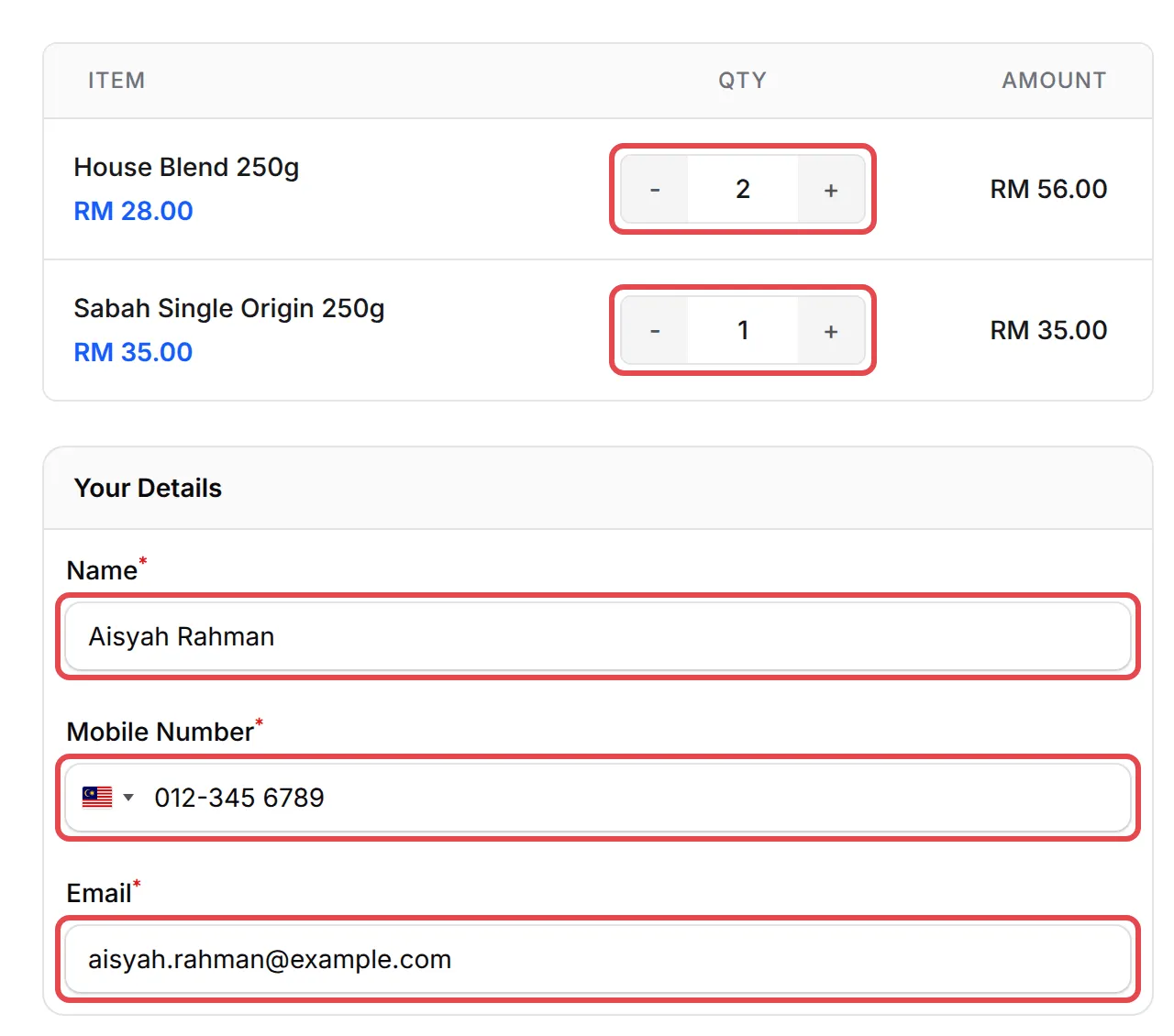
Make a prefill link
Section titled “Make a prefill link”- Copy your form link, for example
https://yourshop.bcl.my/form/your-form. - Type
?after the link. - Add each detail as
name=value. Put&between two details. - Open the link in your browser to check the form.
Write a space as %20 and @ as %40. Most browsers and spreadsheet tools do this for you.
Details you can fill in
Section titled “Details you can fill in”| Parameter | What it fills in | Example |
|---|---|---|
qty_ + item ID |
The quantity of an item | qty_90=2 |
name |
Name | name=Aisyah%20Rahman |
phone |
Mobile Number | phone=0123456789 |
email |
email=aisyah%40example.com |
|
address1, address2 |
Address Line 1 and Address Line 2 | address1=12%20Jalan%20Mawar |
city, postcode |
City and Postal Code | city=Shah%20Alam&postcode=40000 |
state |
State | state=Selangor |
country |
Country, as a 2-letter code | country=MY |
coupon |
The coupon code | coupon=RAYA10 |
amount |
The amount, on a form where the customer types the amount | amount=50 |
| A custom field’s Label ID | That custom field | company_name=Kopi%20Kampung |
The address details work only on forms with Enable Address Field turned on. The customer cannot change an amount from the link.
Find an item ID
Section titled “Find an item ID”The qty_ parameter needs the item ID. It works only on forms with Multiple Items, and only for items that have a quantity box on the form. To find the ID:
-
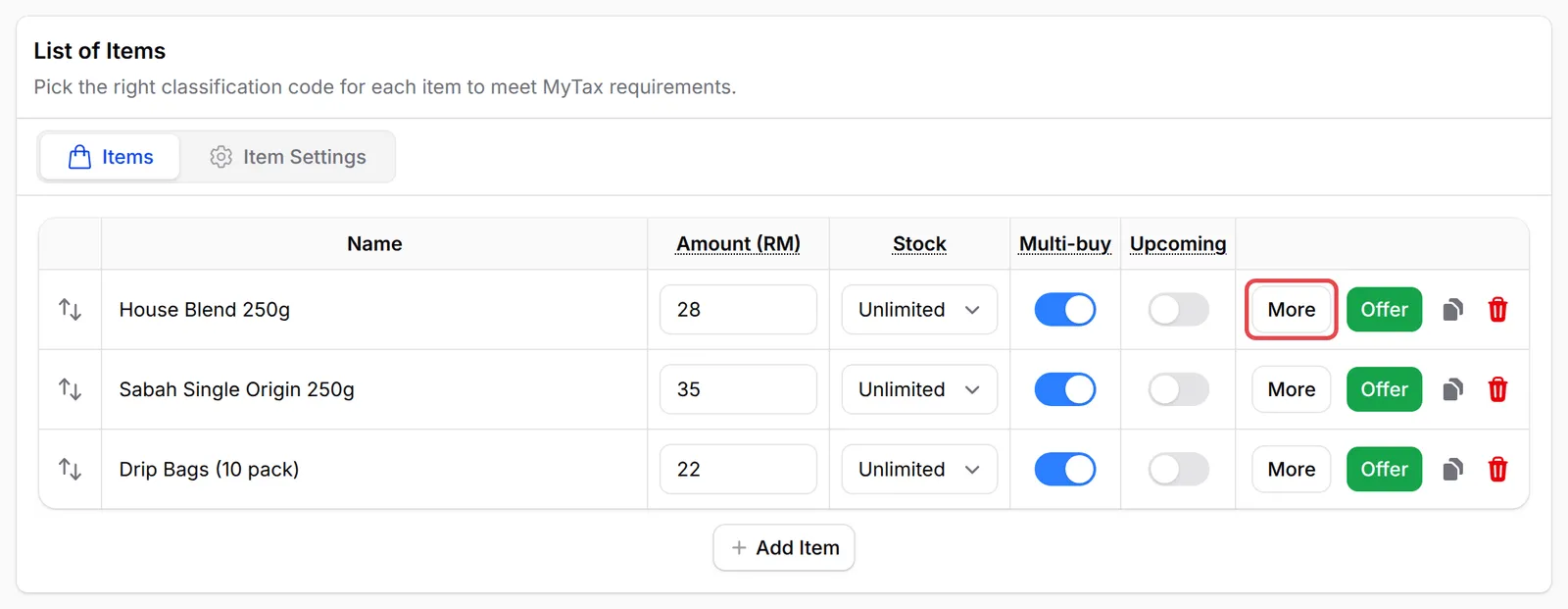
Open the form and scroll to List of Items, below the tabs.
-
Click More on the item.
-
Read the number after
#in the panel title, for example House Blend 250g Settings (#87). For this item, useqty_87.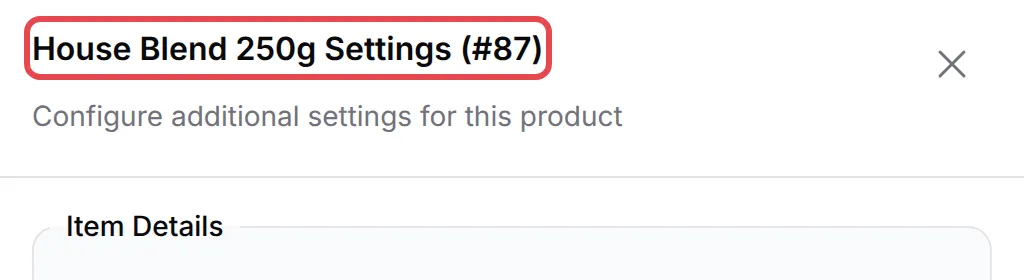
Find a custom field’s Label ID
Section titled “Find a custom field’s Label ID”Open the form and click the Custom Field Form tab. Click the field. The Label ID shows under the field label, for example Label ID: company_name. Use it as the parameter name. For a checkbox field, put a comma between the choices.
Lock the details from the link
Section titled “Lock the details from the link”To lock the details that the link filled in, so that customers cannot change them:
-
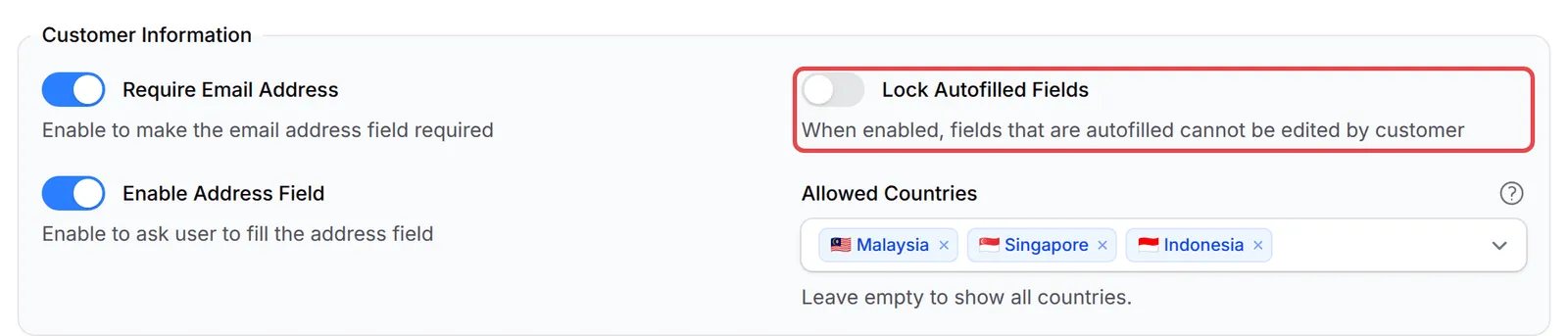
Open the form and click the Form Configuration tab.
-
Under Customer Information, turn on Lock Autofilled Fields.
-
Click Update Form.
The lock applies to the customer details and custom fields from the link. Customers can still change the item quantities.
- Test each link before you share it. Open it in a private browser window. Check the items and the total.
- Keep customer details private. A public link shows its details to all people.
Common issues
Can my form choose the items that the customer picked in my own cart?
Yes. Add qty_ and the item ID to the form link for each item, for example ?qty_90=2&qty_91=1. The form opens with 2 of item 90 and 1 of item 91. To find an item ID, open the form, click More on the item and read the number after # in the panel title.
Does BCL support prefill URL parameters?
Yes. A payment form link accepts name, email, phone, the address, coupon, the item quantities and your custom fields. For example, ?name=Aisyah%20Rahman&email=aisyah@example.com fills in the name and the email.
How do I stop customers from changing the details that the link filled in?
Open the form and click the Form Configuration tab. Under Customer Information, turn on Lock Autofilled Fields and click Update Form. The customer can then not change the details from the link. The item quantities stay open to change.
Was this article helpful?
Thanks for your feedback.
Sorry this didn't help. WhatsApp us and we'll sort it out with you.