
Ask an AI about this page
 ChatGPT
 Claude
 Perplexity
 Google AI Mode
 Microsoft Copilot
 Grok
Grok Mistral Le Chat
Sell a pay-per-view live stream
Updated

A pay-per-view (PPV) stream is a protected video that plays in BCL’s own stream player. You stream on YouTube as usual; BCL puts the stream on a page only paying buyers can open, with its own controls, a choice of themes, Watch on TV, and live ad breaks. Use it for matches, concerts, live classes and online events.
Before you start
Section titled “Before you start”You need the OTP-Protected Content add-on and a YouTube live stream or video set to Unlisted, so it cannot be found on YouTube. Copy its link.
Set up the stream page
Section titled “Set up the stream page”In Protected Content, click New Content and fill in Title and Description. Then:
-
On the Content Settings tab, set Content Type to Video.
-
Set Video Type to YouTube (Stream Player).
-
Choose a Stream Page Theme: Default (Light), Football (Dark), Broadcast (Dark) or Studio (Light). See Stream page themes.
-
Paste the live link into YouTube URL.

-
Optional: under Ad/Break Video, add a second video to switch to during breaks. See Control a live stream.
-
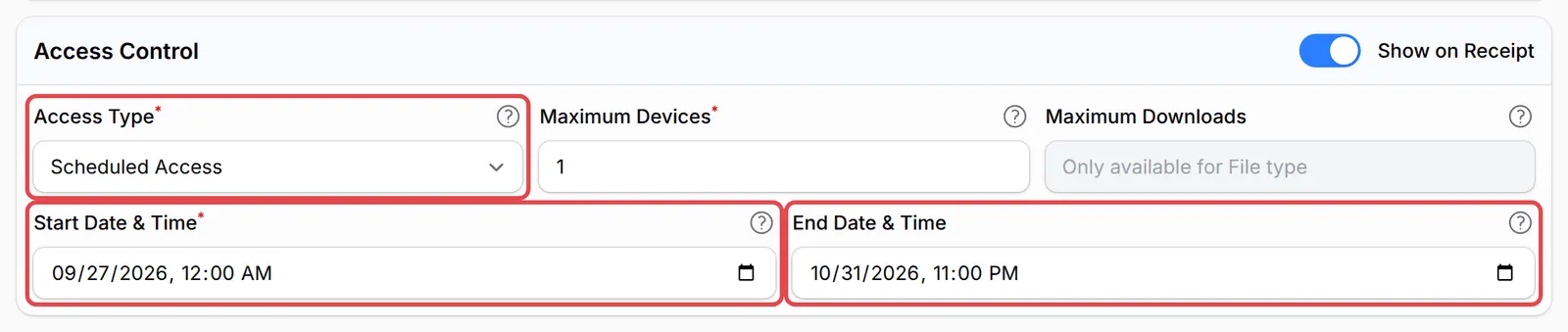
Under Access Control, choose Scheduled Access and set Start Date & Time and End Date & Time to cover the stream and any replay time. Set Maximum Devices to 1.
-
Turn on Show on Receipt and click Create Protected Content.
Then link the stream to what you sell: a payment form item such as a “Match pass”, or an event ticket. See Give buyers access.
What viewers see
Section titled “What viewers see”After confirming their one-time code, the buyer sees the stream page in the theme you chose. This is the Broadcast (Dark) theme:
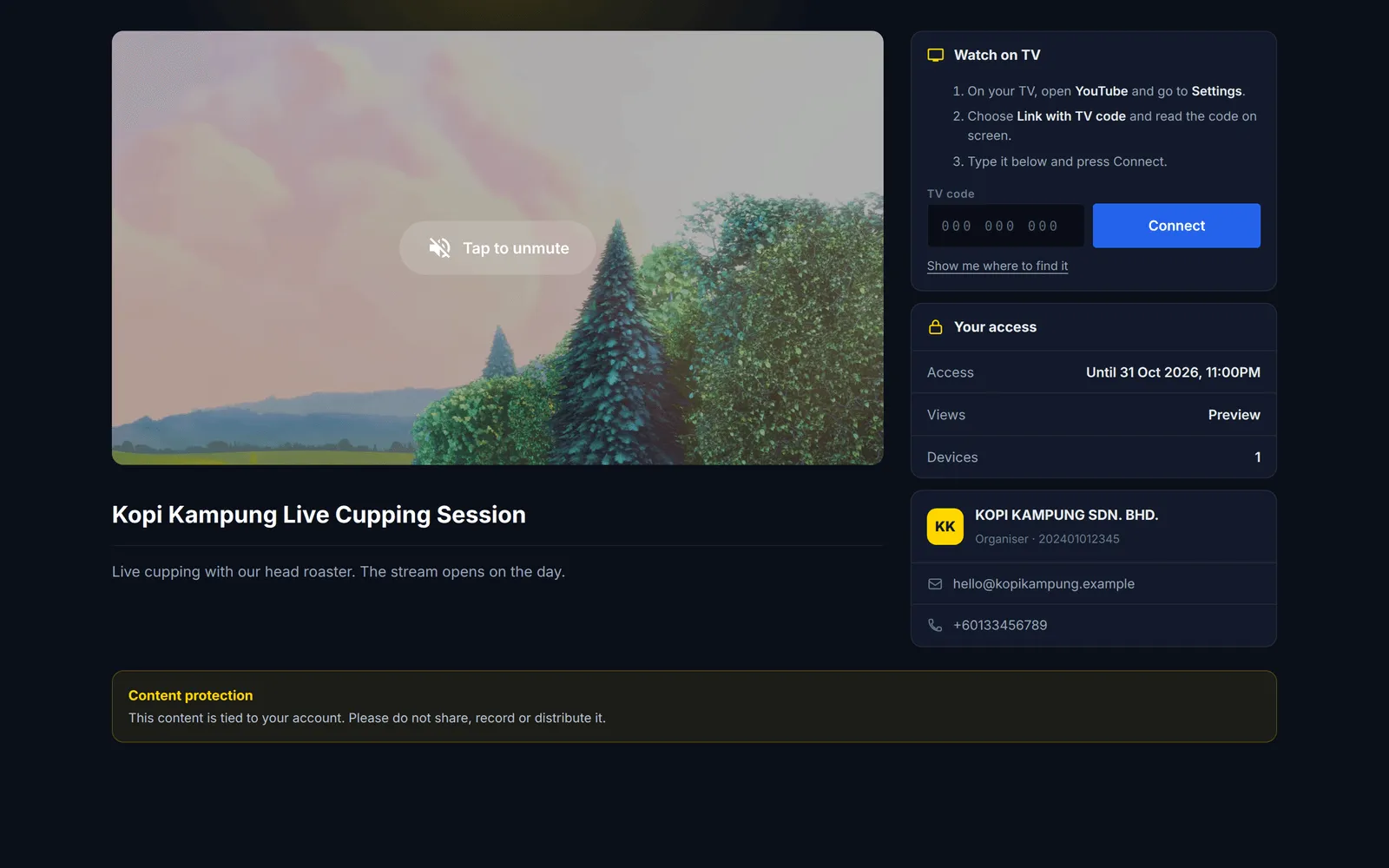
The stream page has these parts:
| Part | What it does |
|---|---|
| Player | Plays and pauses, mute and volume, quality and fullscreen. The stream starts muted with a Tap to unmute button, because browsers block sound until the viewer taps. |
| Watch on TV | Sends the stream to a smart TV’s YouTube app with a TV code |
| Your access | How long their access lasts, their views and the device limit |
| Organiser card | Your business name, registration number, email and phone |
| Content protection | Asks viewers not to share, record or distribute the stream |
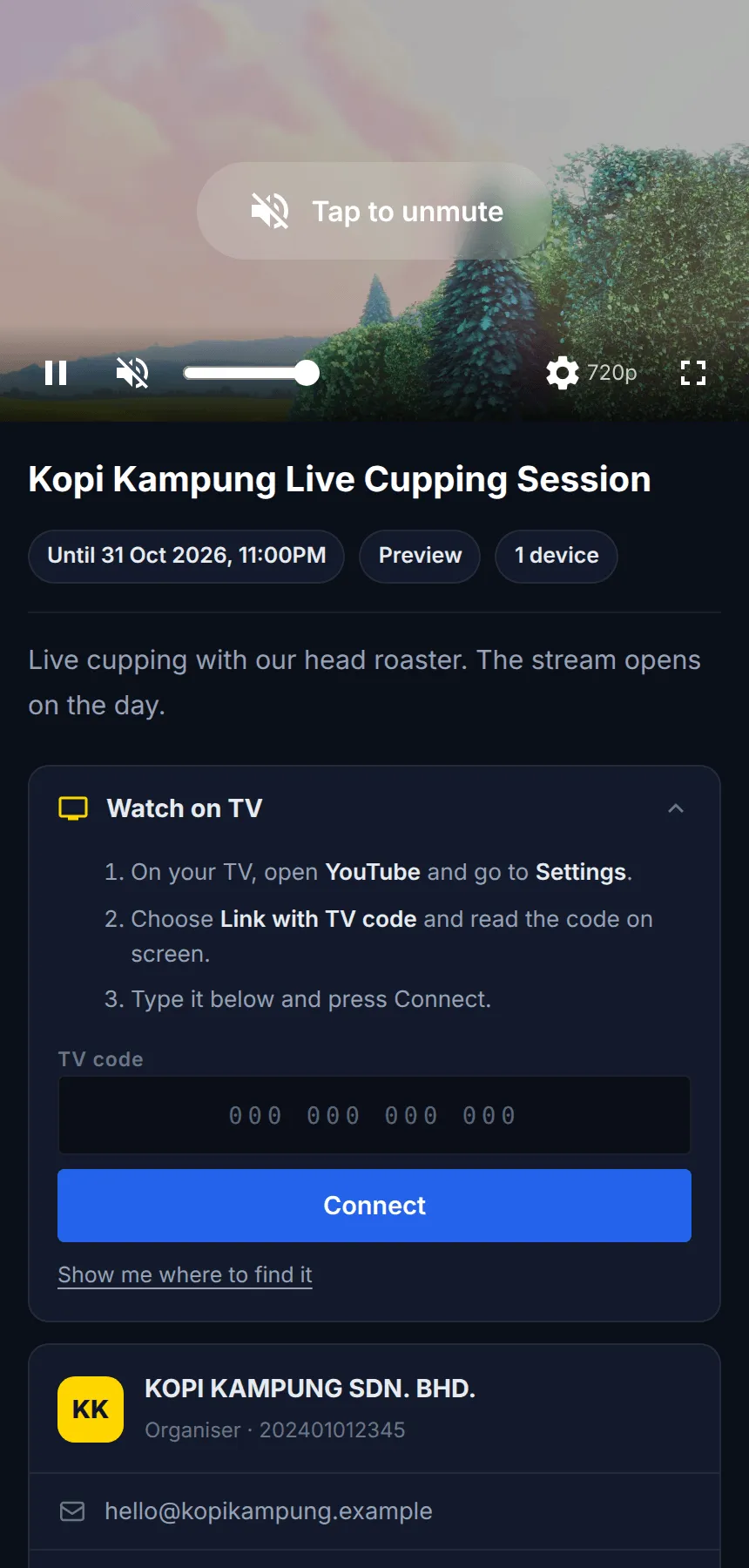
On phones the player fills the screen width, and fullscreen fills the whole iPhone screen.
Watch on TV
Section titled “Watch on TV”Buyers can play the stream on a smart TV that has the YouTube app:
-
On the TV, open YouTube and go to Settings.
-
Choose Link with TV code and read the code on the screen.
-
On the stream page, type the code in TV code and tap Connect.
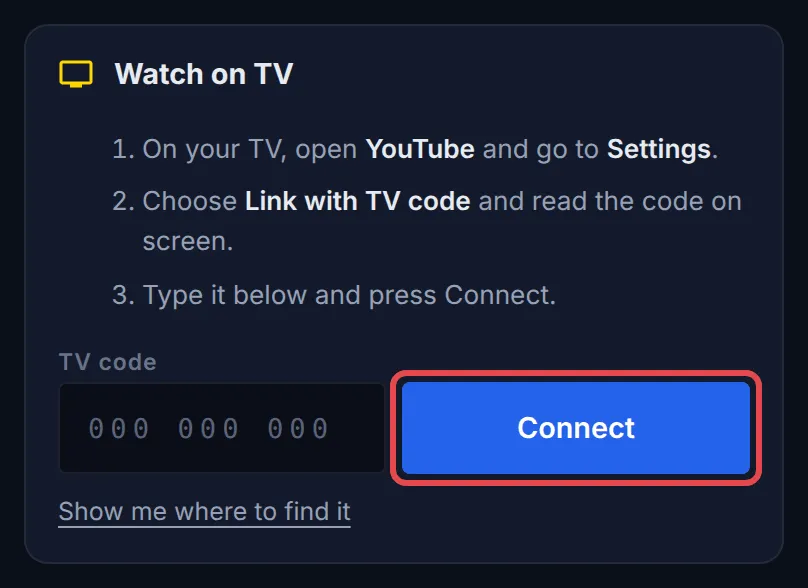
Once connected, the page shows the TV’s name with Send to TV, Pause, Resume, Stop and Disconnect. Buyers who cannot find the code can tap the help link under Connect, such as Show me where to find it, for a picture guide.
Plan the stream window with your buyers in mind:
- Set the start a little before kick-off. Buyers can then open the page, confirm their code and be ready when the stream begins.
- Keep the end after the replay. If you leave the YouTube video up after the live ends, the same page works as a replay until End Date & Time.
- Test with Preview before the day. Click Preview on the content to see the page with your theme and stream.
Common issues
Can I sell tickets to watch a football match or event live?
Yes. Stream it on YouTube as an unlisted live stream, create protected content with Video Type YouTube (Stream Player), and link it to the pass or ticket you sell. Only buyers who confirm a one-time code can open the stream page.
How do I stop one pass being shared across many screens?
Set Maximum Devices to 1. If the buyer opens the stream on another device, they must sign out the first one before it plays.
Can buyers watch on their TV?
Yes. The stream page has Watch on TV. The buyer opens YouTube on the TV, goes to Settings → Link with TV code, and types the code on the stream page. The stream starts on the TV.
Was this article helpful?
Thanks for your feedback.
Sorry this didn't help. WhatsApp us and we'll sort it out with you.