
Ask an AI about this page
 ChatGPT
 Claude
 Perplexity
 Google AI Mode
 Microsoft Copilot
 Grok
Grok Mistral Le Chat
Import paid records from Excel
You can add sales you took outside BCL, for example by bank transfer or at a booth, to a payment form from an Excel or CSV file. Each row becomes one paid record on that form. Event forms have their own import for participants and tickets.
What you can import
Section titled “What you can import”Two things can be imported from a file:
| Import | Where | Creates |
|---|---|---|
| Import Records | On a payment form, under Payments → Forms | One paid record on that form for each row |
| Import Participants | Events → Participants, under More Actions | Paid tickets for an event, grouped by buyer |
Lead form submissions, customers, products and transactions of other forms cannot be imported. Import JSON on lead forms, events and automations copies a form’s or automation’s settings between accounts, not records.
Import records into a payment form
Section titled “Import records into a payment form”Prepare a file in .xlsx, .xls or .csv format, up to 10 MB, with one row per record. Then:
-
Go to Payments → Forms, click Edit on the form, then click Transactions at the top of the page.
-
Click Import Records.

-
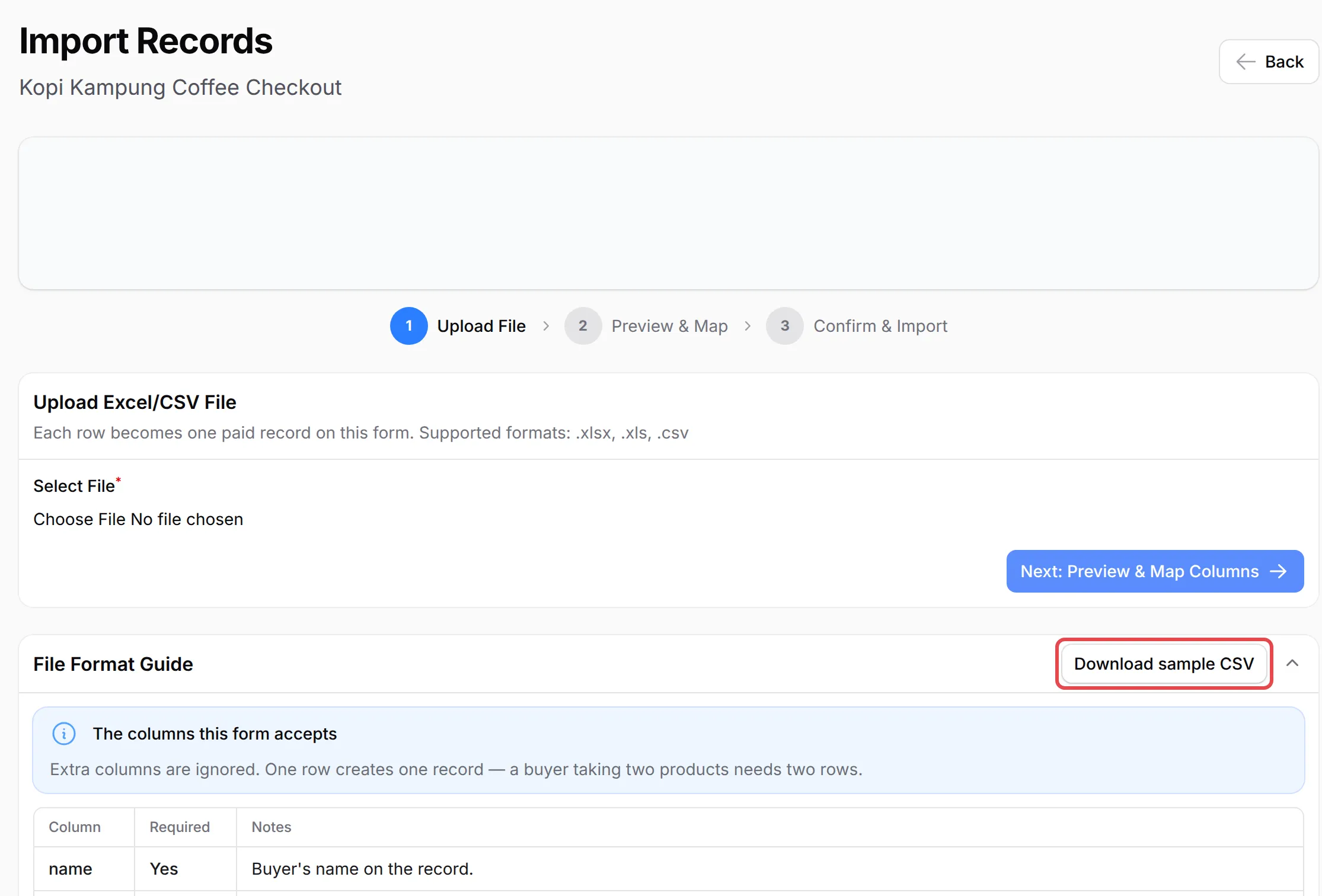
Open File Format Guide to see the columns this form accepts, and click Download sample CSV for a file to start from.
-
Under Select File, choose your file and click Next: Preview & Map Columns.
-
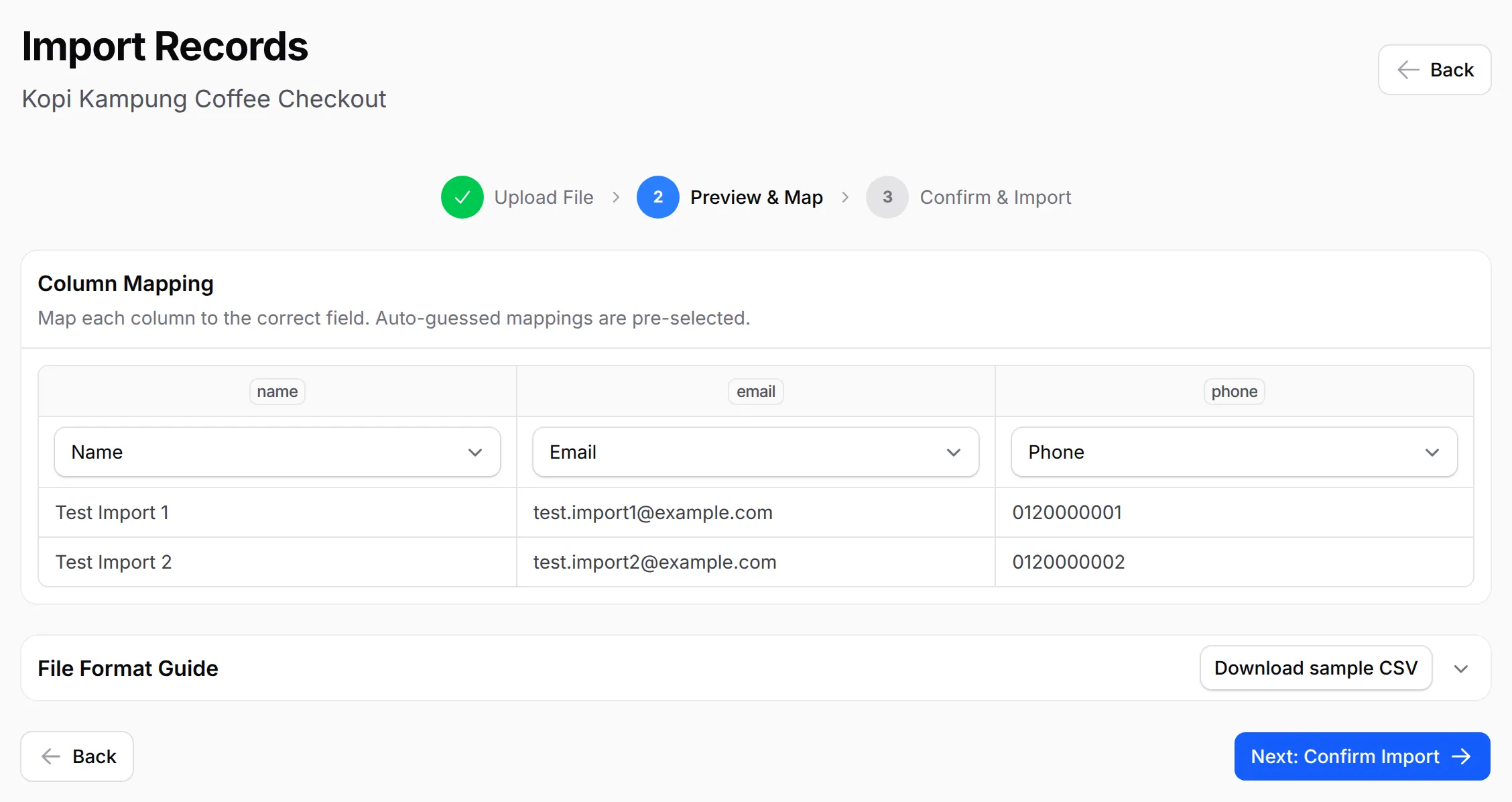
On Preview & Map, match each column in your file to a BCL field, or choose Skip this column. BCL guesses the usual ones for you. Click Next: Confirm Import.
-
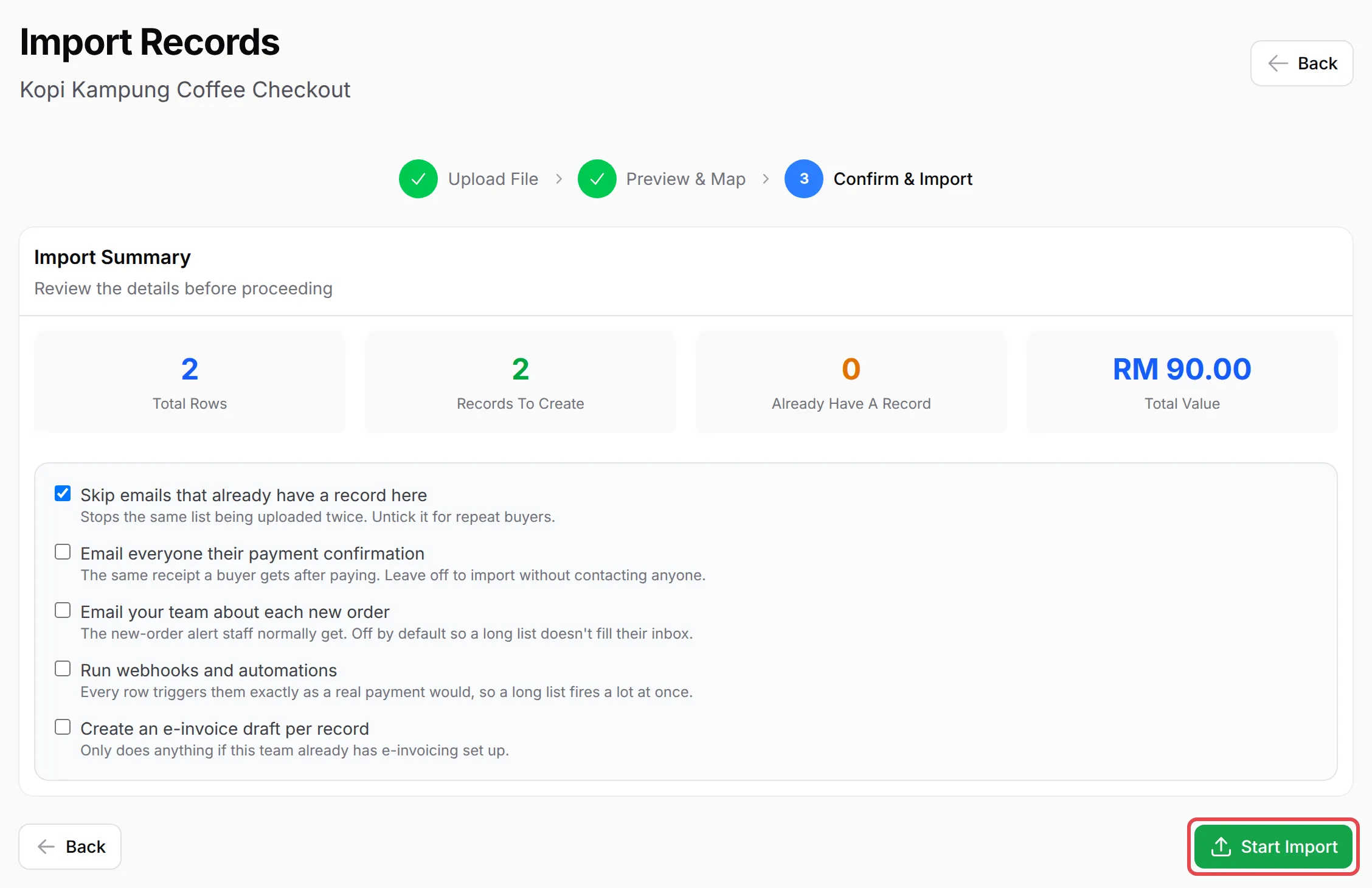
On Confirm & Import, check the Import Summary, choose the options (see below) and click Start Import, then Confirm & Import. The import runs in the background, and BCL tells you when it is complete.
Each imported row shows in Transactions as Successful, with Manual Payment as the payment channel.
The columns depend on the form:
| Column | Required | Notes |
|---|---|---|
name |
Yes | The buyer’s name. |
email |
Yes | Creates the customer and gives them access. |
phone |
No | Format the column as text to keep a leading +. |
amount |
Only on a form where the customer types the amount | Otherwise optional: it replaces the form’s price for that row, and 0 makes the record free. |
product_id, variation_option_id, quantity |
On forms with several items or variations | The File Format Guide of the form lists the IDs to use. |
One row is one record: a buyer who took two products needs two rows. Extra columns are ignored.
Choose what the import sends
Section titled “Choose what the import sends”On the last step you decide what happens for each imported row. Only the first option is on at the start:
| Option | What it does |
|---|---|
| Skip emails that already have a record here | Stops the same list being imported twice. Untick it for repeat buyers. |
| Email everyone their payment confirmation | Sends the receipt email a buyer gets after paying. |
| Email your team about each new order | Sends the new order email to you and your team for each row. |
| Run webhooks and automations | Each row fires your webhooks and automations as a real payment would. |
| Create an e-invoice draft per record | Only works when e-invoicing is already set up. |
With the options off, the records are added quietly: no emails, webhooks, automations or e-invoice drafts.
Import event participants
Section titled “Import event participants”For an event, go to Events → Participants, open More Actions and choose Import Participants. The steps are the same: upload a .xlsx, .xls or .csv file, match the columns and confirm. The Excel Format Guide on the page has a sample file.
Each row needs the event ID, the ticket ID, the buyer’s name, email and phone, and the quantity. Rows with the same buyer email for the same event become one order. Turn on Send ticket emails to participants after import if the participants should get their tickets by email.
Common issues
How do I import customers who already paid from Excel?
Open the payment form under Payments → Forms, click Import Records, upload your .xlsx, .xls or .csv file with at least a name and email column, match the columns and confirm. Each row becomes one paid record on that form.
Will the imported customers get an email?
Only if you tick Email everyone their payment confirmation on the last step. It is off by default, so an import contacts nobody unless you choose to.
Can I import lead form submissions or my customer list?
No. Only payment form records and event participants can be imported from a file. The Import JSON buttons on lead forms, events and automations copy a form's settings, not records.
Was this article helpful?
Thanks for your feedback.
Sorry this didn't help. WhatsApp us and we'll sort it out with you.