
Ask an AI about this page
 ChatGPT
 Claude
 Perplexity
 Google AI Mode
 Microsoft Copilot
 Grok
Grok Mistral Le Chat
Show a countdown timer
BCL has a countdown timer in four places: before a payment form opens, on a donation campaign, on an event page and as a block on a landing page. Each one counts down to a date you set, in Malaysia time. Pick the one that matches what you are selling.
Before a payment form opens
Section titled “Before a payment form opens”Use this to launch a sale at a set time. Until then, buyers see Opening Soon, the opening date and a countdown instead of the form. To set it:
-
Go to Payments → Forms and click Edit on the form.
-
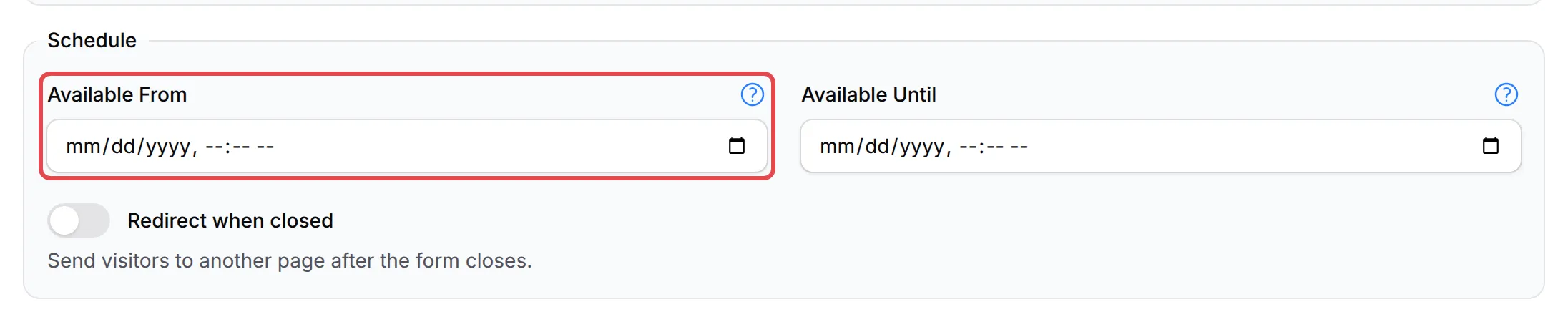
Open the Form Configuration tab. Under Schedule, pick the date and time in Available From.
-
Click Update Form.
Until then, the buyer sees the opening date and time and a countdown in days, hours, minutes and seconds:
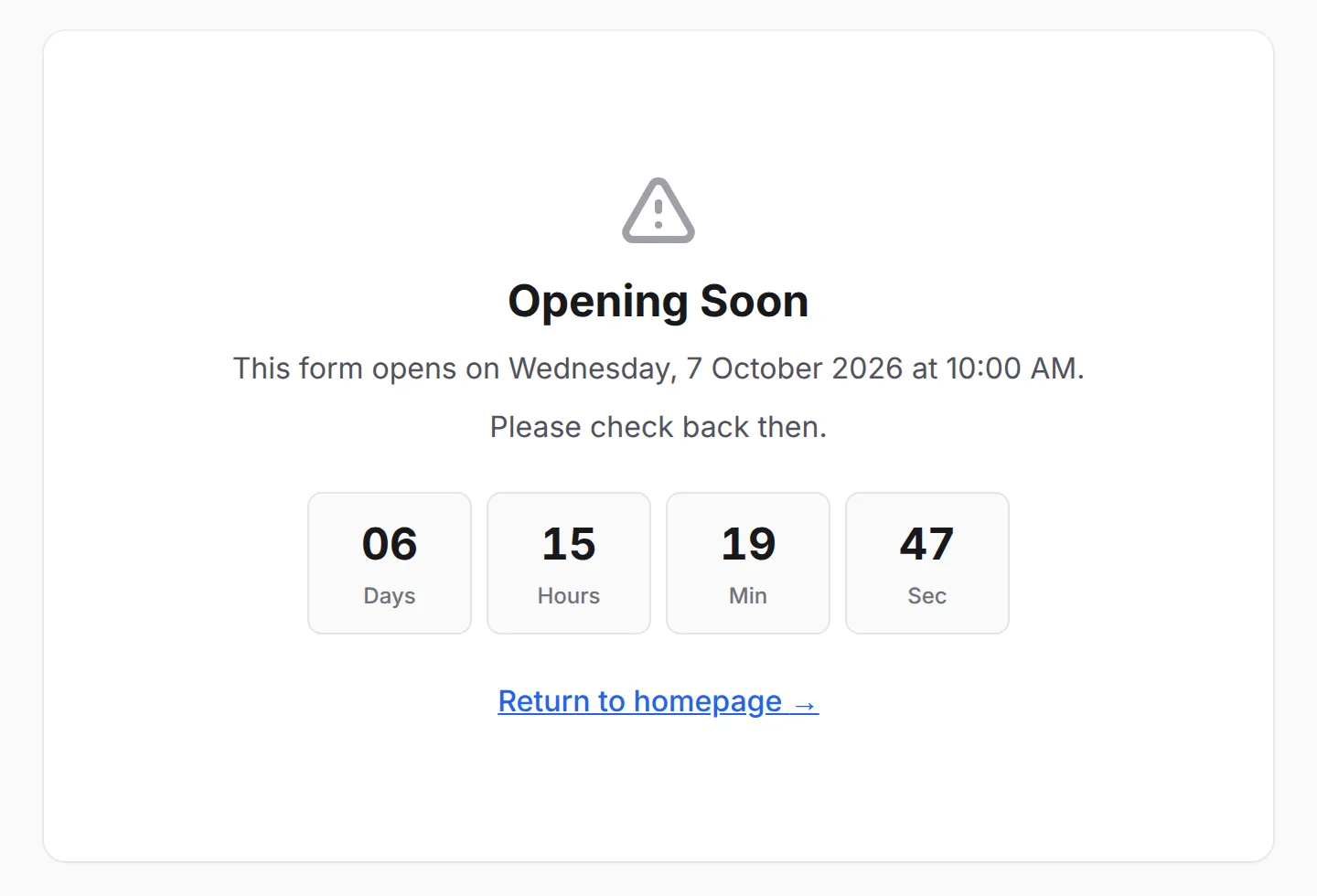
The form opens by itself at that time. To close it on a date too, set Available Until: see Close or unpublish a form.
On a donation campaign
Section titled “On a donation campaign”A donation form can count down to the end of the campaign. To turn it on:
-
Edit the form. On the Payment Details tab, Type of Form must be Donation.
-
Open the Donation tab. Under Campaign Timer, pick the End Date and turn on Show countdown on form.
-
Optional: turn on Close form when expired so the form stops taking donations at the end date.

-
Click Update Form.
On an event page
Section titled “On an event page”An event form shows Event Starts In with a countdown to the event’s start, without any setup:

To count down to something else, such as the end of early-bird sales:
-
Go to Events → Events, click Edit on the event and open the Event Configuration tab.
-
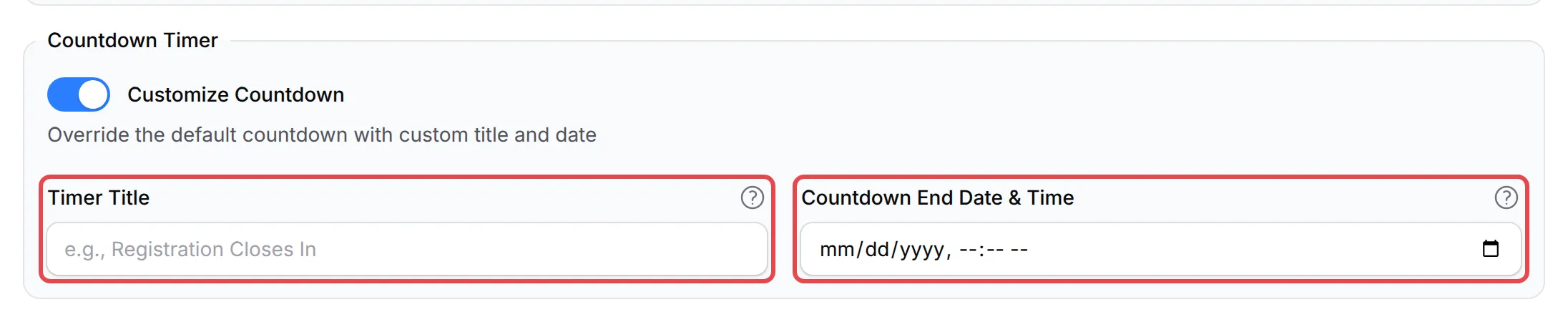
Under Countdown Timer, turn on Customize Countdown.
-
Enter a Timer Title, such as Registration Closes In, and pick the Countdown End Date & Time.
-
Click Update Event.
With a custom countdown, registration closes when it reaches zero, unless Allow Late Registration is on. To hide the countdown, turn on Disable Countdown Timer under Event Status.
On a landing page
Section titled “On a landing page”A form with Type of Form set to Landing Pages can have a Countdown block anywhere on the page. To add one:
-
Edit the form and click Edit Landing Page on the Payment Details tab.
-
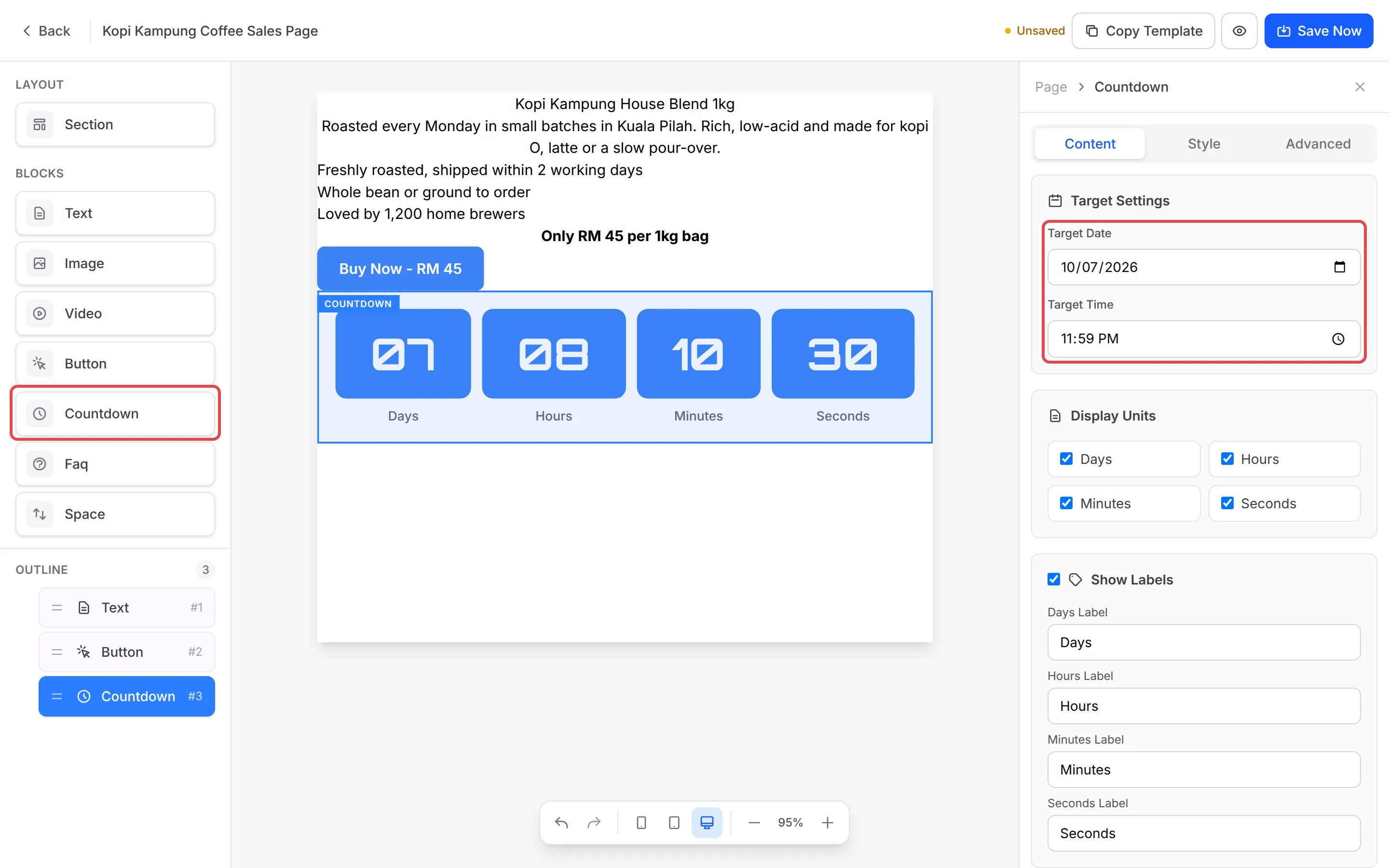
Under Blocks, click Countdown. The block appears on the page and its settings open on the right.
-
Under Target Settings, pick the Target Date and Target Time. Under Display Units, choose which of days, hours, minutes and seconds to show, and change the labels if you like.
-
Click Save Now.
This countdown is for display only. It does not open or close the form.
- Match the countdown to a real deadline. If the timer says an offer ends, also set Available Until or Close form when expired so the form really closes then.
- Enter every date in Malaysia time. The countdowns use Malaysia time (MYT), even for buyers in another country.
Common issues
Can I put a countdown timer on my form?
Yes, in four places: Available From on a payment form shows an Opening Soon countdown until it opens, a donation form's Campaign Timer counts down to its end date, an event counts down to its start, and a landing page can have a Countdown block.
Can the event countdown show when registration closes instead of when the event starts?
Yes. On the Event Configuration tab, turn on Customize Countdown, then set Timer Title (for example Registration Closes In) and Countdown End Date & Time. Registration closes when that countdown ends, unless Allow Late Registration is on.
Does the countdown close my payment form when it reaches zero?
Only some do. The Opening Soon countdown opens the form, a donation form closes at the end only with Close form when expired, and a landing page Countdown block is display only. To close a payment form on a date, set Available Until.
Was this article helpful?
Thanks for your feedback.
Sorry this didn't help. WhatsApp us and we'll sort it out with you.