
Ask an AI about this page
 ChatGPT
 Claude
 Perplexity
 Google AI Mode
 Microsoft Copilot
 Grok
Grok Mistral Le Chat
Check what your AI agent did
Updated

The MCP Audit Log lists every request that AI agents made with your team’s tokens and connected apps. Use it to check what an assistant did, spot errors, and catch activity you did not expect. Only Admins can open it.
Open the log
Section titled “Open the log”To see the log:
-
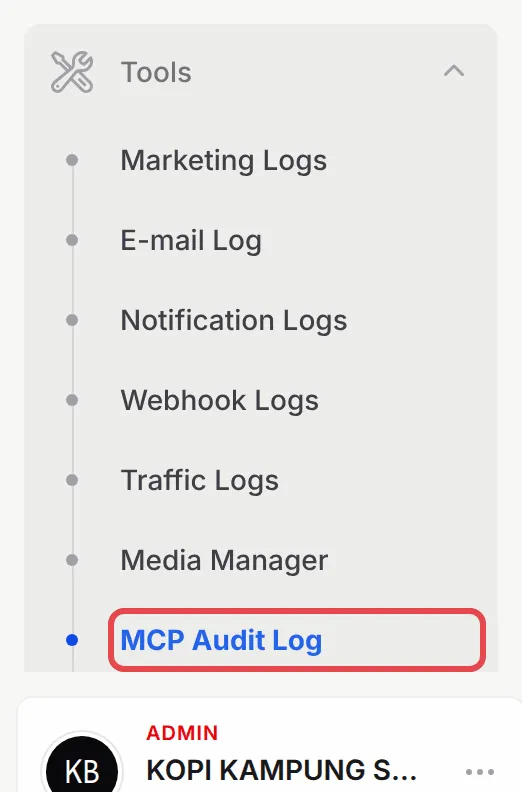
In the sidebar, go to Tools → MCP Audit Log.
-
The newest requests are at the top. The page refreshes itself every 30 seconds.
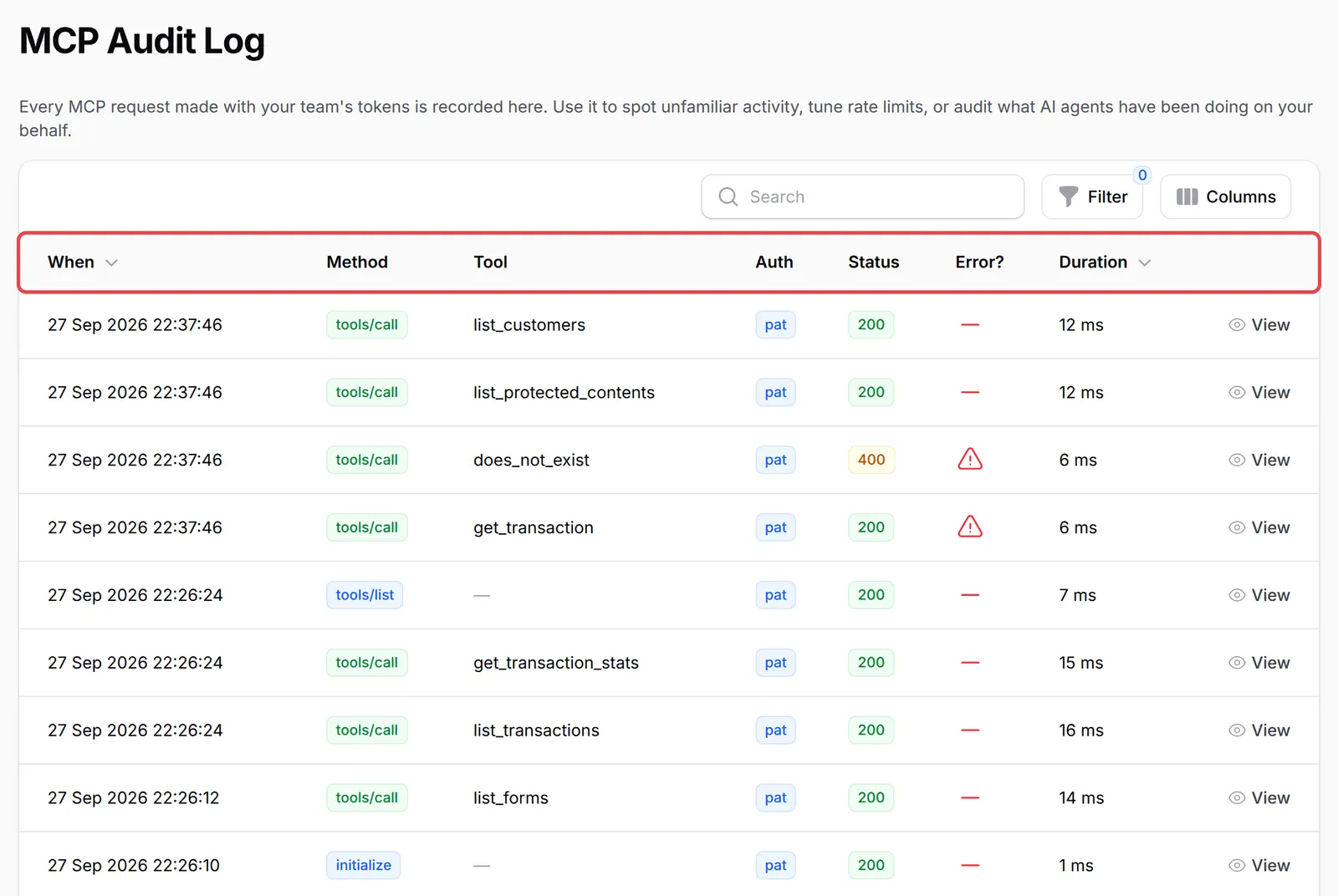
Each row is one request. These are the columns:
| Column | What it shows |
|---|---|
| When | Date and time of the request |
| Method | What the agent asked for: tools/call runs a tool, tools/list asks which tools exist, initialize starts a connection, ping checks the line |
| Tool | The tool that ran, such as list_transactions or update_form_prices. Empty for requests that are not tool calls |
| Auth | pat for a Personal Access Token, oauth for an app connected by sign-in, such as Claude or ChatGPT |
| Status | 200 when BCL accepted the request, 400 when it refused it, for example a tool that does not exist, a missing permission or a rate limit |
| Error? | A warning sign when the request failed, including a tool that ran but rejected its input |
| Duration | How long BCL took, in milliseconds |
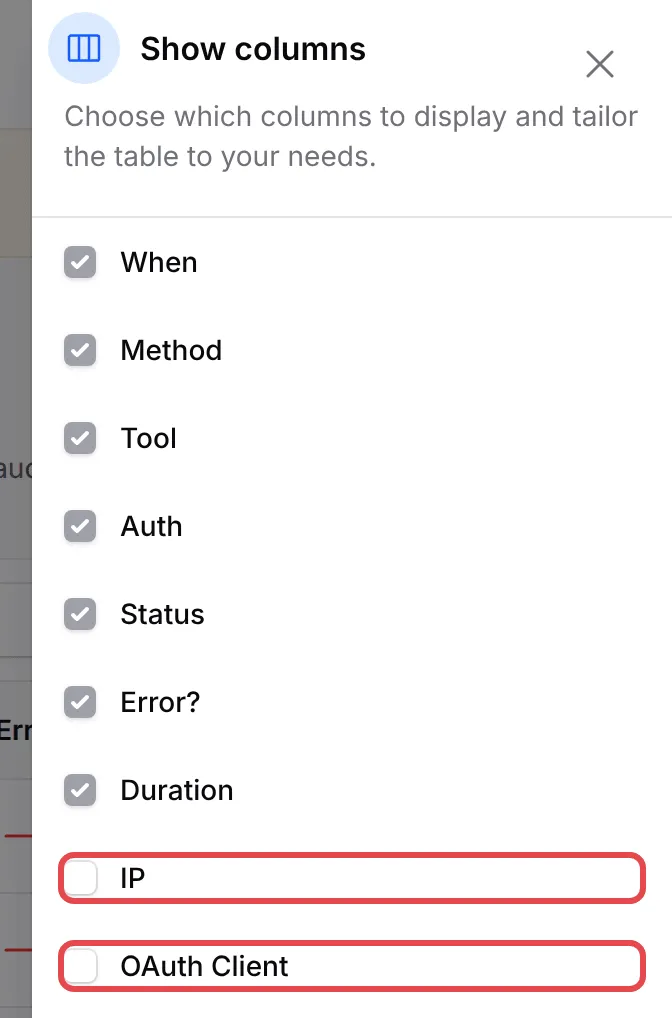
Two more columns are hidden at first: IP and OAuth Client. To show them, click Columns, tick them and click Apply columns.
Use Search to find a tool name or an IP address.
Filter the log
Section titled “Filter the log”Filters narrow the list to what you are checking. To filter:
-
Click Filter.
-
Choose any of these:
Filter Use it to Method Show only tool calls ( tools/call), or only connections and tool listsToken type Show only PAT (token) or only OAuth (connected app) requests Errors only Show only failed requests, or only successful ones 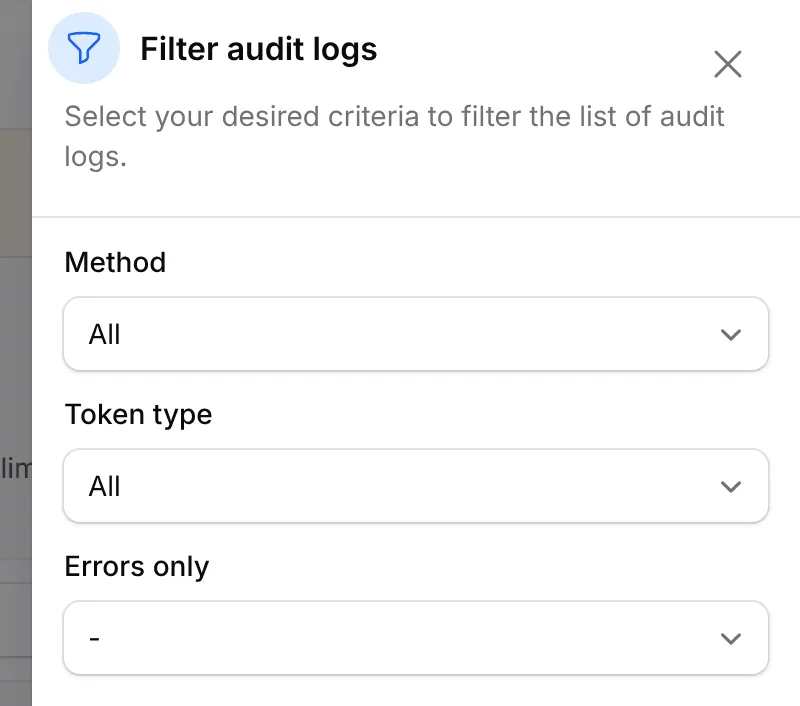
See one request in full
Section titled “See one request in full”Click View on a row to open the MCP Audit Entry. It shows the request (when, method, tool, duration), the response (status, error), and the connection: Auth, OAuth Client, IP Address and User Agent. The user agent usually names the app, and OAuth Client shows the connected app’s client ID, a long code.
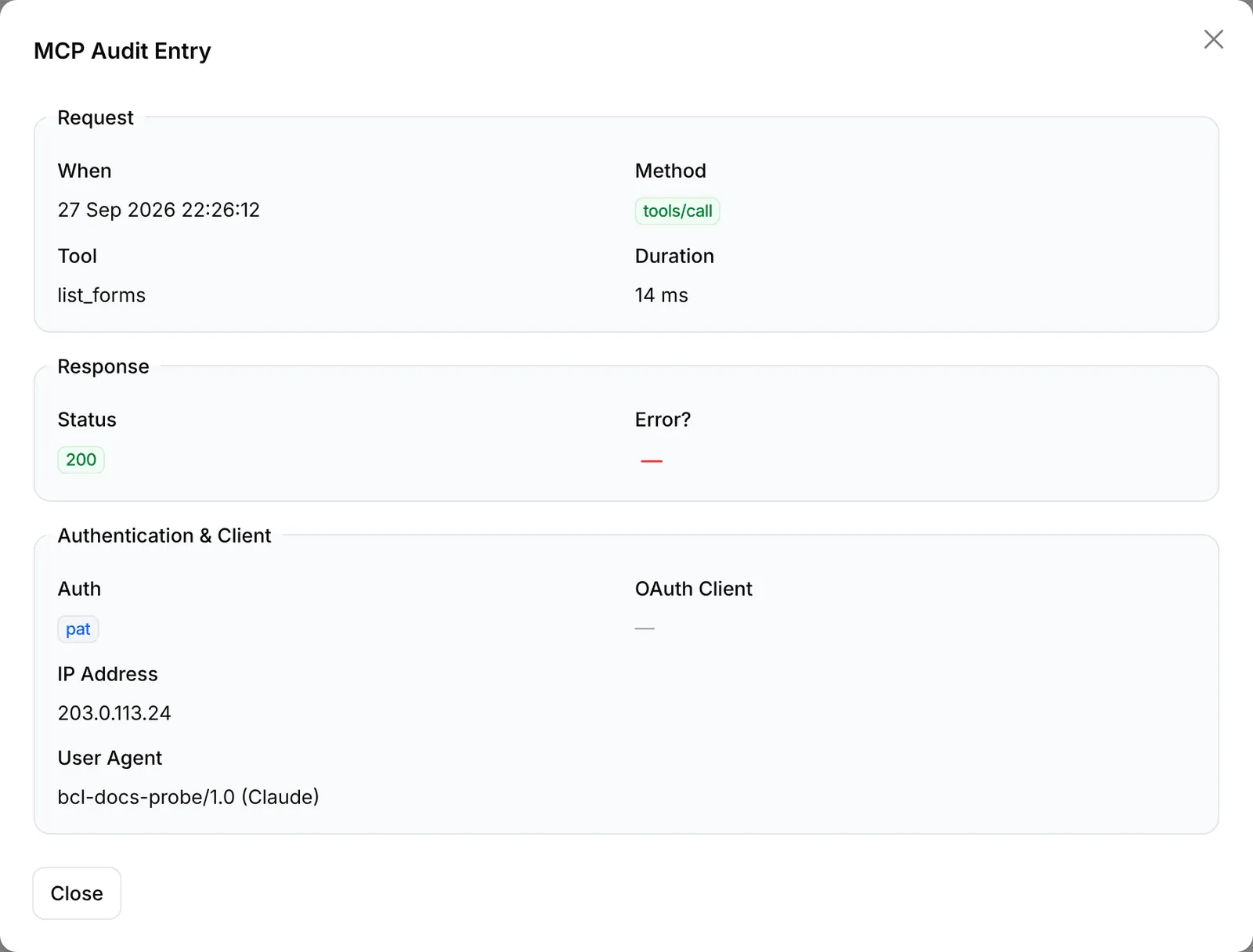
The log does not keep what the agent sent or what BCL answered, so it never holds your customers’ details or new prices. To see the result of a change, open the form, coupon or content in the dashboard.
Spot unexpected activity
Section titled “Spot unexpected activity”Look through the log now and then, and after you connect a new app. These signs are worth a closer look:
| Sign | What it may mean |
|---|---|
Write tools you did not ask for, such as update_form_webhook, update_form_prices or create_payment_link |
The agent misread a request, or someone else is using the access |
| Requests at night or on days nobody was working | A script, or a token used by someone else |
| An IP address or User Agent you do not recognise | The token was copied to another computer or app |
| Many rows with the warning sign | A wrong setup, a token without the right permission, or the agent hitting the rate limit |
update_form_webhook and update_form_redirect_urls deserve special care. They decide where your payment data and customers are sent after a payment. If you see one you did not ask for, check the form’s webhook and redirect settings straight away.
Stop an agent
Section titled “Stop an agent”Stopping an agent takes effect straight away. Do the one that matches the Auth column:
- oauth: go to Platform Setup → Integrations, open the API Token tab, and under Connected Apps click the Revoke access icon, then Revoke Access. See Disconnect an AI app.
- pat: on the same API Token tab, delete the token under API Tokens. See Create an API token.
Each Admin sees and removes only their own tokens and connected apps. If the request came from another Admin’s access, ask them to remove it. Then check what the agent changed and put it right in the dashboard.
Two habits make the log more useful:
- Name tokens after the app and computer. The log shows
patbut not the token name, so one token per app makes it easier to work out which one to delete. - Check after big jobs. After you ask an assistant to change many forms or prices, filter by Method
tools/calland read down the Tool column.
Common issues
Can I see what the AI changed, for example the new price it set?
No. The log shows which tool ran, when, and whether it worked, but not the values sent. Check the form, coupon or content itself in the dashboard to see the result.
Which staff member's AI made this request?
The log does not show the user. Use the Auth column (pat for a token, oauth for a connected app), and turn on the IP and OAuth Client columns to tell connections apart.
Someone is using a token I do not recognise. How do I stop it?
Delete the token under Platform Setup → Integrations, on the API Token tab. For a connected app, revoke it under Connected Apps on the same tab. Access stops straight away.
Was this article helpful?
Thanks for your feedback.
Sorry this didn't help. WhatsApp us and we'll sort it out with you.