
Ask an AI about this page
 ChatGPT
 Claude
 Perplexity
 Google AI Mode
 Microsoft Copilot
 Grok
Grok Mistral Le Chat
Set up bookings
Updated

The Booking System lets customers book a time, a table, a ticket, a room or a court and pay online. You set it up in three parts: the people who deliver the service, the services customers can book, and the booking form that you share.
What is under Bookings
Section titled “What is under Bookings”All booking pages are in the Bookings menu in the sidebar:
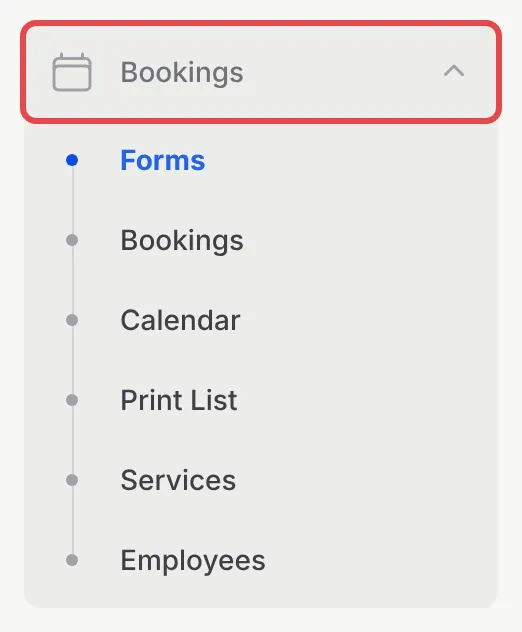
Each menu item does one job:
| Menu | What it is for |
|---|---|
| Forms | The booking forms customers use to book and pay. |
| Bookings | Every booking, with its status. Add walk-ins with Manual Booking and check customers in. |
| Calendar | All bookings by month, week, day or as a list. |
| Print List | A printable list of one day’s bookings for your front desk. |
| Services | What customers can book: its type, price, duration and capacity. |
| Employees | Your staff and the days and hours each one works. |
The setup order
Section titled “The setup order”Set things up in this order, because each part uses the one before it:
- Add your employees. Go to Bookings → Employees and add each person who delivers a service, with their working days and hours. Appointment services need at least one employee. See Add booking staff.
- Create your services. Go to Bookings → Services, choose the service type, and set the price, duration and slot capacity. Assign the employees who deliver it. See Create booking services.
- Create the booking form. Go to Bookings → Forms, choose the booking type, the services on offer and your opening hours, and share the link. See Create a booking form.
When you create a form, the Quick Setup Guide at the top of the page links to the other two steps:

Choose a booking type
Section titled “Choose a booking type”The service type decides how customers book and how BCL counts capacity:
| Type | Customers choose | Good for |
|---|---|---|
| Appointment | A service, a staff member (optional) and a time slot | Spa, clinic, salon, classes |
| Reservation | A party size and a time slot, no staff | Restaurant, cafe, meeting room |
| Ticket | Ticket types and quantities for a date | Museum, theme park, tour |
| Accommodation | A check-in and check-out date, then a room | Hotel, homestay, chalet |
| Court | A court and a time from a grid | Badminton, tennis, futsal |
A few things make the first week smoother:
- Start from a template. Bookings → Forms → Templates creates a complete form with sample services and staff in one click, which you then rename and edit.
- Turn on every working day. A new employee starts with every day Off. Switch on the days they work, or customers who choose them cannot book.
- Test before you share. In Test Mode, make one booking yourself. It shows up in Bookings and on the Calendar just like a real one.
Common issues
What kinds of bookings does BCL support?
Five: Appointment (spa, clinic, salon), Reservation (table booking), Ticket (museum, event, tour), Accommodation (hotel, homestay, room) and Court (badminton, tennis, futsal). You pick the type when you create a service and again on the booking form.
Do I have to add staff before I can take bookings?
Only for Appointment services. An Appointment service needs at least one employee in Assigned Staff, so add your employees first. Reservation, Ticket, Accommodation and Court services work without staff.
Is there a faster way to start?
Yes. On Bookings → Forms, click Templates and pick a ready-made form, such as Hair Salon or Badminton Court. BCL creates the form with sample services and staff for you to edit.
Was this article helpful?
Thanks for your feedback.
Sorry this didn't help. WhatsApp us and we'll sort it out with you.