
Ask an AI about this page
 ChatGPT
 Claude
 Perplexity
 Google AI Mode
 Microsoft Copilot
 Grok
Grok Mistral Le Chat
Record your sales in Bukku
Bukku is an online accounting system. Connect it to BCL, then add a Bukku step to an automation. The step can record each paid order as a sale in your books, create an invoice, record a payment, void a sale or add a customer.
Connect Bukku
Section titled “Connect Bukku”Do these steps:
-
In Bukku, open Control Panel → Integrations, turn on API Access and copy the Access Token.
-
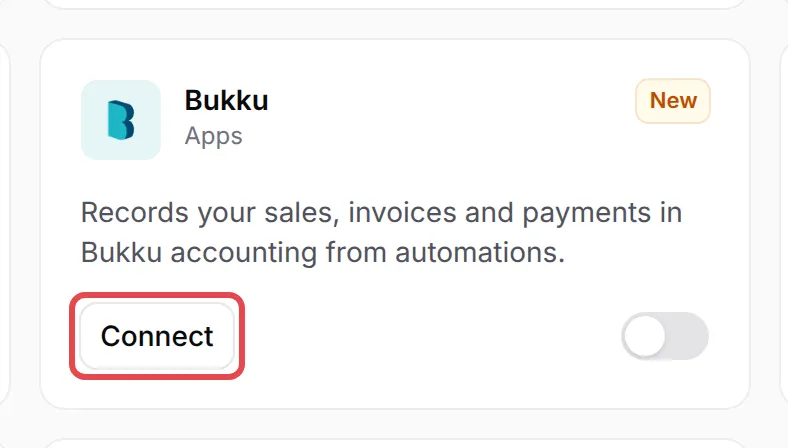
In BCL, go to Platform Setup → Integrations. Click Apps, then click Connect on the Bukku card.
-
Turn on Enable Bukku integration.
-
In Company subdomain, type the first part of your Bukku address, for example
kedaialifor kedaiali.bukku.my. -
Paste the token in Access Token and click Verify Connection.
-
Click Save Bukku.
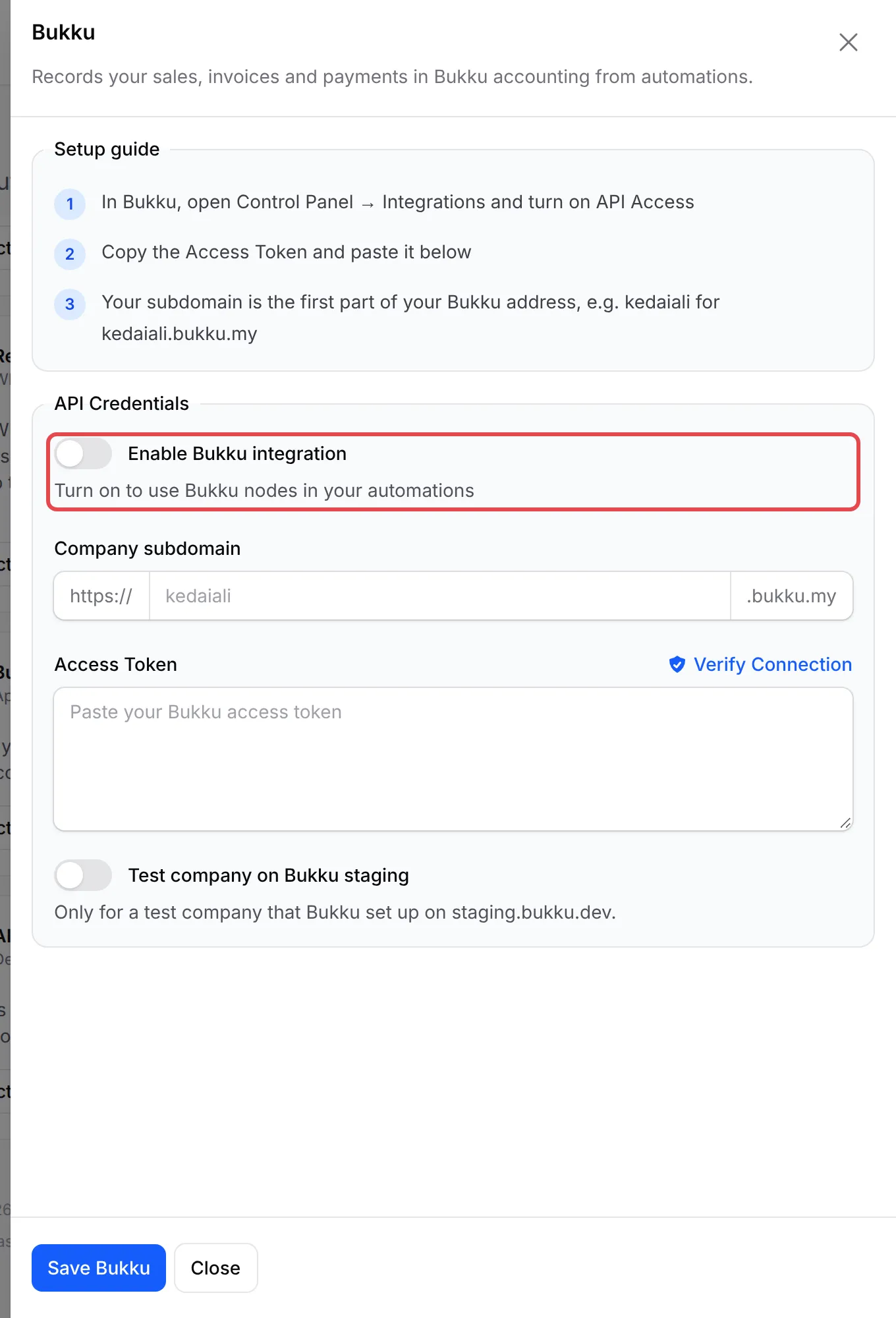
Leave Test company on Bukku staging off. It is only for a test company that Bukku set up on its staging site.
Add a Bukku step to an automation
Section titled “Add a Bukku step to an automation”The quickest start is a template under Automations → Templates: Record Sales in Bukku, Email the Bukku Invoice or Void Sale in Bukku (see Start an automation from a template). To add the step yourself:
-
In your automation, click Add Node and pick Bukku under Apps & developer.
-
Double-click the new step to open Bukku Action Settings, and type an Action Name.
-
In Action Type, pick what the step does:
Action Type What it does Record paid sale Records the paid order in Bukku as a sale, with its items, discount, fees, shipping and the money received. Create invoice Creates an unpaid invoice for the order. Record payment Marks the order’s Bukku invoice as paid. Void sale or invoice Cancels the sale or invoice of this order, for example after a refund. Type a Reason. Add customer Adds the customer to your Bukku contacts, with Email, Name and Phone. -
Under Customer, pick The buyer, or One contact for all sales and then the Contact.
-
Under Accounts, pick the Income account for the order lines. Pick a Tax code only if you charge SST. For a sale or payment, pick where the money goes in Money goes to, usually the bank account where your Bayarcash payouts land, and the Payment method.
-
In Save as, pick Ready, or Draft to check it in Bukku before it counts.
-
Click Save Bukku, then Update Automation, and switch the automation on.
Later steps can use the Bukku invoice number and link that the step returns. Click Variables in a later step and look under From earlier nodes.
Common issues
Where do I find my Bukku access token and subdomain?
In Bukku, open Control Panel → Integrations, turn on API Access and copy the Access Token. The subdomain is the first part of your Bukku address, for example kedaiali for kedaiali.bukku.my.
Will an order be recorded twice in Bukku?
No. Record paid sale records each order one time only.
Record payment fails. Why?
Record payment marks the Bukku invoice of the order as paid, so Create invoice must run for that order first. If the invoice was saved as Draft, approve it in Bukku first.
Record paid sale says it needs a payment trigger. What does that mean?
Record paid sale and Record payment need a trigger that fires after payment: Payment Successful, Payment Completed, Status Changed or Order Shipped. With another trigger, use Create invoice or Add customer.
Was this article helpful?
Thanks for your feedback.
Sorry this didn't help. WhatsApp us and we'll sort it out with you.