
Ask an AI about this page
 ChatGPT
 Claude
 Perplexity
 Google AI Mode
 Microsoft Copilot
 Grok
Grok Mistral Le Chat
Protect files
Updated

A File content holds up to 10 files that buyers download after confirming a one-time code. Use it for eBooks, PDF guides, templates, worksheets and ZIP packs. You can limit how many times each buyer downloads.
Add the files
Section titled “Add the files”In Protected Content, click New Content and fill in Title, for example “Kopi Kampung Brew Guide (PDF)”. Then:
-
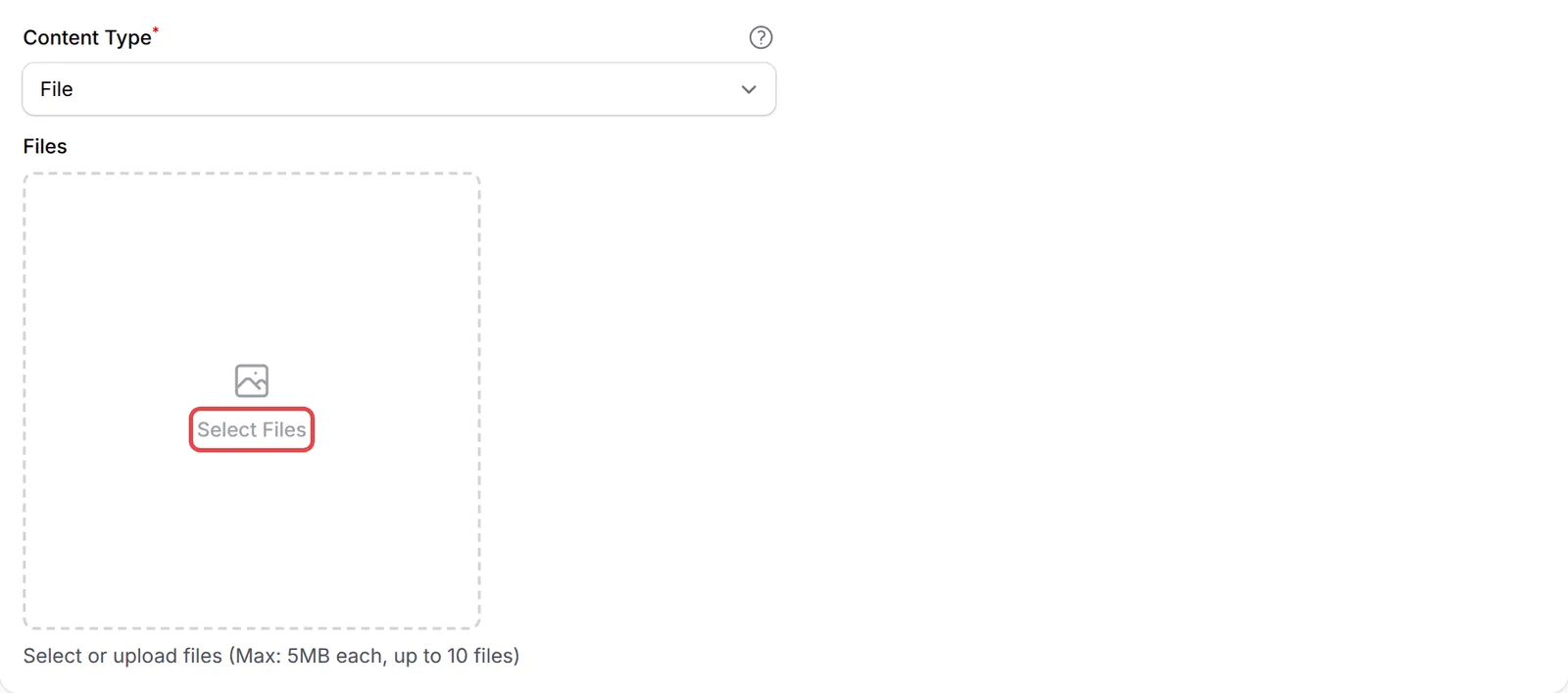
On the Content Settings tab, set Content Type to File.
-
Under Files, click Select Files.
-
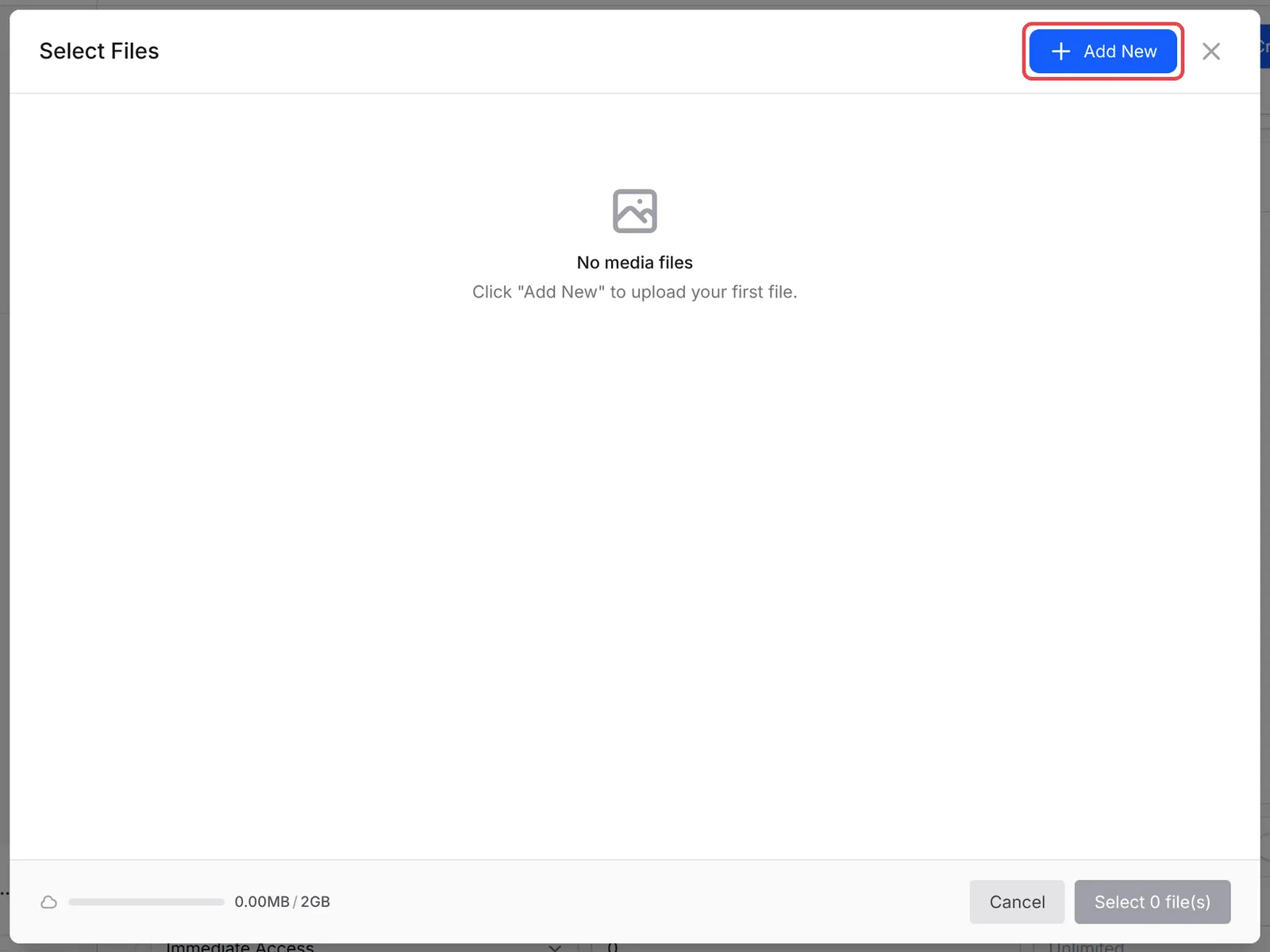
The Select Files window shows the files already in your media library. Tick the ones you want, or click Add New to upload.
-
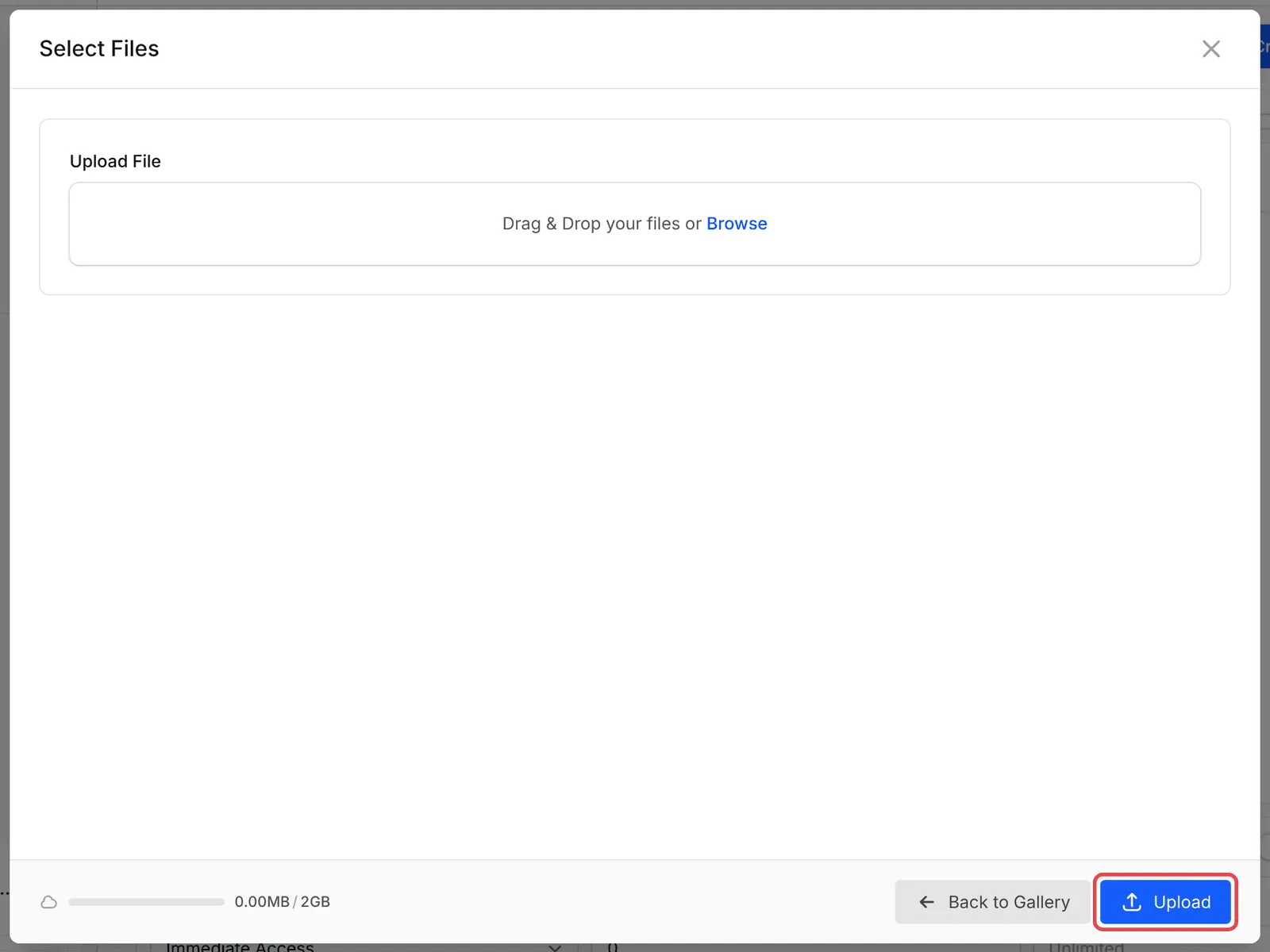
To upload, drag a file in or click Browse, then click Upload. The window takes one file at a time, so repeat for each file. The files are added to your library. Click Back to Gallery, tick them, and click Select 2 file(s) (the number matches how many you ticked).
-
Under Access Control, set Maximum Downloads, or leave it empty for unlimited downloads.

-
Click Create Protected Content.
File types and limits
Section titled “File types and limits”These are the rules for each File content:
| Rule | Limit |
|---|---|
| Files per content | Up to 10 |
| Size | 5MB per file |
| Types | PDF, Word (DOC, DOCX), Excel (XLS, XLSX), ZIP, and JPG, PNG, GIF and WebP images |
| Maximum Downloads | Counts every file download by one buyer, across all the files in the content. Empty means unlimited. |
Uploaded files count towards your account’s storage, shown at the bottom of the Select Files window.
What buyers see
Section titled “What buyers see”After the one-time code, the buyer sees each file with its name and size, and a Download button for each. When you set Maximum Downloads, the page also shows Downloads remaining, for example 3 of 5. Once the limit is reached, further downloads are refused.
These settings keep file delivery easy for buyers:
- Set a generous download limit. Buyers change phones and lose files. A limit of 5 stops mass sharing without making honest buyers message you.
- Put the guide and its extras in one content. A PDF, a worksheet and a ratio card can sit in one File content, so the buyer gets a single button on the receipt.
Common issues
What files can I protect, and how big can they be?
PDF, Word, Excel, ZIP and images (JPG, PNG, GIF, WebP), up to 10 files of 5MB each per content. For bigger files, split them or use a ZIP per part.
My buyer says the download limit is reached. Can I reset it?
The limit counts every download of the content by that buyer. There is no reset button on the buyer's row. Raise Maximum Downloads on the content, or clear it for unlimited downloads, and save.
Can I use a Google Drive link instead of uploading the file?
Yes, as a Download Link on the item (see Sell digital products). It needs no add-on, but anyone who gets the link can open it. Protected files ask for a one-time code first.
Was this article helpful?
Thanks for your feedback.
Sorry this didn't help. WhatsApp us and we'll sort it out with you.