
Ask an AI about this page
 ChatGPT
 Claude
 Perplexity
 Google AI Mode
 Microsoft Copilot
 Grok
Grok Mistral Le Chat
Send a thank-you email after payment
Updated

A short, personal thank-you after payment makes a small shop feel human and cuts “did my payment go through?” messages. BCL’s Thank You Email on Payment template builds this automation for you; you only choose the forms and reword the message.
What you need
Section titled “What you need”A payment form that takes payments. The example uses the demo form “Kopi Kampung Coffee Beans”.
Build it from the template
Section titled “Build it from the template”The template gives you the trigger and the email; you set the form and your wording:
-
Go to Automations and click Templates.
-
Find Thank You Email on Payment and click Use Template. BCL opens the new automation, which starts inactive.
-
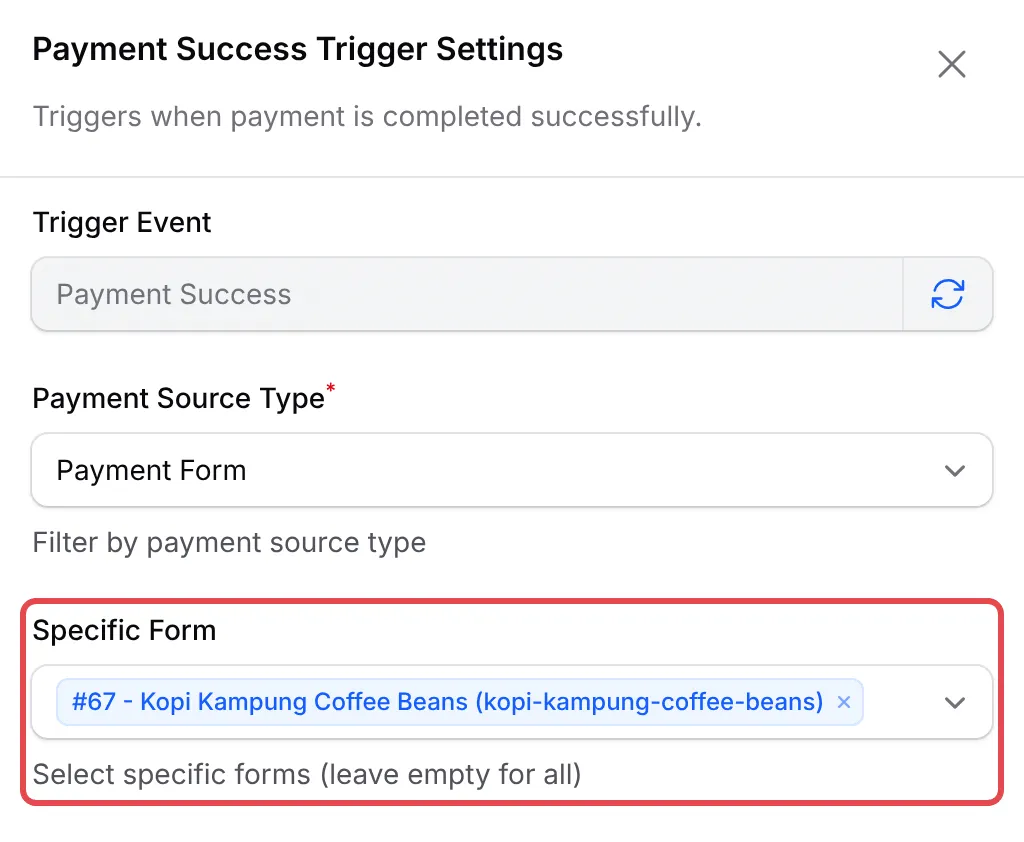
Double-click Payment Success. Set Payment Source Type to Payment Form, pick your forms in Specific Form (or leave it empty for all) and click Save Trigger.
-
Double-click Send Thank You Email. The recipient is already
{email}; change the subject and message to your own words, and click Save Email.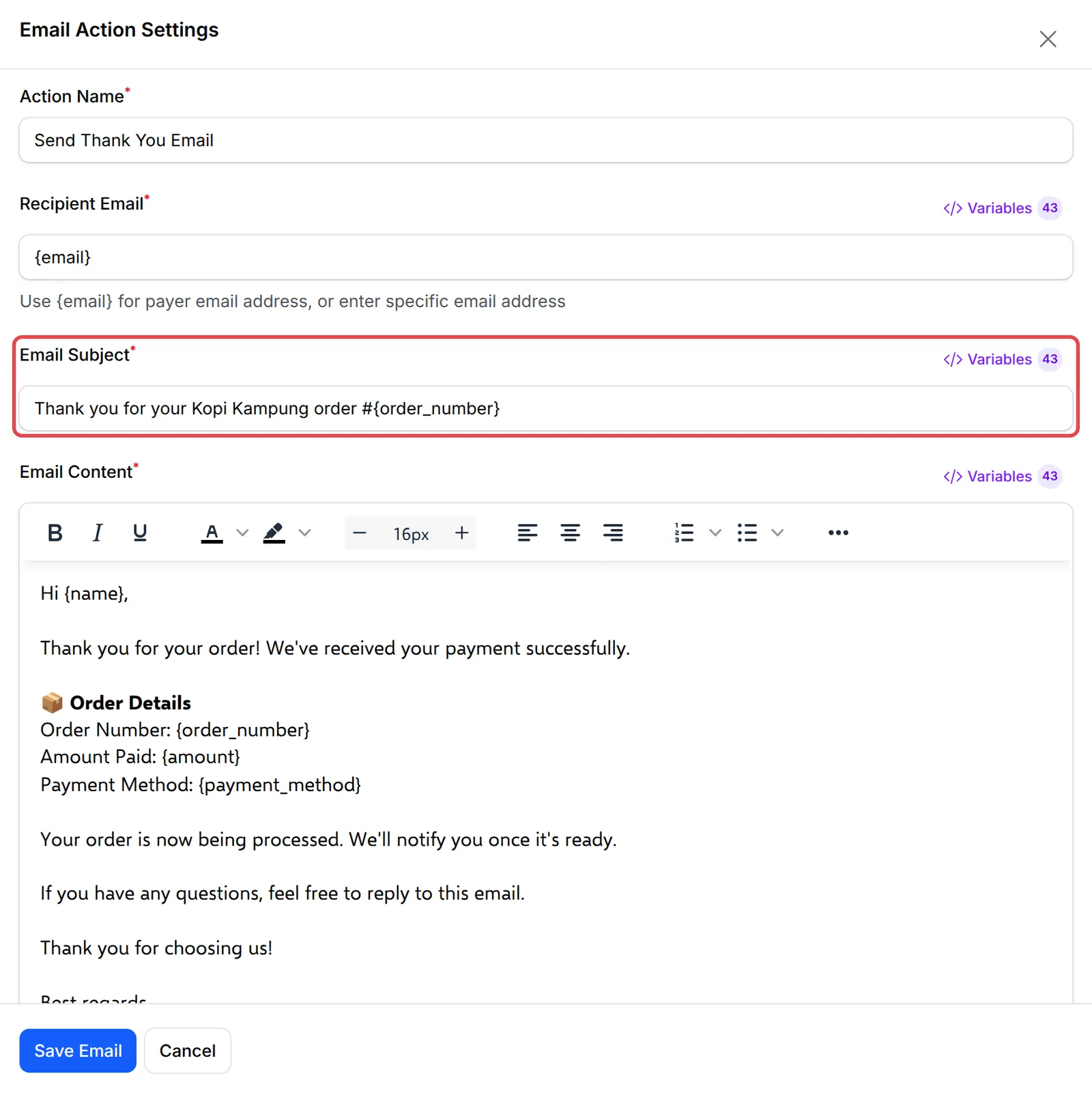
-
Click Rename to give it your own name, click Update Automation, then Activate and confirm.
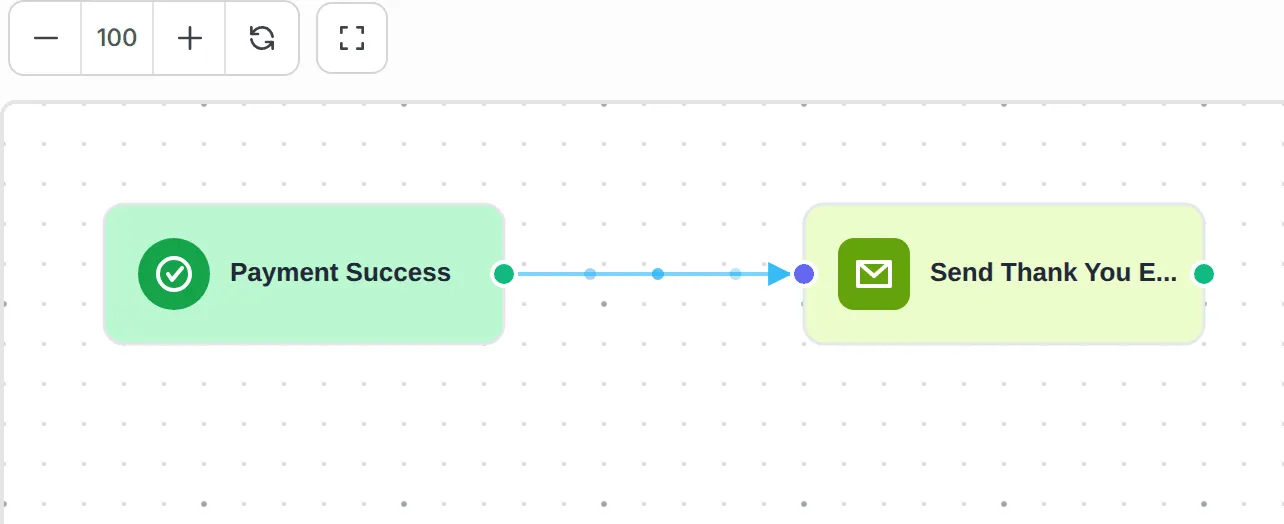
The finished workflow:
The demo’s version of the message:
Hi {name},Thank you for your order! We've received your payment successfully.Order Number: {order_number}Amount Paid: {amount}Payment Method: {payment_method}Your order is now being processed. We'll notify you once it's ready.Best regards,{business_name}Subject: Thank you for your Kopi Kampung order #{order_number}.
Test it
Section titled “Test it”Check the recipe with a test run before you rely on it:
-
In the email step, enter your address under Test Email and click the send icon to see a sample.
-
Make a test purchase on the form in Test Mode.
-
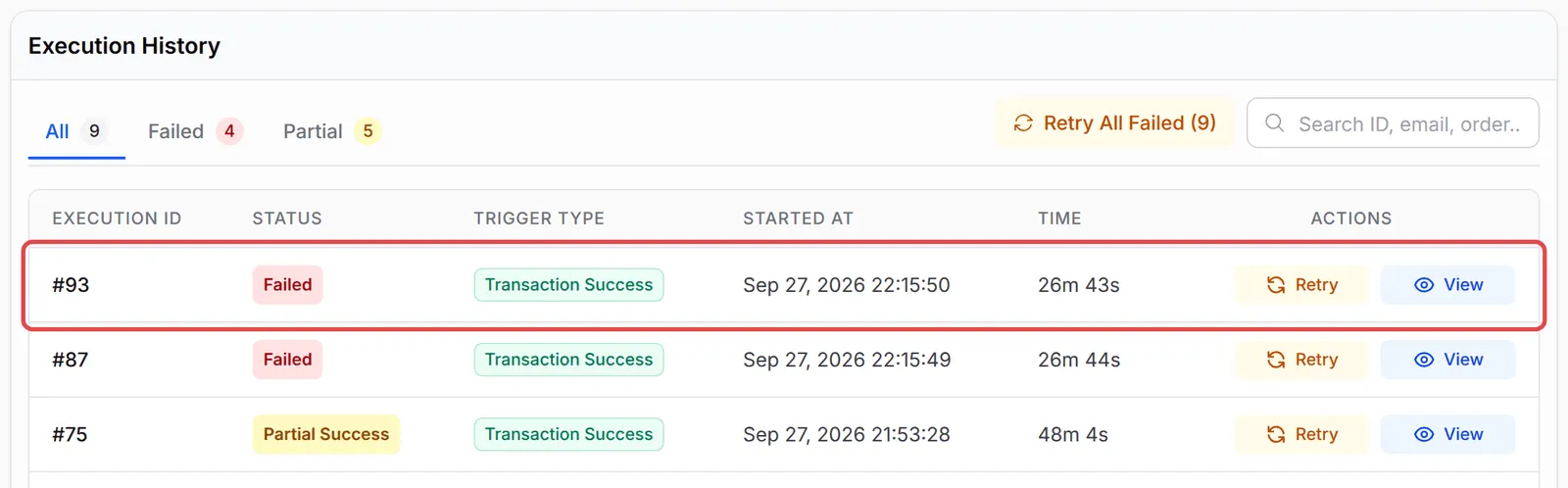
Open the automation and click Overview. The purchase shows in Execution History; a delivered email shows as Completed.
A few ways to get more from this recipe:
- Add something useful, not only thanks. For example, when the order ships, how to reach you, or a care tip for the product.
- List what they bought with
{product_table}. It shows each item, with an Access button for digital items. - Pair it with a shipping update. See Send the tracking number when an order ships.
Common issues
BCL already sends a payment email. Why add a thank-you?
BCL's standard email is a receipt. A thank-you in your own words, with your tone and next steps, builds the relationship. If two emails feel like too many, you can turn off the standard success email in the form's Notification Settings.
How do I send it for one product line only?
Double-click the trigger and pick the forms in Specific Form, or add a Condition with Product ID after the trigger.
Was this article helpful?
Thanks for your feedback.
Sorry this didn't help. WhatsApp us and we'll sort it out with you.