
Ask an AI about this page
 ChatGPT
 Claude
 Perplexity
 Google AI Mode
 Microsoft Copilot
 Grok
Grok Mistral Le Chat
Share marketing media with affiliates
Updated

The Marketing page is where you give your affiliates what they need to promote you: banners and links to your own marketing kit on the Marketing Assets tab, and email announcements on the Email Broadcast tab.
Add a banner or resource link
Section titled “Add a banner or resource link”Media you add shows in each affiliate’s Marketing Media page, where they can download images and copy links.
-
In the sidebar, go to Affiliate → Marketing.
-
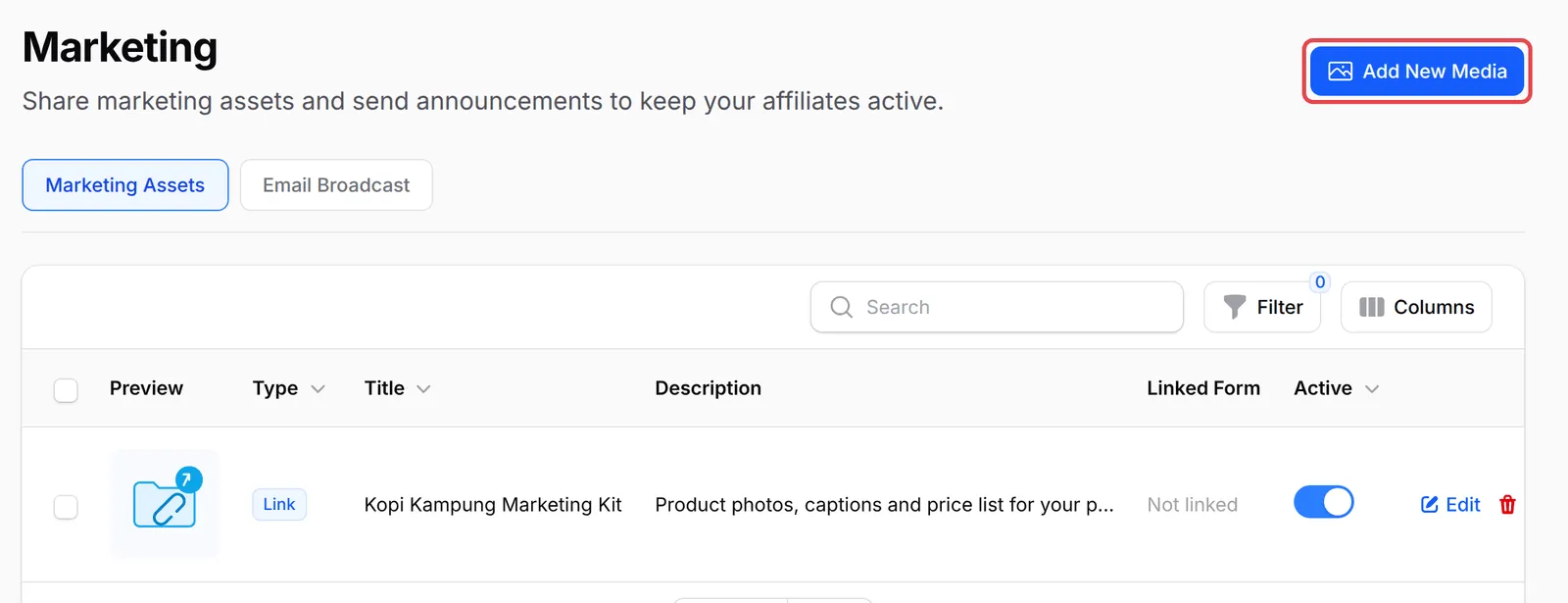
On the Marketing Assets tab, click Add New Media.
-
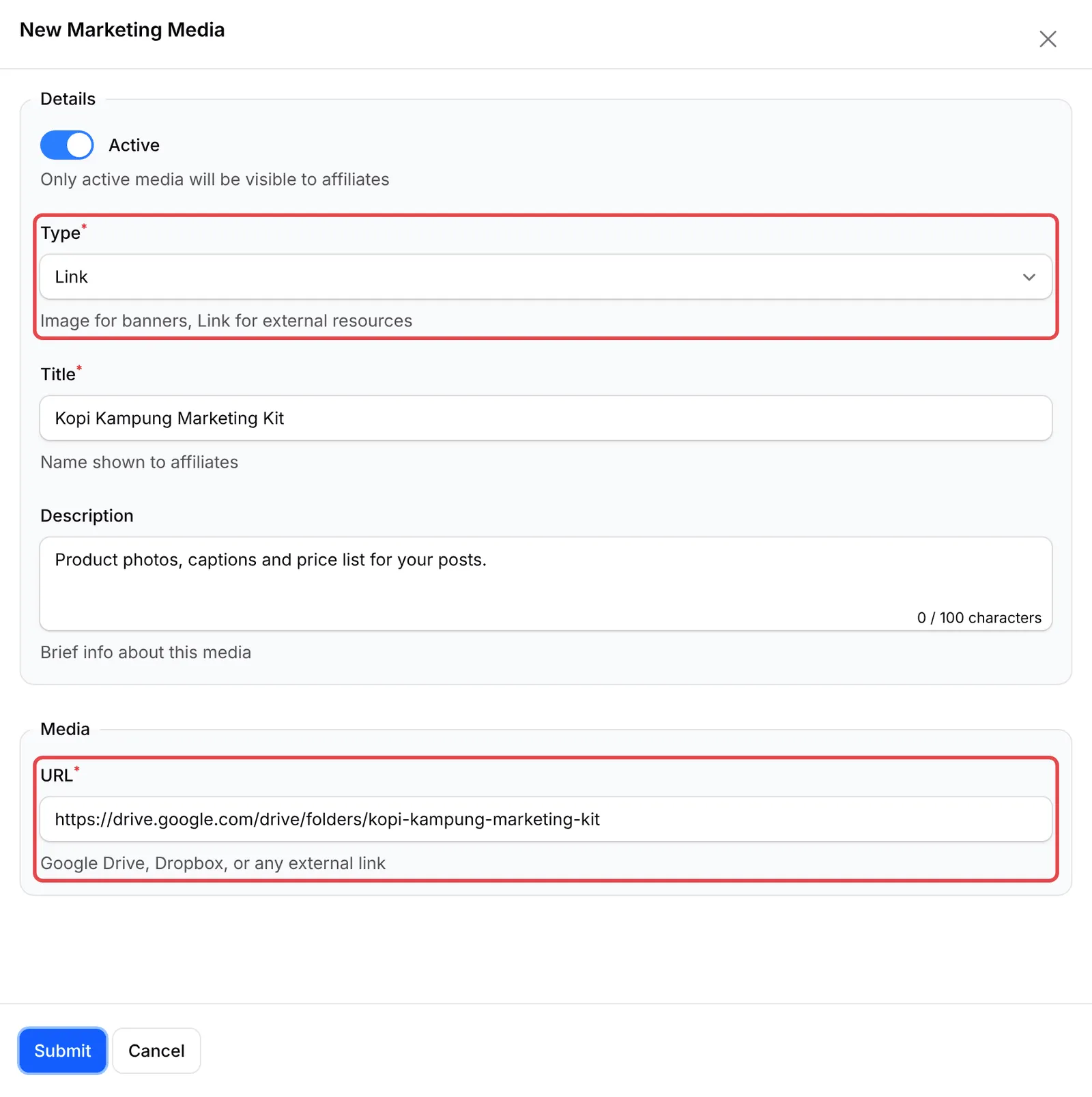
Leave Active on so affiliates can see it.
-
Choose the Type:
- Image for a banner or promotional picture. Under Image, click Select Media to pick or upload it.
- Link for an outside resource, such as a Google Drive or Dropbox folder. Paste it into URL.
-
Enter the Title affiliates see, and a short Description (up to 100 characters).
-
Optional, for images: under Form Link (Optional), choose a Form Type and Select Form. Leave it empty to use the affiliate’s general link.
-
Click Submit.
Affiliates see each item on their Marketing Media page and click View Details to open it. An image comes with Download Image and an HTML Code box to paste the banner on their own website, already linked through their affiliate link. A link has an Open Link button.
To hide an item without deleting it, switch off Active in the list.
Send an announcement to your affiliates
Section titled “Send an announcement to your affiliates”Announcements go by email to the affiliates you choose:
-
On Affiliate → Marketing, open the Email Broadcast tab and click Create New Broadcast.

-
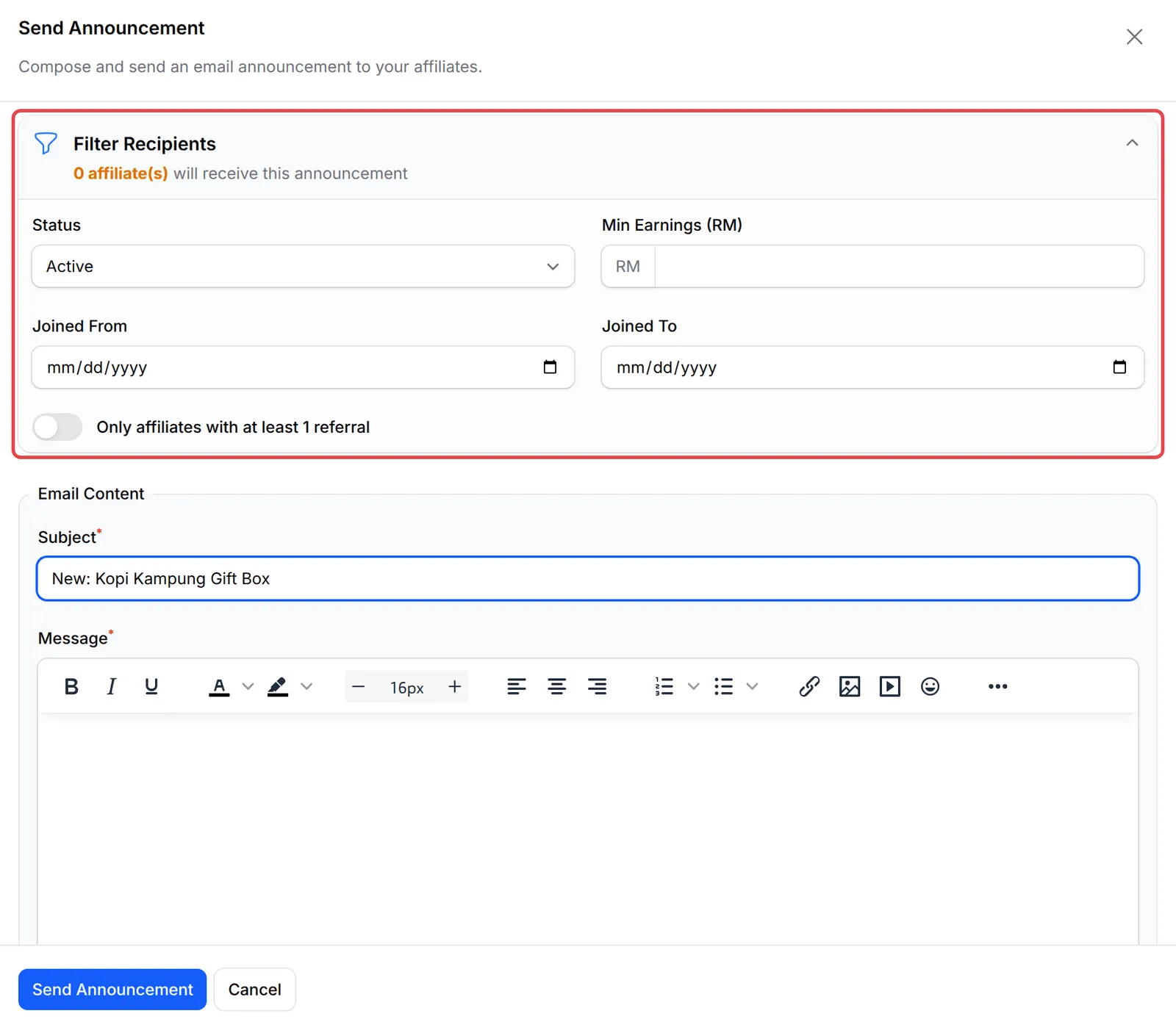
Open Filter Recipients to choose who gets it. By default it goes to active affiliates. You can also filter by Min Earnings (RM), Joined From and Joined To, or turn on Only affiliates with at least 1 referral. The heading shows how many affiliates will receive it.
-
Under Email Content, enter the Subject and Message. Placeholders such as
{affiliate_name}and{merchant_name}are replaced for each affiliate. -
Optional: enter your own address in Test Email and click Send to check how it looks.
-
Click Send Announcement.
The broadcast appears in the list with its Status and Sent At time. Click View Recipients to see who it went to.
A few habits make your media more useful to affiliates:
- Link each banner to the form it promotes. A banner linked to a form sends buyers straight to it, so the affiliate earns on the sale.
- Keep a shared folder as a Link. One Google Drive folder with photos, captions and prices is easier to keep up to date than many single images.
- Send yourself a test first. Placeholders only show real names in the sent email, so check the layout with Test Email.
Common issues
How do I give my affiliates product photos and captions to post?
Go to Affiliate → Marketing and click Add New Media. Upload a banner as an Image, or share a Google Drive or Dropbox folder as a Link. Affiliates see active media in their own panel.
Can a banner link straight to one of my forms?
Yes. When you add an Image, pick the form under Form Link (Optional). Affiliates then get HTML code with the banner linked to that form through their own affiliate link, so sales are credited to them.
Can I email all my affiliates at once about a new promotion?
Yes. On Affiliate → Marketing, open Email Broadcast and click Create New Broadcast. Choose who receives it, write the message and click Send Announcement.
Was this article helpful?
Thanks for your feedback.
Sorry this didn't help. WhatsApp us and we'll sort it out with you.