
Ask an AI about this page
 ChatGPT
 Claude
 Perplexity
 Google AI Mode
 Microsoft Copilot
 Grok
Grok Mistral Le Chat
Create protected content
Updated

Each piece of protected content is one thing a buyer can open: a video, a text, a set of files or a private link. You create it once, then link it to the items or tickets that unlock it. You need the OTP-Protected Content add-on.
Create the content
Section titled “Create the content”Have your video link, text, files or destination link ready. Then:
-
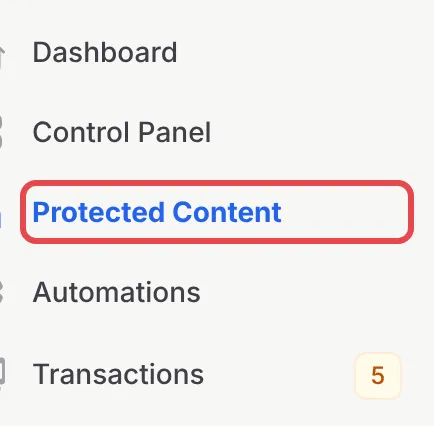
In the sidebar, click Protected Content.
-
Click New Content.

-
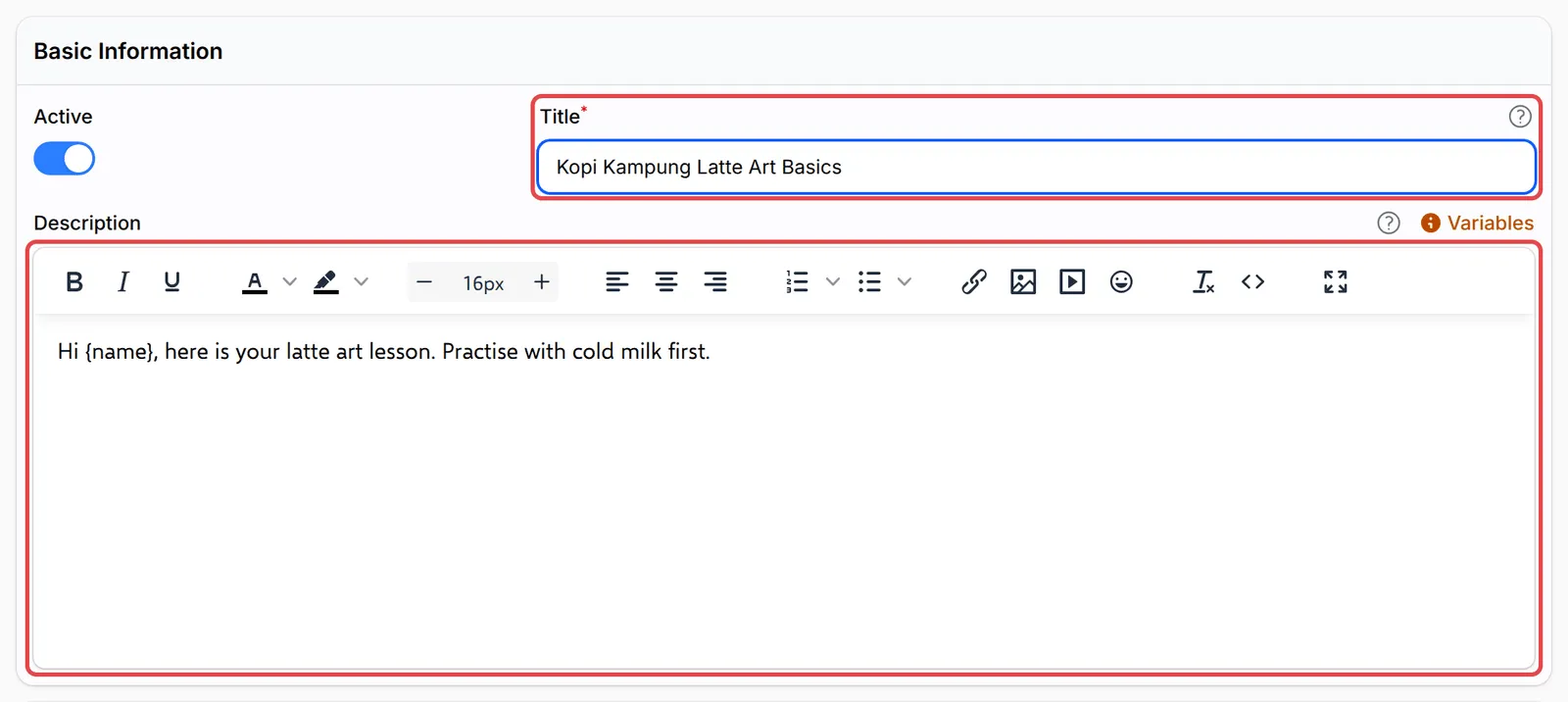
Under Basic Information, fill in Title, up to 100 characters. Add a Description if you like: buyers see it above the content. Click Variables to add the buyer’s name, order number or access dates.
-
On the Content Settings tab, choose a Content Type and add the content. Each type has its own guide:
Content Type What you add Guide Video A YouTube, Vimeo or Facebook link, or an embed code Protect a video Text Rich text written in BCL Protect text content File Up to 10 files, 5MB each Protect files Redirect URL The link buyers are sent to Send buyers to a private link 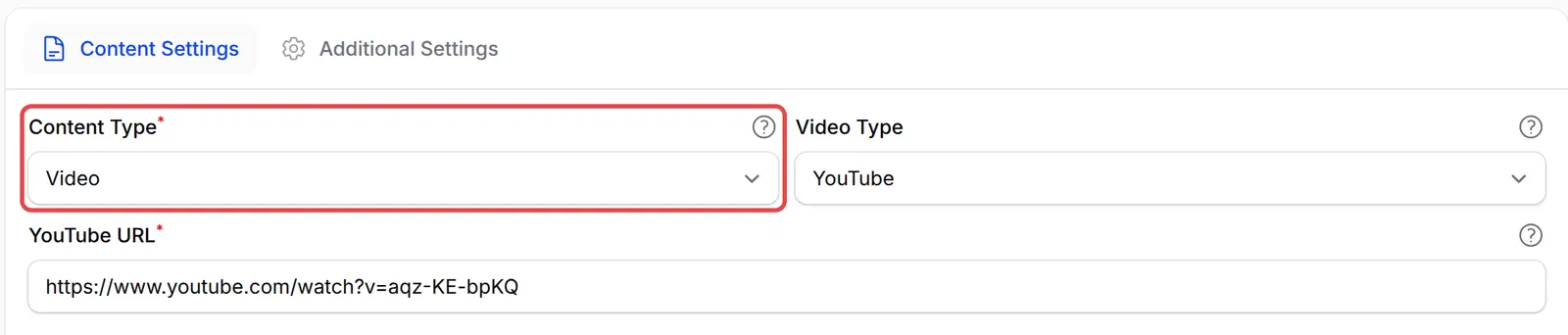
-
Under Access Control, choose the Access Type and set Maximum Devices (0 means unlimited). Turn on Show on Receipt so buyers see a button for the content on their receipt. See Control who can open your content.

-
Click Create Protected Content.

The content appears in the list. Nobody has access yet: link it to an item or ticket next.
Check it with Preview
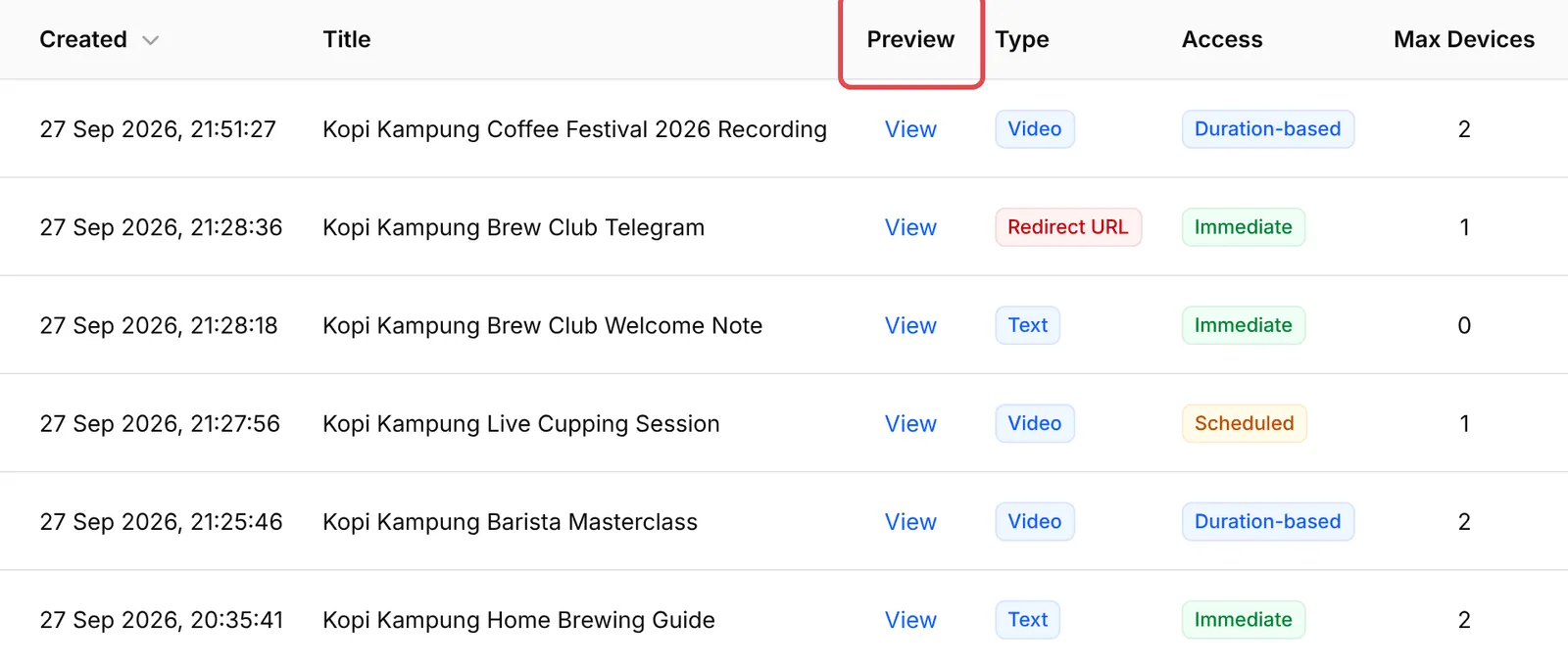
Section titled “Check it with Preview”To see the page exactly as a buyer will, click View in the Preview column of the list, or Preview at the top of the content’s edit page. Template variables such as {name} show as they are, because there is no buyer yet.
Manage your content
Section titled “Manage your content”The list shows every content with its Type, Access, Max Devices, Used In (how many items and tickets unlock it) and Total Access. From it you can:
| Action | How |
|---|---|
| Edit the content | Click Edit |
| Turn it off for everyone | Switch off Active. Buyers see Content Unavailable until you turn it back on. |
| Hide or show it on receipts | Use the Show on Receipt switch |
| See the details and where it is used | Menu next to Edit → View Details |
| See who has access | Menu next to Edit → Customer Access. See Manage who has access. |
| Get the Access Finder link | Menu next to Edit → Access Link |
| Copy it | Menu next to Edit → Duplicate |
Use the All, Video, Text, File and Redirect tabs, or Filter, to narrow the list.
Two habits save trouble later:
- Name content for the buyer, not for you. The title is the button label on the receipt and the heading of the content page. If you want a different name in the access email, set Email Item Name on the Additional Settings tab.
- Switch off Active instead of deleting. Buyers keep their access and their links, and everything works again the moment you switch it back on.
Common issues
I created the content but my buyer cannot see it. What did I miss?
Creating the content does not give anyone access. Link it to a payment form item or an event ticket (see Give buyers access). Buyers who paid before you linked it need Grant Buyer Access.
Why is my content missing from the Protected Content list on the item?
The item's Protected Content field only lists content that is Active. Turn on Active on the content, or its switch in the Active column of the list.
Can I copy a content to make a similar one?
Yes. In the list, open the menu next to Edit and click Duplicate. The copy is named with (Copy), starts inactive, and is not linked to any item or ticket.
Was this article helpful?
Thanks for your feedback.
Sorry this didn't help. WhatsApp us and we'll sort it out with you.