
Ask an AI about this page
 ChatGPT
 Claude
 Perplexity
 Google AI Mode
 Microsoft Copilot
 Grok
Grok Mistral Le Chat
Add buyers to Brevo and send Brevo emails
Brevo is an email marketing service. Connect it to BCL, then add a Brevo step to an automation. The step can add each buyer to your Brevo lists, send one of your Brevo email templates, or record an event that starts a Brevo automation.
Connect Brevo
Section titled “Connect Brevo”Do these steps:
-
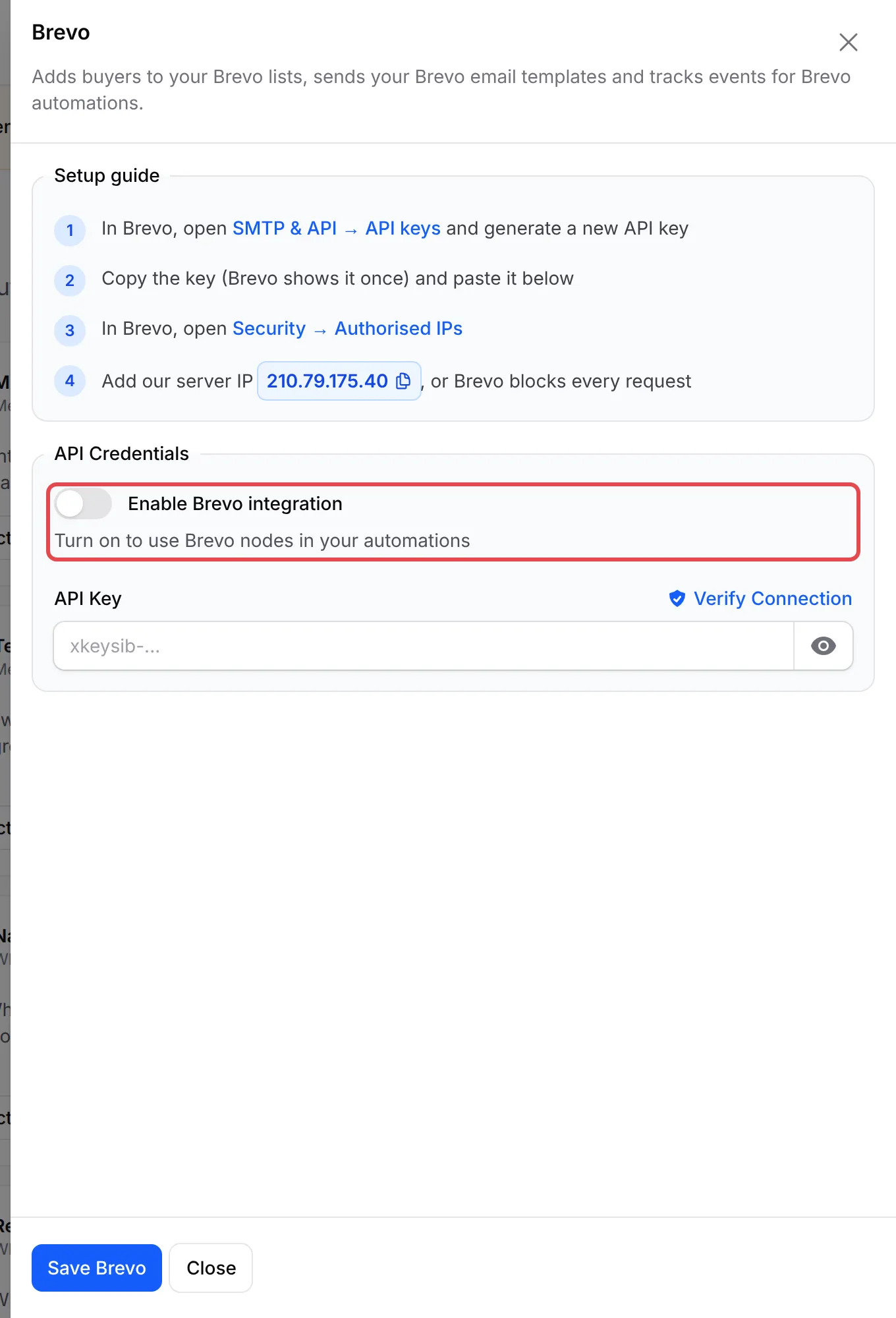
In Brevo, open SMTP & API → API keys and generate a new API key. Brevo shows the key one time only, so copy it.
-
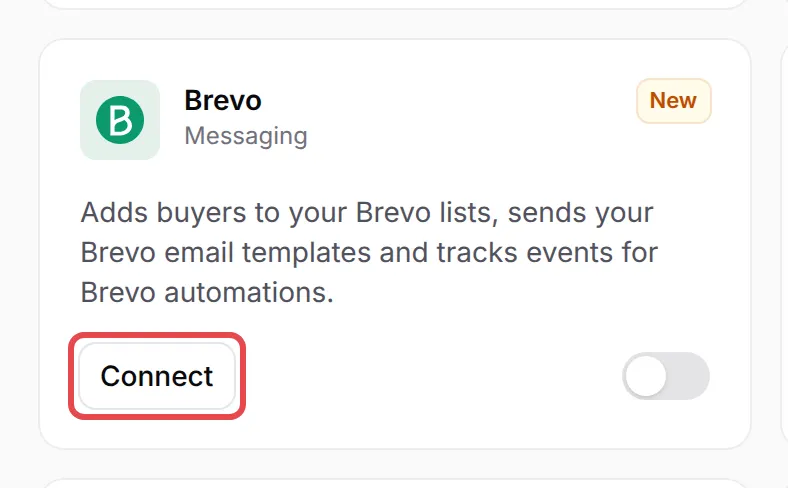
In BCL, go to Platform Setup → Integrations and click Connect on the Brevo card.
-
In Brevo, open Security → Authorised IPs and add the server IP that step 4 of the setup guide shows. If you do not, Brevo blocks every request from BCL.
-
Turn on Enable Brevo integration.
-
Paste the key in API Key and click Verify Connection.
-
Click Save Brevo.
Add a Brevo step to an automation
Section titled “Add a Brevo step to an automation”The quickest start is a template under Automations → Templates: Add Buyers to Brevo or Start a Brevo Automation (see Start an automation from a template). To add the step yourself:
-
In your automation, click Add Node and pick Brevo under Messaging.
-
Double-click the new step to open Brevo Action Settings, and type an Action Name.
-
In Action Type, pick what the step does:
Action Type What it does Add or update contact Adds the person to your Brevo contacts, or updates them, and puts them in the lists you pick. Remove from list Takes the person out of the lists you pick. Send template email Sends one of your Brevo email templates. Track event Records an event on the contact, so a Brevo automation can start from it. -
Under Contact, keep the email variable in Email. For Add or update contact, also set First name, Last name and Phone. The phone is saved as the contact’s SMS number when it is a valid mobile number.
-
Under Lists, pick the lists. For Send template email, pick the Template under Email instead.
-
For Track event, type an Event name, such as
order_paid. Then start a Brevo automation from that event in Brevo. -
Under Template data or Event data, add a Name and a Value for each detail that Brevo needs, for example
order_numberand{order_number}. -
Click Save Brevo, then Update Automation, and switch the automation on.
Common issues
Verify Connection says the IP address is blocked. What do I do?
Brevo accepts API calls only from the IP addresses you allow. In Brevo, open Security → Authorised IPs and add the server IP shown in step 4 of the setup guide on the Brevo card. Then click Verify Connection again.
Does Remove from list delete the contact in Brevo?
No. Remove from list takes the person out of the lists you pick, and the contact stays in Brevo.
Where do I set the subject of a Brevo template email?
In Brevo. The template sets the subject and the sender. BCL lists active templates only, and fills the Template data you add in the step.
Was this article helpful?
Thanks for your feedback.
Sorry this didn't help. WhatsApp us and we'll sort it out with you.