
Ask an AI about this page
 ChatGPT
 Claude
 Perplexity
 Google AI Mode
 Microsoft Copilot
 Grok
Grok Mistral Le Chat
Remind customers about unpaid orders
Updated

Some customers open your form, start paying, then close the bank page. BCL keeps the order as pending, and about 30 minutes later cancels it and fires Payment Cancelled. This automation catches that moment and emails the customer a link to finish the payment, so a distracted buyer does not become a lost sale.
What you need
Section titled “What you need”Only a payment form that customers pay online. Orders paid by COD or manual transfer are never auto-cancelled, so they never reach this automation.
Build it
Section titled “Build it”Start from a blank automation (see Create an automation):
-
Go to Automations, click New Automation, name it “Unpaid Order Reminder” and click Create.
-
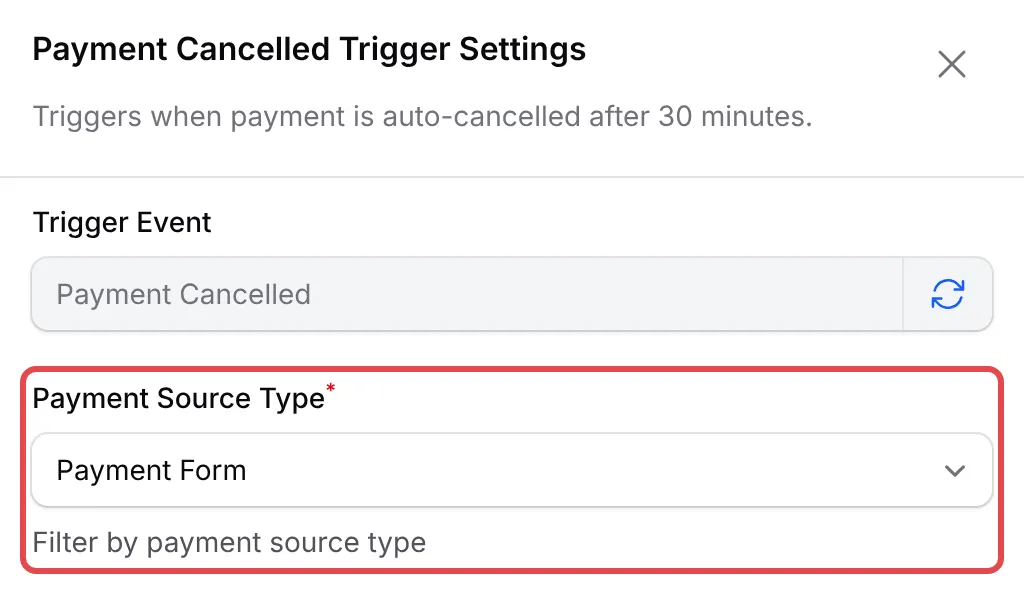
Click Add Node and pick Payment Cancelled. Double-click the trigger, set Payment Source Type to Payment Form, and click Save Trigger. To limit it to some forms, pick them in Specific Form.
-
Click Add Node and pick Send Email. Double-click it, fill it in as below and click Save Email.
Field Enter Action Name Unpaid reminder Recipient Email {email}Email Subject Your order {order_number} is still waitingEmail Content The message below Hi {name},We noticed your order {order_number} for {amount} was not paid, so it has been cancelled.Still want it? Open your order and try the payment again: {receipt_url}Or start a new order here: {form_url}Thank you,{business_name}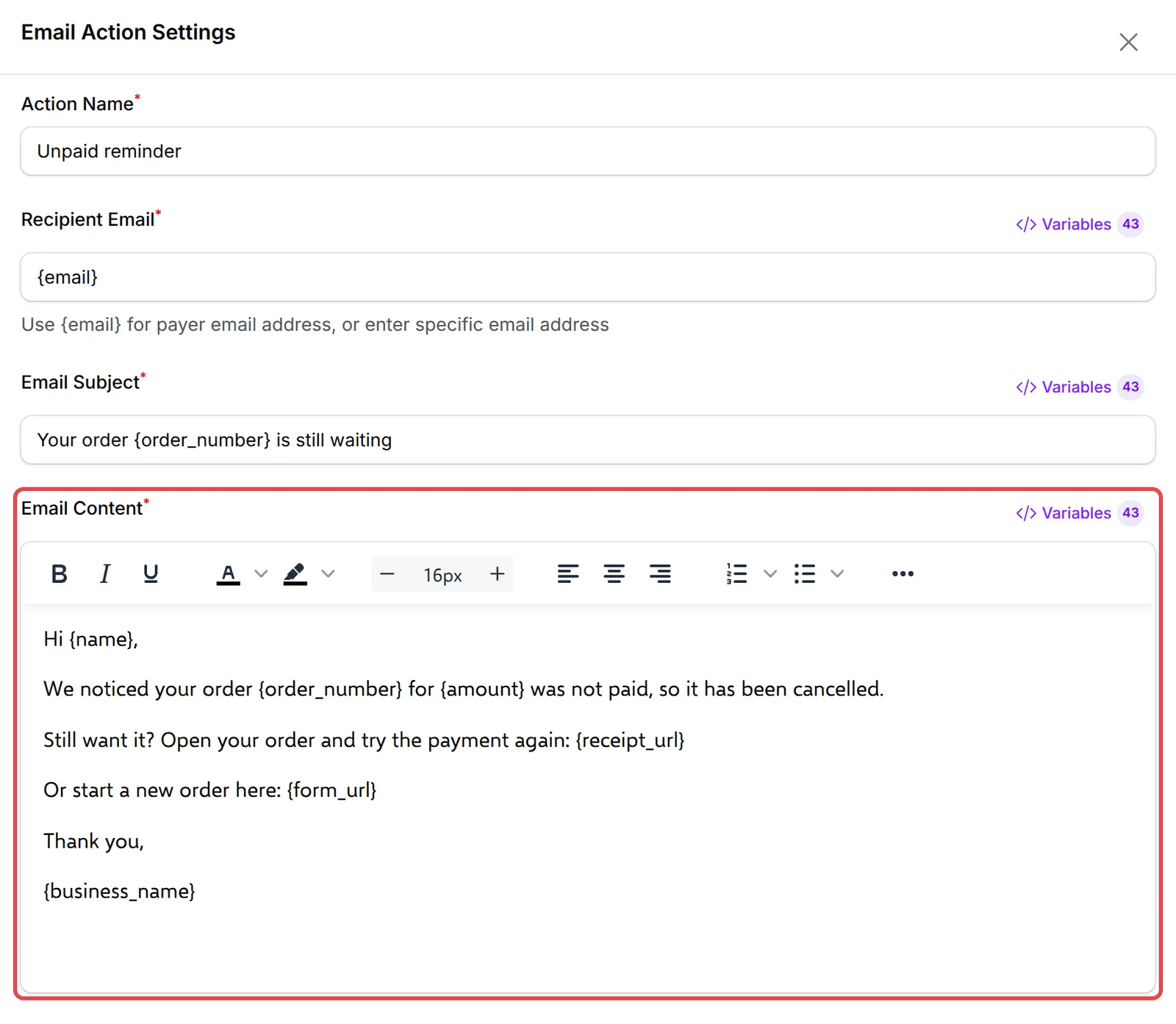
-
Click Update Automation.
The finished workflow:
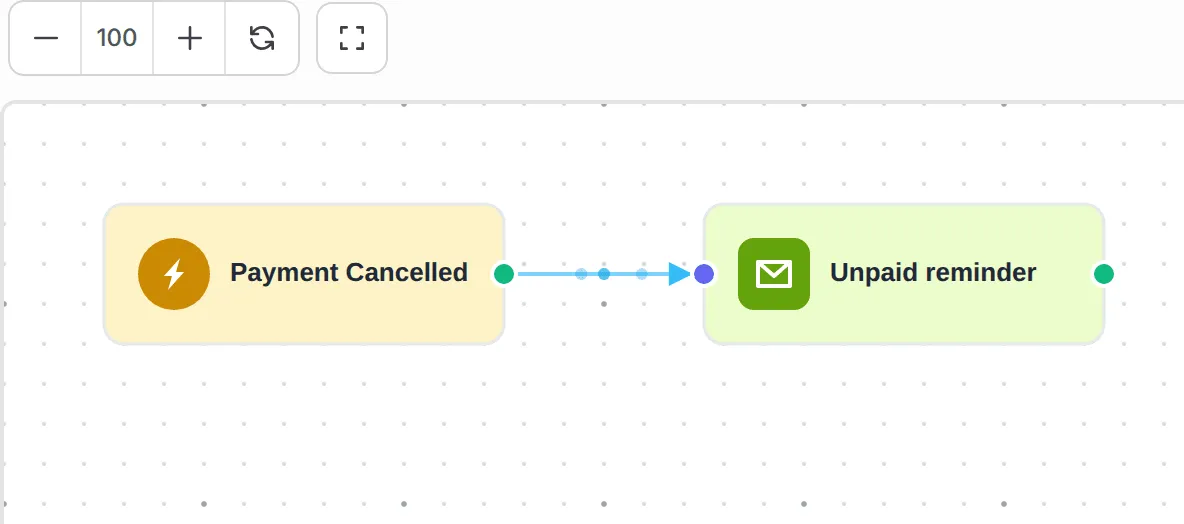
{receipt_url} opens the order’s receipt page. For a cancelled online payment, that page shows a Retry Payment button that sends the customer back to the bank with the same order. {form_url} opens the form for a fresh order.
Test it
Section titled “Test it”The test takes about half an hour because BCL waits before cancelling:
-
In Test Mode, fill in your payment form with your own email, click Complete Payment, and close the bank page without paying.
-
About 30 minutes later the order turns Cancelled in Transactions.
-
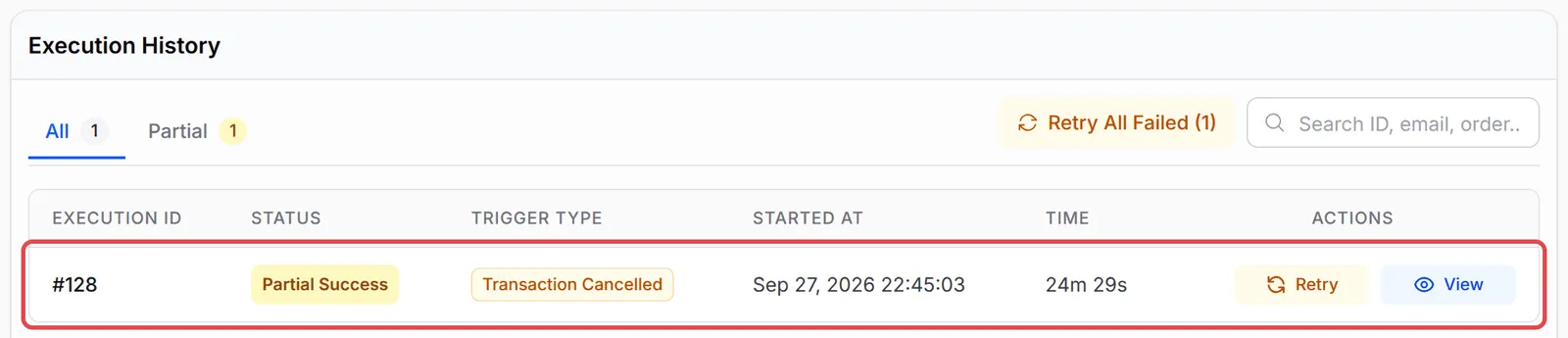
Open the automation and click Overview. The run appears in Execution History; a delivered email shows as Completed.
A few ways to get more from this recipe:
- Want to wait longer? Add a Delay of, say, 2 hours between the trigger and the email. The message then arrives when the customer is more likely to be free.
- Do not combine this with the Incomplete Payment Follow-up template as it comes. That template also emails cancelled payments, so customers would get two messages. Remove its cancelled branch, as in Follow up on failed payments.
- Keep the tone light. The customer may have paid another way or changed their mind; one friendly reminder is enough.
Common issues
When exactly does Payment Cancelled fire?
BCL cancels a payment that is still unpaid about 30 minutes after it was started, and that fires Payment Cancelled. COD and manual transfer orders are never cancelled this way.
Can I send the reminder on WhatsApp instead?
Yes. Use a Send Wabot or Send WasapBot step instead of Send Email, with {phone} as the number. The Abandoned Cart WhatsApp template is a ready-made version that waits an hour first.
Was this article helpful?
Thanks for your feedback.
Sorry this didn't help. WhatsApp us and we'll sort it out with you.