
Ask an AI about this page
 ChatGPT
 Claude
 Perplexity
 Google AI Mode
 Microsoft Copilot
 Grok
Grok Mistral Le Chat
Check an automation's history
Updated

Every time an automation runs, BCL records it: when it ran, what data it used and whether each action worked. Check this history after you switch on a new automation, and whenever a customer says a message did not arrive.
Open the history
Section titled “Open the history”The history is on each automation’s Overview tab.
-
Go to Automations and click Edit on the automation.
-
Click the Overview tab.

-
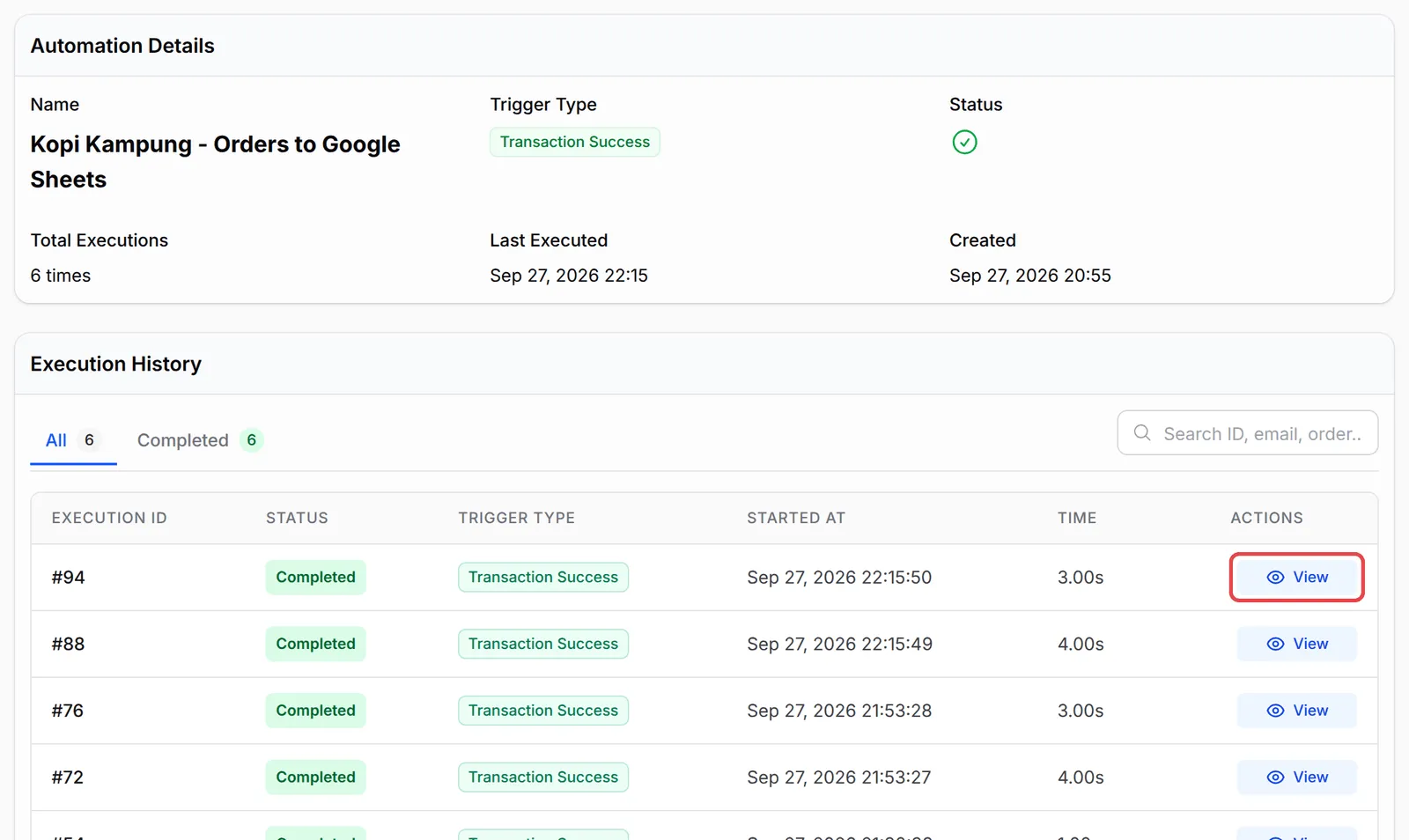
Automation Details shows the Trigger Type, whether it is on (Status), Total Executions and when it Last Executed. Under Execution History, each run has its Execution ID, Status, Trigger Type, Started At and how long it took.
-
Use the tabs above the list to show runs of one status, and Search ID, email, order… to find the run for a customer or order.
A run has one of these statuses:
| Status | Meaning |
|---|---|
| Completed | Every action worked. |
| Partial Success | Some actions worked and at least one failed. |
| Failed | The actions failed. |
| Running | The run is in progress, or waiting on a Delay node. |
| Cancelled | The run was stopped before its remaining actions ran. |
See what happened in one run
Section titled “See what happened in one run”Each run keeps a record of every node it went through.
-
Click View on the run.
-
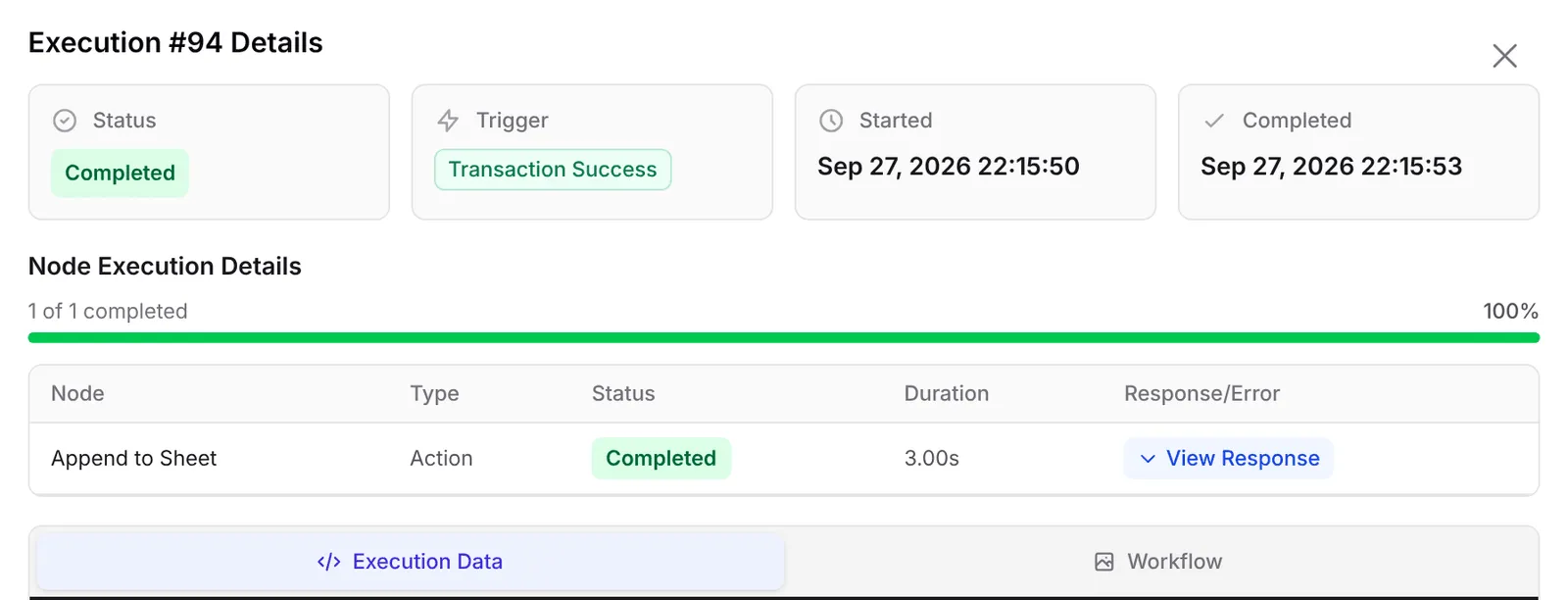
The Execution #… Details window shows the Status, Trigger, Started and Completed times, and a table of every node with its Status, Duration and Response/Error.
-
Click View Response to see what the service sent back. Click Execution Data to see the details the trigger passed on, such as the customer’s name, email and order number.
Retry failed runs
Section titled “Retry failed runs”Fix the cause first, for example reconnect Wabot or Google Sheets under Platform Setup → Integrations. Then:
-
Make sure the automation is on. BCL only retries active automations.
-
Click Retry on one run, or Retry All Failed above the list to retry every failed and partly failed run. For Retry All Failed, confirm the “Are you sure you want to retry all … failed execution(s)?” prompt.
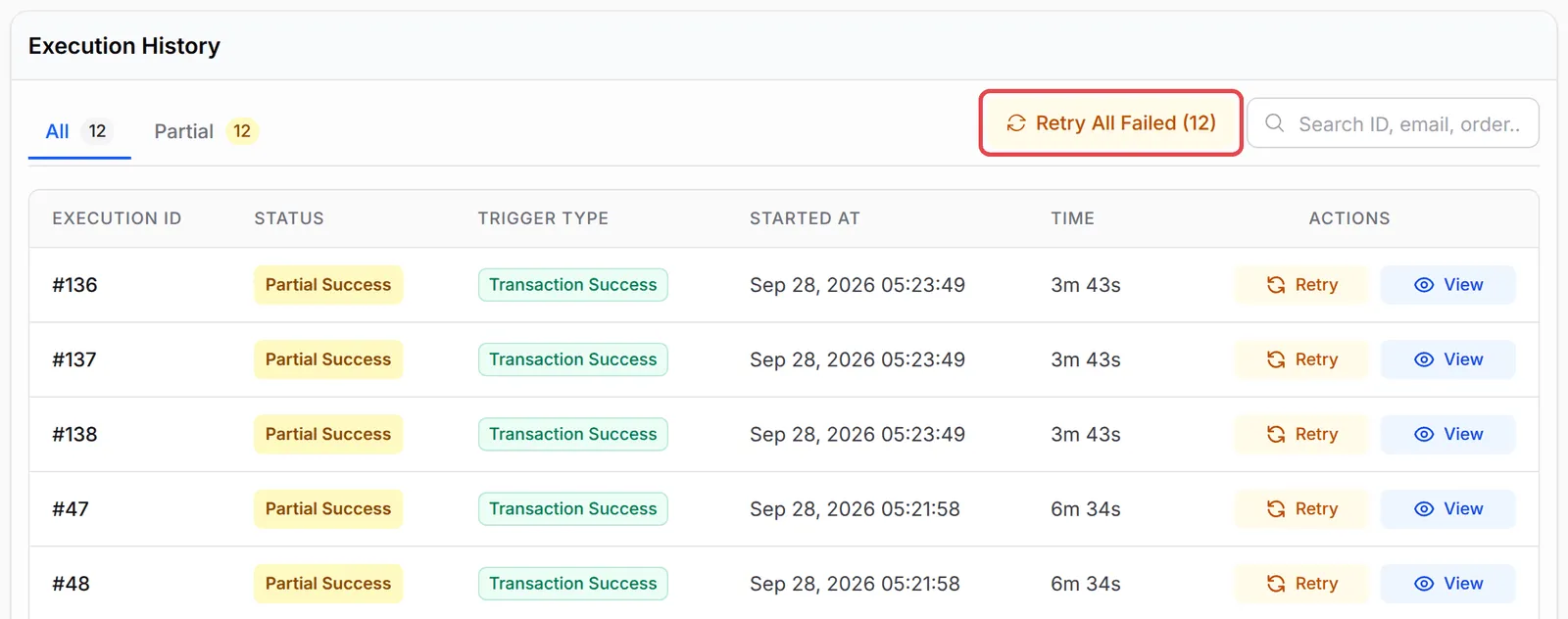
BCL shows Retried … execution(s) and runs them again straight away. Each retried run moves to the top of the list with a new Started At time.
Run it on past payments
Section titled “Run it on past payments”A new automation only runs for events after you switch it on. To run it for earlier payments:
-
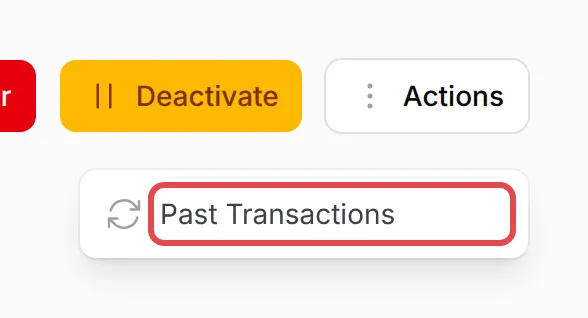
On the automation’s Overview, click Actions, then Past Transactions.
-
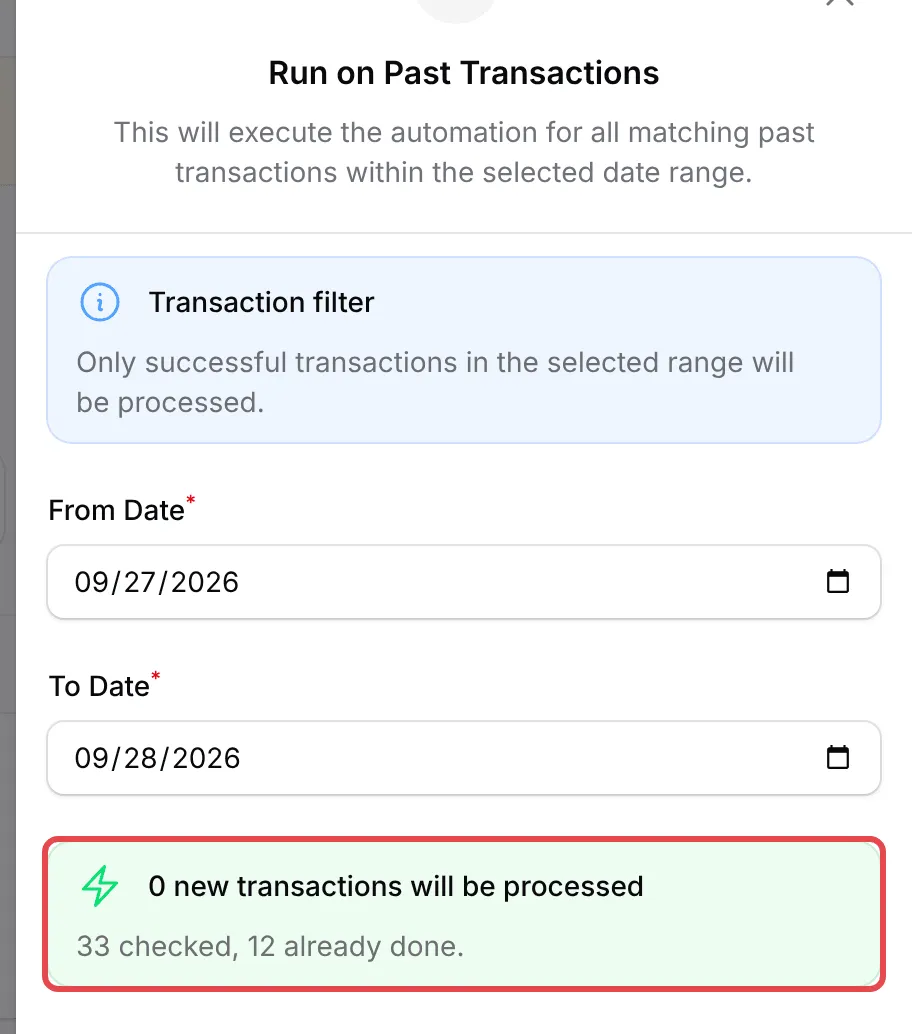
In Run on Past Transactions, choose a From Date and To Date. BCL shows how many new transactions will be processed, and how many it checked and has already done. The Transaction filter note says which payments count, such as only successful ones.
-
Click Run Automation. BCL queues a run for each matching payment and skips payments this automation already handled.
For event triggers, the same menu has Past Participants instead. When runs are waiting on a Delay node, the menu also offers Cancel … Pending to stop them, and Sync … Pending to make them use your latest workflow.
Clear at the top deletes the whole history of the automation and resets its execution count to 0.
The history is your first stop when something goes wrong:
- Check it after the first real run. A completed test run is the best proof that the connection, the variables and the recipient are right.
- Search by the customer’s email or order number. It is the fastest way to answer “did my message go out?”.
- Read the Response/Error column before retrying. If the cause is not fixed, a retry fails the same way.
Common issues
My automation is on but the customer did not get the message. Where do I check?
Open the automation and click Overview. Each run is listed under Execution History. Click View to see each action's status and the error, if there was one.
Can I run a new automation for payments that came in before I created it?
Yes, for payment triggers. On the automation's Overview, click Actions → Past Transactions, choose a From Date and To Date and click Run Automation. Payments that already ran through it are skipped.
An action failed because my WhatsApp was disconnected. Can I send it again?
Yes. Reconnect the service, make sure the automation is on, then click Retry on the run, or Retry All Failed to retry every failed run.
Was this article helpful?
Thanks for your feedback.
Sorry this didn't help. WhatsApp us and we'll sort it out with you.