
Ask an AI about this page
 ChatGPT
 Claude
 Perplexity
 Google AI Mode
 Microsoft Copilot
 Grok
Grok Mistral Le Chat
Design your own form page with Custom HTML
With Custom HTML, a form shows your own page design instead of the standard form page. BCL shows your HTML at the top of the page and the payment form under it. Use it when you have a design from a designer, a page builder or an AI tool.
Custom HTML or Landing Pages
Section titled “Custom HTML or Landing Pages”BCL has two ways to make a full sales page for a form. Choose one:
| Type of Form | You make the page with | Use it when |
|---|---|---|
| Custom HTML | Your own HTML and CSS code | You have a design or HTML file, and you want full control of how it looks |
| Landing Pages | Blocks in a builder, with templates | You do not write code. See Build a landing page with blocks |
Set the form to Custom HTML
Section titled “Set the form to Custom HTML”You can do this for a new form or for an existing form:
-
Go to Payments → Forms and open the form. For a new form, click Create Form, then Start from scratch.
-
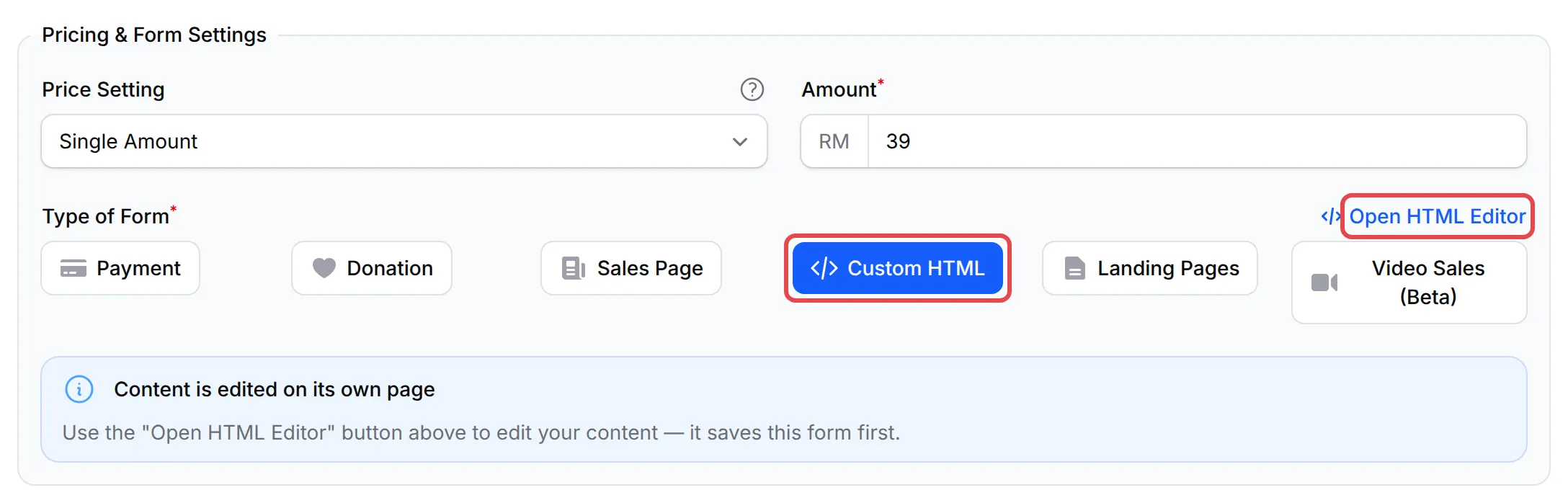
Open the Payment Details tab. In Type of Form, click Custom HTML.
-
Save the form. For a new form, click Add Payment Form. The Open HTML Editor link shows only after the first save.
-
Click Open HTML Editor. BCL saves the form first, then opens the Edit Custom HTML page.
Paste and save your HTML
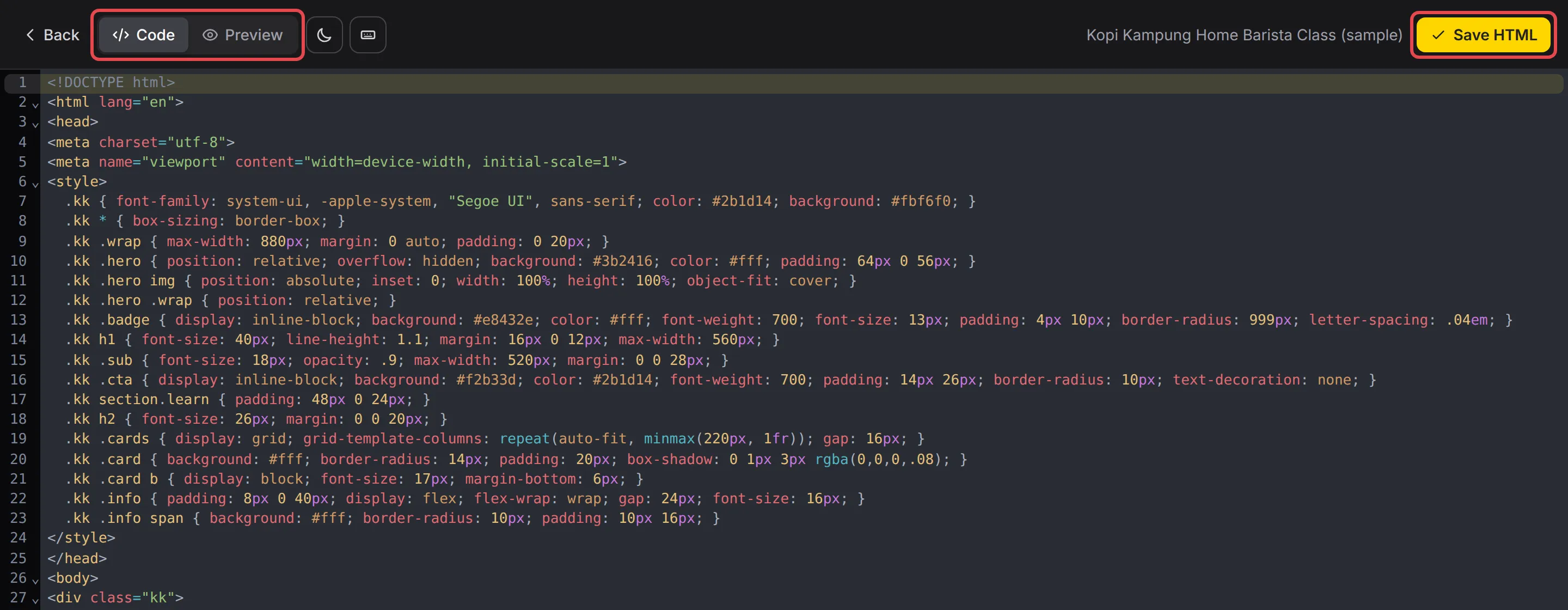
Section titled “Paste and save your HTML”The editor shows your HTML on the Code tab. To add your design:
-
On the Code tab, delete any old HTML and paste your HTML.
-
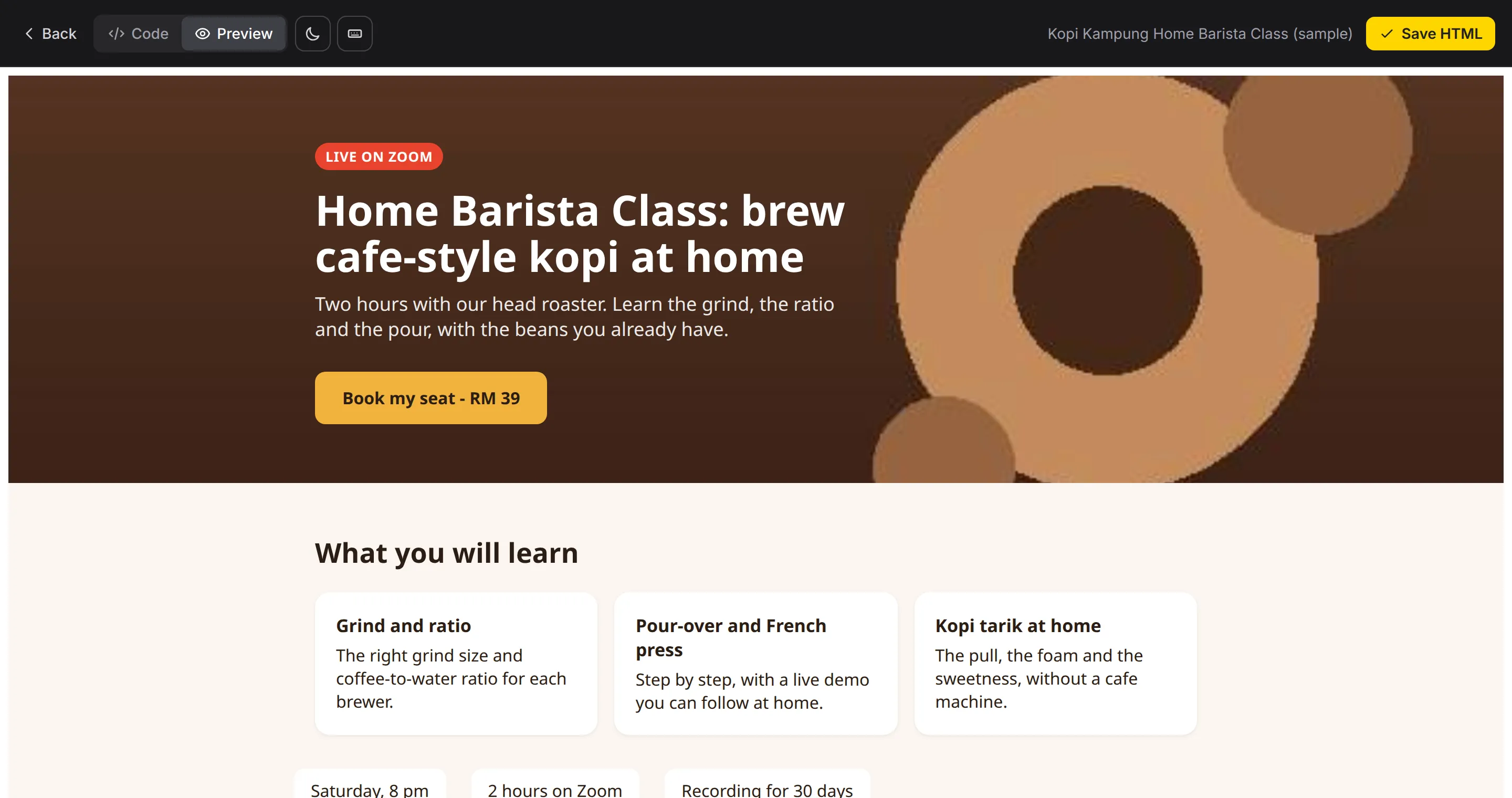
Click Preview to see the page. Click Code to go back to the HTML.
-
Click Save HTML. BCL shows a message with a View Form button, which opens the live page in a new tab.
The Preview tab shows the page before you save:
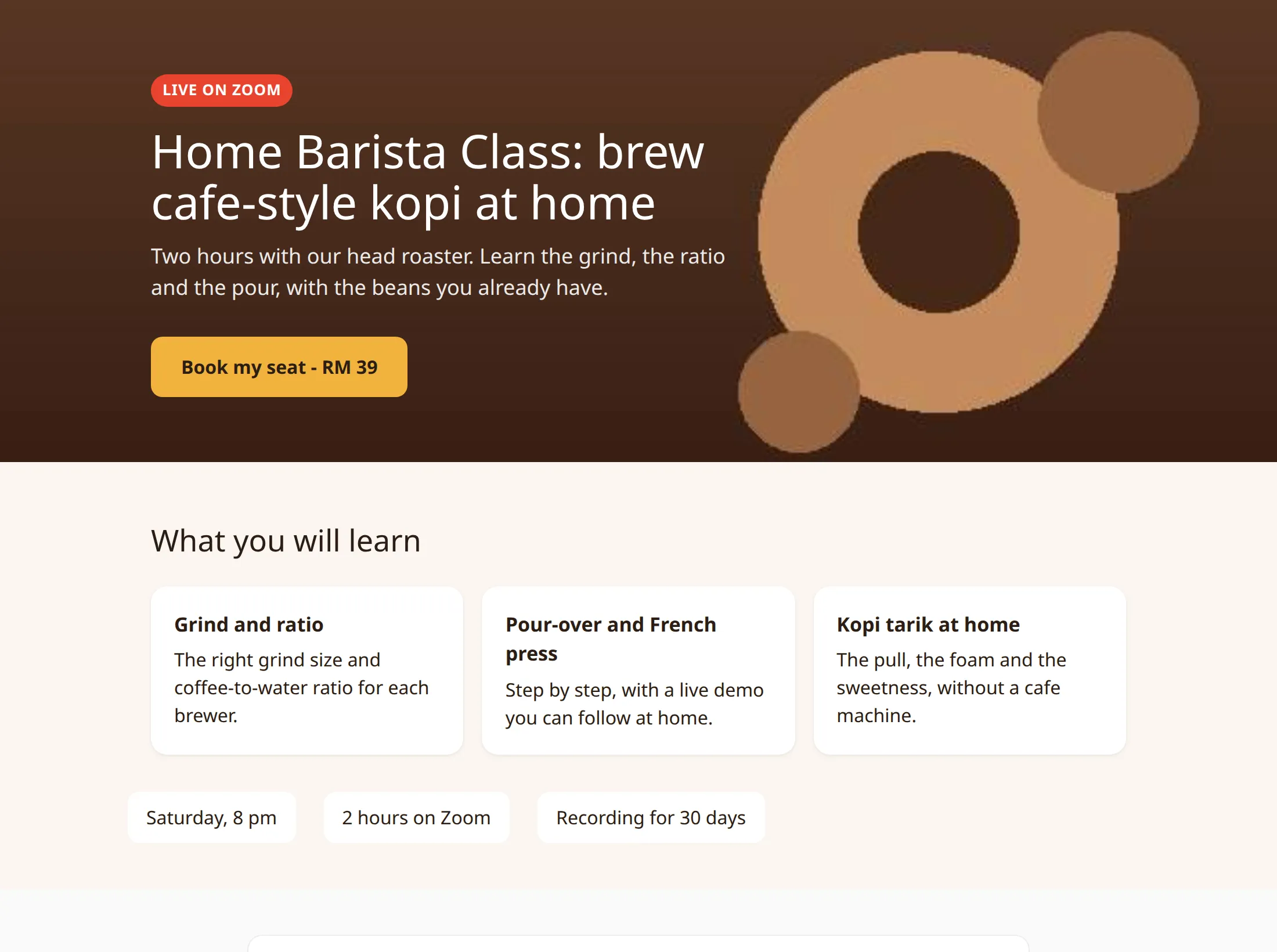
Your customers see the same page on the form’s link:
BCL shows your HTML as it is. It does not remove scripts. Paste only code that you trust. The HTML can have shortcodes for live prices and stock. See HTML form shortcodes.
Where the payment form shows
Section titled “Where the payment form shows”BCL adds the payment form under your HTML. You do not add it yourself. The customer fills in their details and pays there:
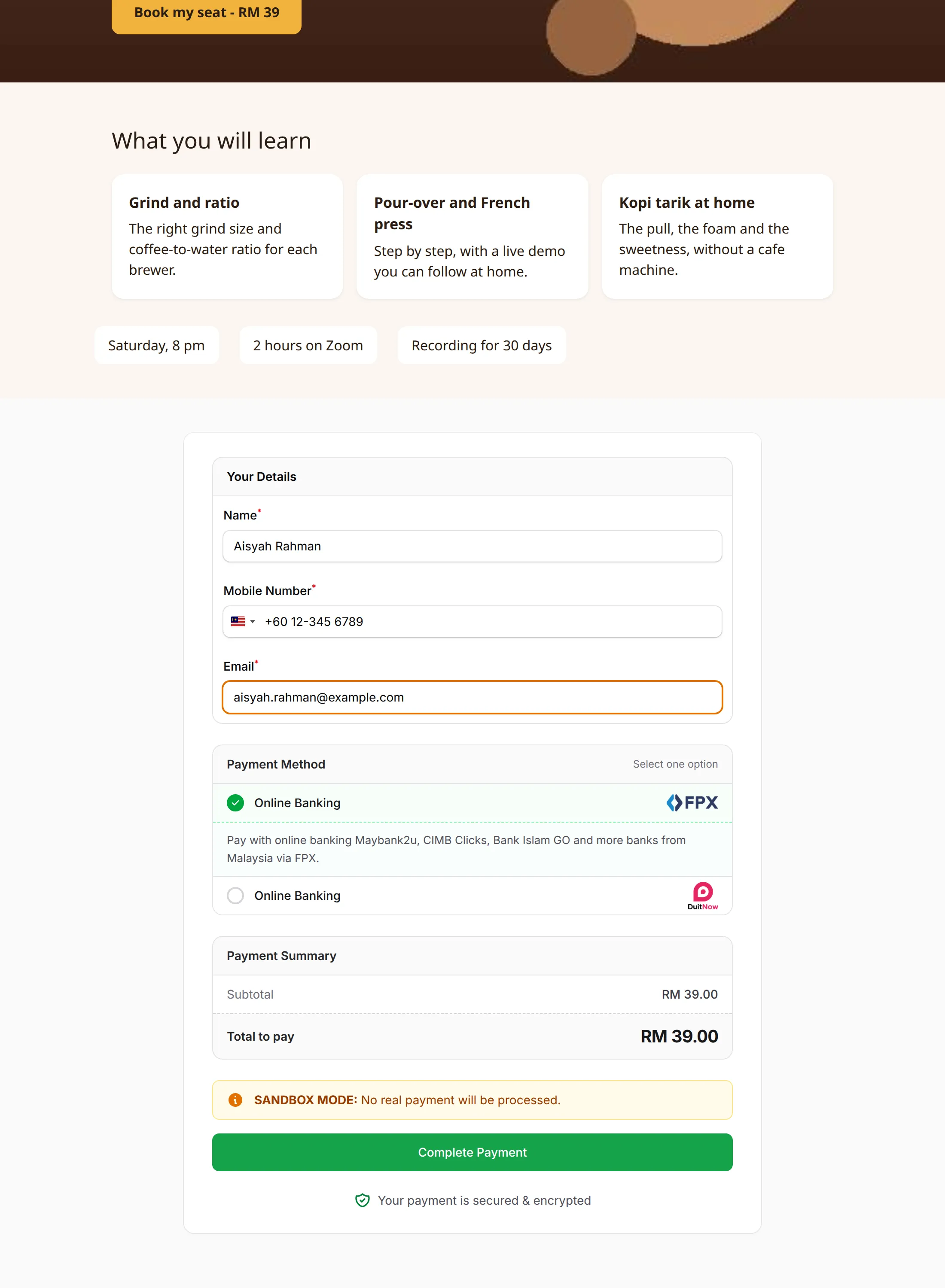
You can change this in two ways:
- Send customers to the form from a button. Link the button to
#bcl-payment-form, for example<a href="#bcl-payment-form">Book my seat</a>. - Put the form in a different place. Copy the form’s Embed Code from the bottom of its edit page. Paste it into your HTML where the form must show. BCL then does not add a second form. See Embed a form on your website.
When the form is closed or outside its schedule, your HTML still shows. The payment form shows a closed or Opening Soon message instead.
Make the page load fast
Section titled “Make the page load fast”Big pictures make a page slow. AI tools often put pictures inside the HTML as base64 text, which makes the HTML very big. The editor has three buttons on the right side of the Code tab to help:
| Button | What it does |
|---|---|
| Upload inline images | Moves the pictures in <img> tags to your media library and changes their links in the HTML. Then BCL saves the page. |
| HTML summary & tips | Shows the size, the lines, the images, the links, the scripts and the styles, with tips. |
| Check HTML for errors | Finds tags that are not closed and errors in the CSS and scripts. Click an error to go to its line. |
To move the pictures:
-
Click Upload inline images. The window shows how many pictures it found.
-
Click Upload & replace.
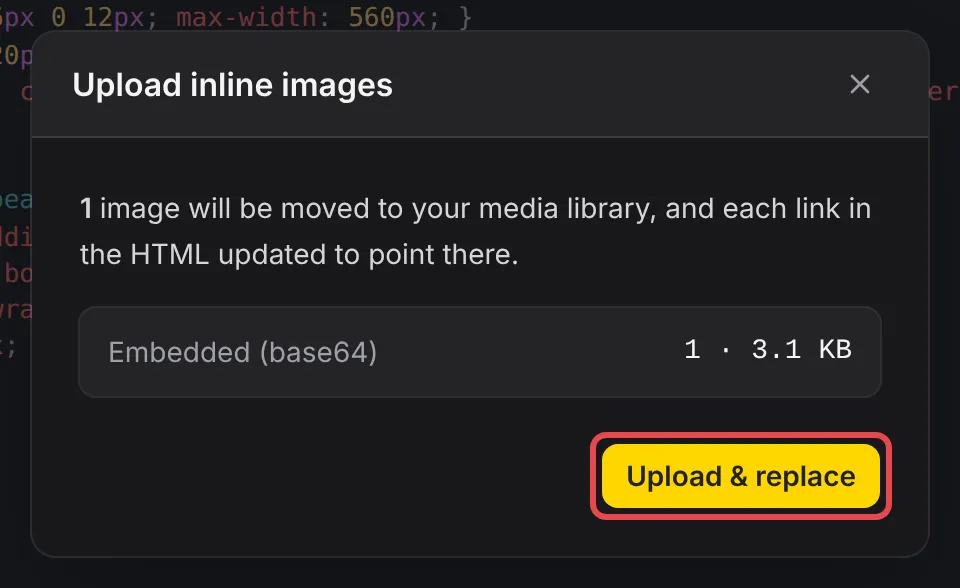
Upload inline images accepts PNG, JPG, GIF and WebP pictures. It does not move a picture in the CSS, for example a background image. Put that picture in an <img> tag, or upload it to your media library and use its link.
HTML summary & tips warns you about base64 pictures, a missing viewport tag and HTML over 512 KB:
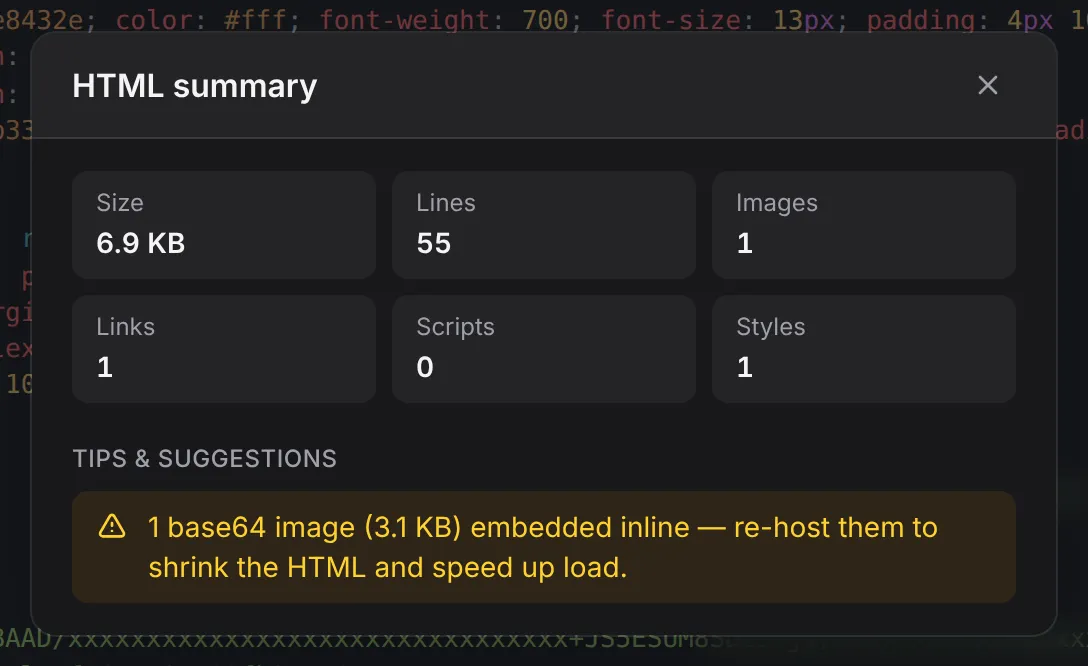
The editor does not save a page over 25 MB.
Show your page without a form
Section titled “Show your page without a form”To show only your HTML, with no payment form, use a minisite. For example, use it for a bridge page or an offer page with a button to another form:
-
Open the Form Configuration tab of the form.
-
In Form Status, turn on Use as minisite.

-
Click Update Form.
A minisite shows only when the form is active and inside its schedule. See Build a two-step funnel.
These habits keep a Custom HTML page fast and easy to change:
- Ask for one HTML file. Get one file, with the CSS inside it. Also ask for a viewport tag, so that the page fits on a phone.
- Use picture links, not base64. Upload your pictures to your media library first and use their links. Or click Upload inline images after you paste the HTML.
- Keep a copy of your HTML. BCL keeps only the last saved version. Keep the file on your computer too.
Common issues
How do I make a sales page with my own design, like the class pages I see on other BCL forms?
Those pages use Custom HTML. Design the page in HTML, or ask a designer or an AI tool for one HTML file. Then open your form, set Type of Form to Custom HTML on the Payment Details tab and click Open HTML Editor. Paste the HTML and click Save HTML. BCL shows the payment form under your design.
Can I put the payment form in the middle of my page, not at the end?
Yes. Copy the form's Embed Code from the bottom of its edit page. Paste it into your HTML where the form must show, and click Save HTML. BCL then does not add a second form at the end. To send customers to the form from a button, link the button to #bcl-payment-form.
I clicked Upload inline images, but my page is still slow. Why?
Upload inline images moves only the pictures in <img> tags. A picture in the CSS, for example a background image, stays in the HTML. Move that picture to an <img> tag, or upload it to your media library and use its link. Click HTML summary & tips to see the page size.
Was this article helpful?
Thanks for your feedback.
Sorry this didn't help. WhatsApp us and we'll sort it out with you.