
Ask an AI about this page
 ChatGPT
 Claude
 Perplexity
 Google AI Mode
 Microsoft Copilot
 Grok
Grok Mistral Le Chat
Remind participants before your event
Updated

People buy tickets weeks ahead and then forget. This automation holds every new participant until a date you choose, such as 9:00 the morning before the event, and then emails them the time, the venue and their ticket. You build it once per event.
What you need
Section titled “What you need”An event form with a date, and the date and time you want the reminder to go out. The example uses the demo event “Kopi Kampung Coffee Festival 2026” on 17 October 2026 at 9:00.
Build it
Section titled “Build it”Start from a blank automation (see Create an automation):
-
Go to Automations, click New Automation, name it after the event, such as “Coffee Festival Reminder”, and click Create.
-
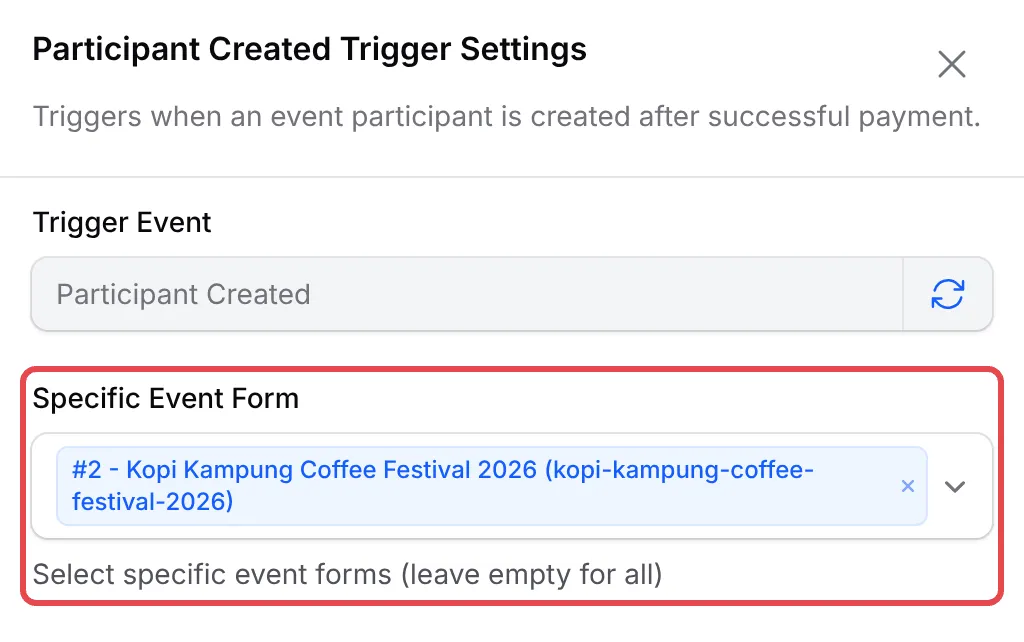
Click Add Node and pick Participant Created. Double-click the trigger, pick your event in Specific Event Form and click Save Trigger.
-
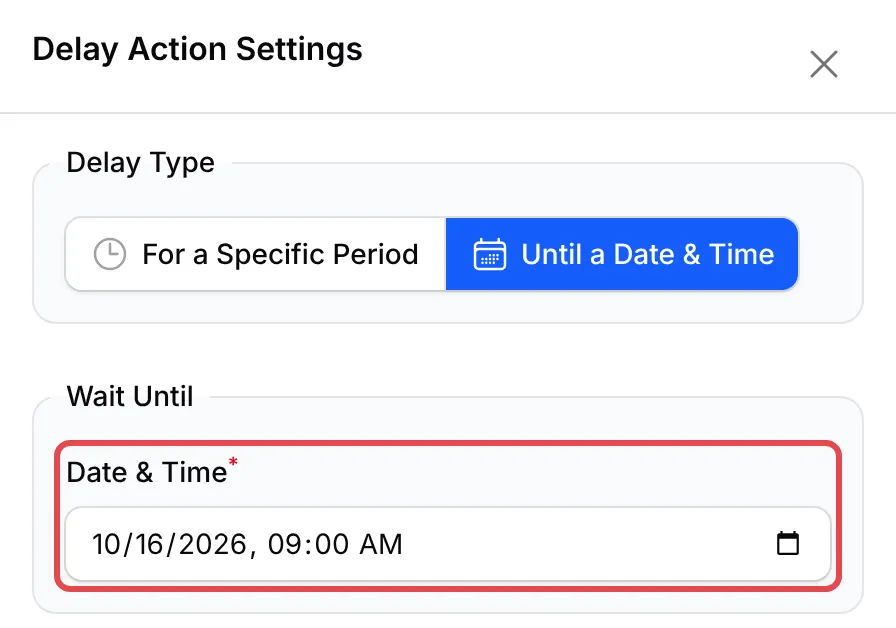
Click Add Node and pick Delay. Double-click it, choose Until a Date & Time, and set Date & Time to the moment the reminder should go out, for example 16 October 2026, 09:00. Click Save Delay.
-
Click Add Node and pick Send Email. Double-click it, fill it in as below and click Save Email.
Field Enter Action Name Festival reminder Recipient Email {attendee_email}Email Subject See you tomorrow at {event_name}Email Content The message below Hi {attendee_name},{event_name} is tomorrow, {event_date} at {event_time}.Venue: {event_location}Your ticket: {ticket_name}, seat {seat_number}Show your ticket at the door: {ticket_url}See you there,{business_name}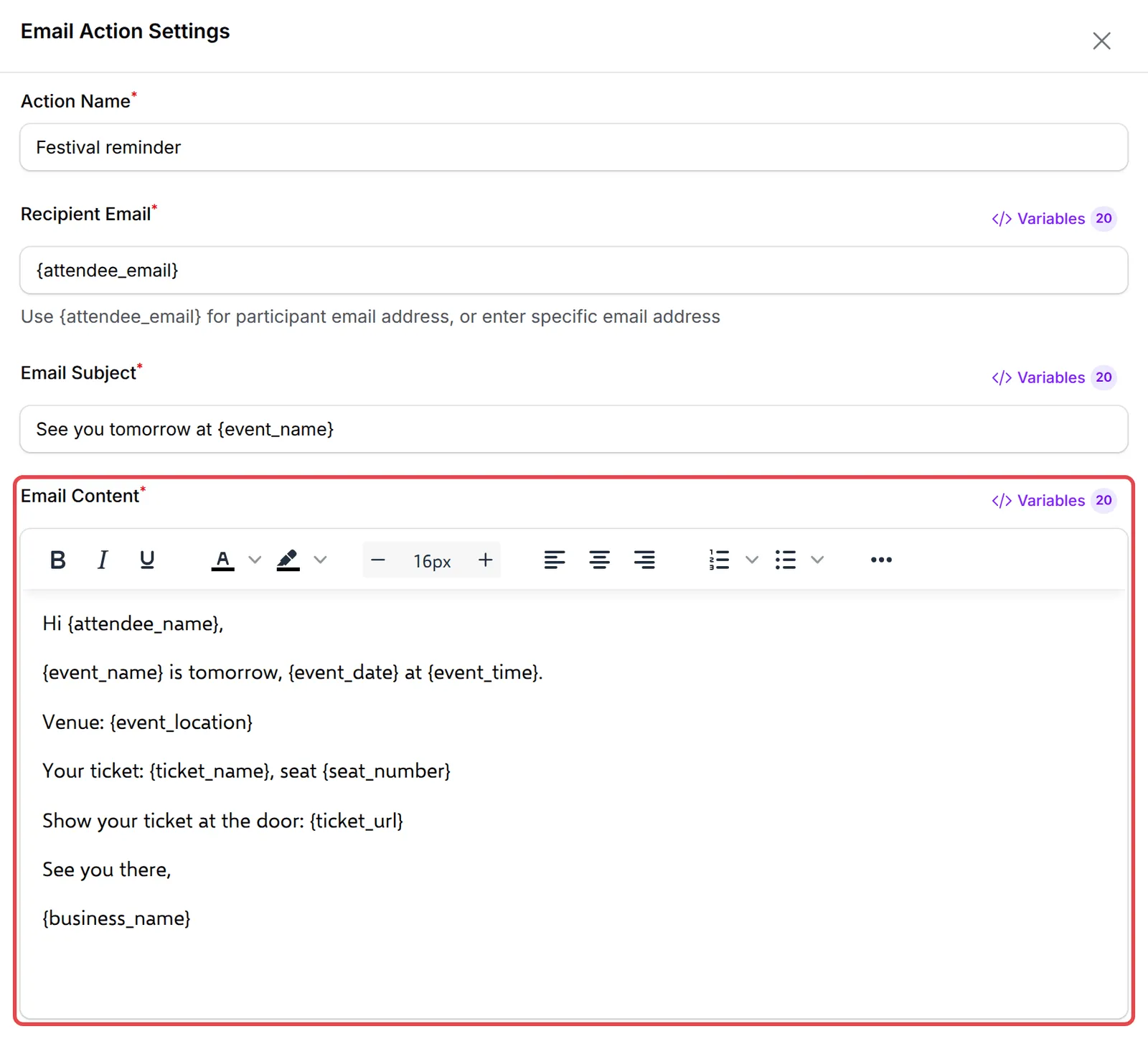
-
Click Update Automation.
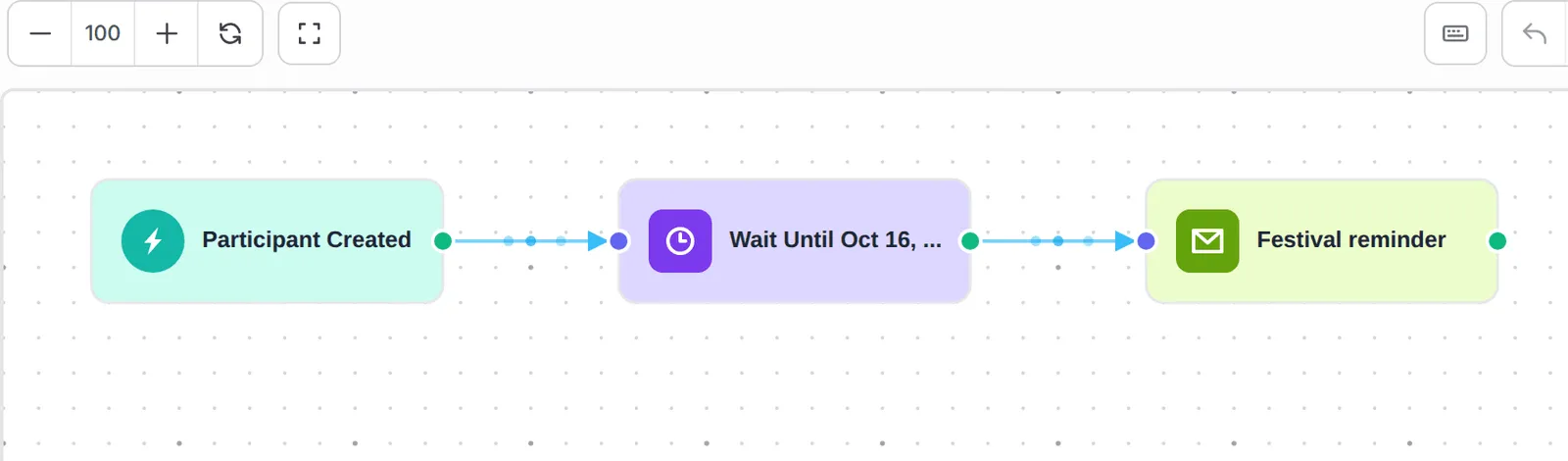
The finished workflow:
The message fills in from each participant’s ticket:
| Variable | Example |
|---|---|
{event_date} / {event_time} |
17/10/2026 / 09:00 |
{event_location} |
Dewan Kopi Kampung, Jalan Kopi 1, 50450 Kuala Lumpur |
{ticket_name} / {seat_number} |
Normal / B1-006 |
{ticket_url} |
A link to the participant’s ticket |
Leave out {seat_number} if your event has no seating. One email goes to each participant, so a buyer with three tickets gets three reminders if all three use their own email.
Test it
Section titled “Test it”Check the recipe with a test run before you rely on it:
-
Buy a ticket for the event in Test Mode.
-
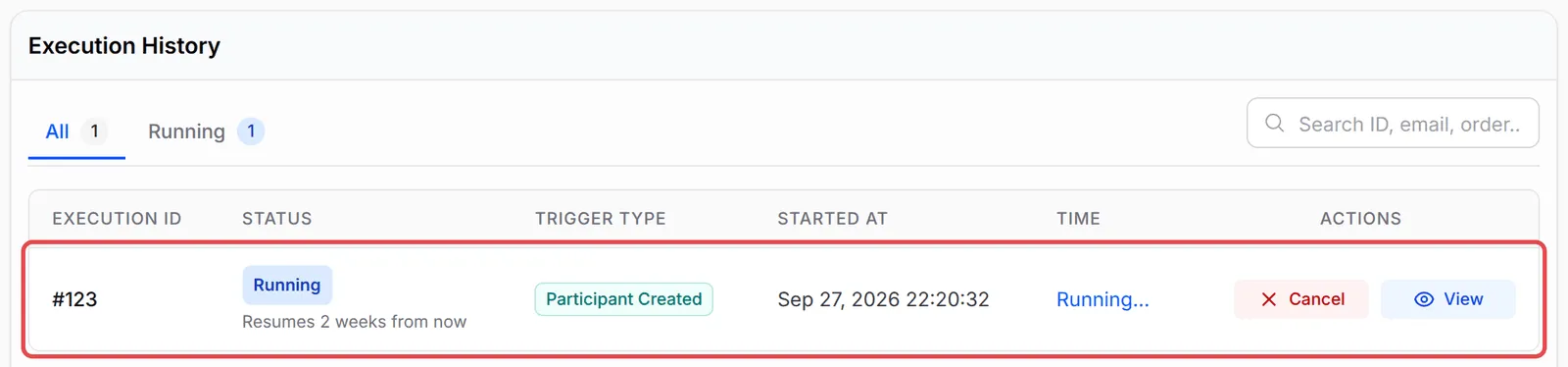
Open the automation and click Overview. The new participant shows as Running, with “Resumes” and the time left.
-
Click View on the run: Pending Delays says when it will resume, and the email step waits as a pending node.
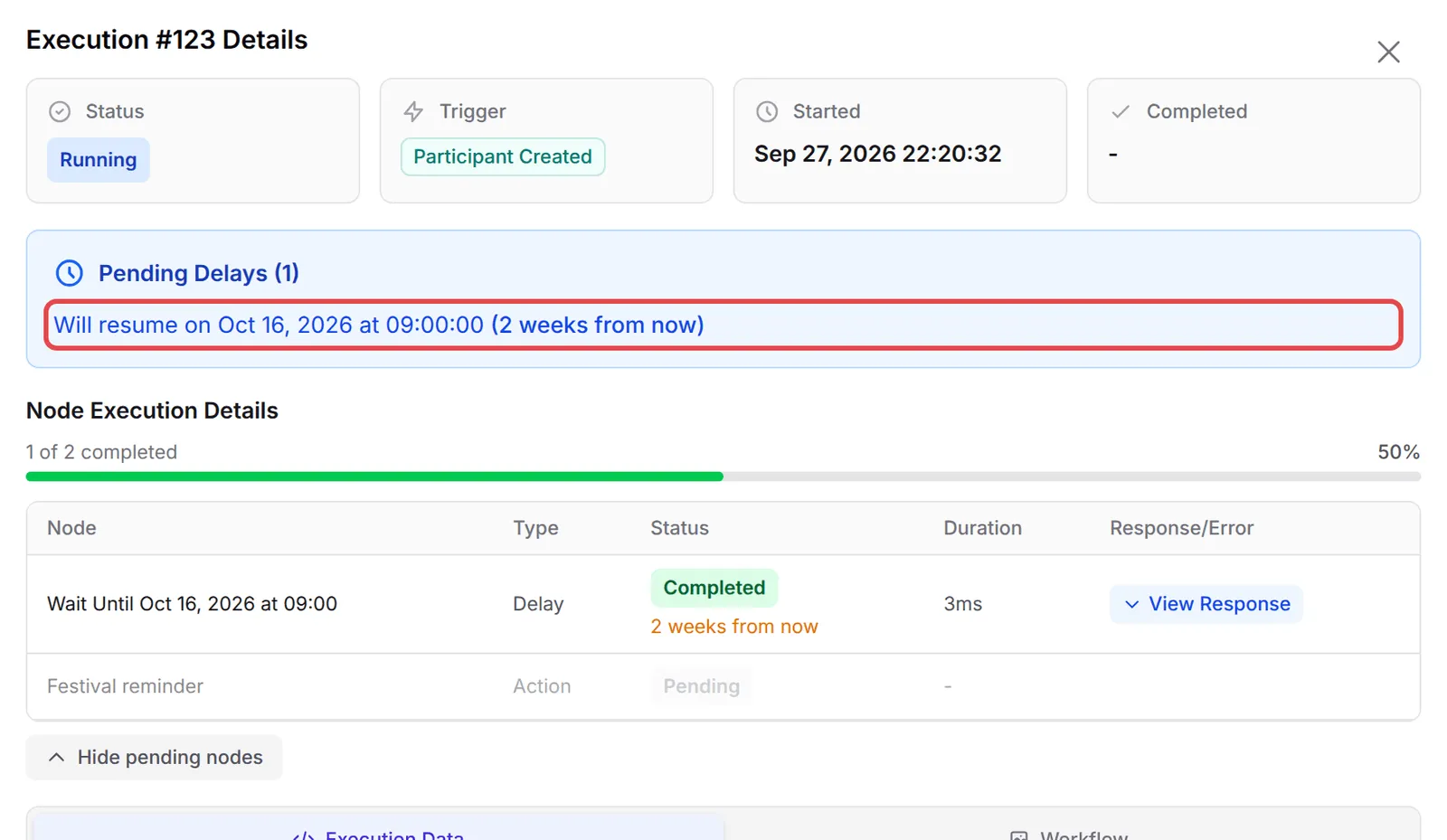
On the chosen date, BCL sends the email and the run turns Completed.
A few ways to get more from this recipe:
- Build the automation when you open ticket sales. Only participants created while it is active are queued.
- Keep it active until the reminder has gone out. If you deactivate it, waiting runs are cancelled when their time comes.
- Send a WhatsApp reminder too. Add a Send Wabot or Send WasapBot step after the delay with
{attendee_phone}; most people read WhatsApp sooner than email. - Cancel reminders for a postponed event. Use Actions → Cancel 3 Pending on the Overview page (the number is how many runs are waiting). Runs already waiting keep the date they started with, so change the Delay before new registrations come in.
Common issues
The Event Registration Reminder template waits 1 day. Does it remind people before the event?
No. Its delay counts from the moment each person registers, not from the event date. For a reminder the day before the event, use a Delay of the type Until a Date & Time, as in this recipe.
What happens to people who register after the reminder date?
When the workflow reaches a date that has already passed, that branch stops and the history shows the delay as skipped. Late registrants get their ticket email but no reminder.
Was this article helpful?
Thanks for your feedback.
Sorry this didn't help. WhatsApp us and we'll sort it out with you.