
Ask an AI about this page
 ChatGPT
 Claude
 Perplexity
 Google AI Mode
 Microsoft Copilot
 Grok
Grok Mistral Le Chat
Connect Claude or ChatGPT to BCL
Updated

You can connect an AI assistant such as Claude or ChatGPT to your BCL account. You then ask questions in plain words, like “How much did I sell this month?”, and the assistant looks up the answer in BCL for you. It can also create payment links and coupons or update your forms, but only if you allow it.
BCL does this through an MCP server. MCP (Model Context Protocol) is an open standard that lets AI apps use other services safely. You do not install anything: you give your AI app one web address and sign in with your BCL account.
What the assistant can do
Section titled “What the assistant can do”Once connected, the assistant works with the same data you see in the BCL dashboard:
| Area | Examples |
|---|---|
| Sales and transactions | Totals for today or this month, failed or pending payments, one order’s details |
| Customers | Find a customer by email or phone, top customers by amount paid |
| Payment forms and events | List your forms, change a price, stock, title or status, duplicate a form |
| Payment links and coupons | Create a payment link or a discount coupon |
| Protected content | See who has access, change access rules, switch content on or off |
| Automations | See your automations and whether they ran successfully (read only) |
The assistant cannot change your payment settings, Bayarcash keys, company or team settings. It cannot delete anything. For the full list, see MCP tools reference. For ready-made questions, see Things to ask your AI assistant.
Before you start
Section titled “Before you start”You need three things:
- An Admin account in BCL. The Connect AI Agent page is not shown to the Team and Crew Event roles. See Team roles and permissions.
- Claude (claude.ai or the Claude Desktop app) or ChatGPT on a paid plan. For other AI apps, such as Cursor or VS Code, see Set up other AI apps.
- A few minutes to read what you are allowing. The assistant sends your BCL data, including your customers’ names, emails and phone numbers, to the AI provider when it answers you.
Find your BCL server address
Section titled “Find your BCL server address”Every AI app needs the same address, shown in BCL:
-
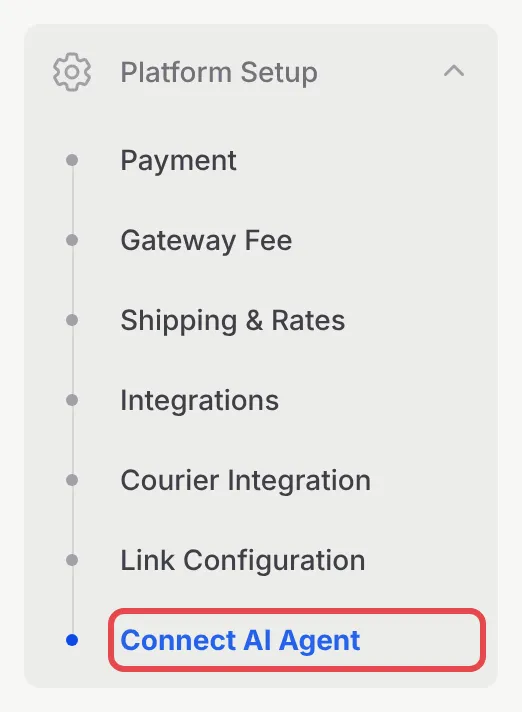
In the sidebar, go to Platform Setup → Connect AI Agent.
-
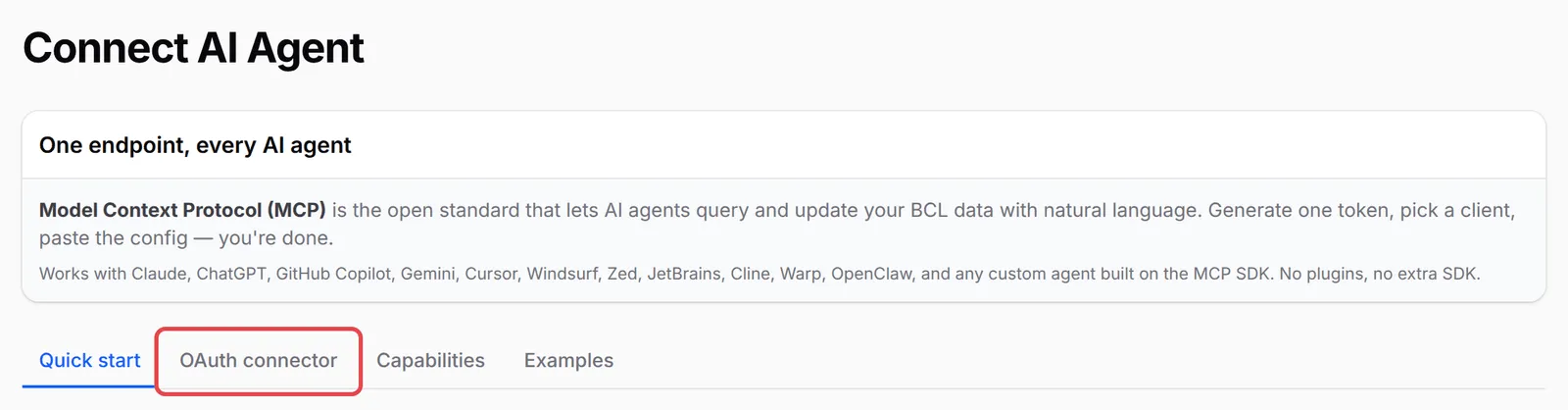
Open the OAuth connector tab.
-
Under 2. Paste the MCP URL, click Copy. The address is
https://bcl.my/mcp.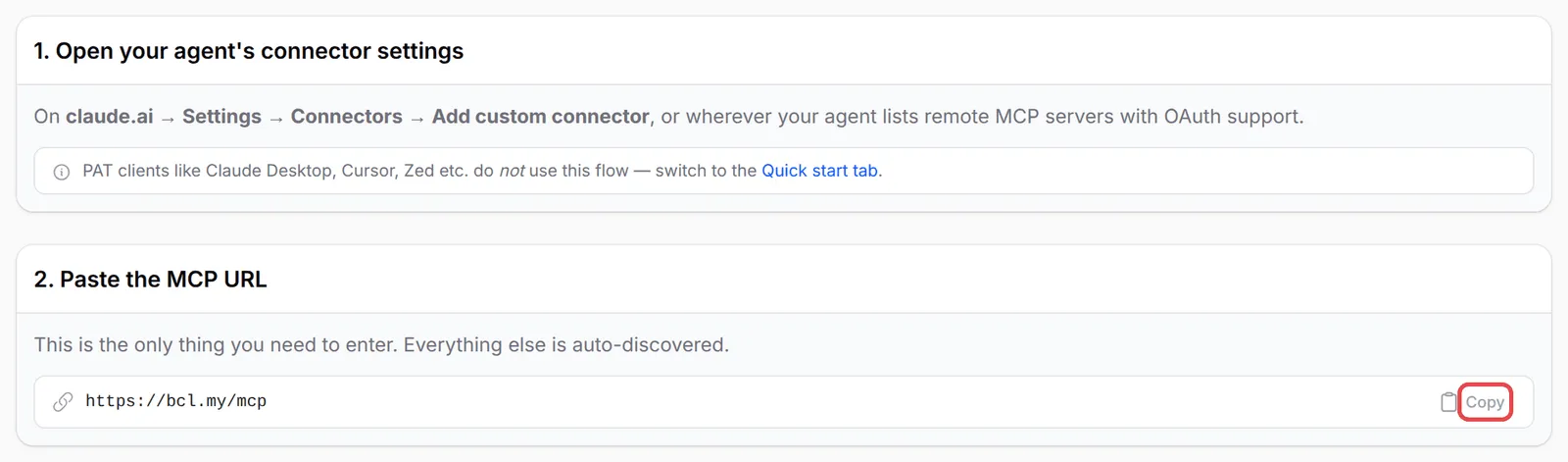
Connect Claude
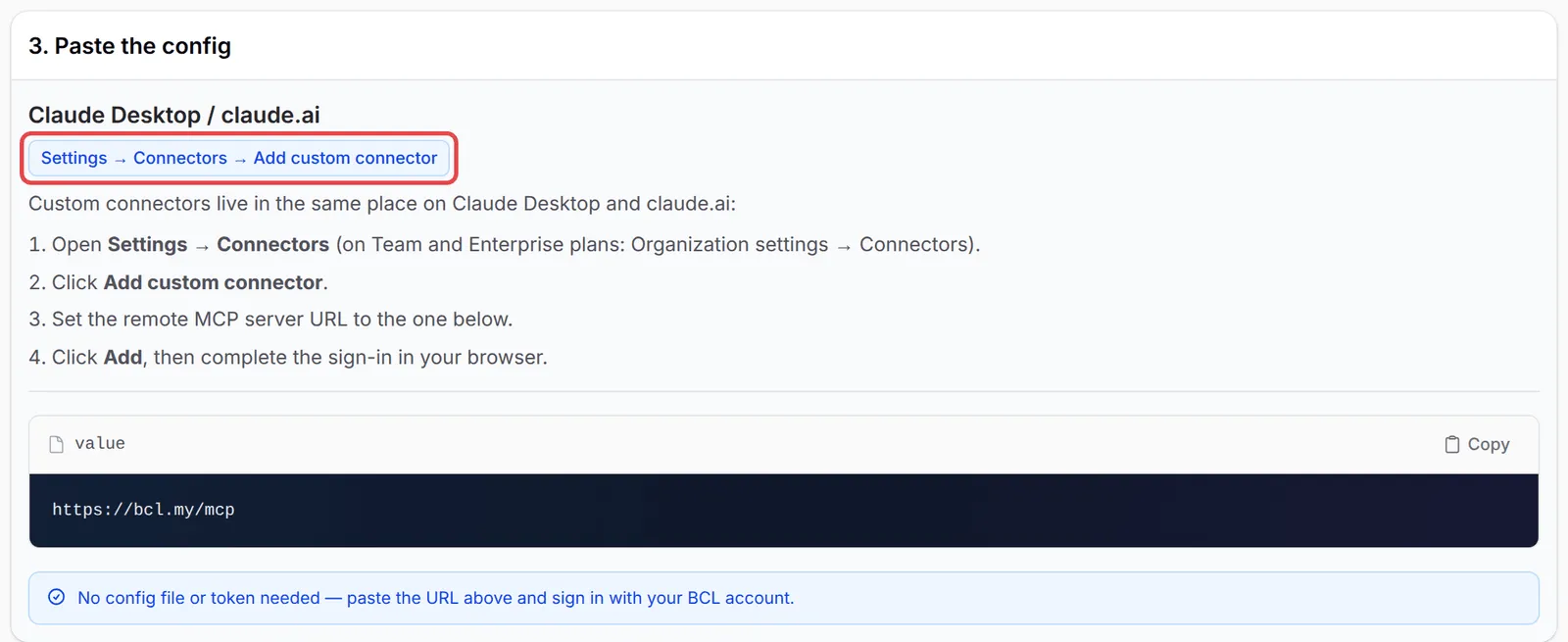
Section titled “Connect Claude”Claude uses the same connector on claude.ai and in the Claude Desktop app. BCL shows these steps on the Quick start tab when you pick Claude Desktop / claude.ai:
-
In Claude, open Settings → Connectors. On Team and Enterprise plans, an owner does this under Organization settings → Connectors.
-
Click Add custom connector.
-
Paste
https://bcl.my/mcpas the remote MCP server URL. -
Click Add. Claude opens BCL in your browser. Sign in if BCL asks you to.
-
On the BCL screen that opens, check the requested permissions and click Authorize. See Approve the connection below.
You do not need a token or a config file for Claude.
Connect ChatGPT
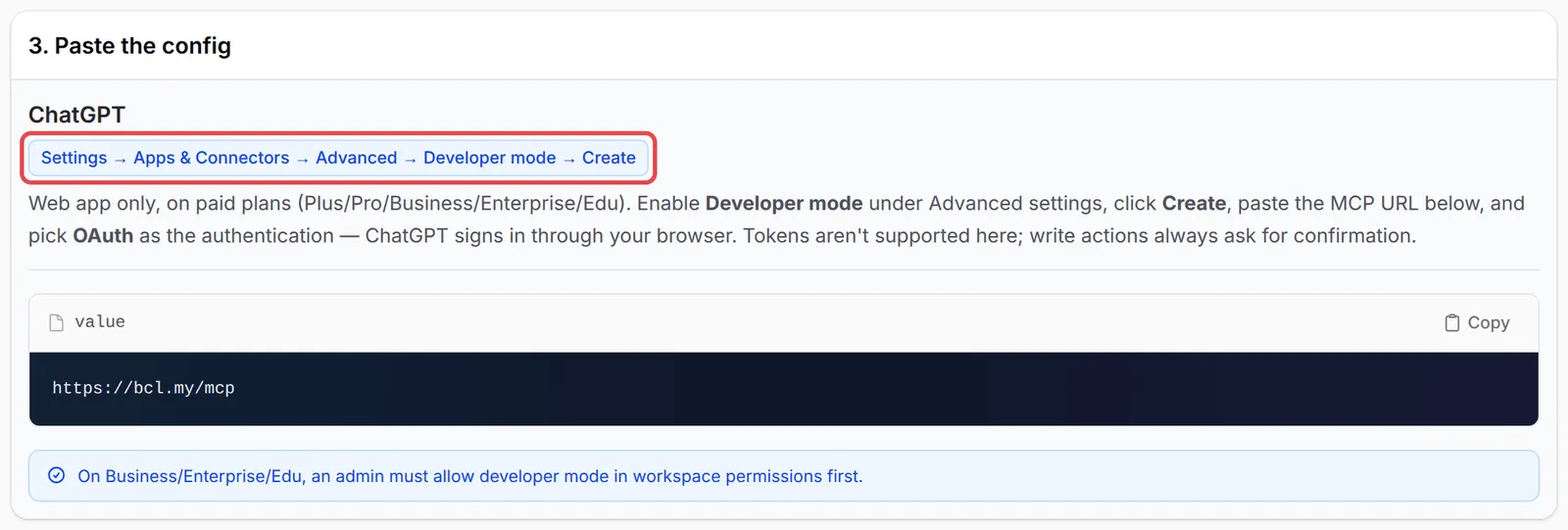
Section titled “Connect ChatGPT”ChatGPT adds BCL through its developer mode. BCL’s Quick start tab gives these steps for ChatGPT:
-
On the ChatGPT website, open Settings → Apps & Connectors → Advanced and turn on Developer mode. It is only on paid plans (Plus, Pro, Business, Enterprise and Edu). On Business, Enterprise and Edu, a workspace admin must allow developer mode first.
-
Click Create and paste
https://bcl.my/mcpas the MCP URL. -
Choose OAuth as the authentication. ChatGPT does not accept a BCL token.
-
ChatGPT opens BCL in your browser. Sign in and click Authorize.
ChatGPT asks you to confirm every action that changes something in BCL.
Menus in Claude and ChatGPT change often. If a label differs, look for “connectors” or “custom MCP server” in their settings.
Approve the connection
Section titled “Approve the connection”When your AI app sends you to BCL, BCL shows a consent screen. It names the app, the BCL account you are signed in with, and the permissions the app asks for:
| Permission | What it lets the assistant do |
|---|---|
mcp:read |
Read your payment links, transactions, customers, forms, automations and coupons |
mcp:write |
Create and update payment links, coupons and forms on your behalf |
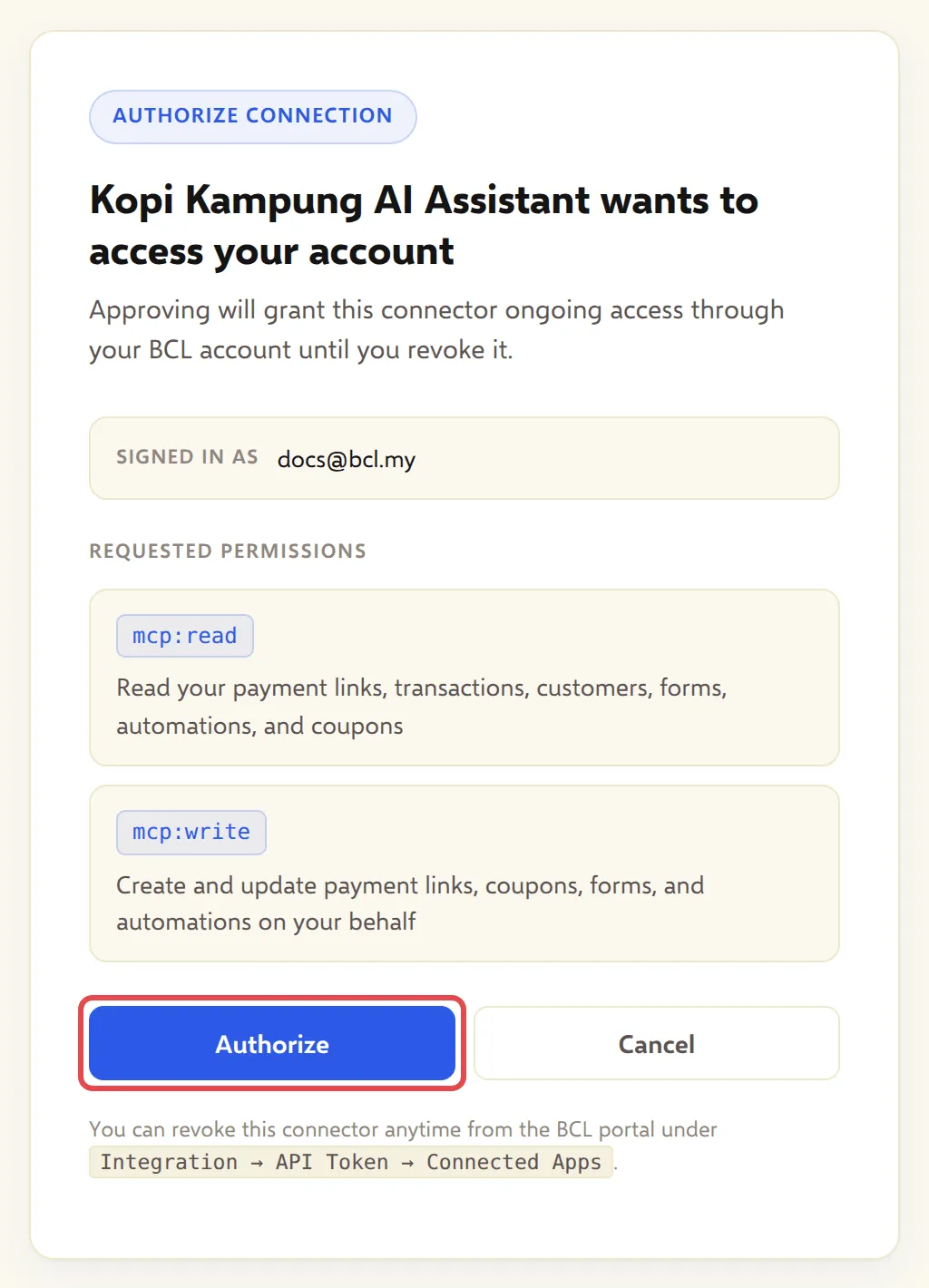
Check that Signed in as shows the right BCL account, then click Authorize. Click Cancel if you do not recognise the app.
The OAuth connector tab explains the same two permissions:
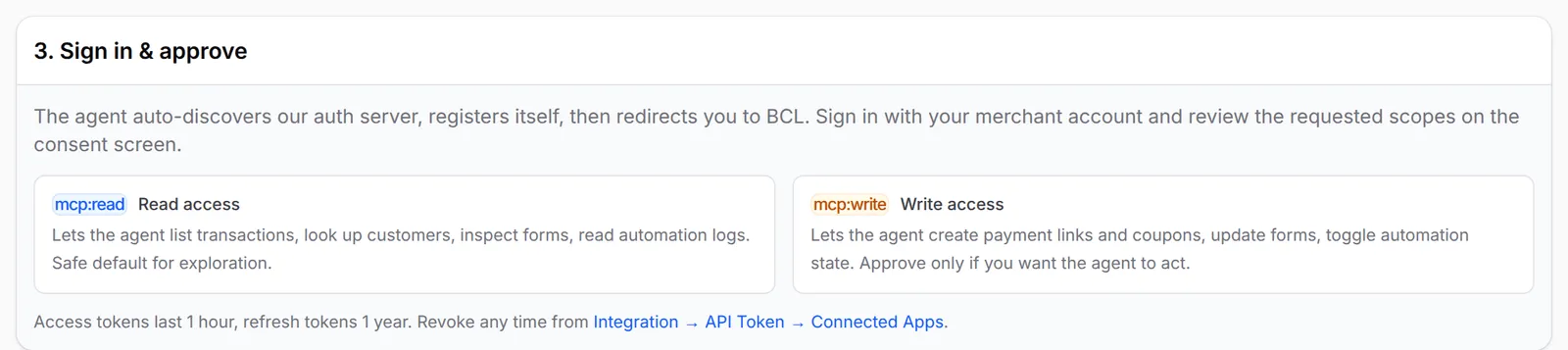
The connection keeps working until you revoke it. Your AI app renews its access in the background, so you do not sign in again each hour.
Disconnect an AI app
Section titled “Disconnect an AI app”You can cut off an app at any time. To revoke it:
-
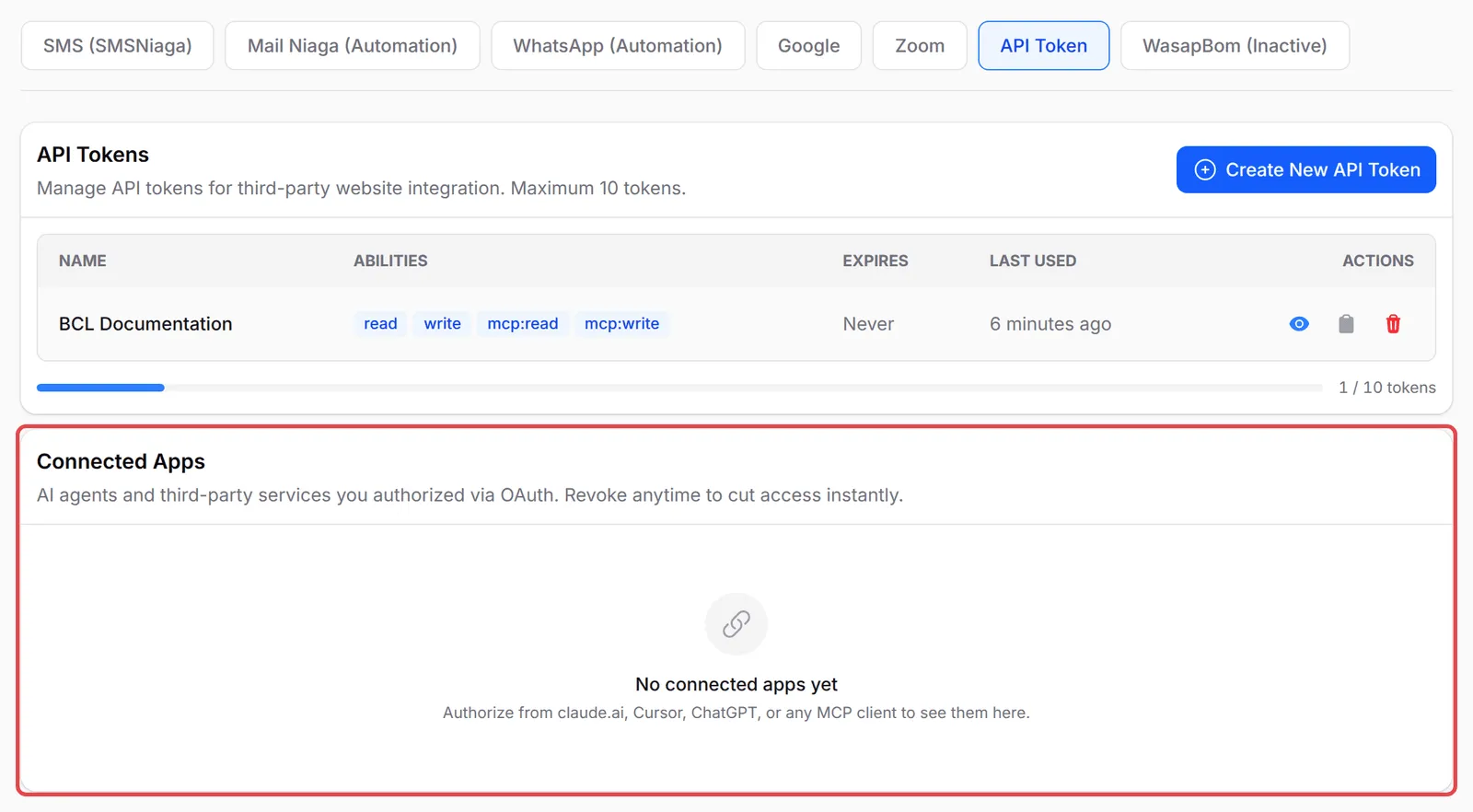
Go to Platform Setup → Integrations.
-
Open the API Token tab and scroll to Connected Apps. It lists each app you authorised, its permissions, when you authorised it and when it was last used.
-
Click the Revoke access icon on the app’s row.
-
In Revoke App Access, click Revoke Access.
The app’s access stops straight away. To use it again, connect it again from your AI app. Removing the connector inside Claude or ChatGPT alone does not revoke its access in BCL.
Connected Apps shows only the apps you authorised with your own login. Each Admin revokes their own connections.
A few habits keep an AI assistant safe on your account:
- Start with read access. Ask questions for a while before you let an assistant change prices, forms or coupons.
- Read before you confirm. When the assistant wants to create a payment link or change a form, check the amount, form and customer before you approve.
- Check the log now and then. Tools → MCP Audit Log lists every request an AI app made with your team’s access. See Check what your AI agent did.
Common issues
Can I connect BCL to an AI like Claude or ChatGPT?
Yes. BCL has an MCP server at https://bcl.my/mcp. Add it as a custom connector in Claude or ChatGPT, sign in with your BCL account and click Authorize. You find the steps under Platform Setup → Connect AI Agent.
Why does the AI say I have no sales, when my dashboard shows test payments?
The AI tools count live payments only. Payments made in Test Mode do not appear in the sales totals, transaction list or customer totals.
How do I stop Claude or ChatGPT from reaching my BCL account?
Go to Platform Setup → Integrations, open the API Token tab and revoke the app under Connected Apps. Its access stops straight away.
Was this article helpful?
Thanks for your feedback.
Sorry this didn't help. WhatsApp us and we'll sort it out with you.