
Ask an AI about this page
 ChatGPT
 Claude
 Perplexity
 Google AI Mode
 Microsoft Copilot
 Grok
Grok Mistral Le Chat
Manage your affiliates
Updated

Everyone who joins your affiliate programme is listed under Affiliate → Affiliates. From there you approve new affiliates, see what each one has earned, set a custom commission rate for one person, and suspend or remove affiliates.
Open the affiliates list
Section titled “Open the affiliates list”The list is on its own page in the Affiliate menu:
-
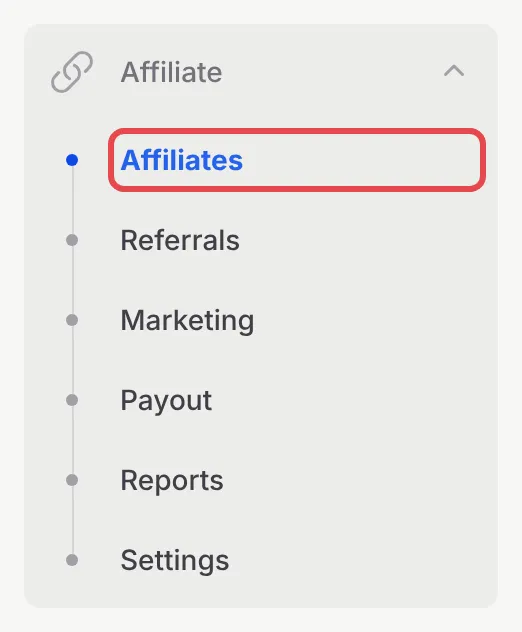
In the sidebar, go to Affiliate → Affiliates.
-
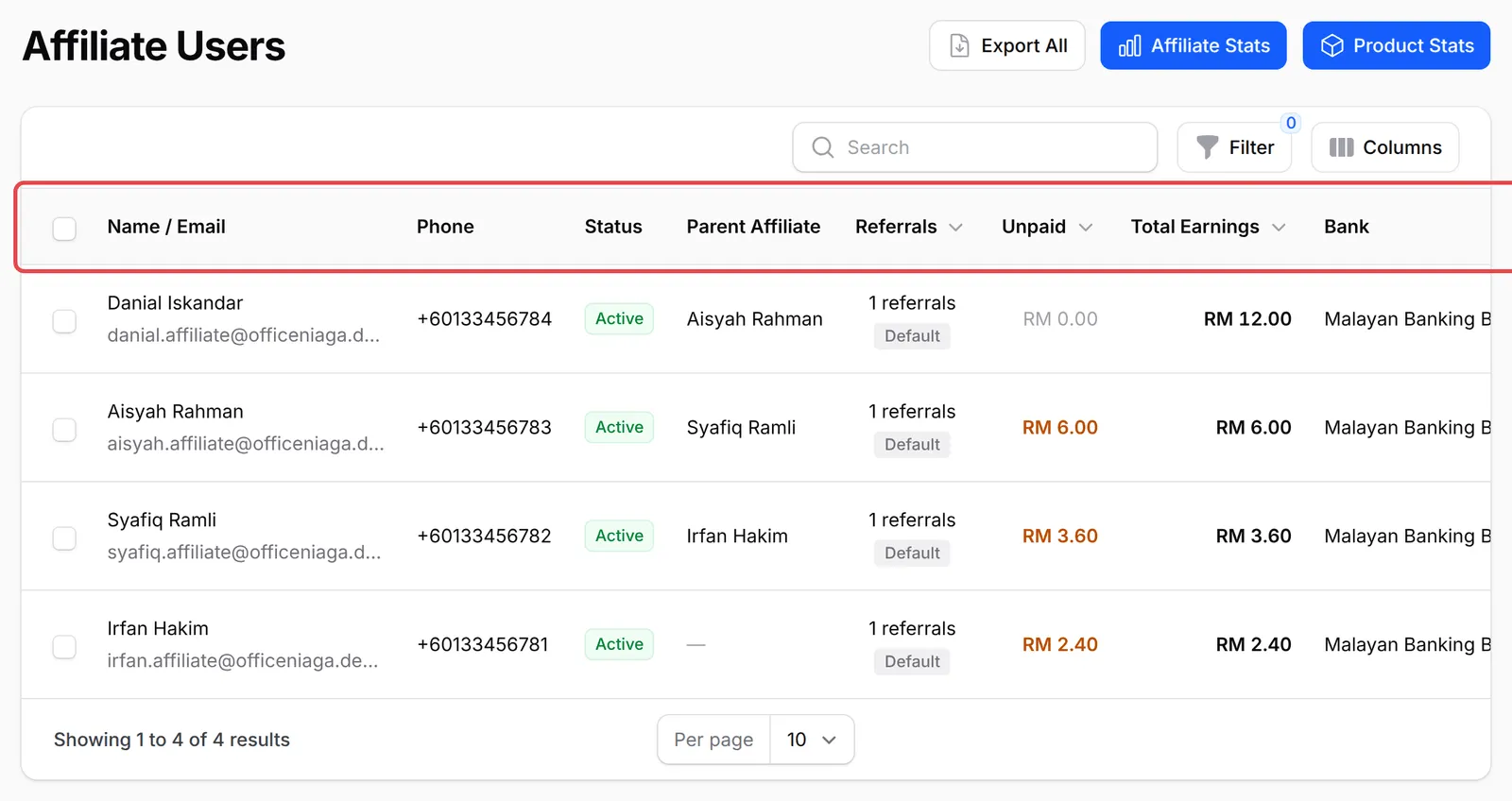
The Affiliate Users list shows each affiliate’s name and email, phone, Status, number of successful Referrals, Unpaid and Total Earnings, bank details and when they Joined. With multi-tier commission on, a Parent Affiliate column shows each person’s upline.
-
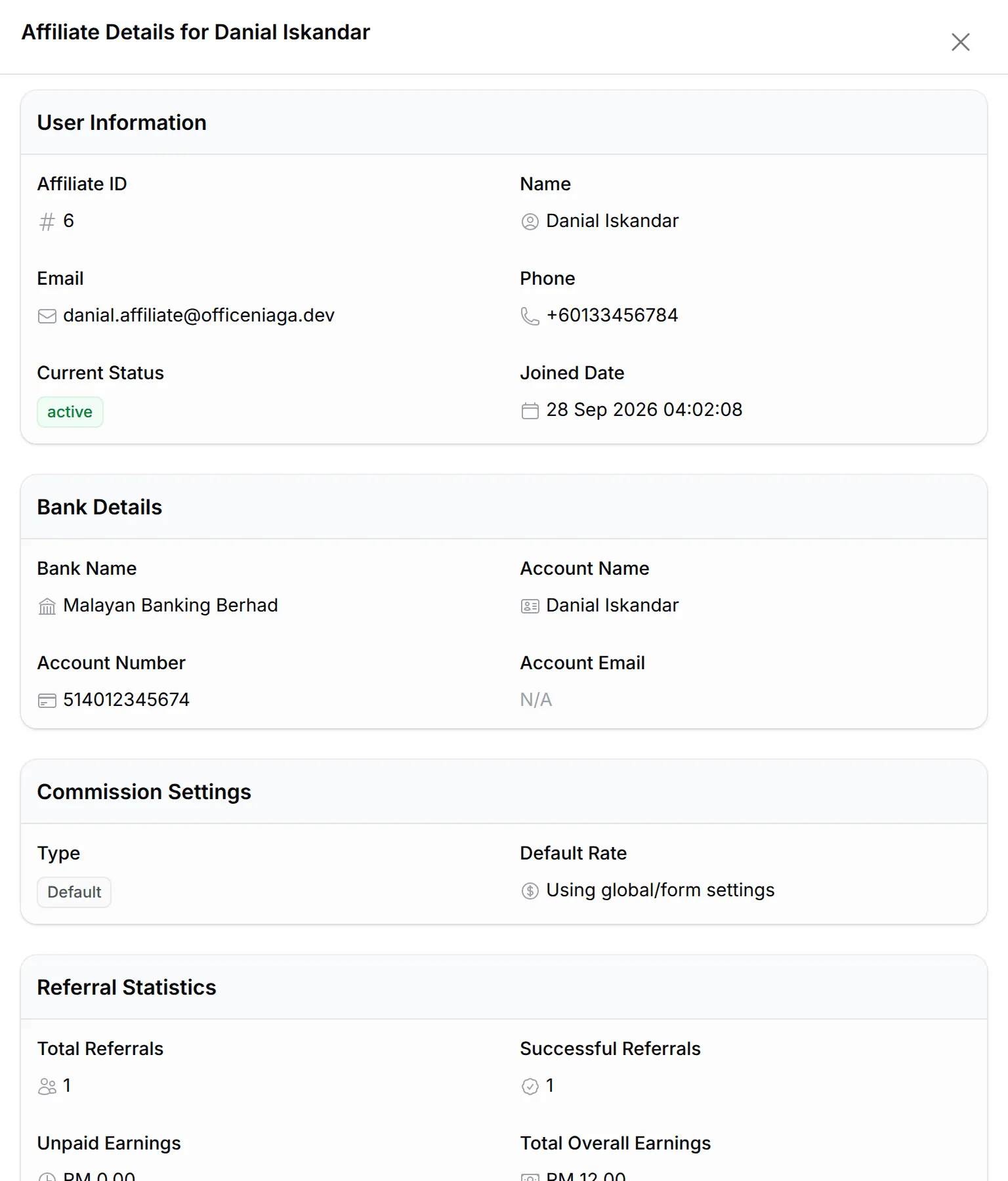
Click a row to open the affiliate’s details: User Information, Bank Details, Commission Settings, Referral Statistics, and the answers they gave when they joined.
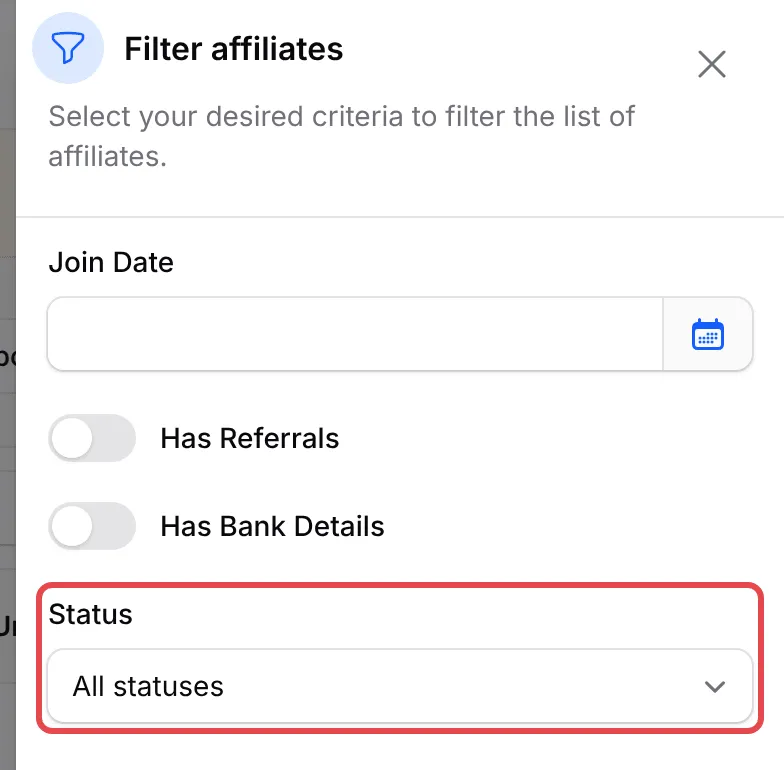
Use Filter to find affiliates by Status, Join Date, Has Referrals or Has Bank Details. Export All downloads the list as an Excel file, with the columns you choose.
Affiliate status
Section titled “Affiliate status”Each affiliate has one of three statuses:
| Status | What it means |
|---|---|
| Active | Can promote your forms and earn commission. |
| Pending | Joined while Require Manual Approval was on. Earns nothing until you approve them. |
| Suspended | Stopped by you. Earns no commission until you activate them again. |
Approve, suspend or remove an affiliate
Section titled “Approve, suspend or remove an affiliate”Every action is in the Actions menu at the end of the affiliate’s row:
-
Go to Affiliate → Affiliates and find the affiliate. To see only new sign-ups, filter by Status → Pending.
-
Open Actions and choose what to do:
Action Use it to Approve Affiliate Let a pending affiliate start earning straight away. Suspend Affiliate Stop an active affiliate earning commission. Activate Affiliate Let a suspended affiliate earn again. Remove from Team Take them out of your programme. This cannot be undone. 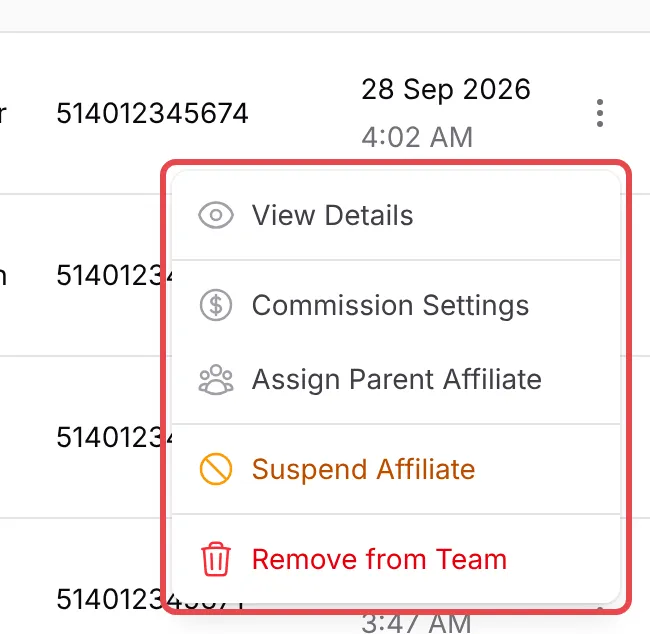
-
Confirm in the window that opens, for example Yes, suspend affiliate.
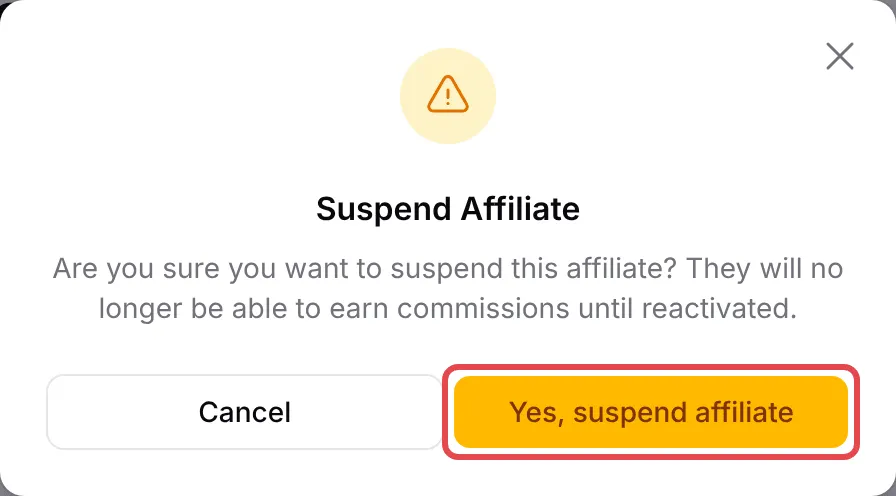
The menu only shows the actions that fit the affiliate’s status: Approve Affiliate for pending affiliates, Suspend Affiliate for active ones and Activate Affiliate for suspended ones.
A suspended or pending affiliate also stops the multi-tier chain: the uplines above them earn nothing on sales below them.
Give one affiliate a custom rate
Section titled “Give one affiliate a custom rate”A custom rate replaces your normal and per-form rates for that one affiliate:
-
Open the affiliate’s Actions menu and choose Commission Settings.
-
To change their rate on every form, turn on Enable Custom Commission, choose the Commission Type (Percentage (%) or Flat Amount (RM)) and enter the Commission Rate.
-
To change their rate on one form only, click Add Form Override under Per-Form Override, pick the form and enter the type and rate.
-
Click Submit.
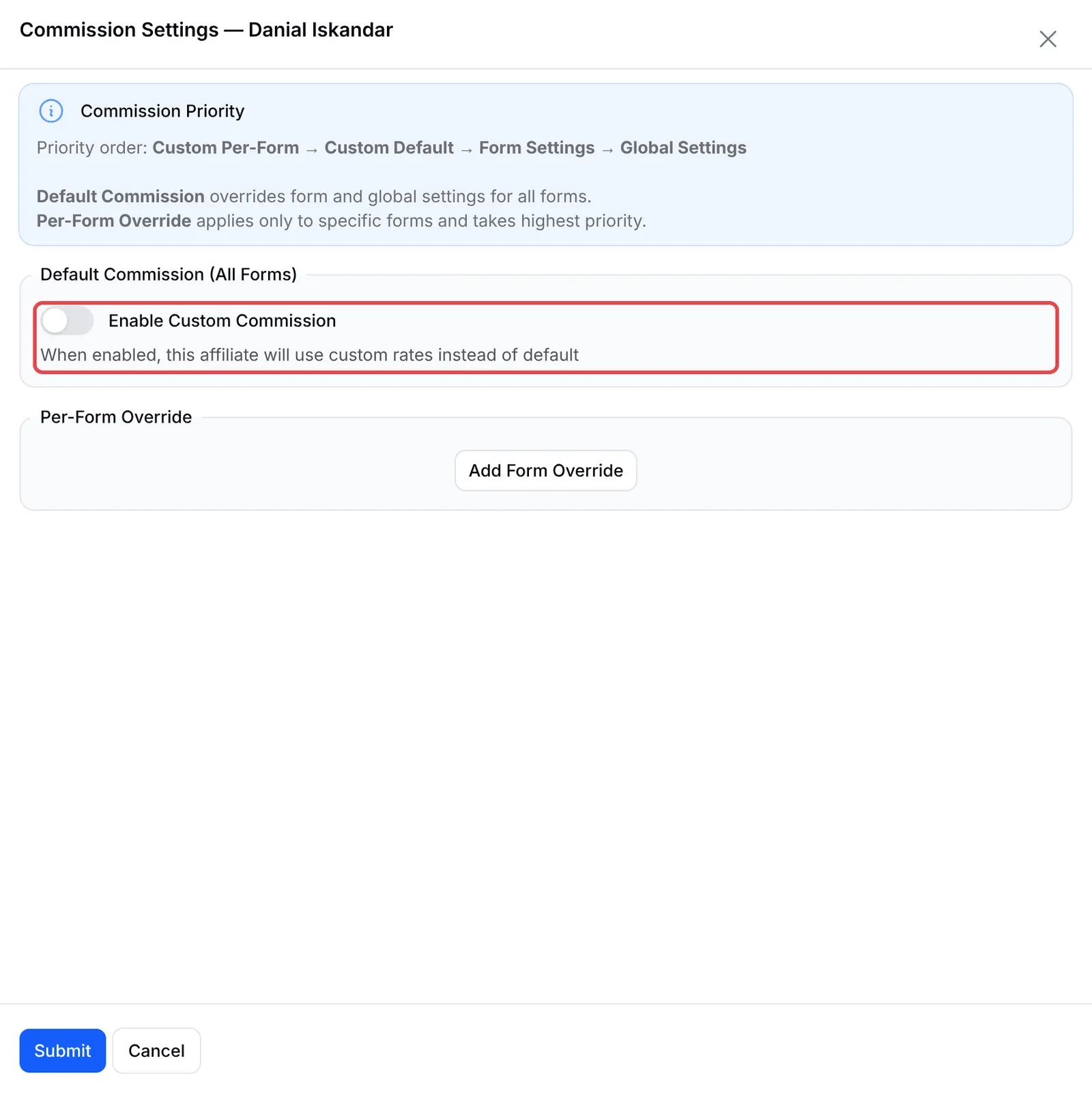
BCL uses the first rate it finds, in this order: the affiliate’s per-form override, their custom default, the form’s own rate, then your programme rate. An affiliate with a custom rate shows Custom under their referral count.
With multi-tier on and Apply To set to Selected Affiliates Only, Commission Settings also has Enable Multi-Tier for this Affiliate.
Change an affiliate’s upline
Section titled “Change an affiliate’s upline”With multi-tier commission, each affiliate can have one upline who earns from their sales. To set or change it:
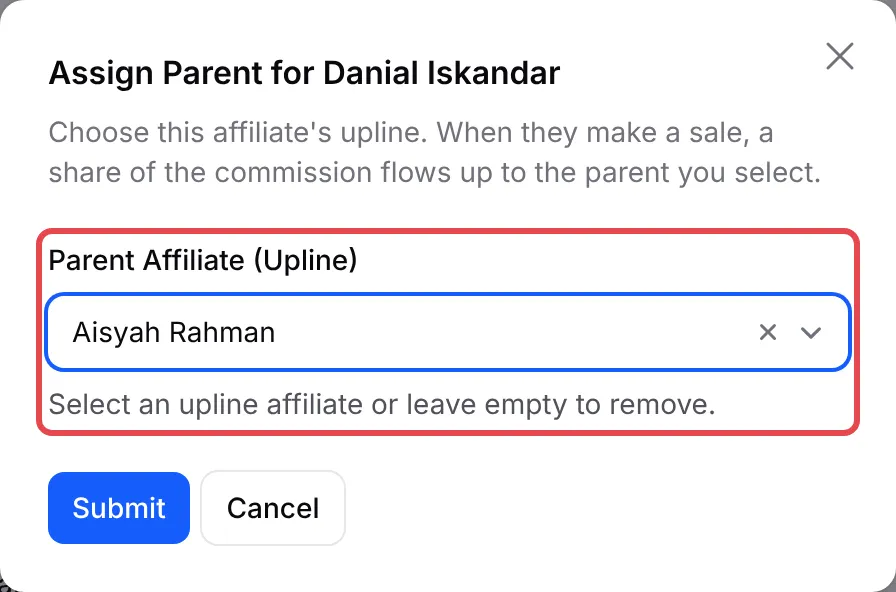
- Open the affiliate’s Actions menu and choose Assign Parent Affiliate.
- In Parent Affiliate (Upline), pick the upline, or clear it to remove the upline.
- Click Submit.
Invite-only programmes
Section titled “Invite-only programmes”Turn on Private Affiliate Program under Affiliate → Settings to hide your programme from the list of merchants that affiliates can browse and join. People can then only join through the sign-up or sign-in link you send them. See Invite affiliates to join.
Two habits make the list easier to manage:
- Filter by Has Bank Details before a payout. Affiliates without bank details cannot be paid by transfer.
- Suspend rather than remove. A suspension can be undone with Activate Affiliate; removing an affiliate cannot.
Common issues
Can I review affiliates before they start promoting?
Yes. Turn on Require Manual Approval in Affiliate → Settings. New affiliates join as Pending and earn nothing until you open their Actions menu on Affiliate → Affiliates and choose Approve Affiliate.
Can I pay one affiliate a higher rate than the others?
Yes. Open the affiliate's Actions menu, choose Commission Settings, turn on Enable Custom Commission and enter their rate. Use Add Form Override for a different rate on one form.
How do I keep my programme invite-only?
Turn on Private Affiliate Program in Affiliate → Settings. Your programme is then hidden from the list of merchants affiliates can browse, and only people you send your sign-up or sign-in link can join.
Was this article helpful?
Thanks for your feedback.
Sorry this didn't help. WhatsApp us and we'll sort it out with you.