
Ask an AI about this page
 ChatGPT
 Claude
 Perplexity
 Google AI Mode
 Microsoft Copilot
 Grok
Grok Mistral Le Chat
Protect a video
Updated

A protected video plays on a BCL page that only buyers can open after a one-time code. The video itself stays on YouTube, Vimeo or Facebook, or in any player you can embed. Use it for online classes, webinar recordings and members-only videos.
Add the video
Section titled “Add the video”Upload the video to your video host first and copy its link. Then:
-
Go to Protected Content and click New Content, or click Edit on an existing content. Fill in Title.
-
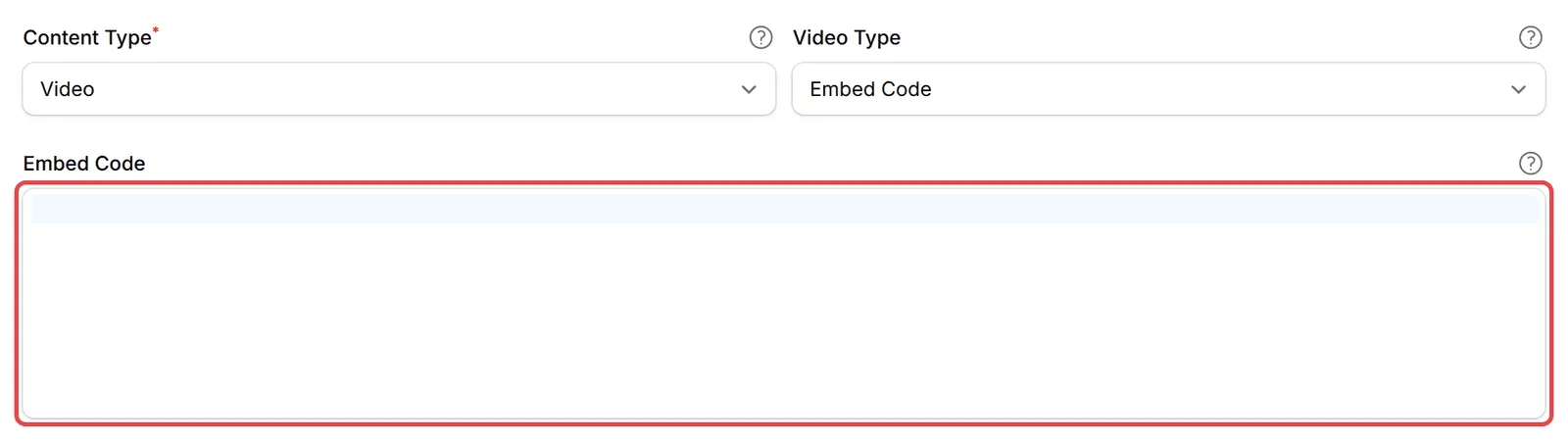
On the Content Settings tab, set Content Type to Video.
-
Choose a Video Type and paste the link:
Video Type Paste Example YouTube YouTube URL: a watch, youtu.be, live or shorts link https://www.youtube.com/watch?v=...Vimeo Vimeo URL https://vimeo.com/123456789Facebook Facebook Video URL https://www.facebook.com/username/videos/123456789Embed Code The iframe or script code from any video host <iframe src="...">YouTube (Stream Player) YouTube URL, played in BCL’s own stream player For live events: see Sell a pay-per-view live stream 
For Embed Code, paste the code into the Embed Code box that appears.
-
Set the access rules under Access Control. See Control who can open your content.
-
Click Create Protected Content, or Save Changes on an existing content.
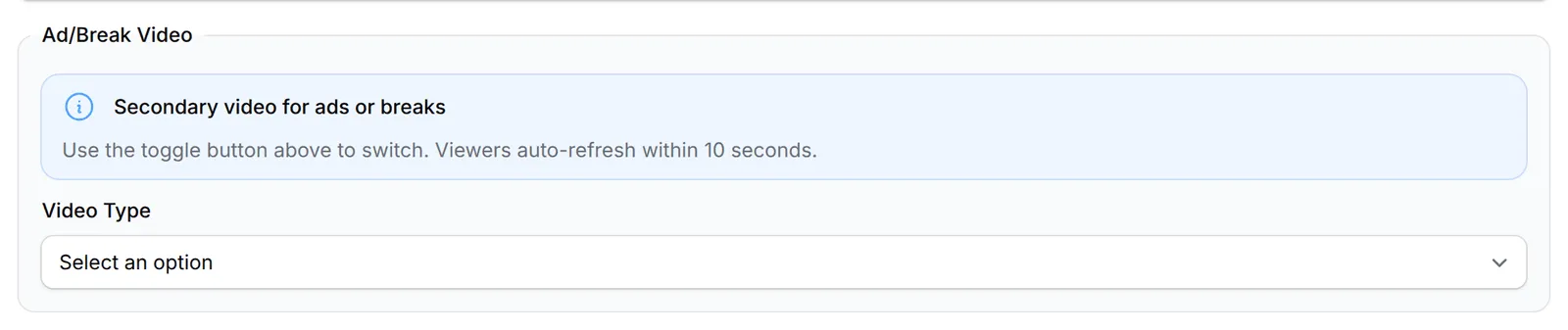
Every protected video also has an Ad/Break Video box. Leave its Video Type empty for recorded classes. It is for switching to a second video during a live stream: see Control a live stream.
Check what buyers see
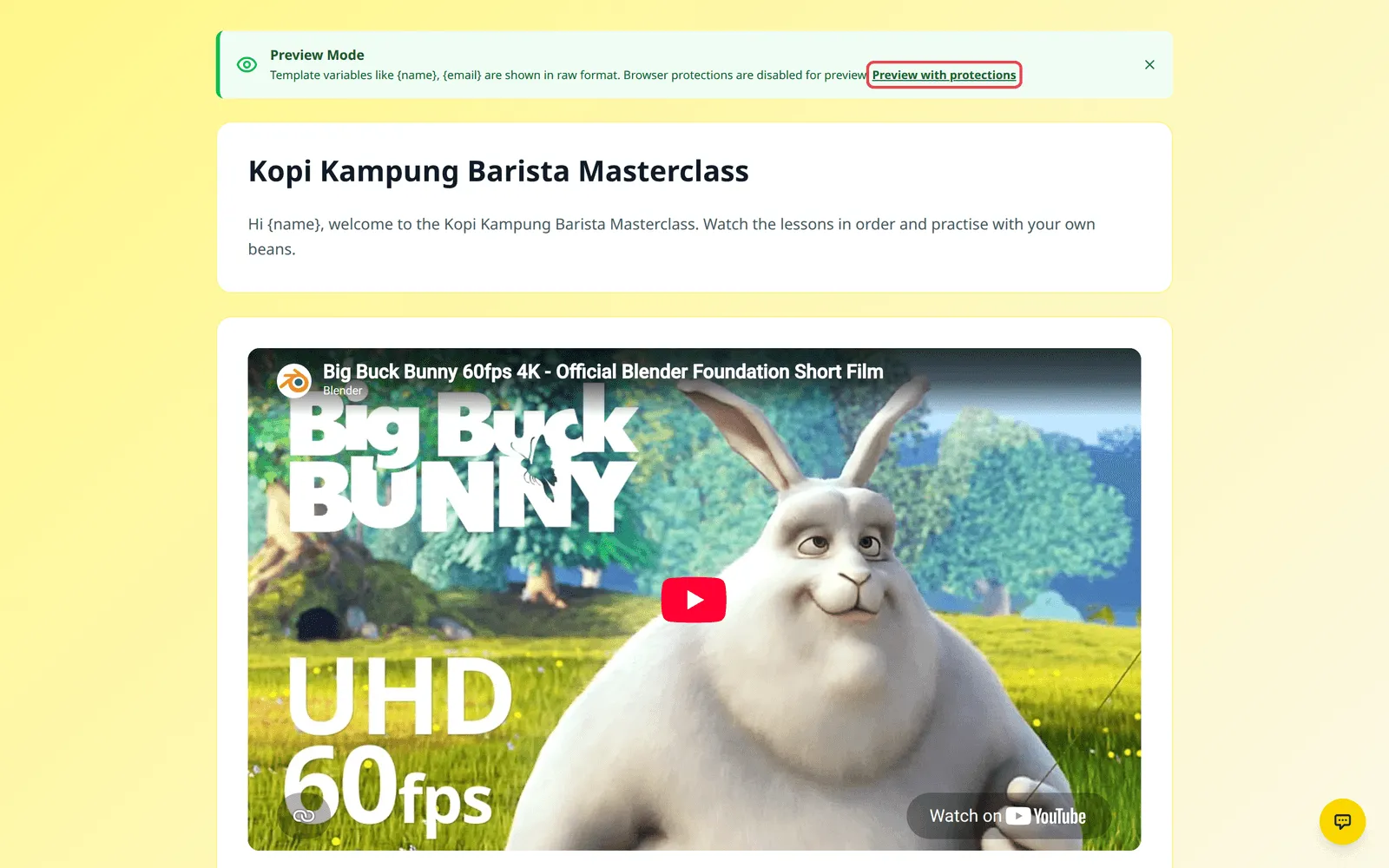
Section titled “Check what buyers see”Click Preview at the top of the content’s edit page.

The preview shows the title, your description and the video. Browser protections are off in the preview so you can inspect the page; click Preview with protections to see it exactly as buyers do.
How the video is protected
Section titled “How the video is protected”On a protected video page, BCL:
- Asks for a one-time code the first time a buyer opens their link on a browser.
- Blocks right-click, double-click selection, copy, cut, dragging and shortcuts such as save, view source, print and developer tools.
- Limits how many devices can watch at the same time, if you set Maximum Devices.
- Shows a notice asking buyers not to share, record or distribute the video.
The video link never appears on the receipt or in emails, only the buyer’s own access link.
Two things make video delivery smoother:
- Upload to YouTube as Unlisted. Private YouTube videos will not play on the page, and public ones can be found without paying.
- One content per course is easier to manage. If you have many lessons, put them in a YouTube playlist or a Vimeo showcase and use its embed code, rather than a separate content for each lesson.
Common issues
Should my YouTube video be public, unlisted or private?
Use Unlisted. A private YouTube video does not play inside BCL, and a public one can be found on YouTube by anyone. Unlisted videos only play for people who have the link, and in BCL only buyers see the page.
Can buyers download or screen-record the video?
BCL blocks right-click, copying, dragging and common save and developer shortcuts on the video page, and every buyer needs a one-time code. No website can fully stop screen recording, so the page also asks buyers not to record or share it.
My video is on Google Drive. Can I use it?
Use Embed Code and paste the embed code your video host gives you. For the smoothest playback, host the video on YouTube (unlisted) or Vimeo.
Was this article helpful?
Thanks for your feedback.
Sorry this didn't help. WhatsApp us and we'll sort it out with you.