
Ask an AI about this page
 ChatGPT
 Claude
 Perplexity
 Google AI Mode
 Microsoft Copilot
 Grok
Grok Mistral Le Chat
Set weekend and peak prices
Updated

Day & Time Rates let one service cost more, or less, at certain times without creating a second service. For example, the Latte Art Class costs RM120 on weekdays and RM150 on Saturdays and Sundays. When a rate matches the date the customer picks, it replaces the service’s normal price.
Add a rate
Section titled “Add a rate”Rates are set on each service:
-
Go to Bookings → Services and click Edit on the service.
-
Click the Pricing tab. Your normal price is Price (RM).
-
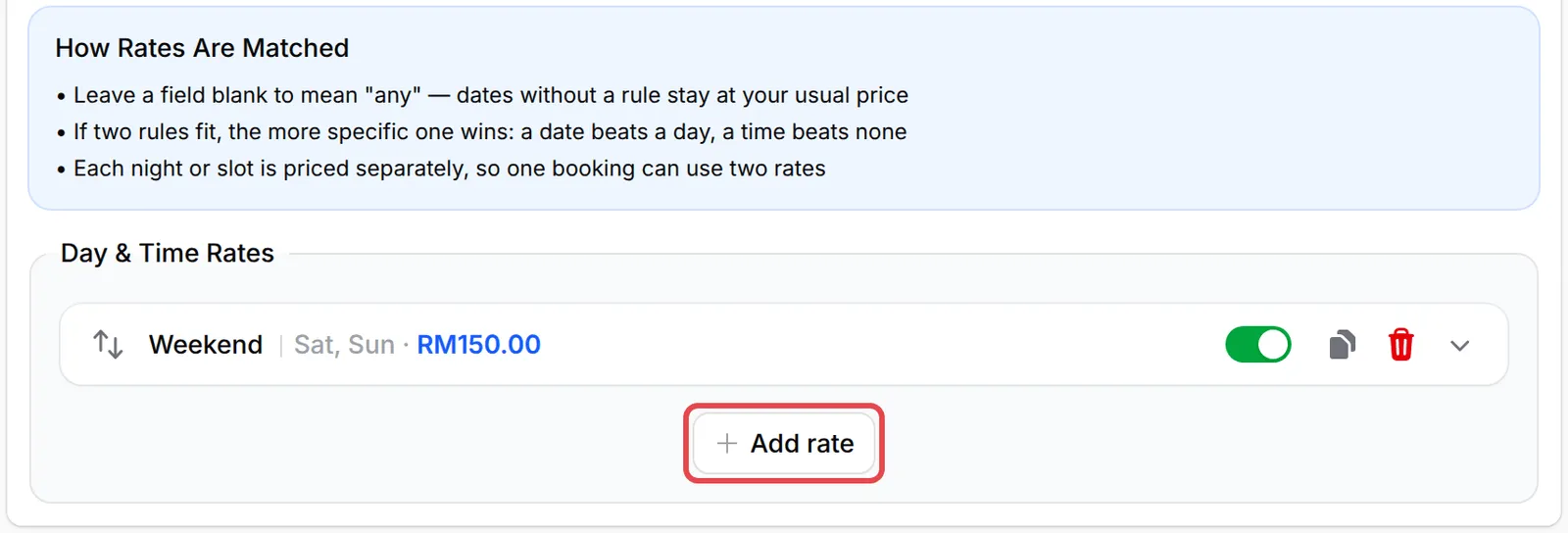
Under Day & Time Rates, click Add rate.
-
Enter a Rate name, such as Weekend or Public Holiday, and choose when it applies:
Field How to use it Days of week Click the days it covers. Leave all off for any day. Date range Pick a start and end date. Leave empty for any date. Start time (optional) / End time (optional) Only for rates that change during the day. Leave both empty to cover all opening hours. 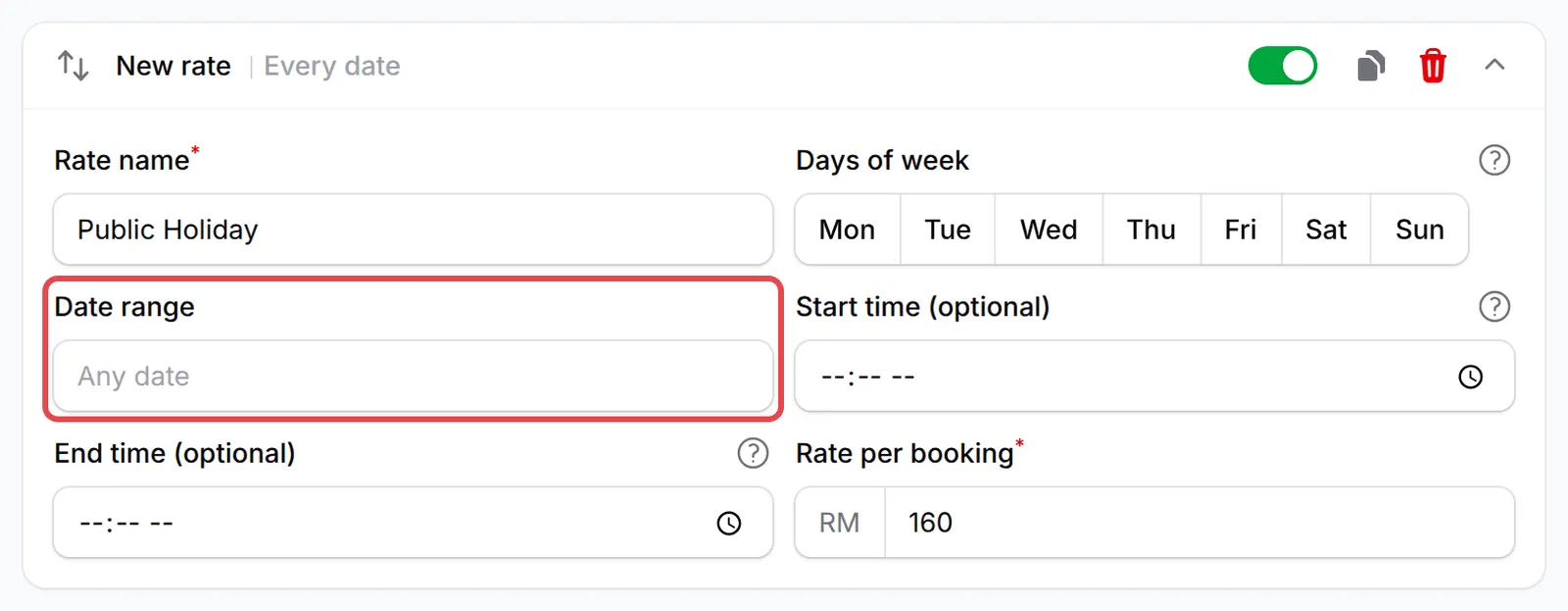
-
Enter the price in Rate per booking. For Accommodation it is Rate per night, and for Court it is Rate per slot.
-
Click Update Service at the top of the page.
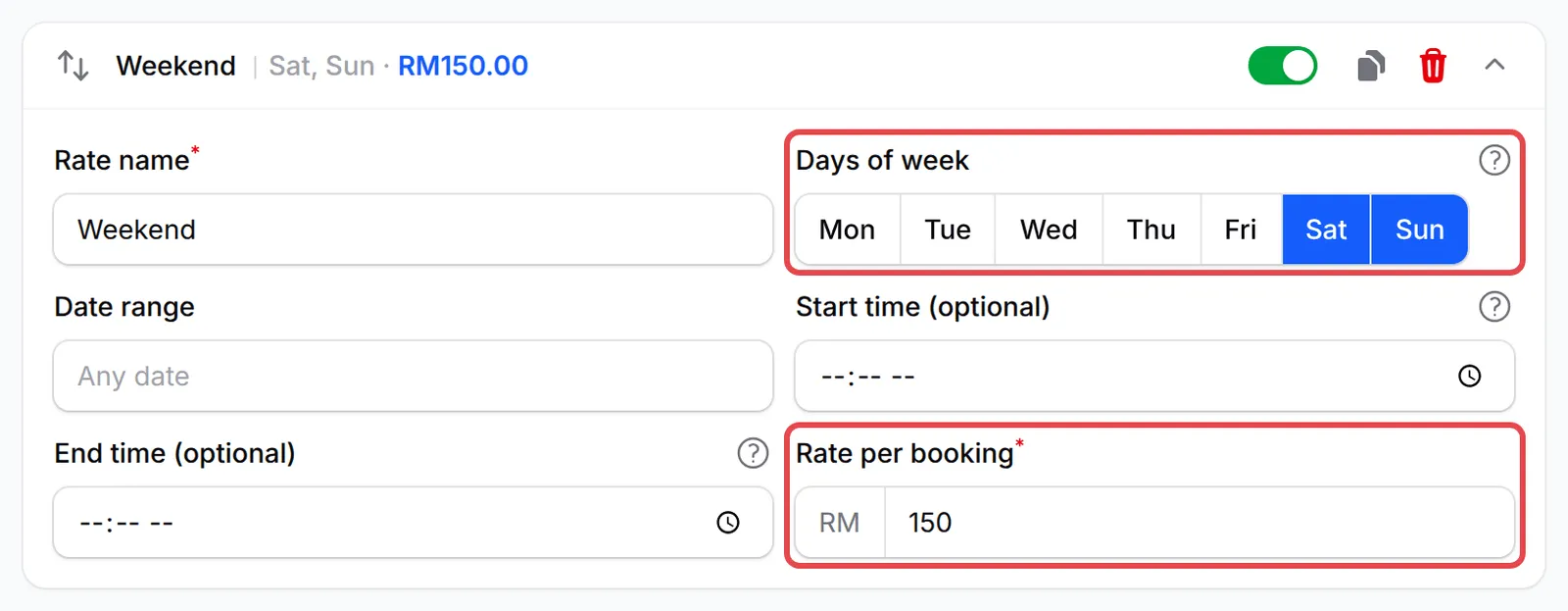
The rate’s summary line shows its name, days, dates and price, such as Weekend Sat, Sun · RM150.00. Click it to open or close the rate.
What the customer sees
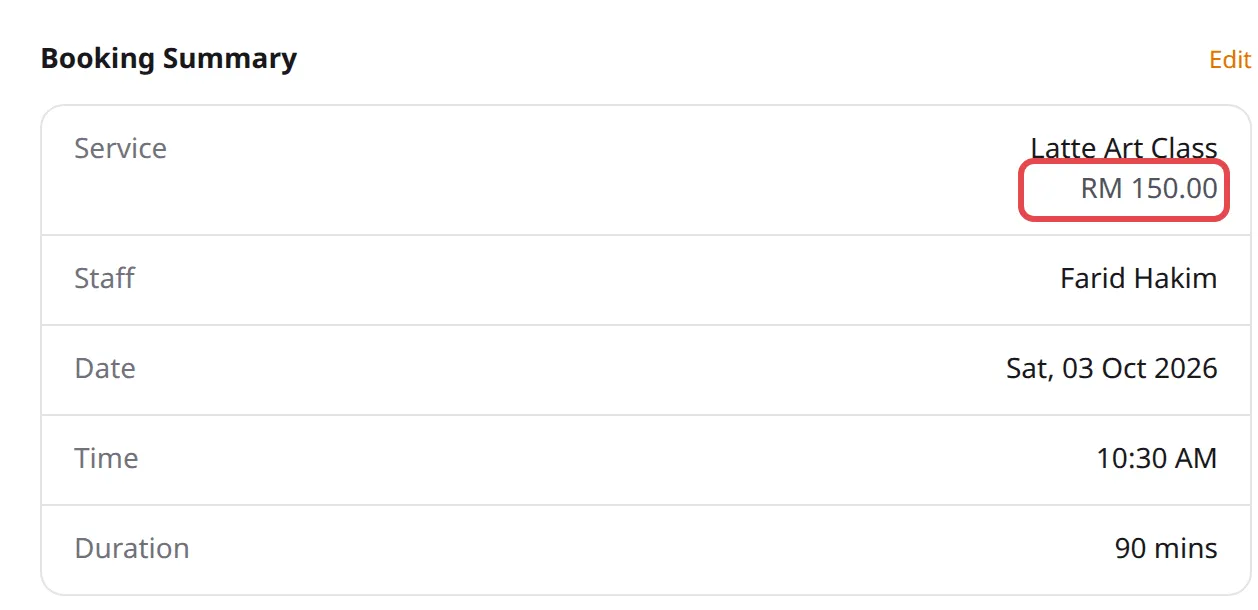
Section titled “What the customer sees”The rate is used automatically. A customer who books the Latte Art Class for a Saturday sees RM 150.00 in the Booking Summary, and RM 120.00 on a weekday:
When two rates match
Section titled “When two rates match”BCL explains its matching rules in the How Rates Are Matched box above your rates:
- A blank field means “any”. Dates without a matching rate use your normal price.
- If two rates match, the more specific one wins: a rate with a date range beats one with only days, and a rate with a time beats one without.
- Each night or slot is priced on its own, so an Accommodation stay over a weekend, or a long Court booking, can use two rates.
When two rates are equally specific, the one higher in the list wins. Drag rates with the arrows to change their order.
Turn a rate off or copy it
Section titled “Turn a rate off or copy it”Each rate has a switch, a copy button and a delete button on its summary line. Switch a rate off to stop using it without losing it, for example between festive seasons. Copy a rate to make a similar one quickly. You can add up to 20 rates to a service.
Keep your rates simple to check:
- Keep the normal price for the most common case. Set Price (RM) to your weekday price and add rates only for the exceptions.
- Add public holidays as dates. A Public Holiday rate with a Date range overrides your weekend rate on that day, because dates win over days.
- Check with a test booking. In Test Mode, open your form, pick a date the rate covers and check the price in the Booking Summary.
Common issues
Can I charge RM150 on weekends and RM120 on weekdays?
Yes. Set Price (RM) to 120 on the service's Pricing tab. Under Day & Time Rates, click Add rate, name it Weekend, select Sat and Sun and enter 150 in Rate per booking. Click Update Service.
Can I charge more during the school holidays only?
Yes. Add a rate with a Date range that covers the holidays and leave Days of week empty. A rate with dates wins over a rate with only days, so it overrides your weekend rate during those dates.
Why does my rate never apply?
Each rate needs at least one of Days of week, Date range or a start and end time, and its switch must be on. Check the rate's summary line, which shows the days and dates it covers.
Was this article helpful?
Thanks for your feedback.
Sorry this didn't help. WhatsApp us and we'll sort it out with you.