
Ask an AI about this page
 ChatGPT
 Claude
 Perplexity
 Google AI Mode
 Microsoft Copilot
 Grok
Grok Mistral Le Chat
Run several BCL accounts under one company
Yes, one company can run several BCL accounts, all paid into the same Bayarcash account. Each BCL account is a separate store with its own address, custom domain, forms and affiliate programme. You register each one with its own email address, connect the same Bayarcash keys, and give each account its own Bayarcash portal so its sales stay apart.
Separate accounts or one account with staff
Section titled “Separate accounts or one account with staff”Pick the set-up that matches how your business sells:
| You want | Use | Why |
|---|---|---|
| Each brand, branch or salesperson has their own store, domain, forms and affiliates | Separate BCL accounts | Each account has its own subdomain, one custom domain, its own forms and its own affiliate programme. |
| One store where the owner sees every sale | One account with team members | Staff share one store and one domain. The owner and admins see everything. |
| One store, but each staff member’s sales tracked apart | One account with staff portals | Give each staff member their own portal and require it. See Choose a Bayarcash portal key. |
| Staff who only handle some tasks | One account with team roles | The Team role sees only the areas you turn on for them. |
A custom domain belongs to one account, and each account has one. If you need several domains, you need one account per domain.
Set up another account
Section titled “Set up another account”Do this for each extra store. The company owner should register it, so the company keeps control of the Bayarcash keys.
-
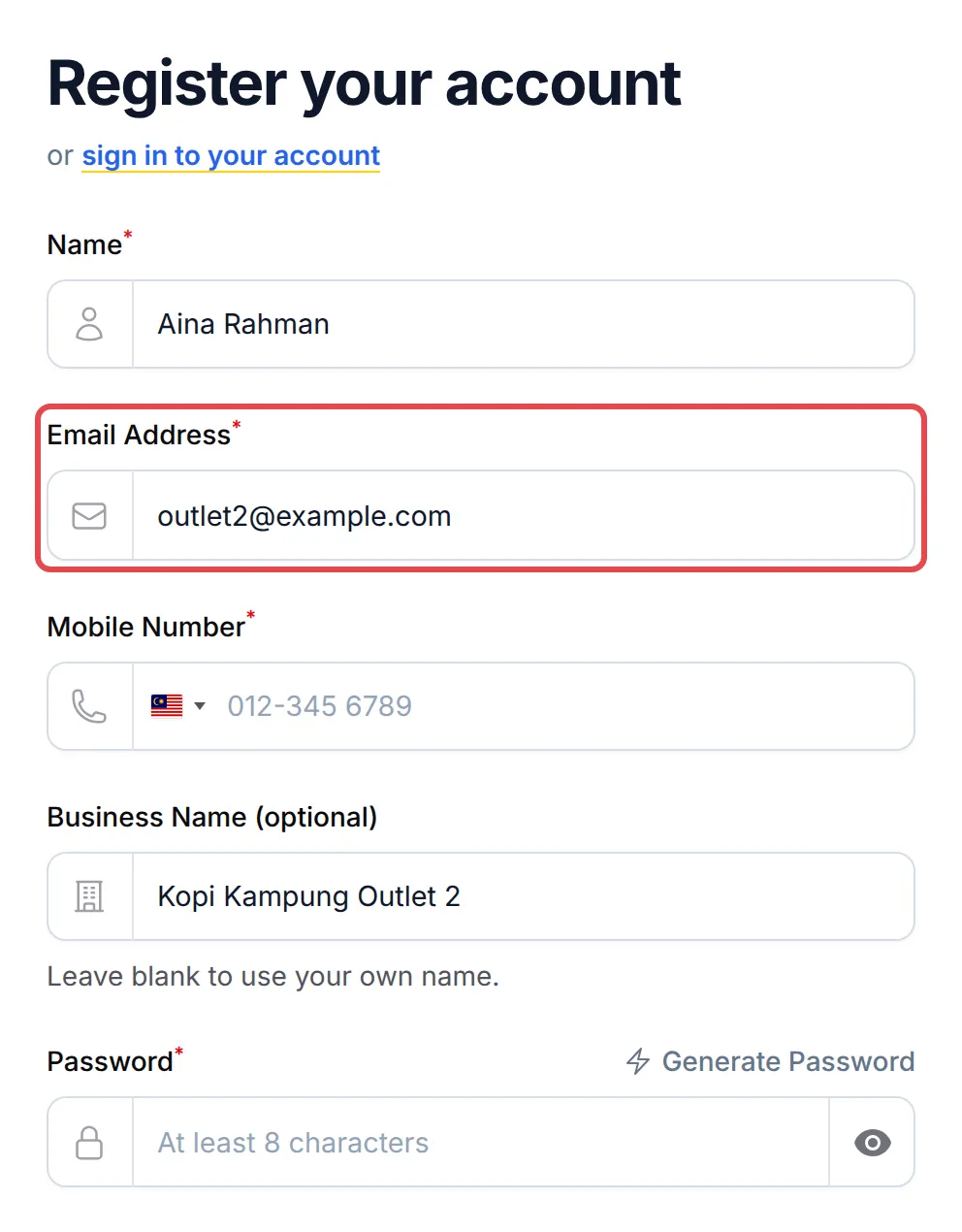
Sign out, then open the BCL registration page. Fill in Name, Email Address, Mobile Number and Password. The email must not already be used by any BCL login, including a team member’s login. The mobile number can be the same as in your other accounts.
-
In Business Name (optional), enter the brand or branch name. BCL builds the account’s first address from it, for example
kopikampungoutlet2.bcl.my. -
Choose an OTP Verification Method, click Send OTP, enter the code in Verify OTP and click Register Account. The new account starts in Test Mode.
-
Go to Platform Setup → Payment and enter the same Personal Access Token (PAT) and API Secret Key as your main account. See Connect your Bayarcash account.
-
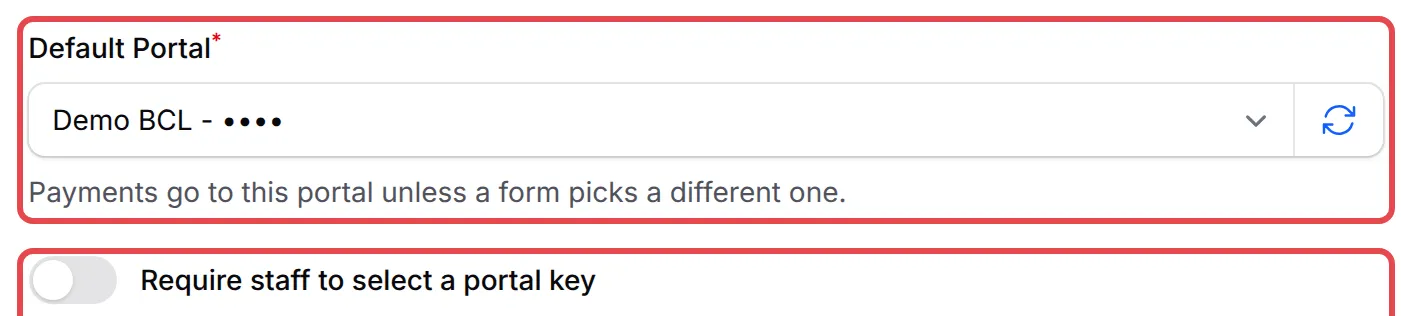
In the Bayarcash Console, create a new portal for this account (Bayarcash guide to portals). Back in BCL, click the refresh icon next to Default Portal, choose the new portal, and click Save Configuration.
-
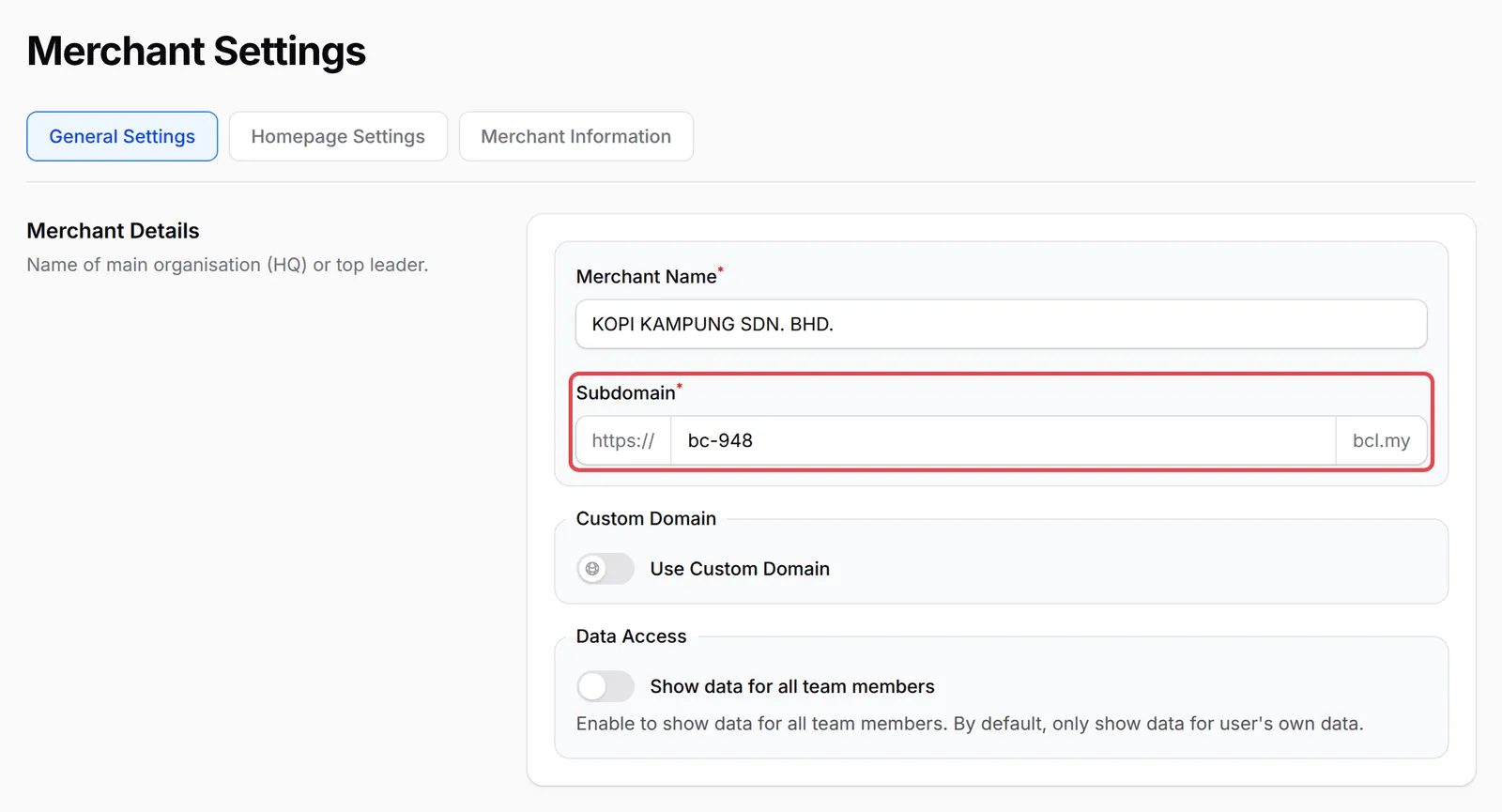
Go to Team → Team Profile. On the General Settings tab, change Subdomain if you want a different bcl.my address, or turn on Use Custom Domain to use your own domain. Click Save Settings. See Use your own domain.
-
Optional: go to Affiliate → Settings and turn on Enable Affiliate Program for this account. See Turn on your affiliate programme.
-
Optional: add the salesperson or branch manager in Team → Team Members. Give them the Admin role if they will run their own affiliates. See Add a team member.
See each account’s sales in Bayarcash
Section titled “See each account’s sales in Bayarcash”All the accounts pay into one Bayarcash account, so your settlements arrive together. To see sales per BCL account, open the Bayarcash Console and view transactions by portal: each portal holds only the payments of the account that uses it as its Default Portal.
Inside BCL, each account shows only its own transactions. There is no combined view across accounts in BCL.
A few habits keep several accounts easy to manage:
- One portal per account. Every account lists all your Bayarcash portals, so check that each one’s Default Portal is its own. If two accounts use the same portal, their sales mix in Bayarcash.
- Name portals after the account. For example “Kopi Kampung - Outlet 2”. The name shows in each account’s Portal Key list, so nobody picks another store’s portal by mistake.
- Turn on add-ons in each account. Add-ons such as Event Management or Lead Forms belong to one account. Subscribe in each account that needs them.
Common issues
Can I use one Bayarcash account for several BCL accounts?
Yes. Enter the same Personal Access Token (PAT) and API Secret Key in each BCL account. Every account then sees all the portals in your Bayarcash account, so choose a different Default Portal in each one.
Will sales from different accounts mix in my Bayarcash reports?
Only if they use the same portal. Give each BCL account its own portal in Bayarcash and set it as that account's Default Portal. Each portal then holds only that account's payments, and you can report on it separately.
Can I switch between my BCL accounts with one login?
No. Each BCL login belongs to one account, so every account is registered with its own email address. Sign out and sign in with the other email to work in another account.
Was this article helpful?
Thanks for your feedback.
Sorry this didn't help. WhatsApp us and we'll sort it out with you.