
Ask an AI about this page
 ChatGPT
 Claude
 Perplexity
 Google AI Mode
 Microsoft Copilot
 Grok
Grok Mistral Le Chat
Track Google Ads conversions on a form
Updated

Google Ads conversion tracking tells Google Ads which clicks on your ads turned into a paid order, so you can see which ads make money. You add it to each form you advertise: a Google Tag ID and a Conversion Label.
BCL loads your Google tag on the form and sends a conversion event with the amount and order number when the receipt page opens after a successful payment. COD and manual bank transfer orders send it when the order is placed. Google Ads conversions are sent from the customer’s browser only; there is no server-side option for them.
Get your tag and label from Google Ads
Section titled “Get your tag and label from Google Ads”You need a conversion action for purchases first:
- In Google Ads, go to Goals → Conversions → Summary and open your purchase conversion action (or create one for a website).
- Under Tag setup, choose Install the tag yourself.
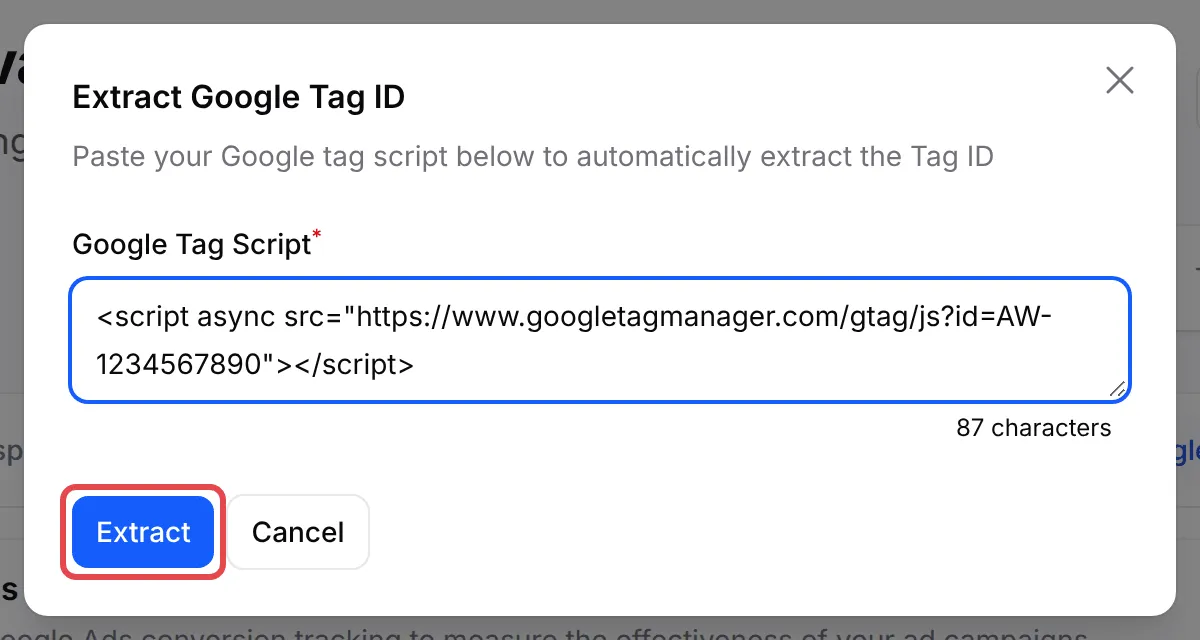
- Copy the Google tag (it contains AW- followed by numbers) and the event snippet (its send_to value looks like AW-1234567890/AbCdEfGh).
Add the tag and label to your form
Section titled “Add the tag and label to your form”The same Google Ads tab is on payment, event and booking forms.
-
Go to Payments → Forms and click Edit on the form.

-
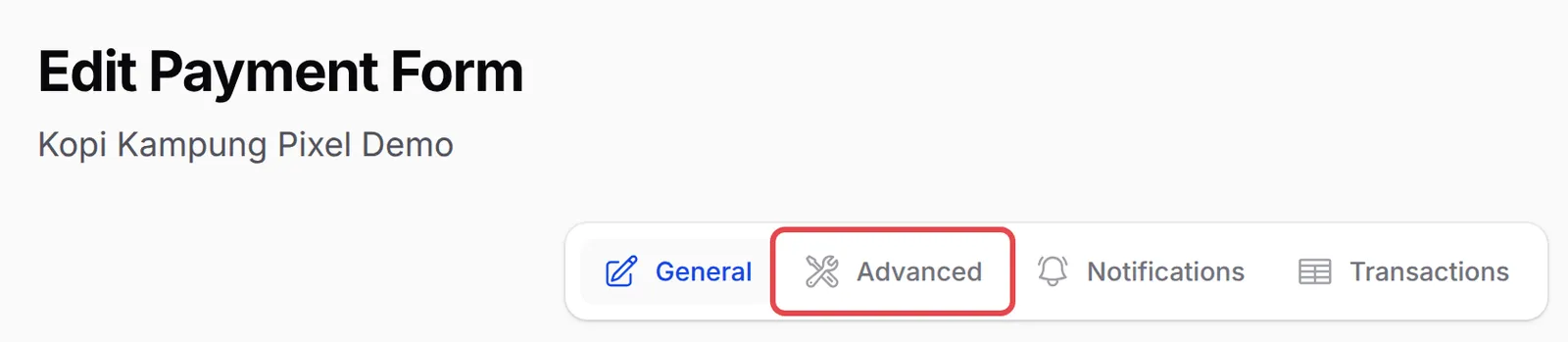
Click Advanced.
-
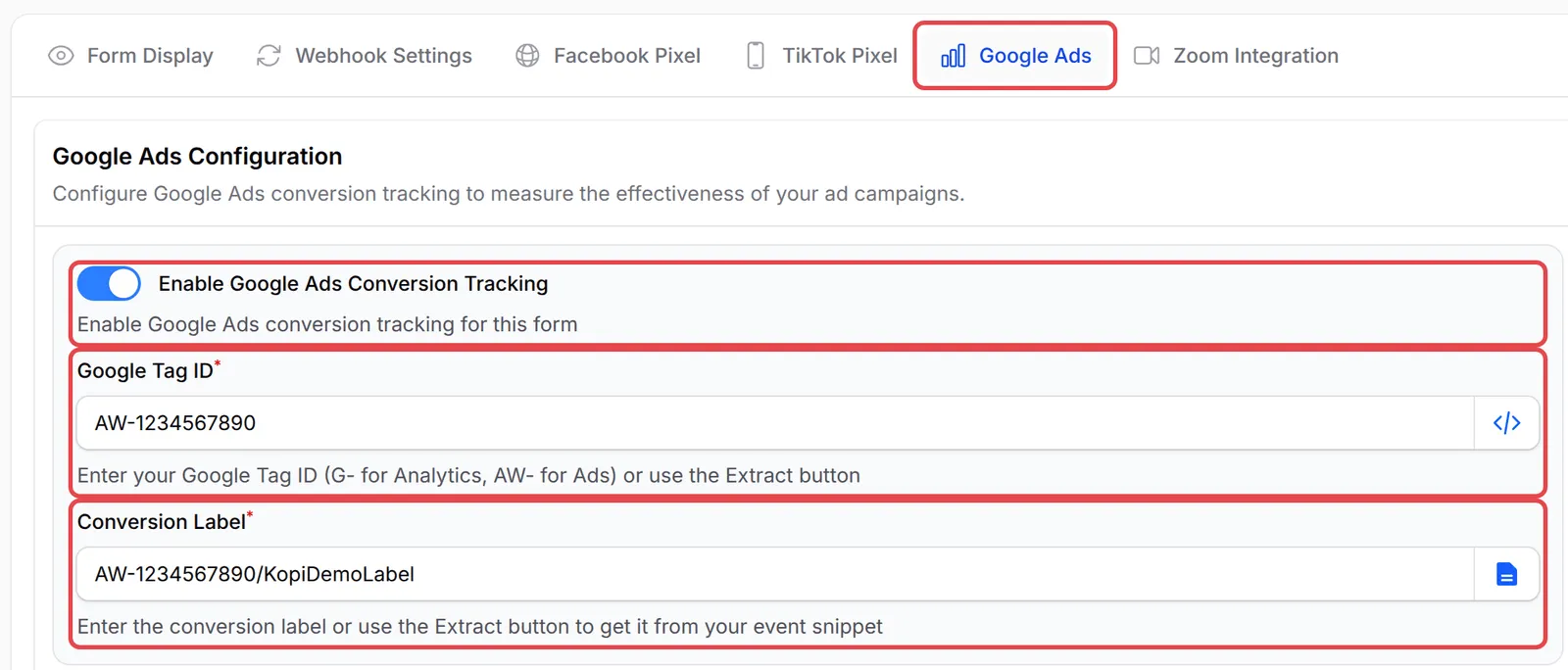
Open the Google Ads tab and turn on Enable Google Ads Conversion Tracking.
-
Paste your tag ID into Google Tag ID and your send_to value into Conversion Label.
-
Click Save Advanced Settings.

Payment links and affiliates
Section titled “Payment links and affiliates”Google Ads tracking is also available outside forms:
| Where | Where to set it | Notes |
|---|---|---|
| Payment links | Platform Setup → Link Configuration → Pixel Settings | One setting for all your payment links. |
| Affiliates | The affiliate’s own dashboard: Promotion Links (see Share your affiliate links) | Sent only for sales that affiliate referred, and only when the payment succeeds. |
A few things help your conversions count correctly:
- Check that the conversion was sent. Go to Tools → Marketing Logs and open the Google Ads tab. Each row is one conversion, with the tag and label BCL used. See Marketing Pixel Logs.
- Use the purchase conversion’s label. Each conversion action in Google Ads has its own label. Copy it from the purchase action, not from a sign-up or page-view action, or the sale is counted under the wrong goal.
- Want purchase reports as well? Google Analytics 4 is set once for your whole account under Platform Setup → Integrations. See Track purchases in Google Analytics 4.
Common issues
What is the difference between the Google Tag ID and the Conversion Label?
The Google Tag ID (AW- followed by numbers) identifies your Google Ads account. The Conversion Label (AW-number/label) identifies the conversion action, for example Purchase. BCL needs both.
Do COD orders count as Google Ads conversions?
Yes. BCL sends the conversion when the payment succeeds, and also when a COD or manual bank transfer order is placed and still pending.
Can my affiliates track their own Google Ads?
Yes. Each affiliate can add their own Google Tag ID and Conversion Label for your form in their affiliate dashboard. Their conversion is sent only for sales they referred.
Was this article helpful?
Thanks for your feedback.
Sorry this didn't help. WhatsApp us and we'll sort it out with you.