
Ask an AI about this page
 ChatGPT
 Claude
 Perplexity
 Google AI Mode
 Microsoft Copilot
 Grok
Grok Mistral Le Chat
Start an automation from a template
Updated

You do not have to build an automation from a blank canvas. BCL has 14 ready-made templates, and you can copy any automation to another account as a JSON file.
Use a template
Section titled “Use a template”The templates come with BCL and are the same in every account:
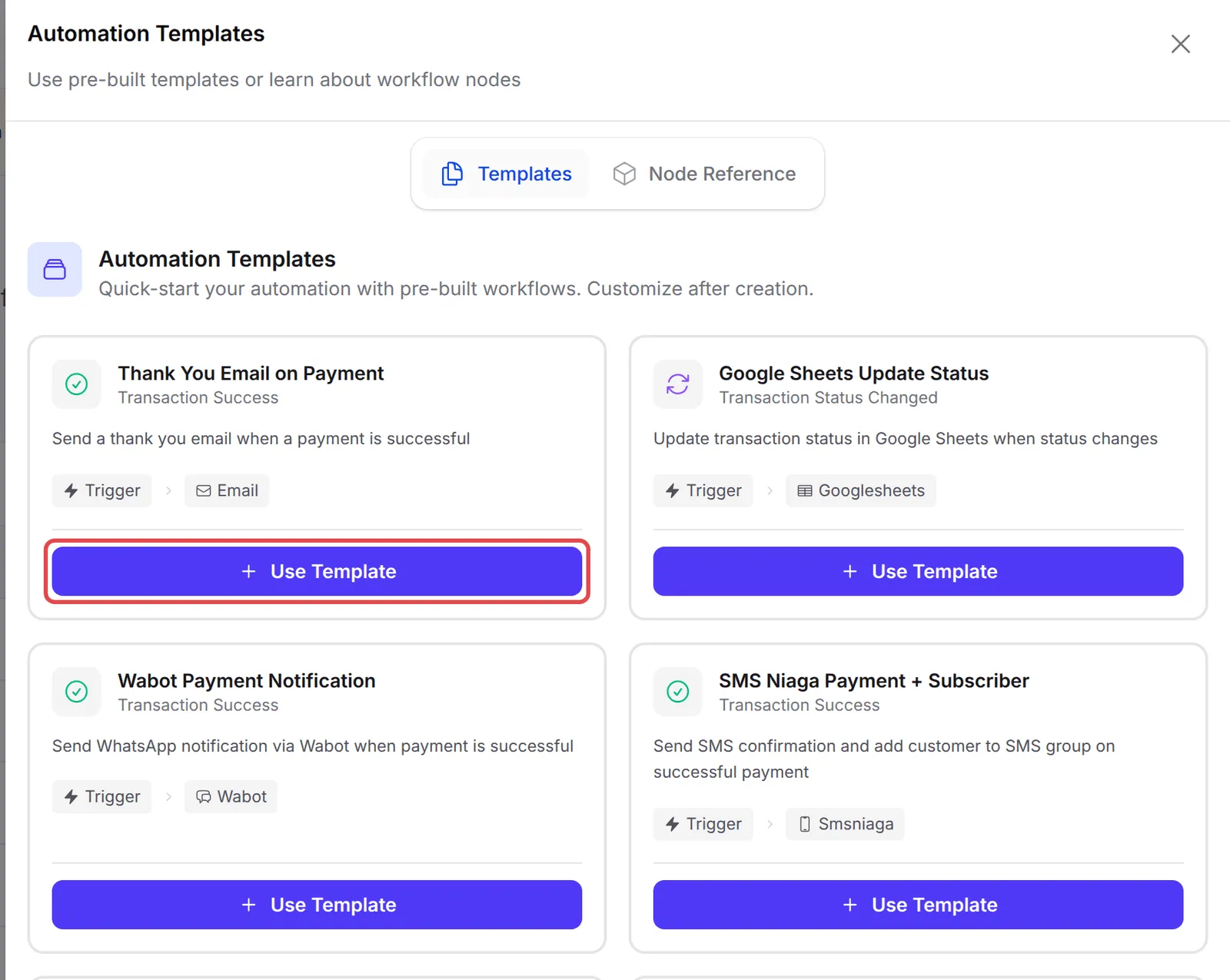
| Template | Trigger | What it does |
|---|---|---|
| Thank You Email on Payment | Transaction Success | Emails the customer a thank-you with the order details. |
| Wabot Payment Notification | Transaction Success | Sends the customer a WhatsApp through Wabot with the order number, amount and receipt link. |
| SMS Niaga Payment + Subscriber | Transaction Success | Sends an SMS confirmation and adds the customer to an SMS Niaga group. |
| VIP Customer Detection | Transaction Success | Sends one email for payments over RM 500 and another for the rest. |
| Google Sheets Transaction Log | Transaction Success | Adds each successful payment as a row in Google Sheets. |
| Google Sheets Update Status | Transaction Status Changed | Updates the payment’s row in Google Sheets when its status changes. |
| Incomplete Payment Follow-up | Transaction Status Changed | Sends one email for failed payments and another for cancelled ones. |
| Abandoned Cart WhatsApp | Transaction Status Changed | Waits one hour, then sends a WhatsApp reminder for failed or cancelled payments. |
| Webhook on Lead Submission | Form Submitted | Sends each new lead to your own system by HTTP request. |
| Lead Form SMS Notification | Form Submitted | Sends you an SMS for each new lead. |
| Event Registration Reminder | Participant Created | Waits one day after registration, then sends a WhatsApp reminder through Wabot. |
| WasapBot Event Reminder | Participant Created | Waits one day after registration, then sends a reminder through Wasapbot. |
| Certificate Wabot Notification | Certificate Generated | Sends the certificate link through Wabot. |
| Welcome New Affiliate | Affiliate Joined | Emails a welcome and adds the affiliate to a Mail Niaga list. |
To use one:
-
Go to Automations and click Templates.

-
Each card shows the template’s trigger and its steps. Click Use Template on the one closest to what you need.
-
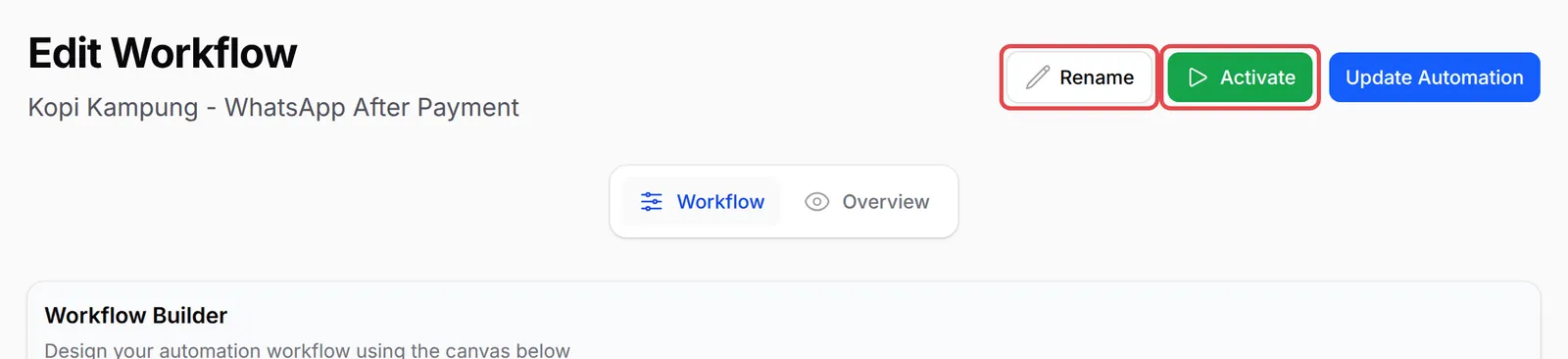
BCL creates the automation, named after the template and switched off, and opens it on the Edit Workflow page. Click Rename to give it your own name.
-
Click each node, then the gear button under it, to change the settings: the forms in the trigger, and the recipient and message in each action. Save each node.
-
Click Update Automation, then Activate.
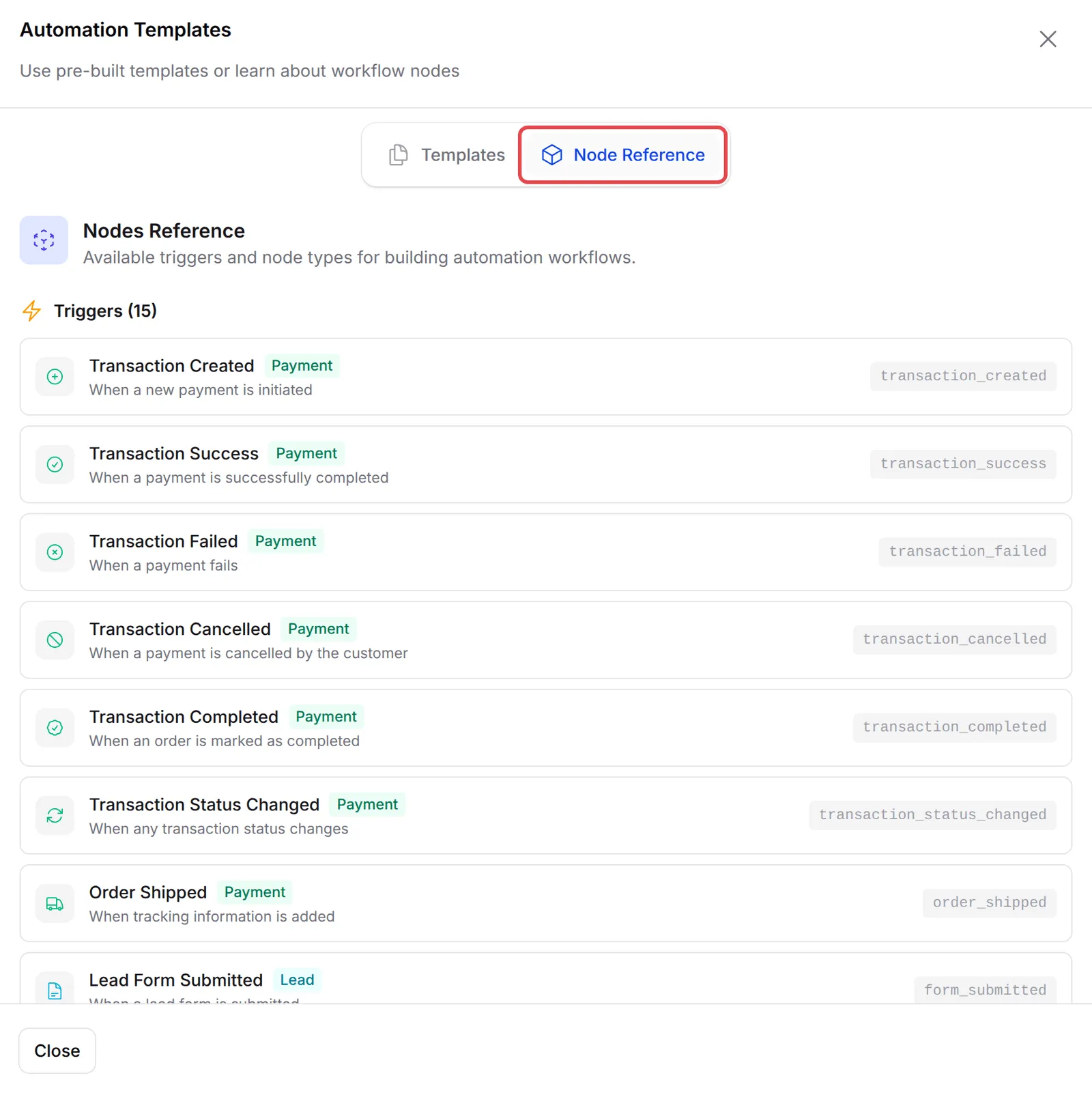
The Node Reference tab in the same panel lists every trigger and node type with a short description:
Copy an automation with Export JSON
Section titled “Copy an automation with Export JSON”Export JSON saves an automation’s trigger and workflow as a file. Use it to copy an automation to another BCL account or to keep a backup:
-
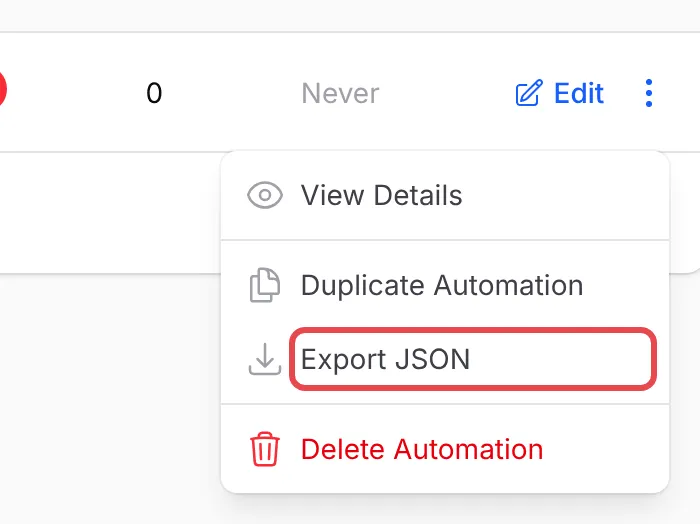
On the Automations list, click ⋮ on the automation’s row, then Export JSON. The file downloads to your computer. To copy it inside the same account, choose Duplicate Automation instead.
-
In the other account, go to Automations and click Import JSON.
-
Upload the file in JSON File (up to 5 MB), then click Submit.
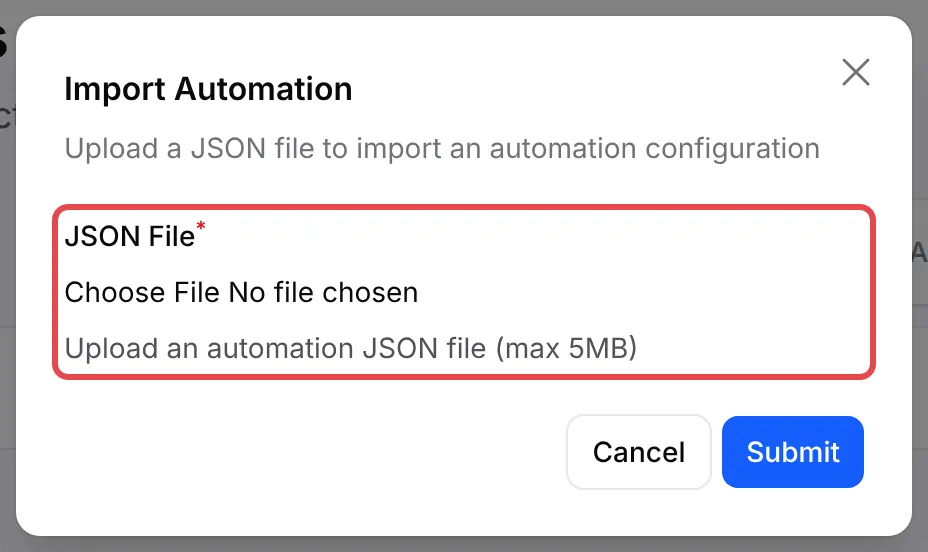
The imported automation opens for editing and is switched off. Open its trigger and choose your forms again, because form choices point to forms in the old account.
The file is plain JSON. It needs a name, a trigger_type and a workflow_json with the nodes and the connections between them, and it may have only one trigger node. This is a shortened export of a thank-you email automation:
{ "name": "Kopi Kampung - Thank You Email", "trigger_type": "transaction_success", "workflow_json": { "nodes": [ { "id": "trigger-1", "type": "trigger", "label": "Payment Success", "x": 50, "y": 50, "data": { "trigger_type": "transaction_success", "trigger_conditions": [] } }, { "id": "action-1", "type": "action", "label": "Send Thank You Email", "x": 400, "y": 50, "data": { "action_type": "send_email", "email_to": "{email}", "email_subject": "Thank you for your order #{order_number}", "email_body": "Hi {name},<br><br>We have received your payment of {amount}." } } ], "connections": [ { "from": "trigger-1", "to": "action-1" } ] }, "is_active": false}Templates are a starting point, not a finished automation:
- Change the wording to your own. Several templates have sample messages in Malay or English. Customers notice a generic message.
- Connect the service first. Templates that use Wabot, Wasapbot, SMS Niaga, Mail Niaga or Google Sheets need that service connected under Platform Setup → Integrations before they can send anything.
- Keep an export before big changes. Export JSON is a quick backup of a working automation.
Common issues
I used a template with WhatsApp, turned it on, but no WhatsApp was sent. Why?
The WhatsApp templates send through Wabot or Wasapbot. Connect your provider under Platform Setup → Integrations → WhatsApp (Automation) first. Until then the WhatsApp node shows that the provider is not connected.
Is there a template for sending WhatsApp after a successful payment?
Yes: Wabot Payment Notification. It has the Payment Success trigger and a Send Wabot node with a sample message. See Send a WhatsApp after payment.
Can I copy an automation to another BCL account?
Yes. Click ⋮ on its row and choose Export JSON. In the other account, click Import JSON on the Automations page and upload the file.
Was this article helpful?
Thanks for your feedback.
Sorry this didn't help. WhatsApp us and we'll sort it out with you.