
Ask an AI about this page
 ChatGPT
 Claude
 Perplexity
 Google AI Mode
 Microsoft Copilot
 Grok
Grok Mistral Le Chat
Send each customer their own coupon
The Send coupon step gives each customer a coupon code of their own, for their next order. Each code works one time only. It copies the discount and rules of a coupon that you already have, and it stays valid for the number of days that you choose.
Start from a template
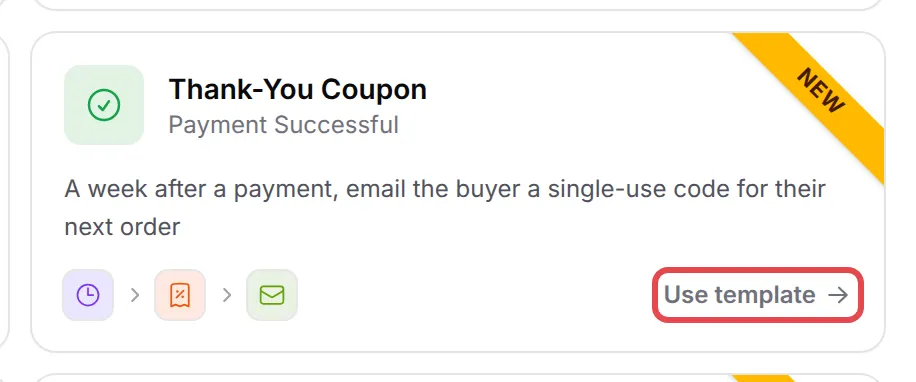
Section titled “Start from a template”The Thank-You Coupon template waits 7 days after a payment, makes a code that is valid for 14 days, and emails it to the buyer. Find it under Automations → Templates (see Start an automation from a template).
The Bonus Content for Big Orders template also uses this step: smaller orders get a coupon to come back for more.
Add the step yourself
Section titled “Add the step yourself”First create the coupon to copy from, under Coupons. Then:
-
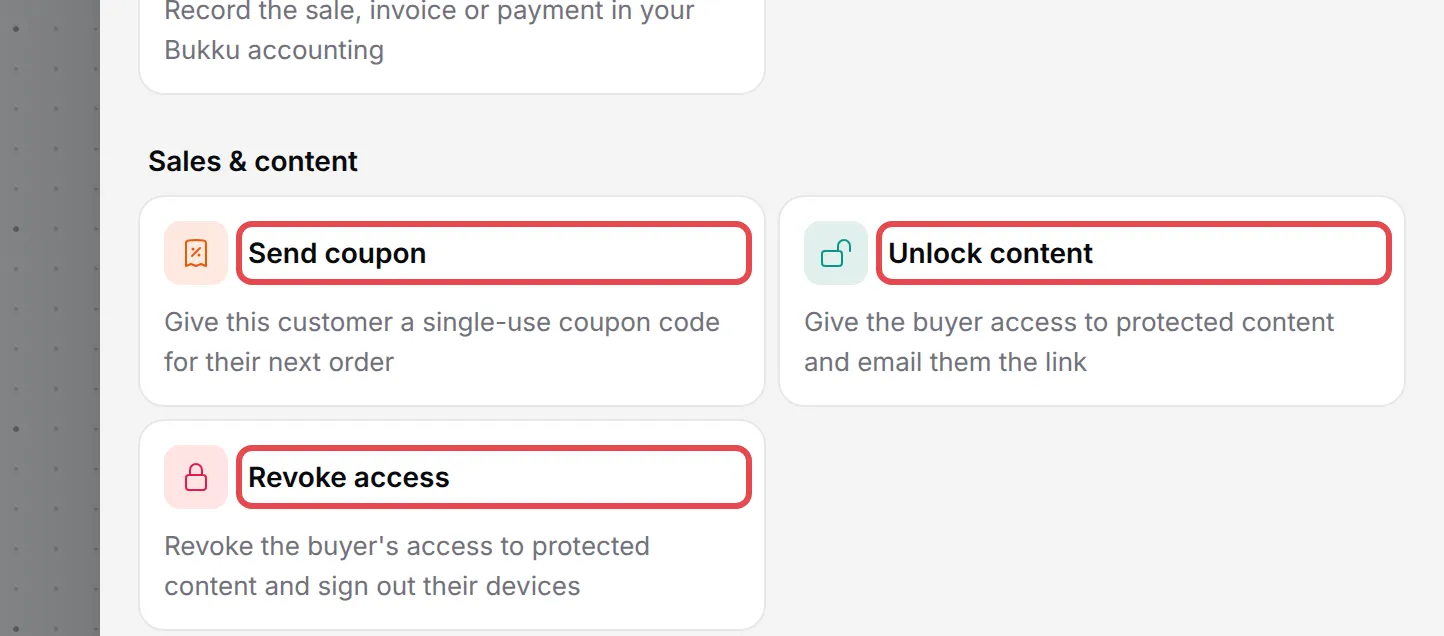
In your automation, click Add Node and pick Send coupon under Sales & content.
-
Double-click the new step to open Send Coupon Settings, and type an Action Name.
-
In Copy from coupon, pick your coupon.
-
In Valid for, type the number of days that the code works.
-
In Code starts with, type a short word, such as
THANKS, or leave it empty. -
Click Save Send Coupon.
-
Add a Send Email or WhatsApp step after it. Put the code in the message with
{new_coupon_code}. You can also use{new_coupon_discount}and{new_coupon_expiry}. -
Click Update Automation and switch the automation on.
Click Variables in the later step to find these under From earlier nodes.
Common issues
Do I need a coupon before I add the Send coupon step?
Yes. Create a coupon under Coupons first (see Create a discount coupon). The step copies its discount, rules and allowed forms into a new single-use code for each customer.
How does the customer get the code?
The step makes the code but does not send it. Add a Send Email or WhatsApp step after it, and put {new_coupon_code} in the message.
What do the new codes start with?
With the text in Code starts with, letters and numbers only. If you leave it empty, the codes start with the code of the coupon you copy from.
Was this article helpful?
Thanks for your feedback.
Sorry this didn't help. WhatsApp us and we'll sort it out with you.