
Ask an AI about this page
 ChatGPT
 Claude
 Perplexity
 Google AI Mode
 Microsoft Copilot
 Grok
Grok Mistral Le Chat
Create a discount coupon
A coupon is a code your buyer types at checkout to get a discount. You create coupons once for your whole account, then choose which forms accept them. Coupons work on payment forms, event forms and booking forms.
Create the coupon
Section titled “Create the coupon”Owners and admins can manage coupons, and staff with the Team role can if you give them coupon permissions (see Team roles and permissions). To create one:
-
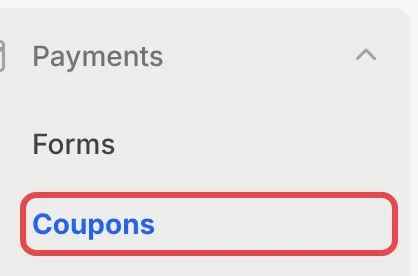
Go to Payments → Coupons.
-
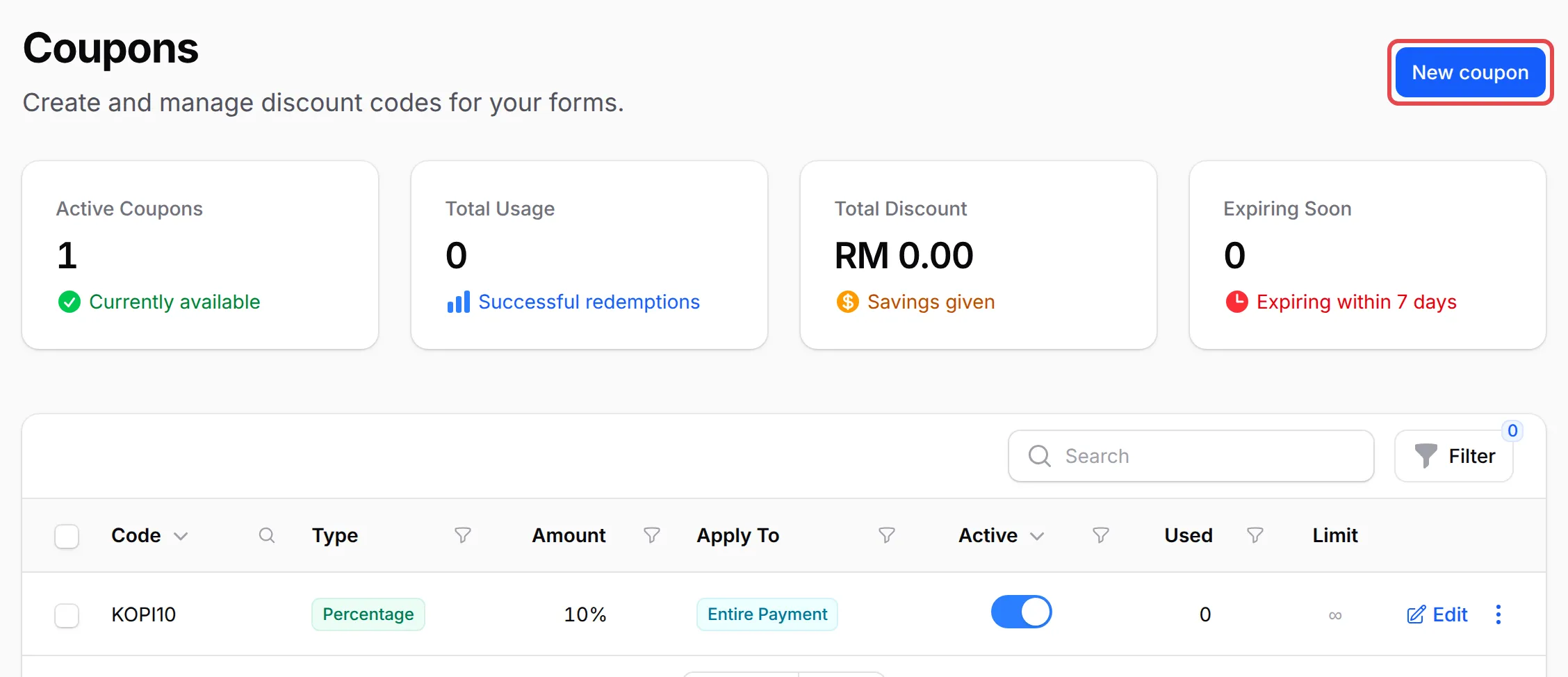
Click New coupon.
-
On Basic Information, fill in the coupon:
Field What to enter Code What buyers type, such as RAYA10. Click the lightning icon for a random code. Each code must be different from your other coupons. Apply to Apply to Form Total for a discount on the whole order, or Apply to Specific Items for a discount on chosen items only Discount type Percentage (then the Discount Percentage (%)) or Fixed Amount (then the Discount Amount in RM) Description Optional, a note for yourself 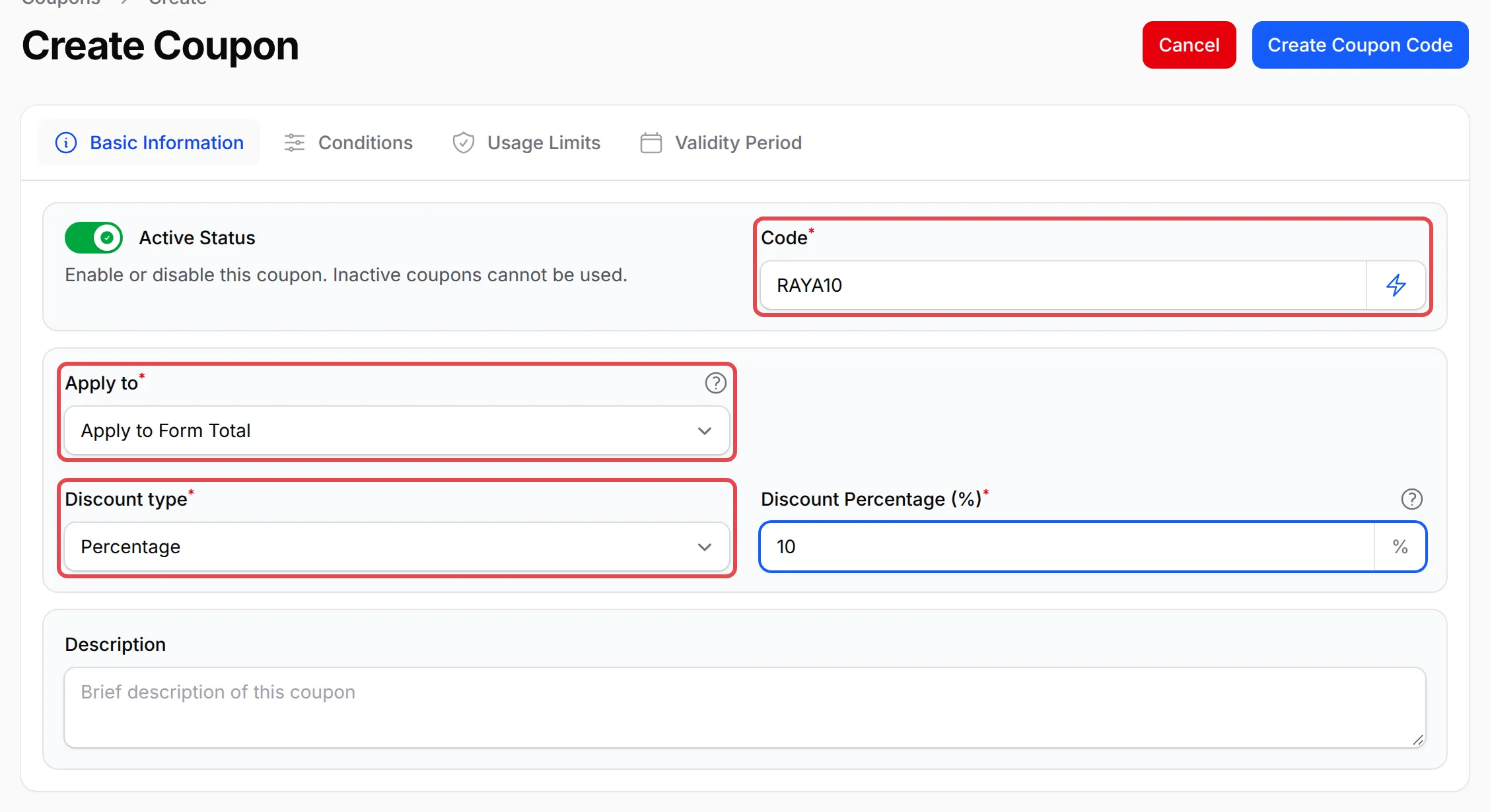
-
Set any limits on the other tabs (see below), then click Create Coupon Code.
Leave Active Status on. A coupon that is switched off cannot be used.
Limit who can use it
Section titled “Limit who can use it”Each limit is optional and has its own tab:
-
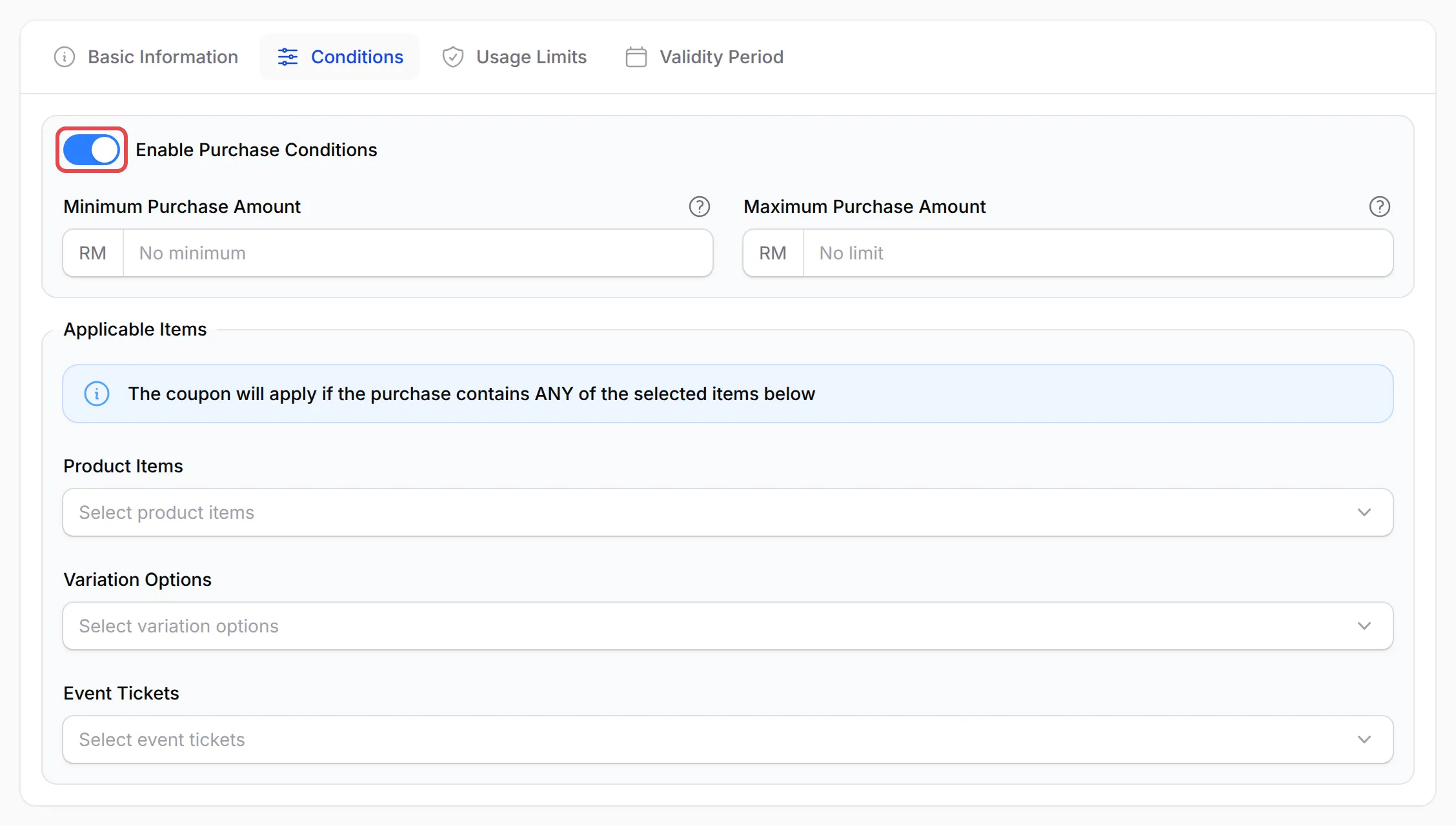
Conditions: turn on Enable Purchase Conditions to set a Minimum Purchase Amount or Maximum Purchase Amount, and to pick Product Items, Variation Options or Event Tickets under Applicable Items. The coupon then works when the order contains any of the chosen items. Apply to Specific Items needs at least one item here.
-
Usage Limits: set Maximum Usage Limit to cap how many times the coupon can be used in all. Leave it empty for no limit. Current Usage Count shows how many times it has been used.

-
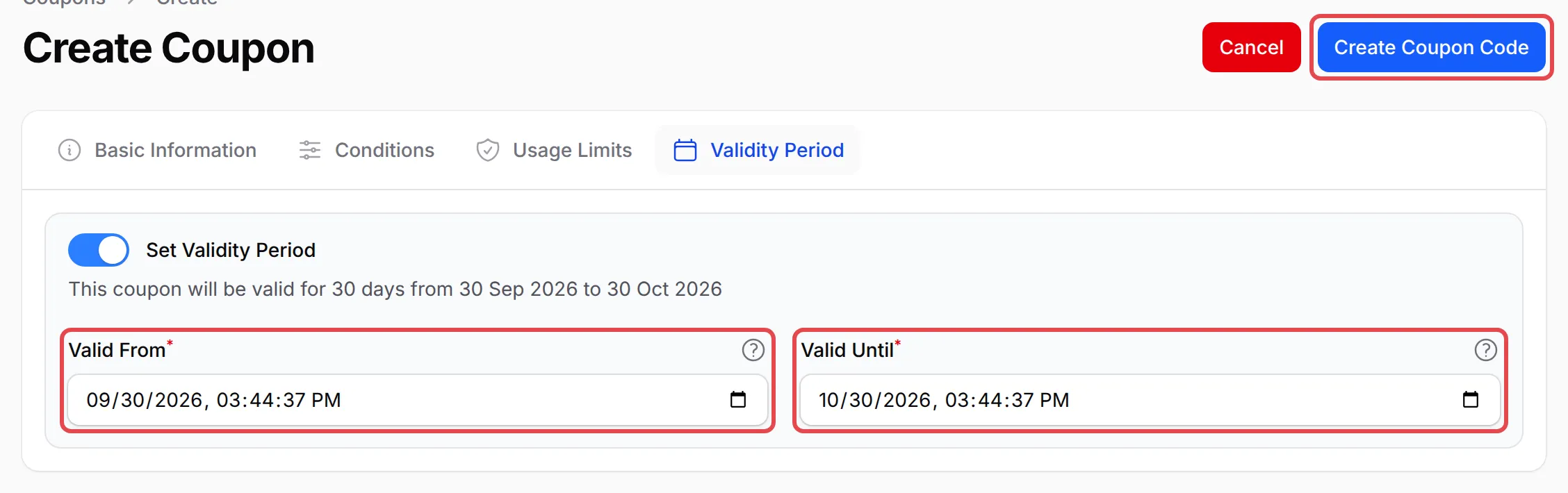
Validity Period: turn on Set Validity Period and choose Valid From and Valid Until.
A use is counted as soon as a buyer places an order with the coupon. If that payment fails or is cancelled, the use is given back.
Turn coupons on for a form
Section titled “Turn coupons on for a form”Buyers only see a coupon box on forms that accept coupons:
-
Open the form and go to the Form Configuration tab.
-
Under Coupon Settings, turn on Enable Coupons.
-
Optional: in Allowed Coupons, pick the coupons this form accepts. Leave it empty to accept all your active coupons.

-
Click Update Form.
Event forms and booking forms have the same Coupon Settings.
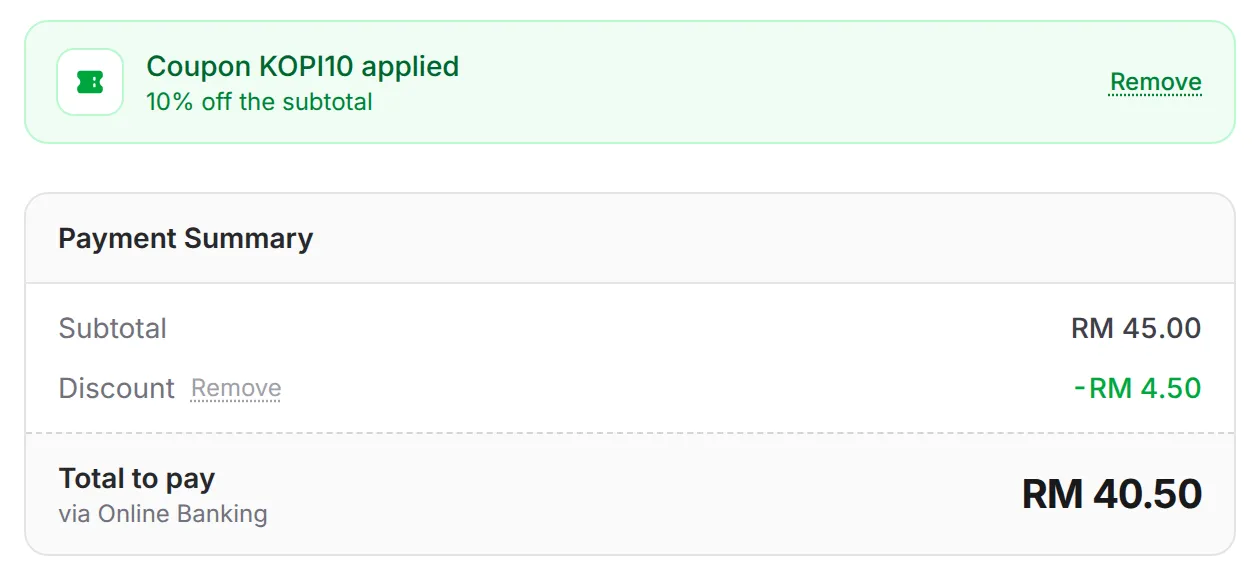
On the form, your buyer clicks Have a coupon code?, types the code and clicks Apply. The discount shows in the Payment Summary before they pay, and Remove takes the coupon off again:
Why a code is refused
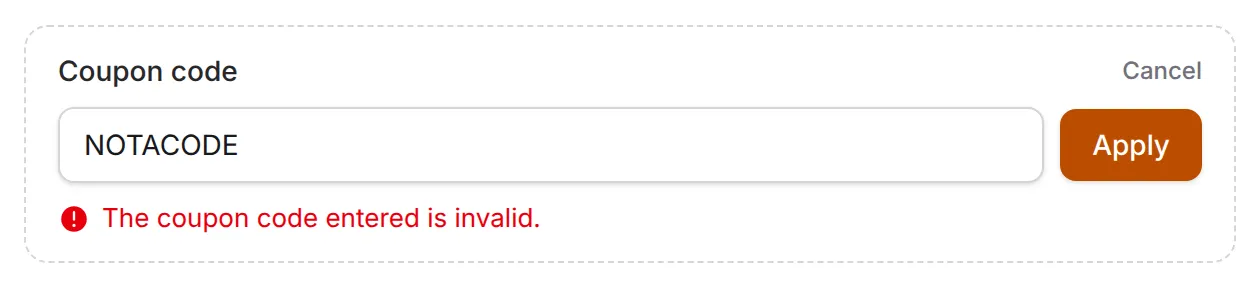
Section titled “Why a code is refused”When a code does not work, the buyer sees the reason under the coupon box:
| Message | What to check |
|---|---|
| The coupon code entered is invalid. | The code is spelt differently, or Active Status is off. |
| This coupon is not available for this form. | The form’s Allowed Coupons list does not include it. |
| This coupon does not apply to any selected items. | The coupon is for specific items and the order has none of them. |
| Minimum purchase of RM… required. | The order is below the Minimum Purchase Amount. |
| This coupon has reached its redemption limit. | Maximum Usage Limit is used up. Raise it on the Usage Limits tab. |
| This coupon is not active yet. or This coupon has expired. | The order is outside the Validity Period. |
| This coupon is not applicable to booking forms. | Booking forms only take coupons set to Apply to Form Total. |
Check how a coupon is used
Section titled “Check how a coupon is used”On the Coupons page, the Used and Limit columns show each coupon’s count. For the orders behind it, open the ⋮ menu on the coupon’s row and click Usage History.

A few habits make coupons easier to run:
- Use one code per campaign. A separate code for each ad or partner shows in Usage History which one brought the sale.
- Set an end date for promotions. A Validity Period stops an old code being shared around after the promotion.
- Test the code in Test Mode first. Apply it on the form yourself before you announce it.
Common issues
How do I make a discount coupon?
Go to Payments → Coupons and click New coupon. Enter the Code, choose Apply to, the Discount type and the amount, then click Create Coupon Code. Then turn on Enable Coupons in the form's Form Configuration tab, or buyers will not see a coupon box.
I created a coupon but my customers cannot see where to enter it. Why?
Coupons are off on every form until you turn them on. Open the form, go to Form Configuration → Coupon Settings, turn on Enable Coupons and click Update Form.
Can I limit a coupon to one product, or to the first 50 buyers?
Yes. On the Conditions tab, turn on Enable Purchase Conditions and pick the items under Applicable Items. On the Usage Limits tab, set Maximum Usage Limit to 50.
Was this article helpful?
Thanks for your feedback.
Sorry this didn't help. WhatsApp us and we'll sort it out with you.