
Ask an AI about this page
 ChatGPT
 Claude
 Perplexity
 Google AI Mode
 Microsoft Copilot
 Grok
Grok Mistral Le Chat
Alert your team about new orders
Updated

This automation emails your team as soon as an order is paid, with the customer’s details, the items and a link to the receipt. It covers every form at once, so staff who pack orders or run the counter know about each sale without logging in to BCL.
What you need
Section titled “What you need”Have these ready:
- An address your team reads, such as a shared orders inbox.
- Optional: Wabot or WasapBot connected under Platform Setup → Integrations → WhatsApp (Automation), for a WhatsApp alert.
Build it
Section titled “Build it”Start from a blank automation (see Create an automation):
-
Go to Automations, click New Automation, name it “Notify Team of New Orders” and click Create.
-
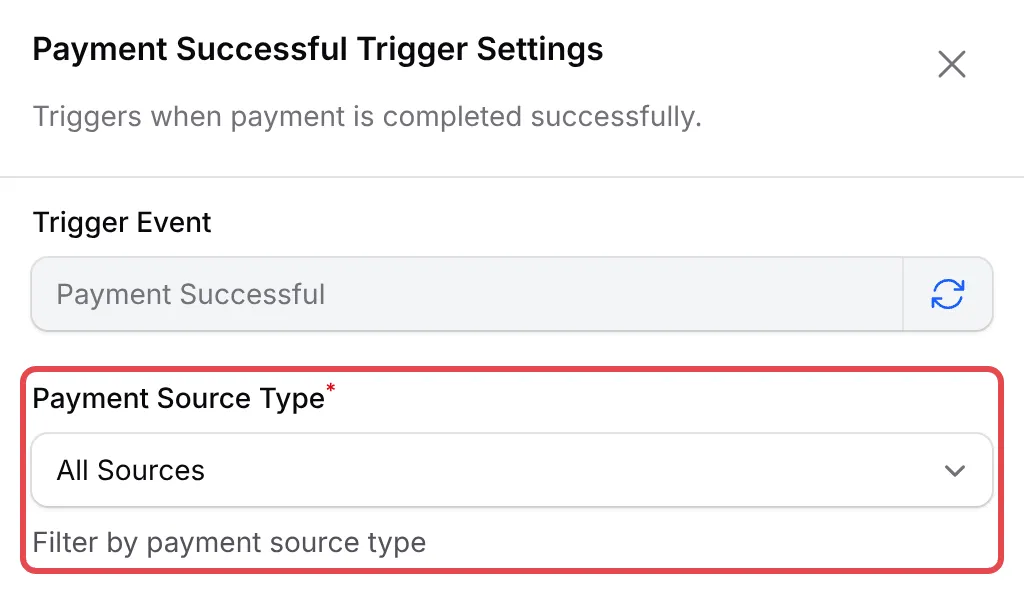
Click Add Node and pick Payment Successful. Double-click the trigger, keep Payment Source Type on All Sources (or pick one type), and click Save Trigger.
-
Click Add Node and pick Send Email. Double-click the new step and fill it in as below, then click Save Email.
Field Enter Action Name Alert the team Recipient Email Your team’s address, for example orders@yourshop.comEmail Subject New order {order_number}: {amount} from {name}Email Content The message below New paid order on {form_title}.Customer: {name}, {phone}, {email}Paid: {amount} by {payment_method}{product_table}Ship to: {address}Receipt: {receipt_url}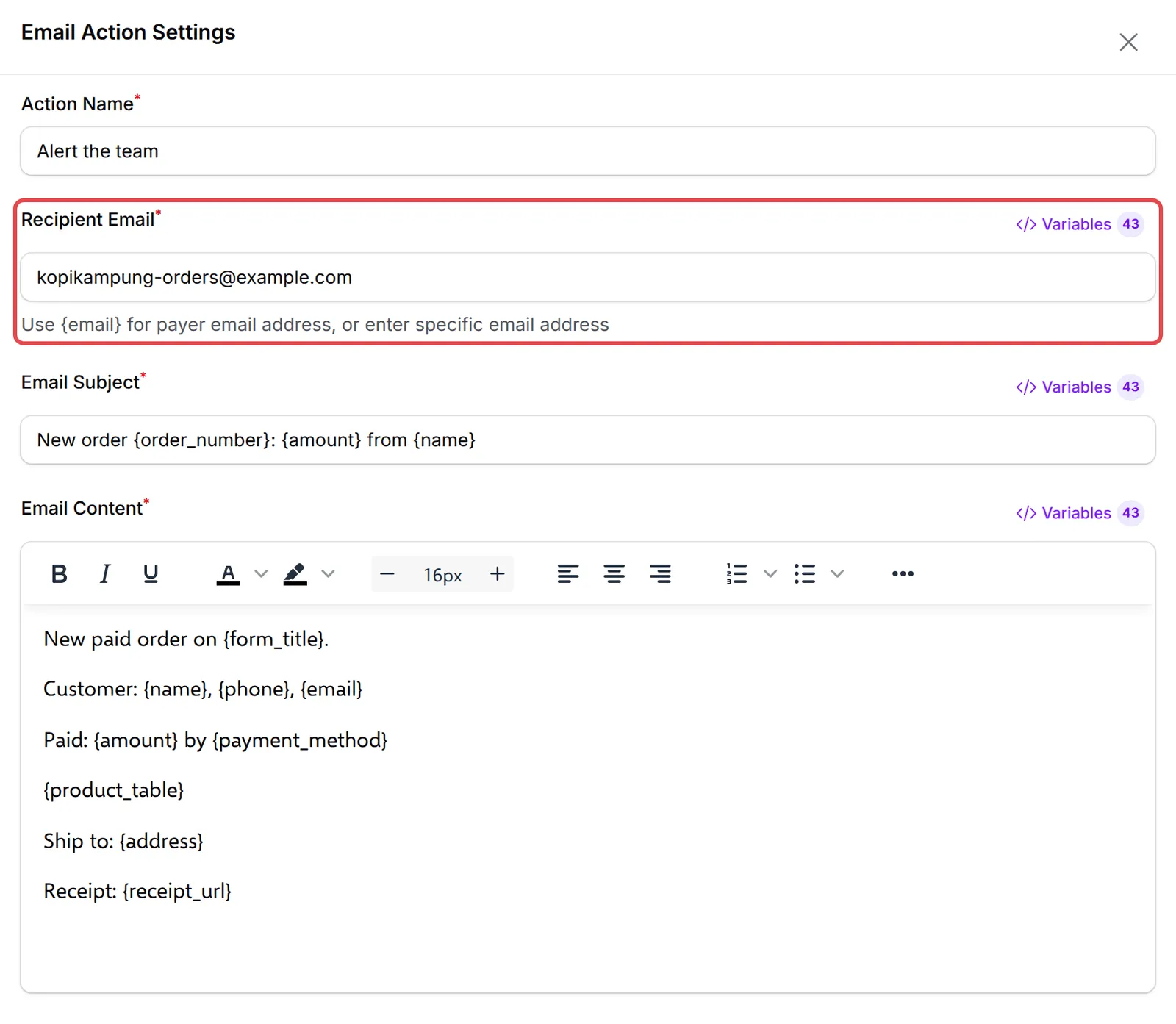
-
Click Update Automation.
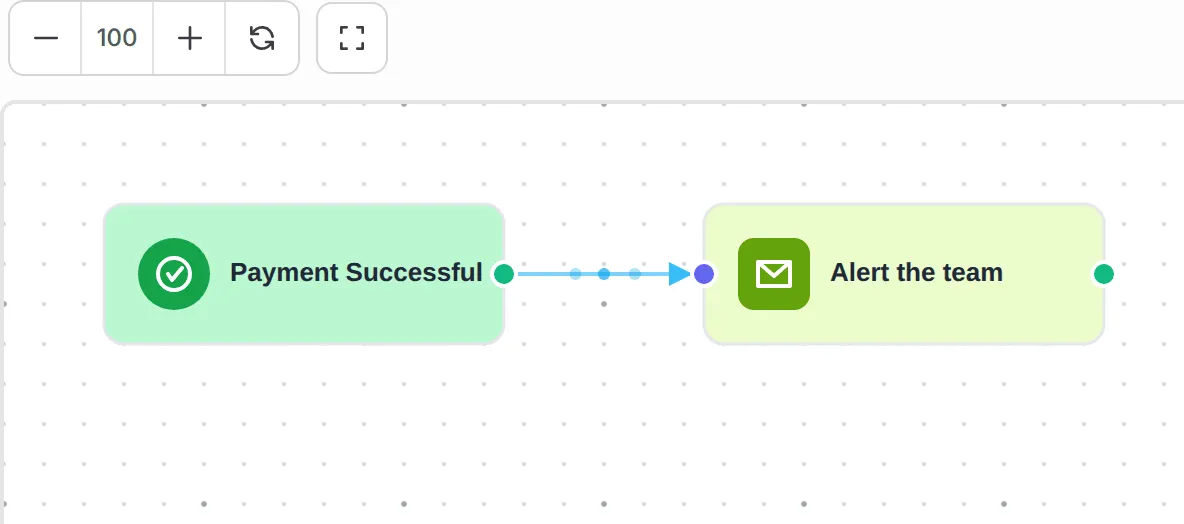
The finished workflow has two steps:
The variables in the message:
| Variable | Shows |
|---|---|
{order_number} |
The order number, such as LINK-05851 |
{amount} |
The amount paid, such as RM 15.00 |
{product_table} |
A table of the items and their prices |
{address} |
The shipping address, empty for forms without one |
{receipt_url} |
A link to the receipt page |
To alert by WhatsApp as well, add a Send Wabot or Send WasapBot step with your team’s number in Phone Number (for example 60123456789) and a short text such as New order {order_number}: {amount} from {name}. {items_summary}.
Test it
Section titled “Test it”Check the recipe with a test run before you rely on it:
-
Scroll to Test Email in the email step, enter your own address and click the send icon. The sample uses made-up values such as “Ahmad Ali”.
-
Make a test purchase on any form while your team is in Test Mode.
-
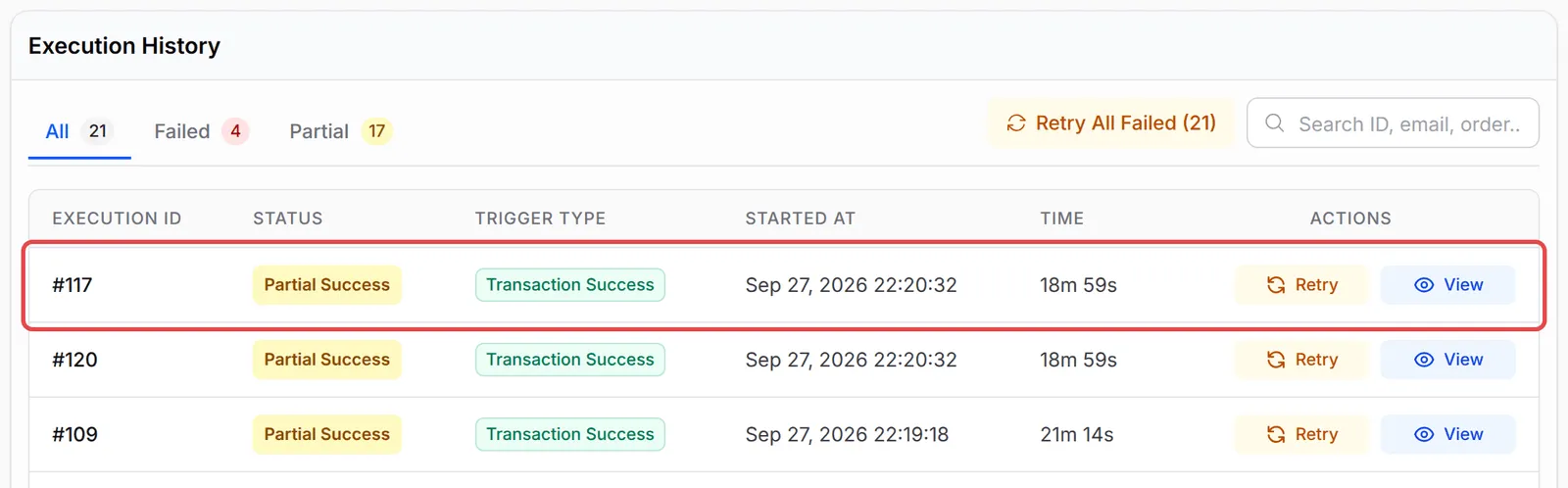
Open the automation and click Overview. The purchase appears in Execution History; a delivered email shows as Completed.
A few ways to get more from this recipe:
- Use a shared inbox, not one person’s address. Each Send Email step sends to one address, so a shared inbox reaches everyone without extra steps.
- Narrow it to the forms your team fulfils. Set Payment Source Type to Payment Form and pick the forms in Specific Form to skip event tickets or bookings.
- For Telegram alerts, use the BCL bot. Telegram alerts need no automation and cover every transaction.
Common issues
Can my staff get an email when a sale comes in?
Yes. Build this automation with your team's address in Recipient Email. For one form only, you can instead add up to 5 addresses under Admin Notification Recipients in that form's Notification Settings.
Can the alert go to WhatsApp or Telegram instead?
For WhatsApp, add a Send Wabot or Send WasapBot step with your team's number. Telegram is not an automation step: link the BCL Telegram bot instead, which alerts you for every transaction.
Was this article helpful?
Thanks for your feedback.
Sorry this didn't help. WhatsApp us and we'll sort it out with you.