
Ask an AI about this page
 ChatGPT
 Claude
 Perplexity
 Google AI Mode
 Microsoft Copilot
 Grok
Grok Mistral Le Chat
Protect text content
Updated

A Text content is a page you write in BCL: a welcome note, a member code, a password, setup steps or a thank-you message for donors. Only buyers who confirm a one-time code can read it, and it can greet each buyer by name.
Write the text
Section titled “Write the text”In Protected Content, click New Content and fill in Title. Then:
-
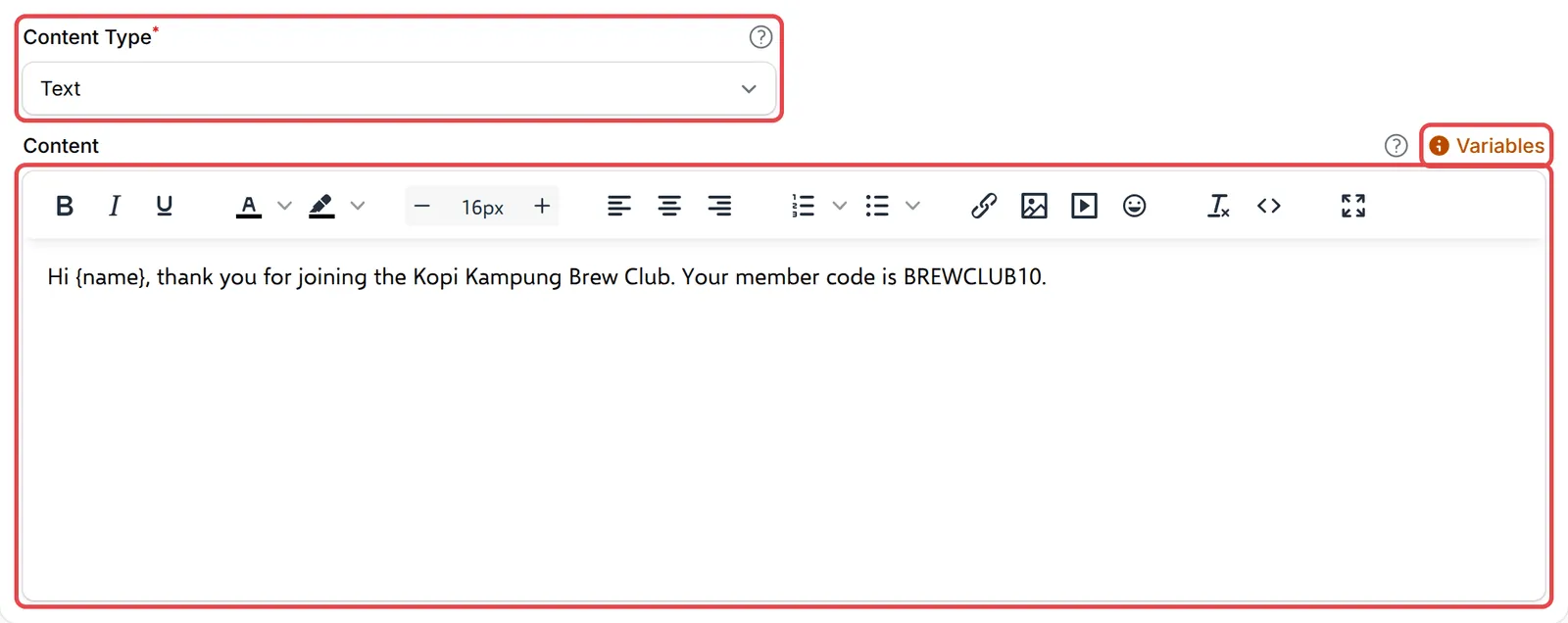
On the Content Settings tab, set Content Type to Text.
-
Write your message in Content. Use the toolbar for bold, colours, lists, links and images.
-
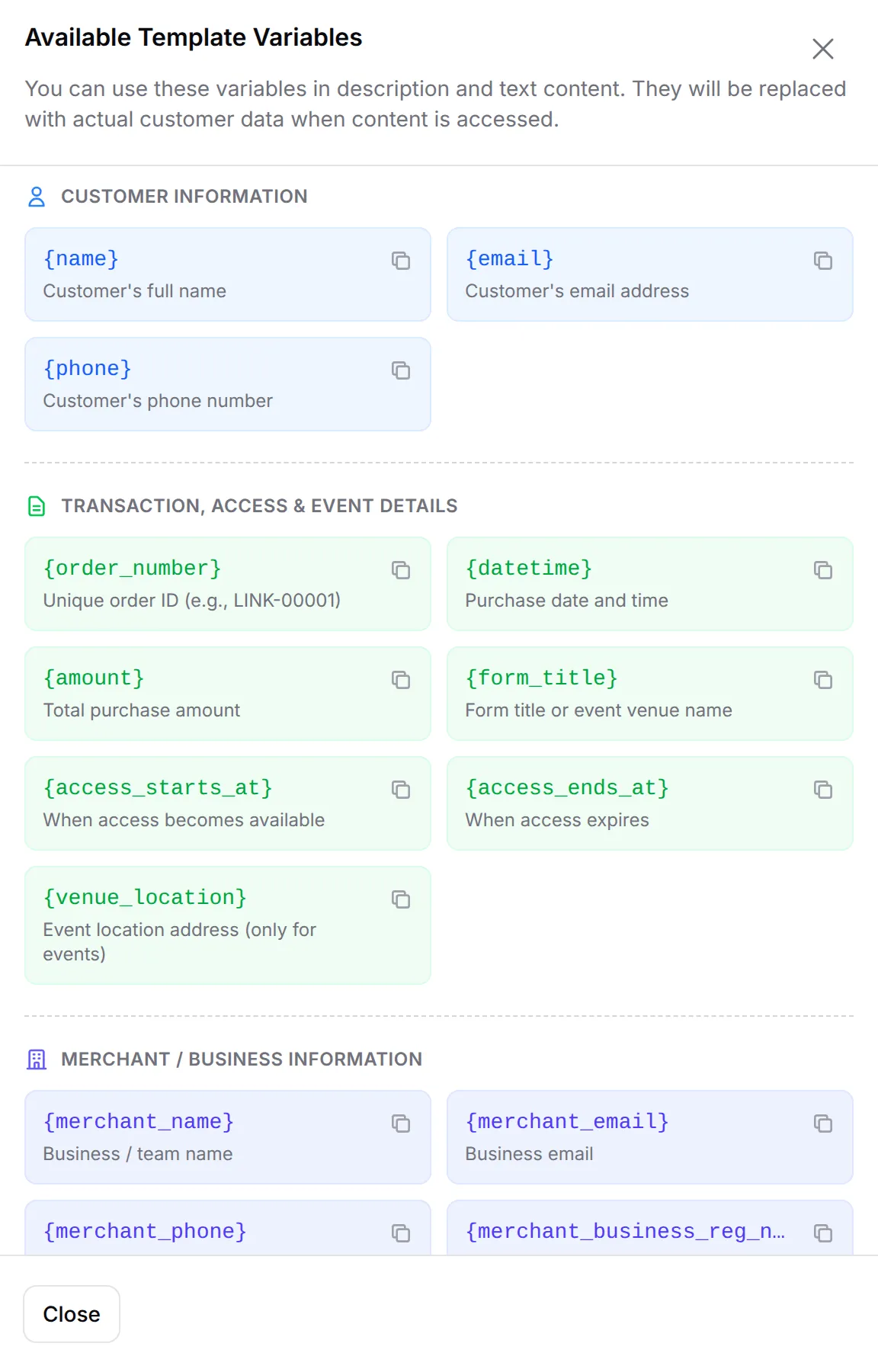
To add the buyer’s details, click Variables above the editor and copy a variable into the text.
-
Set the access rules under Access Control and click Create Protected Content.
Variables you can use
Section titled “Variables you can use”Variables work in Content and in Description. Each is replaced with the buyer’s own details when they open the page:
| Variable | Shows |
|---|---|
{name}, {email}, {phone} |
The buyer’s name, email and phone |
{order_number} |
Their order number, e.g. LINK-00001 |
{datetime}, {amount} |
When they paid and how much |
{form_title} |
The form title, or the event venue name |
{access_starts_at}, {access_ends_at} |
When their access opens and ends |
{venue_location} |
The event address (event tickets only) |
{merchant_name}, {merchant_email}, {merchant_phone} |
Your business name and contact |
{merchant_business_reg_no}, {merchant_address} |
Your registration number and address |
What buyers see
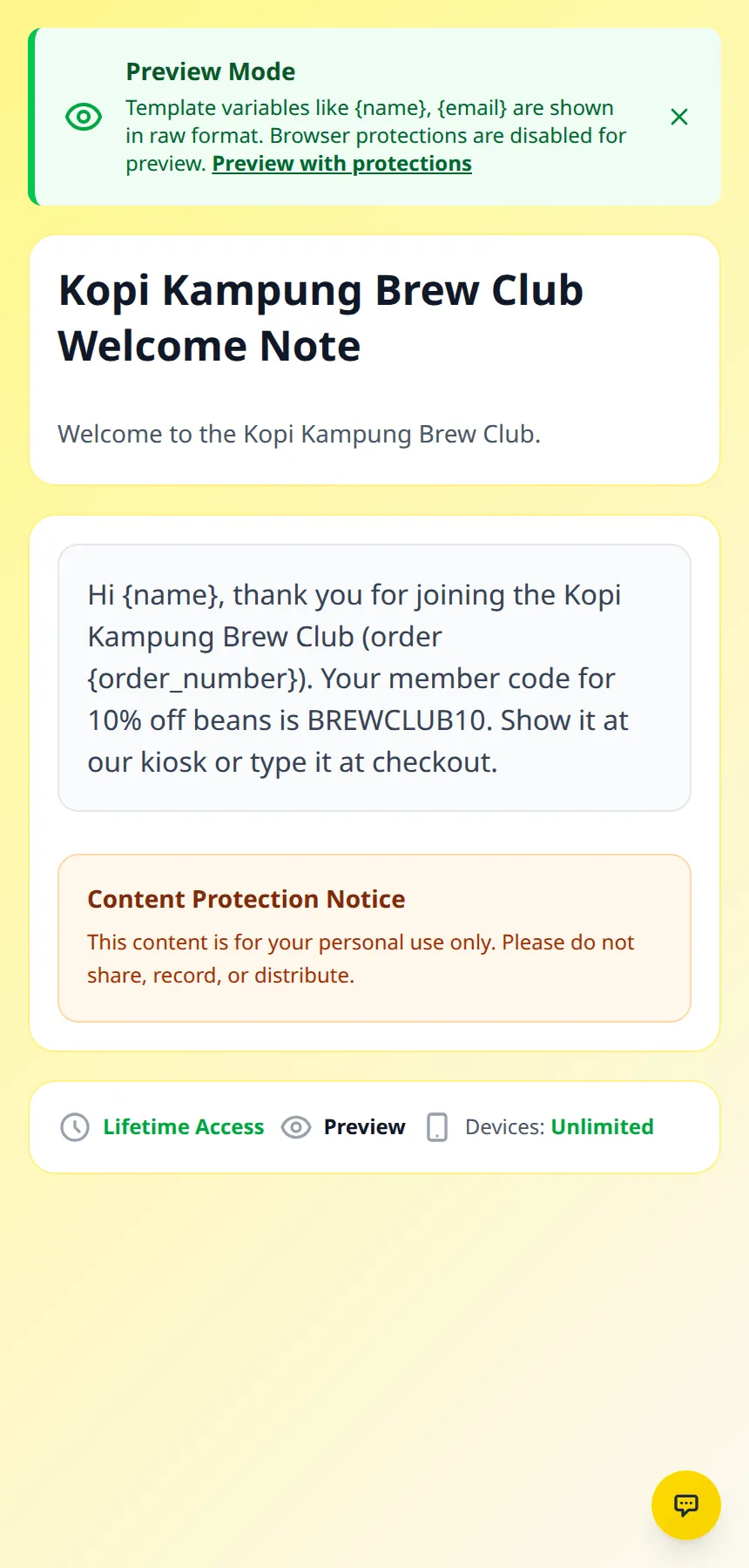
Section titled “What buyers see”The buyer sees the title, your description, then the text in a box, with their access period below it. In Preview, variables stay as they are because there is no buyer.
Text content works well alongside other content:
- Pair text with a private link. The Kopi Kampung Brew Club item unlocks two contents: a welcome note with the member code and a Redirect URL to the members’ group.
- Use
{access_ends_at}for time-limited access. Buyers can see exactly when their access ends without asking you.
Common issues
Can I show each buyer their own name and order number?
Yes. Type {name} and {order_number} in the text. Click Variables above the editor for the full list. The buyer sees their own details; the preview shows the variables as they are.
I want to give members a discount code only after they pay. Can protected content do that?
Yes. Create a Text content with the code in it, link it to the membership item, and turn on Show on Receipt. Buyers open it from the receipt after a one-time code.
Can I put images or a video in the text?
Yes. The editor has buttons for links, images and media. For a video you want protected, use the Video content type instead.
Was this article helpful?
Thanks for your feedback.
Sorry this didn't help. WhatsApp us and we'll sort it out with you.