
Ask an AI about this page
 ChatGPT
 Claude
 Perplexity
 Google AI Mode
 Microsoft Copilot
 Grok
Grok Mistral Le Chat
Automation conditions
Updated

A Condition step is a gate: the workflow only continues past it when the rules match. If they do not match, that branch stops and the steps after it are skipped. There is no “else” path, so to handle both cases, build two automations with opposite conditions.
Add a condition
Section titled “Add a condition”You need an automation with a trigger already on the canvas.
-
Click Add Node and choose Condition under Flow Control. A Check Condition step joins the end of the workflow.
-
Double-click it to open Condition Settings.
-
Enter a Condition Name (up to 20 characters). It becomes the step’s label.
-
Click Add Condition, then choose a Field, an Operator and a Value.
-
To add more rules, click Add Condition again and choose the Match Logic.
-
Click Save Condition.
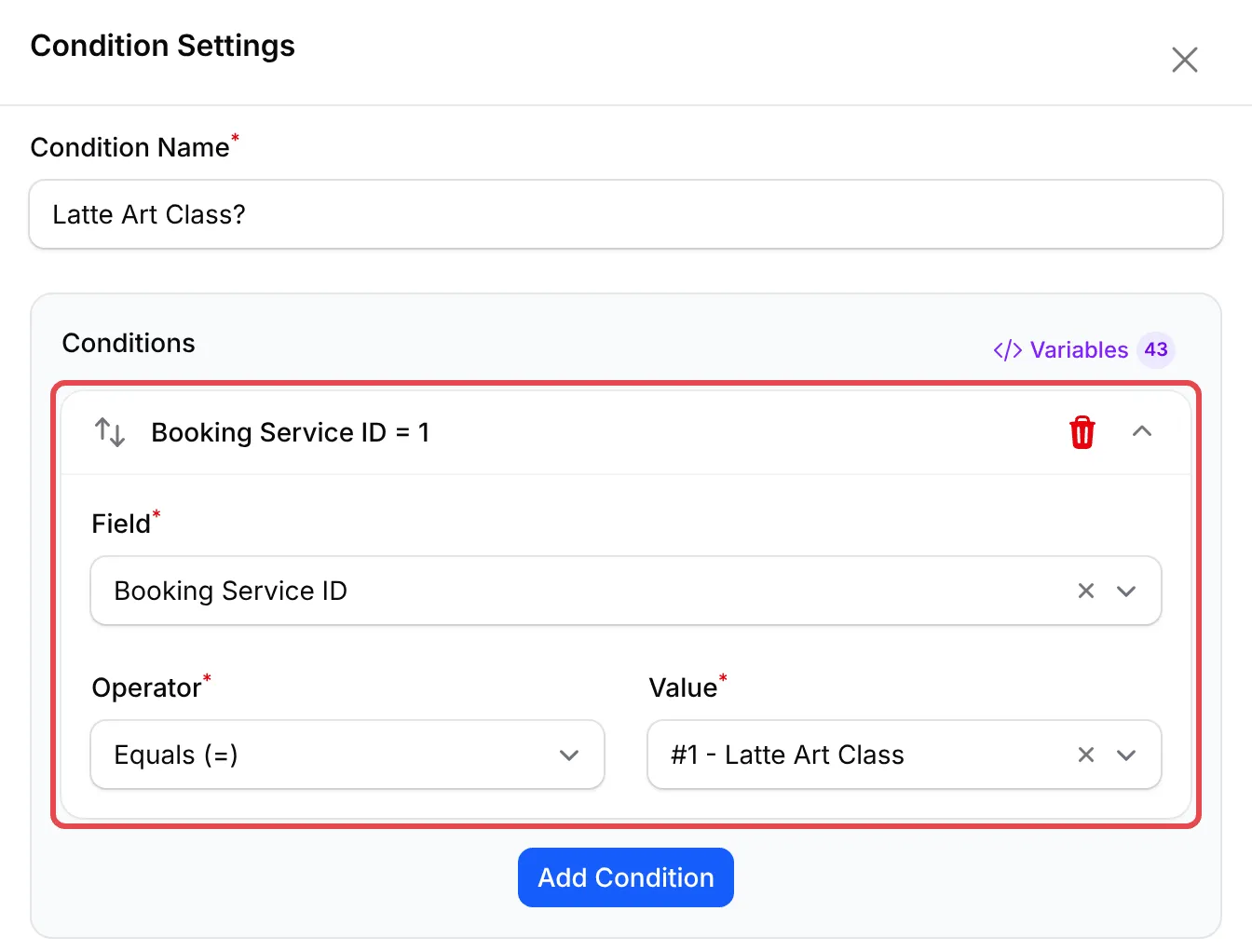
Fields per trigger
Section titled “Fields per trigger”The Field list depends on the trigger. Fields with a fixed list of values (statuses, forms, products) show a Value dropdown; the others take typed text or numbers.
| Trigger | Fields you can check |
|---|---|
| Payment triggers (except Order Shipped) | Form Type, Form Name (ID), Product ID, Ticket ID, Booking Service ID, Payer Name, Payer Email, Payer Phone, Order Number, Payment Amount (Final), Subtotal Amount, Discount Amount, Additional Fee, Payment Gateway Fee, Shipping Cost, Total Items Count, Payment Status, Is Paid, Payment Channel, Coupon Code |
| Payment Successful, Payment Completed, Status Changed | All of the above plus Is Retry Payment |
| Order Shipped | Form Type, Form Name (ID), Product ID, Ticket ID, Booking Service ID, Courier, Tracking Number, Payer Name, Payer Email, Payer Phone, Order Number, Payment Amount (Final), Payment Status, Payment Channel |
| Event triggers | Event Form, Ticket ID, Attendee Name, Attendee Email, Attendee Phone, Ticket Name, Event Name, Event Type, Price Paid, Seat Number, Status, Order Number |
| New Lead Received | Form Title, Submission ID, and Custom Field for any lead form field |
| New Affiliate Registered | Affiliate Name, Affiliate Email, Affiliate Phone |
| Referral Approved, Referral Rejected | Affiliate Name, Affiliate Email, Order Number, Order Amount, Commission Amount, Referral Status |
| Payout Requested | Affiliate Name, Affiliate Email, Payout Amount, Payout Status, Total Referrals |
For a lead form field, choose Custom Field and type its key in Field Key in the form name:id, for example email_address:2. The Variables list in the step shows the keys of your lead form fields.
Values you pick from a list
Section titled “Values you pick from a list”These fields offer fixed choices in Value:
| Field | Choices |
|---|---|
| Payment Status | Pending, Failed, Successful, Cancelled, Completed |
| Form Type | Payment Form, Event Form, Booking Form, QR Terminal |
| Form Name (ID) | Your active forms, shown as [Payment] #67 - Form title (slug), and the same for events and bookings |
| Product ID, Ticket ID, Booking Service ID | Your active products, tickets or services, grouped by form |
| Is Paid, Is Retry Payment | Yes, No |
| Payment Channel | The payment methods BCL supports |
| Payout Status | Pending, Approved, Rejected, Completed |
| Event Form (event triggers) | Your active event forms |
Product ID, Ticket ID and Booking Service ID match when that item is anywhere in the order, even with other items.
Operators
Section titled “Operators”Number fields (amounts, counts, IDs, statuses) offer comparison operators. Text fields offer text operators.
| Operator | Offered for | Passes when the field |
|---|---|---|
| Equals (=) / Equals | All fields | Is the same as the value |
| Not Equals (≠) / Not Equals | All fields | Is different from the value |
| Greater Than (>) | Number fields | Is bigger than the value |
| Greater Than or Equal (≥) | Number fields | Is the value or bigger |
| Less Than (<) | Number fields | Is smaller than the value |
| Less Than or Equal (≤) | Number fields | Is the value or smaller |
| Contains | Text fields | Includes the value anywhere |
| Does Not Contain | Text fields | Does not include the value |
| Starts With | Text fields | Begins with the value |
| Ends With | Text fields | Ends with the value |
| Is Empty | Text fields | Has no value (no Value box is shown) |
| Is Not Empty | Text fields | Has any value |
Amount fields are plain numbers without “RM”, for example 500 or 49.90. Text comparisons are case-sensitive: KOPI10 does not equal kopi10.
Match logic
Section titled “Match logic”With two or more rules, Match Logic appears:
- All conditions must match (AND): every rule must pass.
- Any condition must match (OR): one passing rule is enough.
A green note under the rules confirms how they will be read, for example “Workflow continues if AND of the 2 conditions are met.”
How conditions run
Section titled “How conditions run”A condition checks the data at the moment the workflow reaches it. After a Delay, BCL reads the transaction again, so a condition placed after a delay sees the latest status. This is how a reminder can check that an order is still unpaid before it sends.
Steps connected after a condition all run when it passes. A condition with no rules is skipped and its branch stops, and the canvas marks it with “No conditions defined”.
A few habits keep conditions easy to read:
- Put the condition right after the trigger. When it filters who gets the message, this means no delay is scheduled for customers who will never receive it.
- Use the trigger’s form filter before a condition. Specific Form on the trigger is simpler than a Form Name (ID) condition and keeps the automation from running at all for other forms.
- Check a skipped run in the history. The execution details show the expected and actual value of every rule, which tells you at once whether a value or an operator is wrong.
Common issues
Can I send a different message to customers who spend more than RM500?
Yes. Add a Condition with Payment Amount (Final), Greater Than (>) and 500, then the message step after it. Customers below RM500 stop at the condition. For the others, build a second automation with Less Than or Equal (≤).
How do I run an automation only when a certain product is bought?
Add a Condition with the field Product ID, the operator Equals (=), and pick the product in Value. It passes when that product is anywhere in the order.
My condition is never met. How do I see why?
Open the automation, click Overview, then View on an execution. A skipped condition shows each rule with the expected value, the actual value and whether it passed.
Was this article helpful?
Thanks for your feedback.
Sorry this didn't help. WhatsApp us and we'll sort it out with you.